Views and columns in tables
The description below is based on the CANDIDATES module; in each of the other modules, the functionalities mentioned look the same.
Views
To launch the menu responsible for displaying views in the CANDIDATES module, click on the selected button:
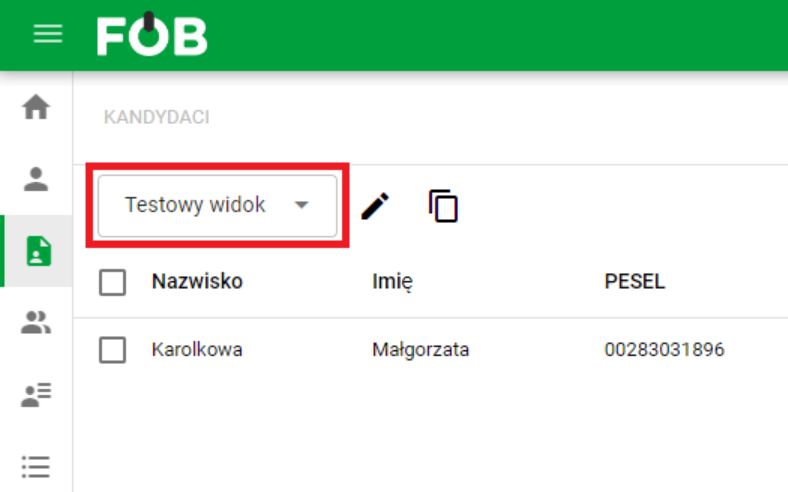
View selection button
It will open a console where we can select the configuration we are interested in or add a new view:
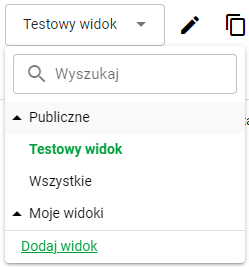
View selection window
Views are divided into PUBLIC and private MY VIEWS.
Configuration
To open the window responsible for editing views in the candidates module, click on one of the buttons below:
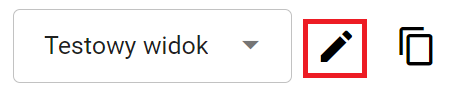
Configuration button
Configuration button
Once completed, the following form will open:
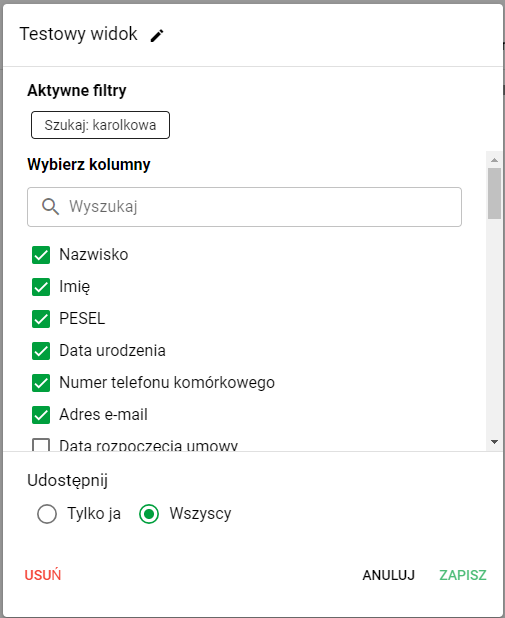
View edit form
Depending on the selected settings, the application will display various header configurations in the table. It is also possible to change the order of headers by:
- drag the header up/down while holding the icon on the left
- move the header up/down using the arrows on the right
All icons are visible when you hover over a specific heading.
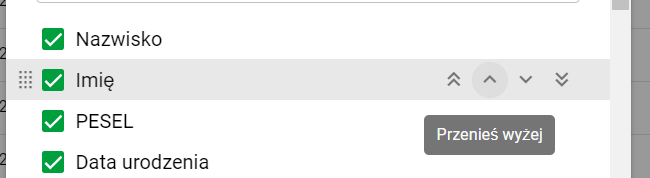
Header position buttons
We can keep this configuration for ourselves or share it with other users:
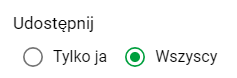
Share Buttons
Save the settings by clicking the green button SAVE
On the left side, there is also an option to delete the currently active view.
We can also restore any change in the view using the yellow button or save it permanently using the green button:

View management panel
Copying
Each view can be copied by clicking the button below:

Copy button
Copying is based on the currently selected view.