Two-factor security (2FA) in eFOB
Two-step 2FA security increases the protection of your eFOB account. Once enabled, a password alone is not enough to log in - you also need to enter a one-time code from the authentication application.
Below we describe how 2FA works in eFOB, how to activate it, how to log in with a code, and what to do if you change your phone or have access problems.
1. Quick start
To configure two-step 2FA security in eFOB:
- Open a 2FA app on your phone, such as Microsoft Authenticator, Google Authenticator or another app recommended by your organization.
- Add a new account in the app and scan the QR code visible in eFOB. If you cannot scan the QR code, manually enter the setup code visible on the screen.
- Enter the 6-digit code from the app into the fields visible in eFOB.
- Click Enable 2FA to complete the setup.
- Skip setup only if 2FA is not required in your organization and you want to activate it later. If your administrator requires 2FA, the skip option may not be available.
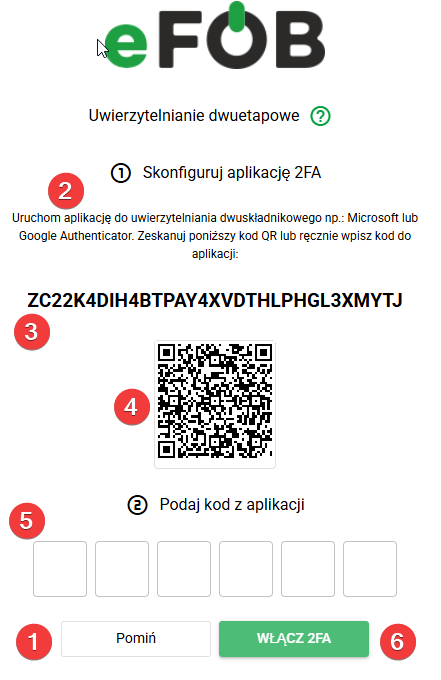
After enabling 2FA, each time you log in to eFOB, in addition to your login and password, you will be required to provide the current code from the application.
2. What are 2FA and TOTP?
2FA, i.e. two-factor authentication, is additional account security. This means that login and password alone are not enough to log in. The user must additionally confirm login with a one-time code.
eFOB uses TOTP codes, i.e. one-time time codes. This code is generated in the authentication application, usually has 6 digits and is valid for a short time, usually about 30 seconds.
Thanks to this, the account is better protected. Even if someone knows your password, they should not be able to log in to eFOB without access to the TOTP application.
The phone does not need to have Internet access to generate TOTP codes. The application generates codes locally based on the previously added account and the current device time.
3. Which app should I use for TOTP codes?
Authentication applications, most often installed on a mobile phone, are used to store and generate TOTP codes.
Sample applications:
- Microsoft Authenticator Android – Google Play | iPhone – App Store
- Google Authenticator Android – Google Play | iPhone – App Store
- Authy Android – Google Play | iPhone – App Store
- FreeOTP Authenticator Android – Google Play | iPhone – App Store
- Proton Authenticator Android – Google Play | iPhone – App StoreYour organization may recommend a specific application, e.g. Microsoft Authenticator, Google Authenticator, or another solution recommended by your IT department. Before you start setting up, it's worth checking whether the company indicates its preferred 2FA application.
To add an eFOB account to the application, select the option to add a new account and then scan the QR code visible on the eFOB screen. After scanning the code, the application will start generating one-time codes needed to log in.
4. 2FA activation on first login
If two-step security is required for your account or you choose to enable it, you may see a 2FA setup screen when you log in to eFOB.
To activate 2FA:
- Open the authenticator app on your phone.
- Select the option to add a new account.
- Select QR code scanning.
- Point your phone camera at the QR code visible on the eFOB screen.
- After scanning the code, the application will add the account associated with eFOB.
- A 6-digit code valid for a short time will appear in the application.
- Enter the current code into the field in eFOB.
- Click Enable 2FA.
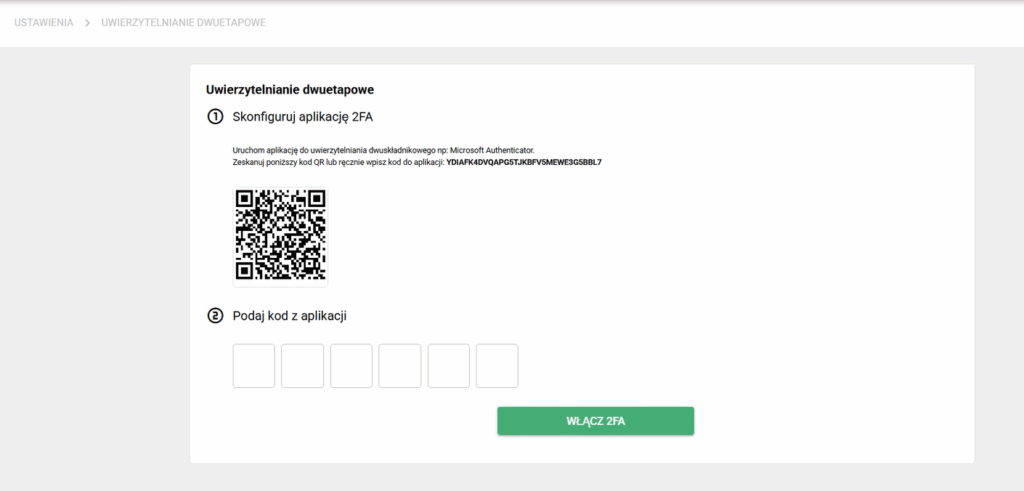
After entering the code correctly, the security will be activated.
If you are unable to scan the QR code, you can use the manual TOTP code shown on the setup screen and enter it into the authenticator application.
If 2FA is optional, the screen may allow you to skip setup. If the organization requires 2FA, activation is necessary to continue working in the system.
5. Login with 2FA code
After activating 2FA, logging in to eFOB takes two steps:
- Enter your login and password.
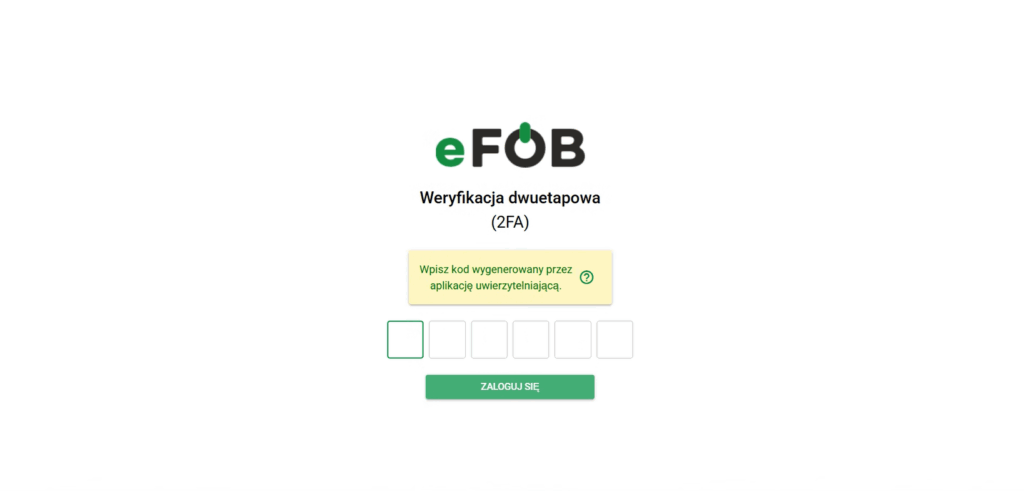
- Enter the 6-digit code from your authenticator app.
To obtain the code, open the app on your phone and select the account associated with eFOB. Then enter the currently displayed code into the login form.
The code is only valid for a short time. If the code expires before entering it, wait until another code is generated and enter a new one.
6. Manage 2FA in your account settings
You can manage two-step security in your account settings if your organization's configuration allows it.
To get to 2FA settings:
- Log in to eFOB.
- Click the gear icon in the upper right corner of the application.
- Go to Two-step verification.
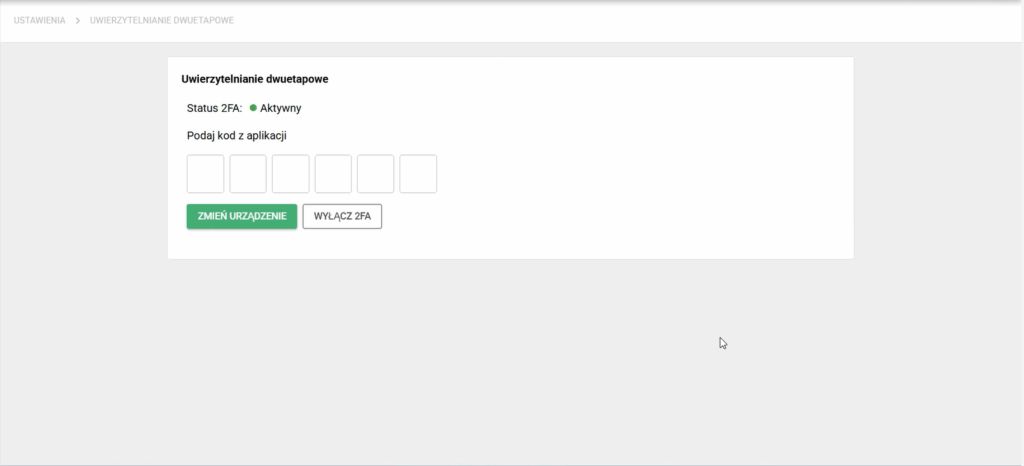
In this section you can enable 2FA, disable 2FA or reconfigure the TOTP application. The screen guides the user through two steps: configuring the authenticator app and entering the current code from that app.
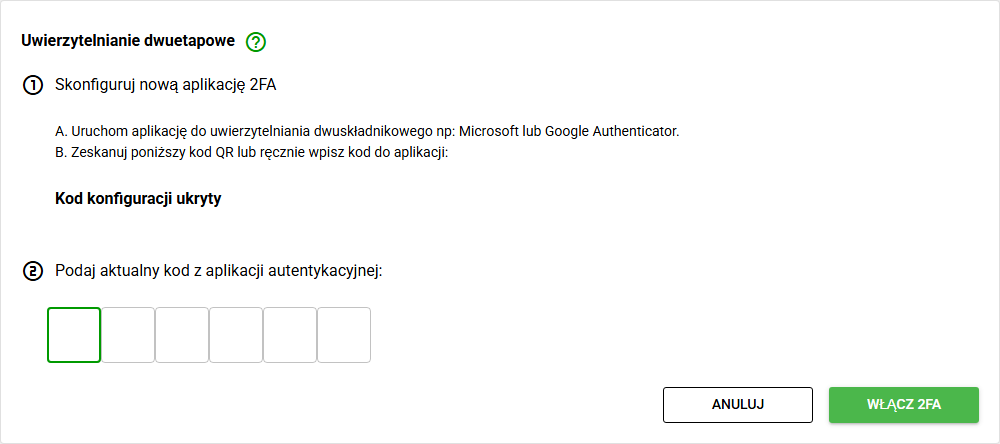
In the illustration, the setup code and QR code have been hidden.
6.1. Enable 2FA
To enable 2FA from your account settings:
- Go to Two-step verification.
- Select the option to enable 2FA.
- Open the authenticator app on your phone.
- Add a new account and scan the QR code visible in eFOB.
- Copy the current code from the application to the field in eFOB.
- Click Enable 2FA.
After entering the code correctly, the security will be activated.
If the organization requires 2FA, the user may be asked to configure it at the next login. If 2FA is optional, the user can enable it themselves in account settings.
6.2. Disabling 2FA
Disabling 2FA is only possible if your administrator does not require this security for your account or user group.
To disable 2FA:
- Go to Two-step verification.
- Enter the current 6-digit code from your authenticator app.
- Select Disable 2FA.
- Confirm your decision.
After turning off 2FA, the system will not require the code from the application the next time you log in.
For security reasons, we do not recommend disabling 2FA unless necessary.
6.3. Changing your phone or TOTP application
If you change your phone, change the TOTP app, or lose access to your current app, you may need to reconfigure 2FA.
Two scenarios are possible:
A. You have access to the existing TOTP application
- Log in to eFOB.
- Go to Two-step verification.
- Turn off 2FA by entering the current code from your existing app.
- Enable 2FA again.
- Scan the new QR code on the new app or phone.
B. You do not have access to the existing TOTP application
Please contact your organization's eFOB administrator. Your administrator can reset the 2FA settings for your account. After the reset, you will be able to reconfigure the TOTP application the next time you log in.
7. When is two-factor security (2FA) required in eFOB?
The requirement to use two-step security depends on your organization's settings and user permissions.
2FA can be:
- mandatory - the user must configure 2FA to continue working in the system,
- optional - the user can enable 2FA themselves or skip the configuration,
- required for selected user groups - for example, administrators, people with access to sensitive data, or users designated by the organization.
If your administrator requires 2FA for your account, the option to skip setup may not be available.
8. The most common problems
The code from the application does not work
Check that you are entering the code for the correct eFOB account. If you have multiple accounts in the app, select the account associated with eFOB.
Also make sure the time on your phone is set automatically. TOTP codes are time-sensitive, so an incorrect time on your phone may cause login errors.
The code expired before entering
The TOTP code is only valid for a short time. Wait for the app to generate another code, then enter the new code in eFOB.
I no longer have a phone with the TOTP application
Please contact your organization's eFOB administrator. Your administrator can reset the 2FA settings for your account.
I don't see an option to bypass 2FA setup
This most often means that your administrator requires the use of 2FA for your account or group of users. In such a situation, activation of the protection is necessary to continue working in the system.
I can't turn off 2FA
If the option to disable 2FA is unavailable, security may be required by your organization's administrator. In this case, the user cannot disable 2FA on their own.
9. Good security practices
For 2FA security to effectively protect your account:
- do not share TOTP codes with other people,
- do not send codes via e-mail, SMS or instant messaging,
- secure your phone with a PIN, password or biometrics,
- do not write down the manual TOTP key in places accessible to other people,
- use the application recommended by the organization or IT department,
- if you lose your phone, contact the administrator immediately,
- do not approve your login or enter your code unless you are currently trying to log in to eFOB.2FA significantly increases account security, but it does not replace basic security practices. You should continue to use a strong password and protect access to email and devices you use to work at eFOB.
Remember - your safety is in your hands!