Language settings
List of application languages
The eFOB application is available in the following languages: Polish, English, German, Ukrainian and Romanian.
Setting the application language during login
In the upper right corner of the screen, just above the logo, there is a drop-down list with available language options. To set your preferred application language, click the appropriate option from the list. After making your selection, the page will be automatically refreshed.
The language selector is also available on the Symfonia login screen. This allows you to choose the language before logging in, regardless of the access method used.
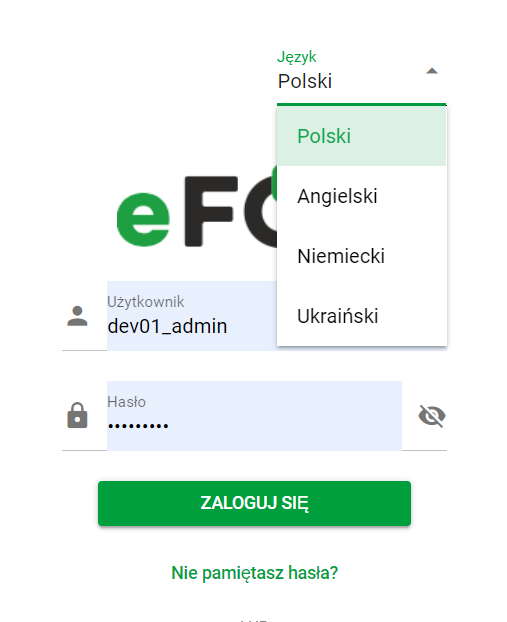
Changing language – login screen
Selecting the appropriate language will immediately refresh the page and adapt the interface to the selected language.
Change the language in the application settings
Application language and notification language settings are independent functionalities. This means that the application can be set in one language (e.g. Polish), while notifications (including emails and device notifications) can be sent in another language (e.g. English).
To change the language of applications or notifications, follow these steps:
- On the app home page, click on the SETTINGS icon as shown in the photo below.

Home page. Settings
2. From the general settings view, go to PREFERENCES.
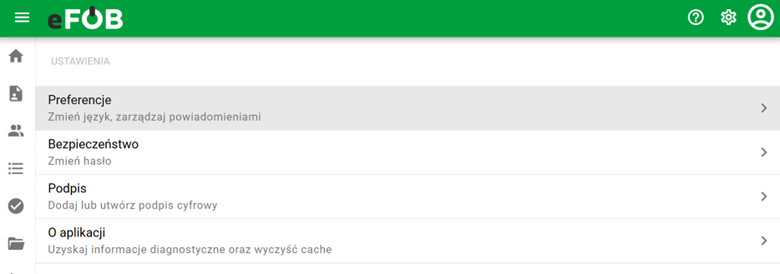
Settings. Preferences. English version
3. The PREFERENCES view shows the options:
- APPLICATION LANGUAGE – to change the language of the entire system.
- NOTIFICATIONS - to change the language of e-mail notifications and directly to devices.
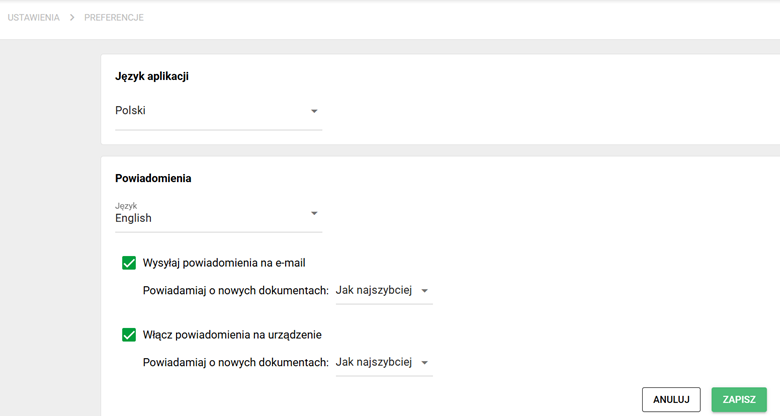
Preferences. Application language and Notifications. Polish version
4. After clicking on the previously selected language, a drop-down list of options will appear.
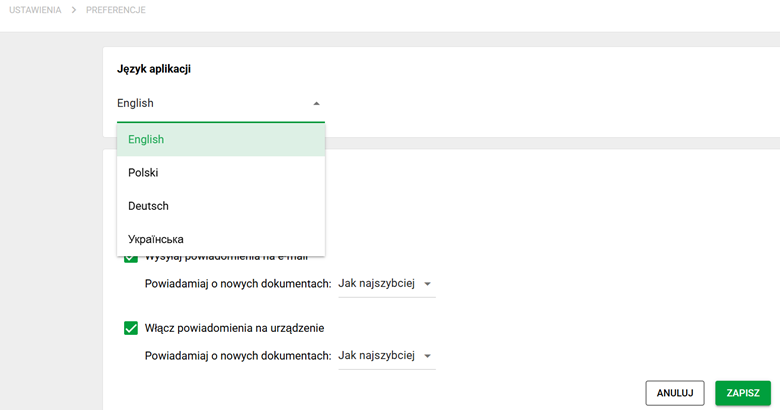
App language and Notifications. Dropdown list. Ukrainian version
- The desired changes will be applied after clicking the green SAVE button located in the lower right corner.
- If you do not want to apply the changes you have made, clicking the CANCEL button next to the SAVE button will ensure that the previous configuration is retained.
After selecting the CANCEL option, a message will appear requiring final confirmation of your intention to cancel the changes made.
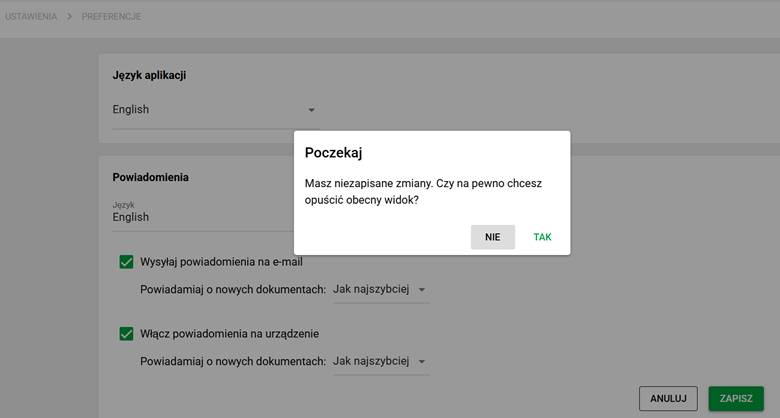
App language and Notifications. Cancel changes. German version