First steps in eFOB
Introduction
eFOB is a modern HR platform for managing HR documentation and formalities related to different forms of employment and cooperation. It automates document workflows, organizes processes, saves team time, and supports compliance with applicable regulations.
In this article, you will learn about the most important parts of the application and see how to:
- move around the system efficiently,
- find documents faster,
- use filters and saved views,
- work comfortably in the mobile version.
What is eFOB?
eFOB is a platform for working with HR documents and information. On a computer, it provides a convenient view of a larger amount of data, while on mobile devices it gives quick access to the most important features. No matter which device you use, the goal is the same: quickly finding the information you need and completing everyday tasks efficiently.
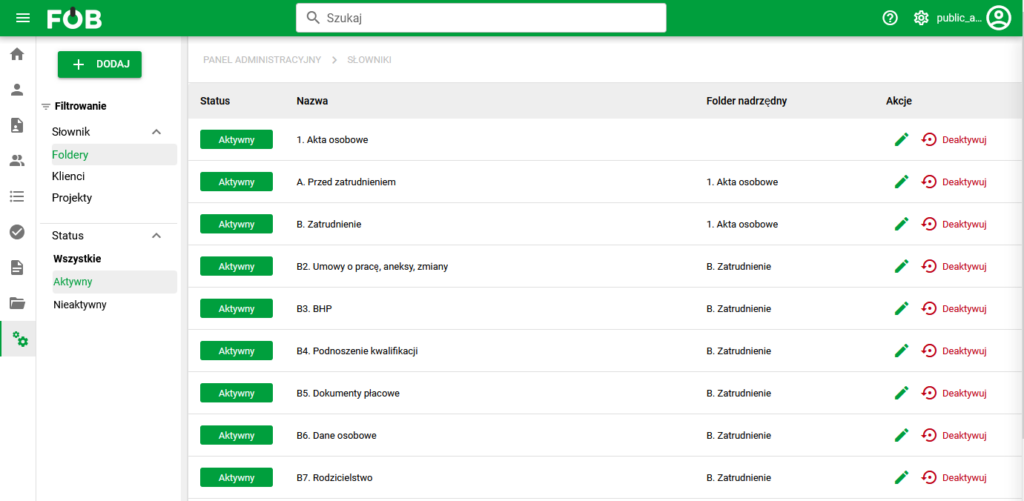
eFOB application - desktop view
How to navigate the application on a computer
Top bar - the most important features always at hand
You will use the top bar most often during everyday work. This is where you can quickly open search, go to settings, and check your account information. As a result, the most important options are available from anywhere in the application.
The top bar of the application contains:
- (CTRL+K) Search for the main modules
- Enables quick searching by entering a keyword in the search bar.
- Advanced search after expanding filters. Filters change depending on the module.
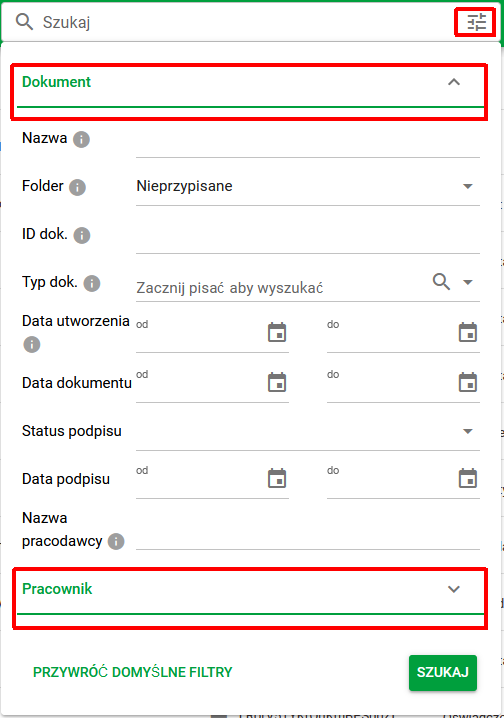
Document search
- (CTRL+ALT+S) Go to settings: change language, notifications, and password.
- Link to application information.

Icons for Information and Settings
- (CTRL+ALT+U) Information about the signed-in user, with the option to:
- (1) change company
- (2) enter "eFOB admin" for users with permissions
- (3) sign out
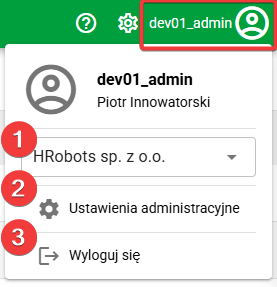
Side menu - quick navigation between modules
The side menu makes it easier to move around the system and switch between its areas. Depending on the module you are using, you will see additional sections and features related to documents, dictionaries, or other system elements.
This is the place where everyday work usually starts. With the side menu, you can quickly open the right module and move to the area you currently need, without unnecessary clicking through the whole application, including by using the keyboard shortcut (CTRL+ALT+M).
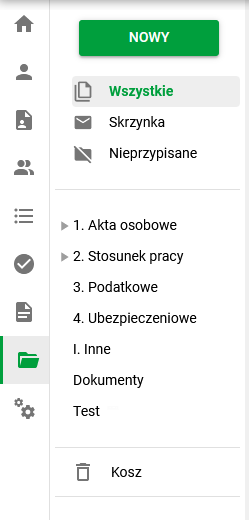
Side menu for the Documents module
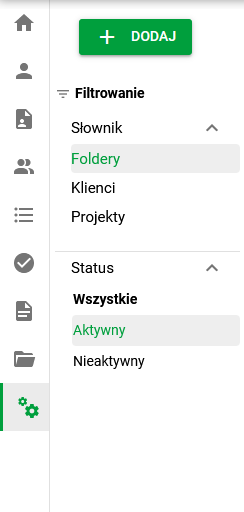
Side menu for the Dictionaries module
Breadcrumbs - you always know where you are
Breadcrumbs show where you currently are in the system. This makes it easier to return to the previous view, move one level higher, or stay oriented when working in more complex structures.
It is a small element, but very useful in everyday work - especially when you move between folders, categories, or document details.

How to find the information you need faster
Search and filters - find the data you need faster
You will use the top bar most often during everyday work. This is where you can quickly open search, go to settings, and check your account information. As a result, the most important options are available from anywhere in the application.
Filters - narrow results to what you really need
In list views, you can use filters to organize data faster and narrow down results.
Filters help you focus only on the data you need at a given moment. Instead of browsing the entire list, you can immediately limit the view to selected statuses, types, or other parameters.
Example: if you want to find only a specific group of documents, use filters to display a narrowed list right away. This saves time and makes it easier to work with a larger number of records.

Active filters
Views - adjust the application to the way you work
The application lets you save your own views and return to them whenever needed. This is a convenient option for people who regularly work with the same data sets or want quick access to the most important information.
A saved view helps shorten the time needed to prepare the working screen. Instead of setting filters and the list layout from scratch each time, you can open a ready-made view and start working immediately.
Example: if you often check documents with a specific status or work with a selected group of records, it is worth saving that layout as your own view.
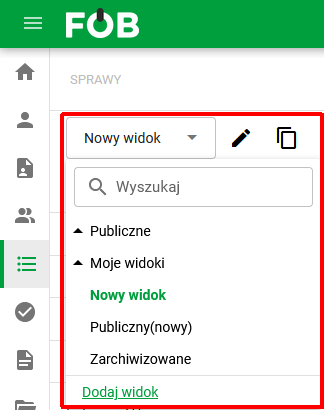
Saved views
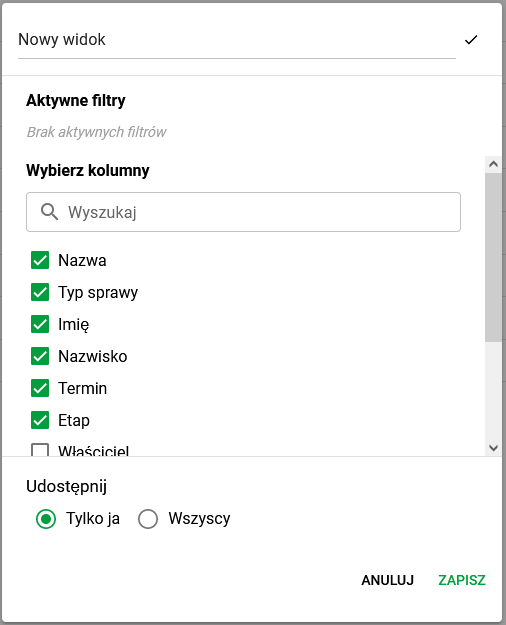
Adding a new view
If you change a saved view, the application lets you restore the previous version, save the changes, or create a new view.
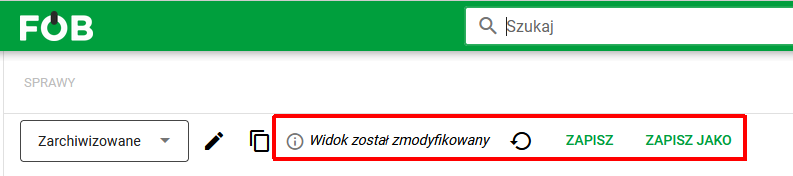
Cases view

Documents view
Bulk actions - do more in less time
This feature is useful when you want to select several records and perform the same action on them without opening each one separately. For example, in the Documents module you can run the "Update name" feature on selected records, which lets you conveniently modify the names of dozens of documents at once.
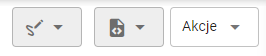
For the selected view, these actions are available below the top bar on the right side of the screen:
- Actions available for all records:
- Actions available after selecting records:
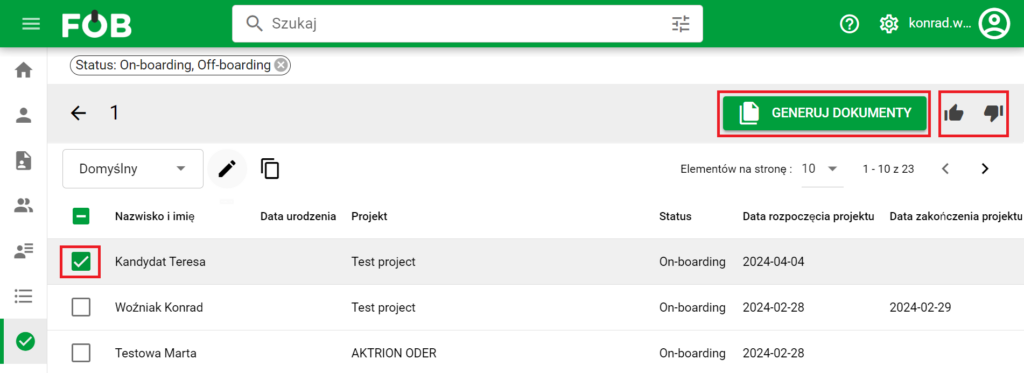
Actions after selecting records
Mobile version - work comfortably outside the office too
The mobile version of eFOB was prepared to provide quick access to the most important features also on a phone. This is a good option for people who need to check documents, search for information, or add files without using a computer.
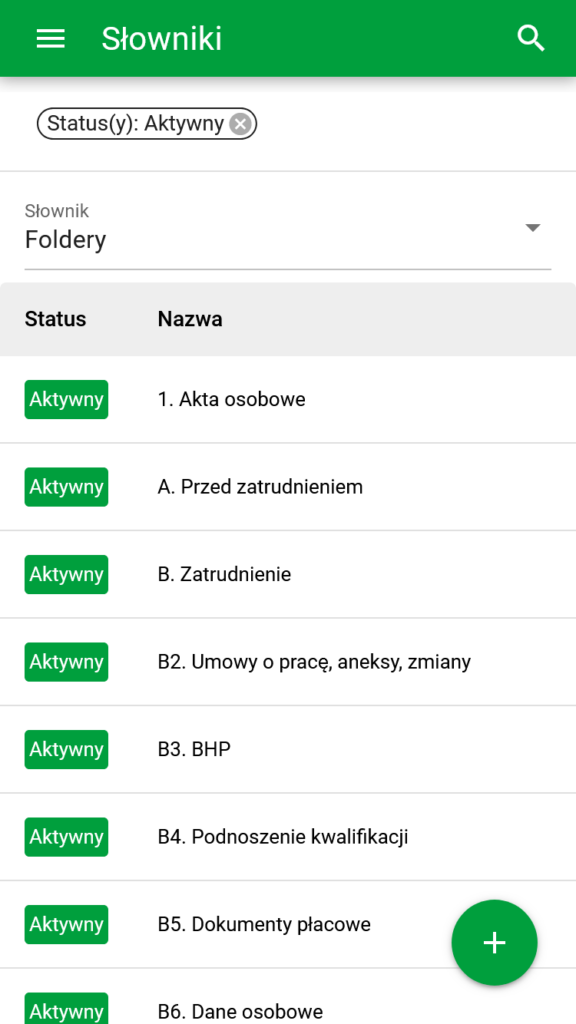
eFOB application - mobile
The application layout on a mobile device is simpler and adapted to a smaller screen, but it still lets you perform basic actions comfortably.
eFOB is technically available as a PWA (Progressive Web App), which is characterized by:
- Access from the browser or the device home screen: The application can be opened directly in a browser or installed on the home screen of a phone, tablet, or computer - it looks and works like a classic mobile application.
- Installation without Google Play / App Store: You add the application from your browser. The steps depend on the device and browser; on iPhone and iPad, use the sharing menu.
- Automatic updates: The application updates itself in the background - the user always uses the latest version without having to install updates.
Note: A phone is enough for everyday user tasks such as viewing documents, handling your own cases, and completing assigned activities. A computer is needed for some administration and management functions, such as bulk operations, and for actions that require additional software, such as the built-in KIR/Szafir qualified signature.
Add eFOB to your phone or tablet home screen
Once you add the shortcut, you can return to eFOB from your device's home screen without looking up the application address again. You do not need to find eFOB in an app store.
iPhone and iPad
- Open your eFOB application address in Safari and sign in.
- If the eFOB installation banner appears, select installation to display the instructions for your device.
- In the browser menu, select Share, then Add to Home Screen, and confirm.
- Open eFOB from the new icon on your device's home screen.
On iOS and iPadOS, the banner displays instructions rather than a native installation dialog. If your browser does not offer the required option, open the page in Safari. After you dismiss the banner, it may not appear again for a while; you can still use the browser menu.
Browsers with an installation dialog
In a supported browser, such as Chrome or Edge, select installation from the eFOB banner or browser menu and confirm in the dialog. Then launch the application from its new icon. Availability depends on the device and browser.
Adding the application to the home screen does not change your permissions or the mobile-feature limitations described above.
Top bar in the mobile application
In the mobile view, the top bar provides quick access to modules, search, and the most important options, including filtering. This lets you switch between screens efficiently and quickly find the data you need.

Top bar of the mobile application
Record list view
The record list view lets you conveniently browse employee data, documents, and other key information on a phone.
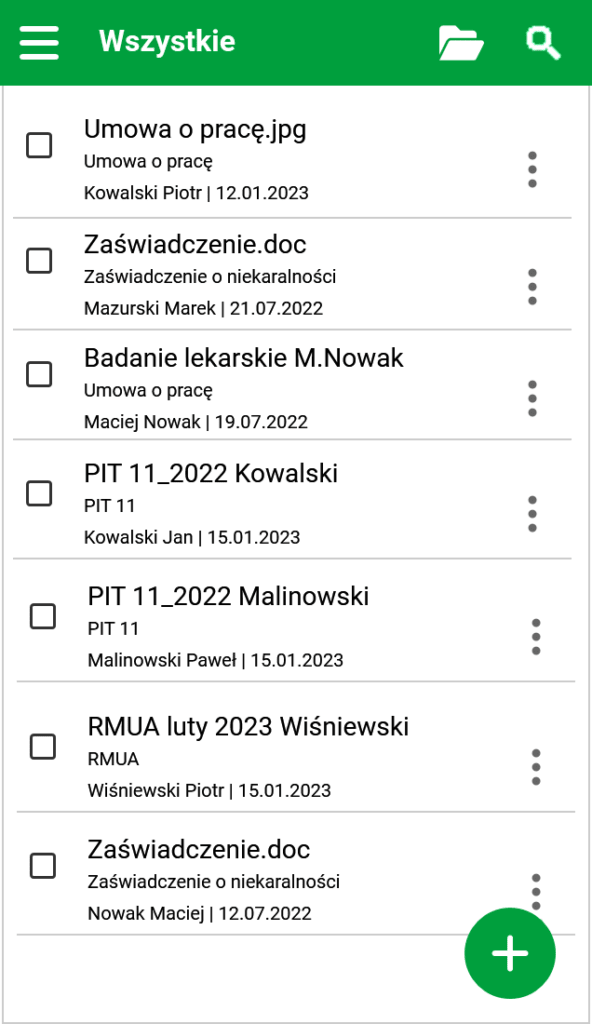
Record list
Search in the mobile version
To go to filters, select the search icon on the top bar of the application and then click the filtering icon. The filters will be displayed in a dialog window.
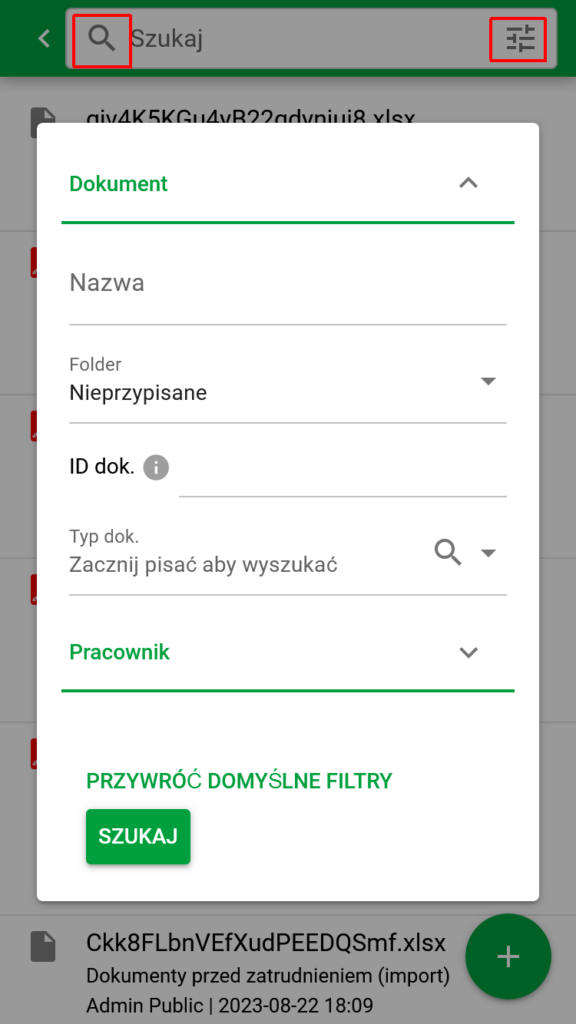
Search
Document scanner - quickly add files from a phone
The mobile application has a built-in document scanner available to authorized users under the PLUS icon in the Documents module. This option lets you add scans from a phone directly to the employee documents in eFOB.
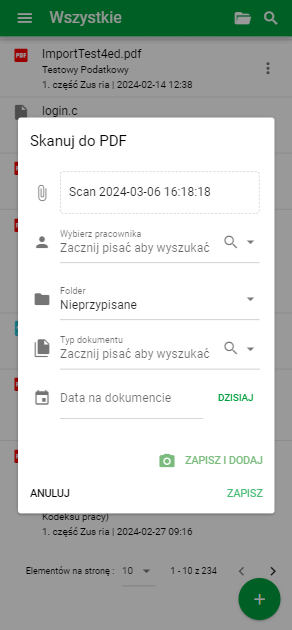
Scanner
Get help with your first tasks and revisit a guide
To learn a screen while working in the application, open the help menu using the question-mark icon. Available guides walk through specific tasks, such as choosing dashboard widgets.
- Open help on the screen you want to use.
- Select an available guide. The menu can include guides for the current screen and general first steps.
- Start the guide, or continue it if progress has been saved.
- To repeat the explanations, choose to start the guide again.
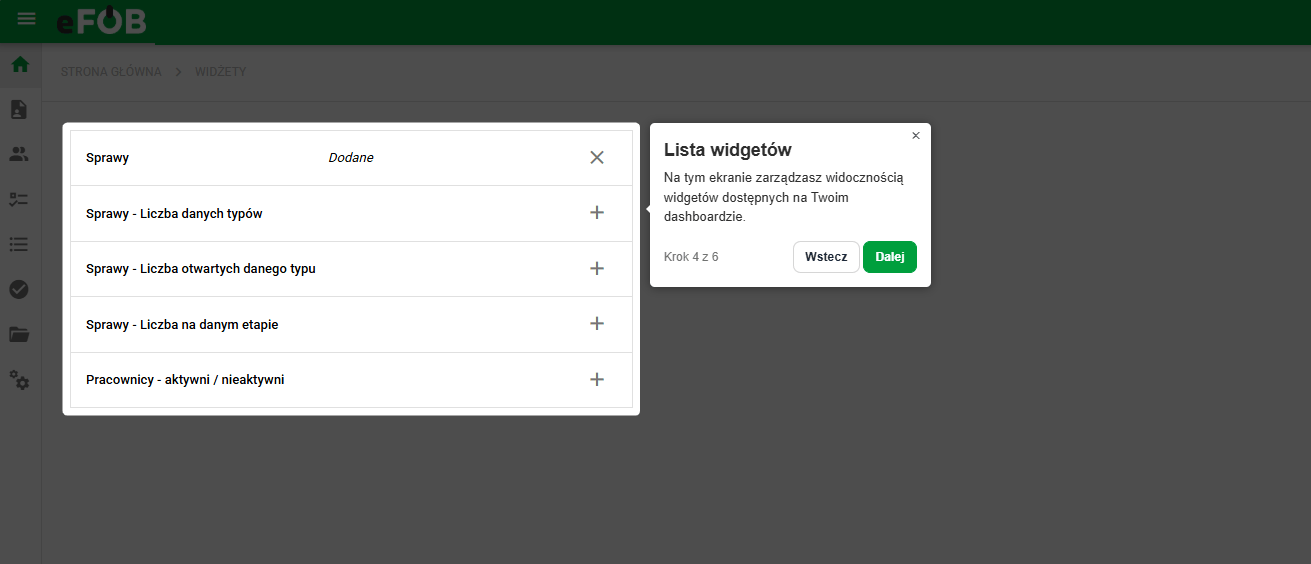
The available guides depend on the screen, and the collection is being expanded. A screen without a guide does not mean you lack access to its features.
Summary
The best way to get to know eFOB is to use it in practice: search for documents, test filters, save your own views, and check which features improve your everyday work the most.