Application settings
What user settings are available?
App user settings are accessible from the top gear menu. The CTRL + ALT + S keyboard shortcut is also available.
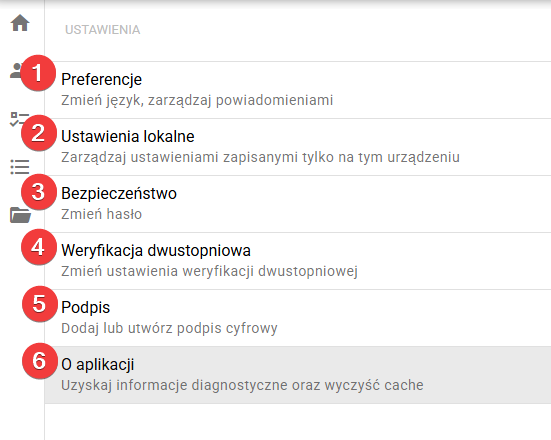
Description of the user settings section
1. Preferences
The Preferences section is used to personalize the way the application works. Here the user can change:
- application language,
- notification language.
This setting affects the system interface and the content of messages and notifications sent to the user.
Application language: Changed during login
In the upper right corner of the login screen there is a drop-down list with available languages.
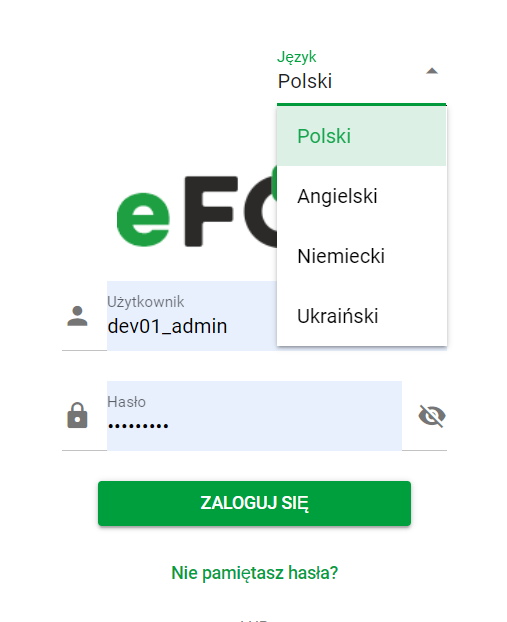
Changing language – login screen
Application language: Change in application settings
To change the application language after logging in, go to the SETTINGS tab, located on the top green bar, and then to the PREFERENCES section.

Home page. Settings. Polish version
Notifications
The section allows you to customize the language of notifications that can be sent both by e-mail and to mobile devices.
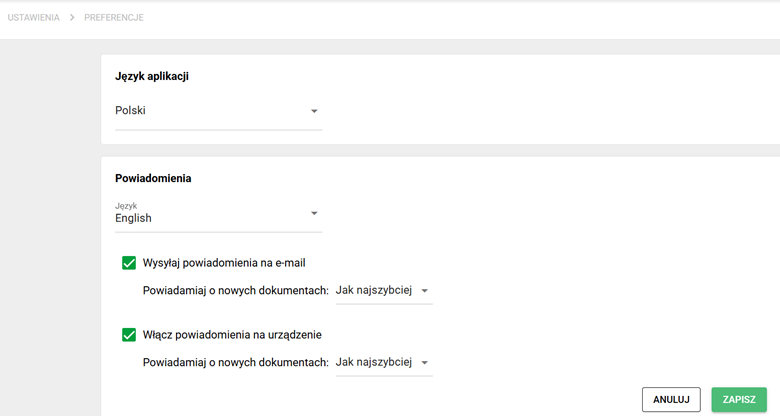
Preferences. Application language and Notifications. Polish version
After clicking on the selected language option (e.g. Polish, English, German, Ukrainian or Romanian), a drop-down list will appear where you can make your final selection. After selecting the language, the changes will be saved by clicking the SAVE button located in the lower right corner.
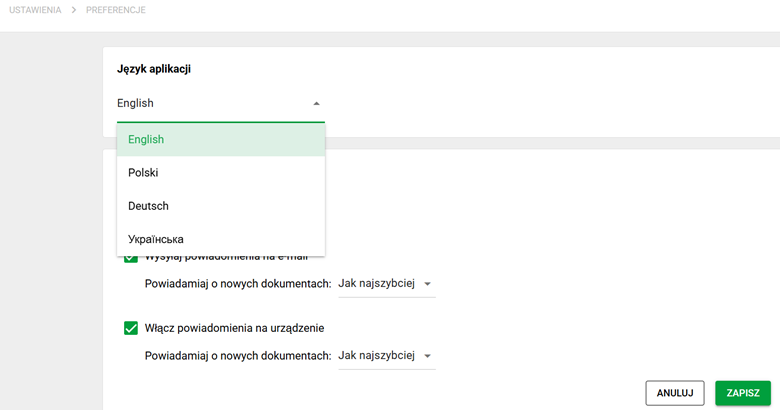
App language and Notifications. Dropdown list
2. Local settings
The Local Settings section contains settings saved only on the current device and browser. Changes made here are not automatically transferred to your other computers or mobile devices.
They allow you to adjust the way of working to your own preferences, including:
Select the Documents module operation mode
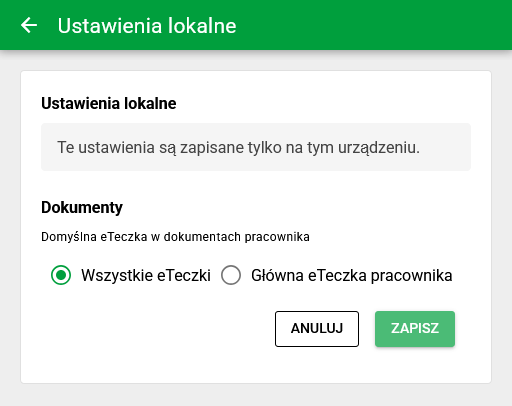
Choose All eFolders if you want an employee's documents shown together when you open them, including documents from different employments. Employee's main eFolder initially selects the document collection marked as the main one.
This is a view preference; it does not move or delete documents. If expected files are missing from the view, check the selected eFolder and other filters before concluding that the documents are absent. Save your choice in local settings; it is not automatically transferred to other devices.
User local settings
Additionally, in views such as Documents, Matters and others, there is a mechanism for remembering filters in temporary views, which are also saved locally in the browser.
Thanks to this, you can quickly return to the previously set view, even if it has not been finally saved in the filter mechanism.
- you can return to the previously set view faster,
- you don't have to configure the filters again every time.
Match OCR processing to your device
When processing a larger batch of scans, you can change the number of parallel OCR tasks. Open Local settings -> OCR -> OCR performance mode, select a mode, and click Save:
- Standard: the default setting, with one OCR task at a time.
- Accelerated: parallel processing with a limit of up to four tasks.
- Turbo: more parallel processing, with a limit of up to sixteen tasks.
The system adjusts the actual number of tasks to the device's capabilities. The 4× and 16× labels do not guarantee that processing will be that much faster. If the browser is heavily loaded, return to Standard. This setting is stored locally on this device and in this browser.
Performance mode does not replace the Fast or Accurate engine choice in an OCR rule. Choose the engine for the scan quality and the level of parallel processing for your computer's capabilities.
Choose when signing details open
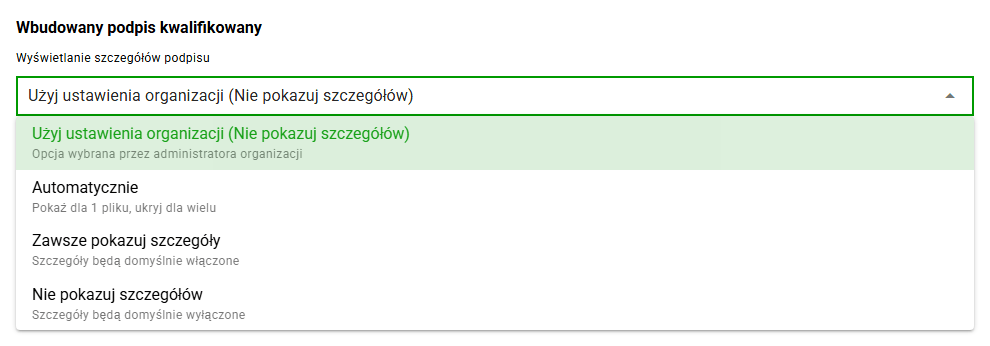
If you often place a visible signature mark on a PDF, you can make the details window open by default instead of choosing the option each time. In Local settings, under Built-in qualified signature, choose Sign details display:
- Use organization setting: keeps the administrator's choice; the current mode appears in parentheses.
- Automatically: shows details for one file and hides them for multiple files.
- Always show details: enables the details window by default.
- Do not show details: disables the details window by default.
Select Save. Your preference overrides the organization setting on this device and in this browser. It applies to the built-in KIR/Szafir qualified signature, not other signature providers.
For placing the graphic mark, see signing documents with a qualified signature.
3. Security
The Security section allows you to change the password for your user account. To change your password, please enter:
- current password,
- new password,
- confirmation of new password.
If two-step verification is activated on your account, you will also need to enter your current TOTP code when changing your password.You can change your password in settings by first entering your old password and then entering your new password twice. If we have two-step verification set, you will also need to enter the TOTP code.
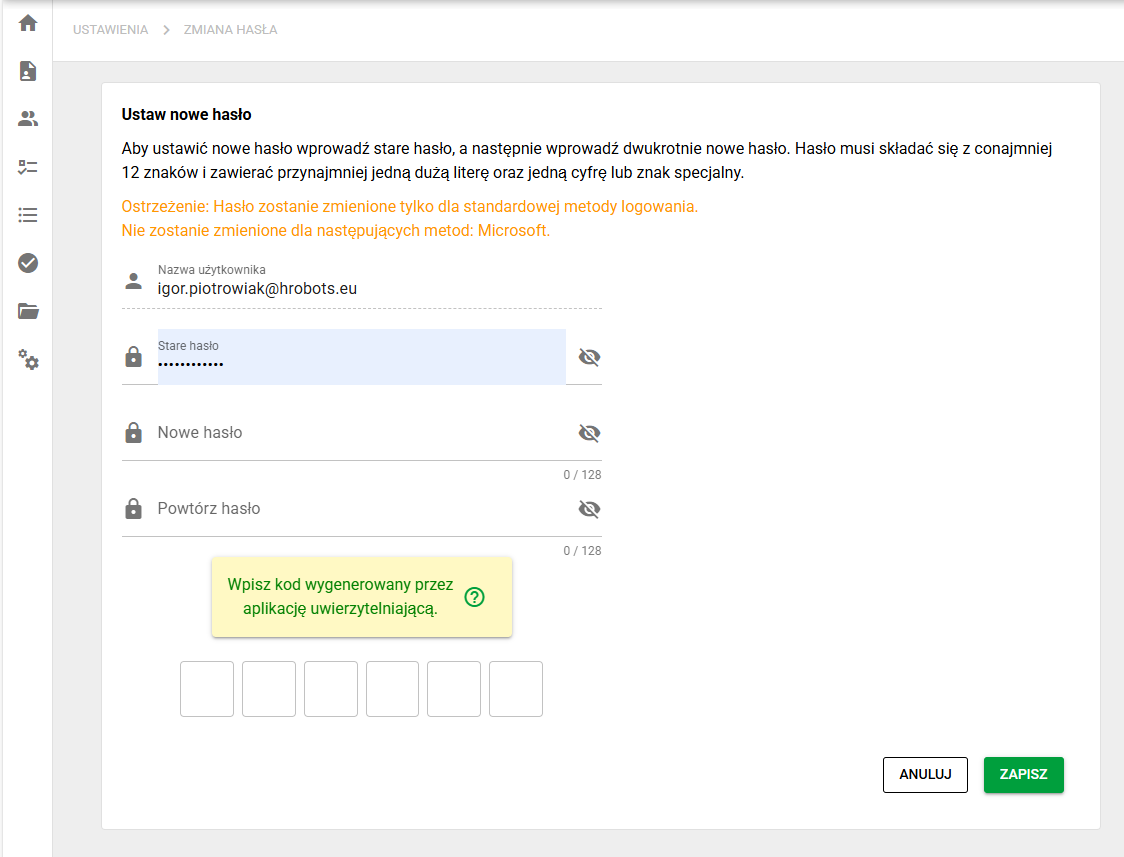
Password change screen
4. Two-step verification
The Two-step verification section allows you to manage additional login security. Here, the user can configure or change two-step login settings, which increases the security of access to the account.
If 2FA is not active yet, the screen guides the user through configuring the authenticator app and entering the current TOTP code. If 2FA is active, the user can check the protection status and disable it, provided the organization configuration allows it.
More information can be found in a separate article: Two-factor security (2FA) in eFOB.
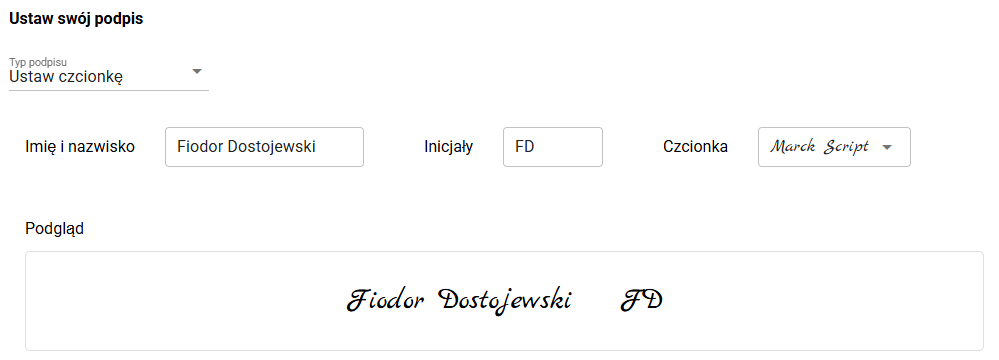
5. Signature
The Signature section allows you to add or create a digital signature used in the application (so-called facsimile). Depending on the authorizations and configuration of the organization, the signature may be used, for example, when accepting documents in matters requiring confirmation of the user's identity using a graphical representation of the signature.
6. About the application
The About the application section contains technical and diagnostic information about the operation of the system. Here, the user can also clear the application's cache, which may help in case of problems with data refreshing or interface operation.