eFOB 3.4.0 - News November 2026
eFOB 3.4.0 adds employee attributes: custom fields defined by the organization, with validity periods, change history, filters, and bulk changes. The case form editor now has conditions, a validation wizard, and dependent lists, and case dictionaries and positions can be imported and exported.
Employee attributes
Organizations can extend employee records with their own fields. Administrators define them in the Attributes dictionary and choose a value type: Yes/No, text, integer, decimal, date, or selection list. An attribute that is no longer used can be archived without losing the saved values.
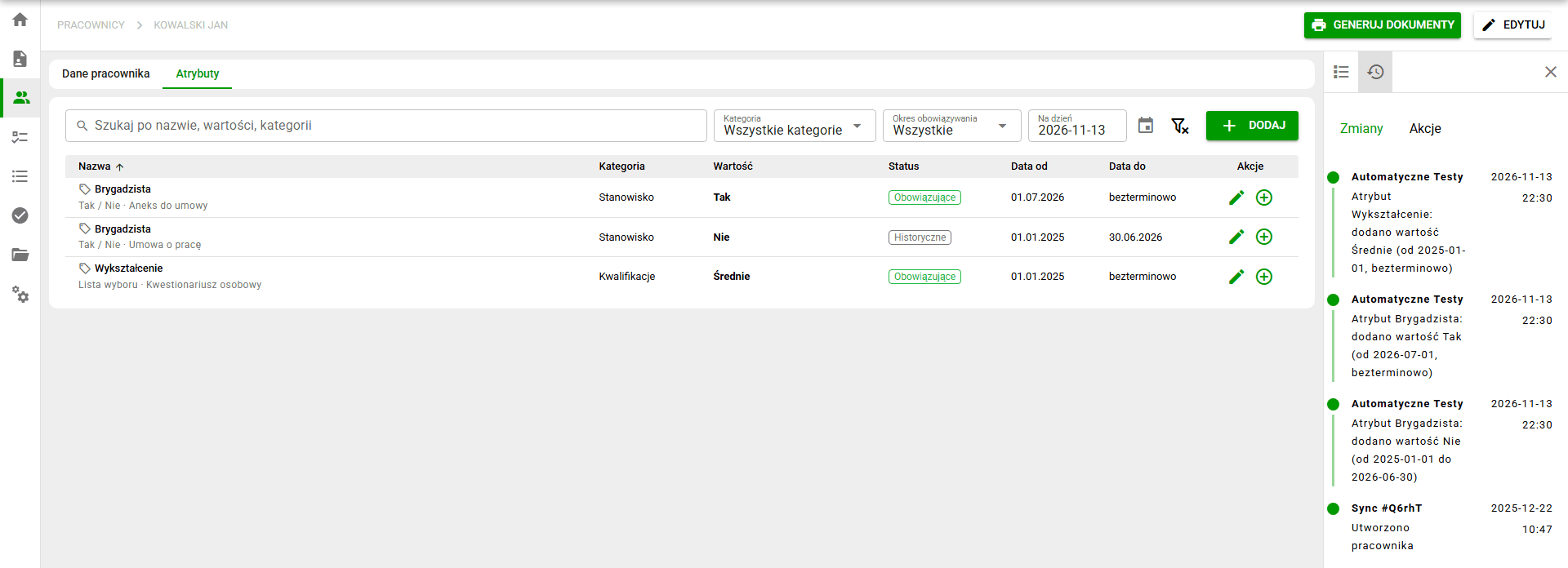
Each value has a validity period. The Attributes tab in the employee record shows values with their status and validity period, and the changes panel lists the author and date of each operation and the justification, if one was given. Changing or deleting an existing entry requires a separate permission.
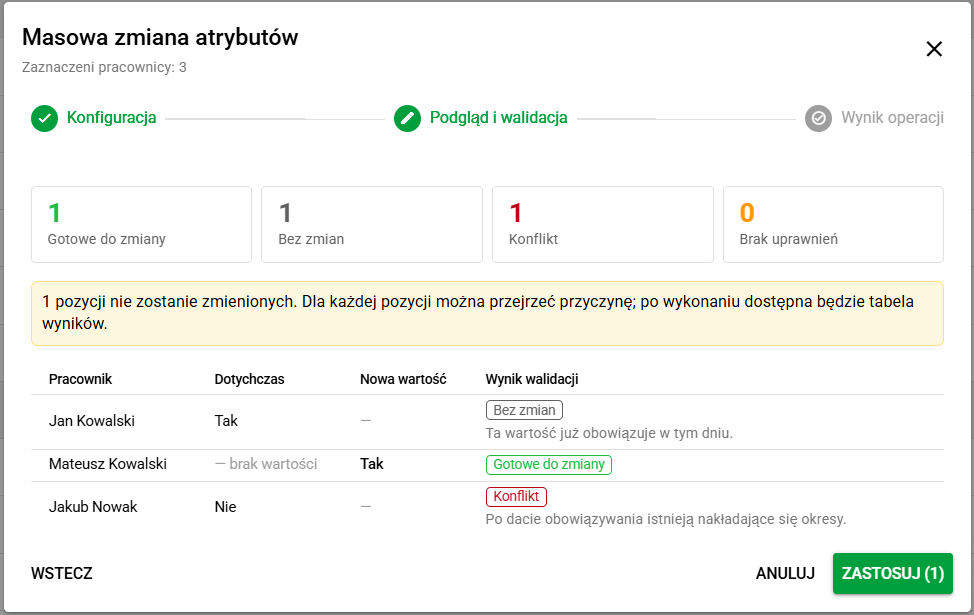
On the employees list, attributes can be shown as columns, saved in table views, and used in advanced filtering. The Change attributes bulk action sets a value for many selected people at once. Before saving, the system shows which records will be changed and which will stay unchanged because of a period conflict or missing permissions.
Attribute values can also be loaded when importing employees from an XLSX file. Map the file columns to attributes and enter a shared validity start date. Access to the tab, adding values, correcting existing entries, and the bulk action depend on user permissions.
For working with attributes, see Employee attributes. For their configuration, see Employee attributes dictionary, and for imports, see Mass adding employees.
Field conditions and validation in case forms
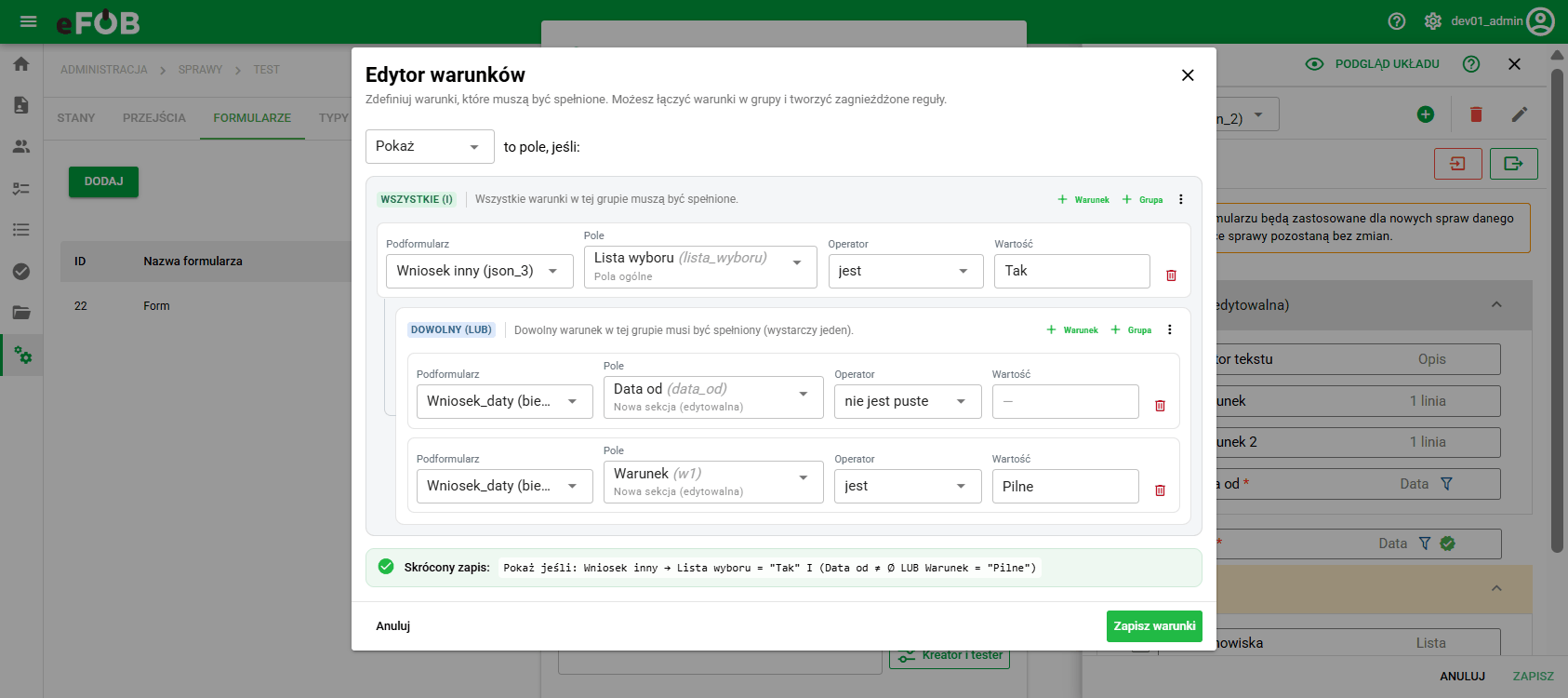
Administrators build field conditions in the condition editor. A condition can show or hide a field, or decide how it is validated. Conditions are combined into ALL (AND) and ANY (OR) groups, which can be nested, and they can refer to fields in other subforms.
The validation wizard and tester helps set rules for each field type: allowed characters and text length, numeric ranges, date restrictions or the number of selections in a multiple-choice list. Text fields also support custom regex with hints, ready-made examples and explanations. A rule can be tested on a sample value before saving.
The form editor marks added, changed, moved, and deleted fields and shows a summary of unsaved changes next to the Save button. Manual options of a choice list can be edited in place and reordered by dragging, and sections can have a background color from a preset palette or a custom one.
For building conditions and rules, see Form fields. For working in the editor, see Marking unsaved changes.
Dependent lists and case dictionary hierarchy
A case dictionary can point to a parent dictionary, and its values can be linked to values of that dictionary. A hierarchy can have at most three levels, for example Department → Position → Grade.
In a case form, a list with a parent field shows only the items that match the selected parent value, plus shared items. Changing or clearing the parent value clears the dependent fields after the user confirms.
For configuration, see Dictionary hierarchy. For how the lists work, see Filling in a case form.
Import and export of case dictionaries and positions
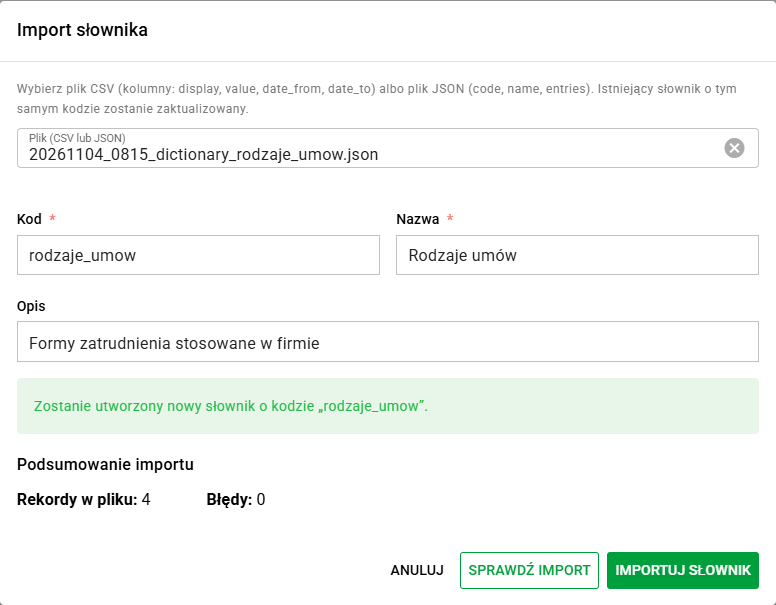
A whole case dictionary, with its definition and values, can be exported to a JSON file and loaded in another company. Export also works for global dictionaries, which can be saved as a local copy. Importing a CSV or JSON file creates a new local dictionary or updates an existing one with the same code. Before saving, the system checks the file and shows a summary of changes.
The export does not include links to parent values, so they have to be set again after importing a dependent dictionary.
Positions can be transferred the same way. The positions list has an export to a JSON file and an import from a CSV or JSON file, and the import plan shows how many positions will be created, updated, and skipped.
For file formats and the import steps, see Dictionary import and export and Importing and exporting positions.
Fixes and minor improvements 🛠
- Cases / Filling in forms: After a case is created or opened, the cursor moves to the first available field and expands its section if necessary. Hidden fields, read-only fields and fields locked by document dependencies are skipped. The Expand sections button opens all sections on the first click. The Today button next to date fields and the case due date inserts the current date.
- Administration / Dictionaries: Divided the dictionaries panel into the Employees, Documents, and Business data areas and added a status filter remembered separately for each dictionary.
- Document generator / Template preview: Fixed the HTML template preview, which did not display some fields, including company and employee data.
- Cases / Documents: Restored navigation from a case to the employee's documents.
- Sign-in and user sessions: Strengthened the security of Microsoft and Google sign-in and improved sign-in error messages and the saving of settings in the browser.