How to report errors and problems in the application - a guide for users and IT Support
This guide helps you prepare a report that support can use to reproduce an application problem.
Describe the steps leading to the error and the context needed to reproduce it. Before sending supporting material, remove data that is unnecessary for diagnosis.
Login problems
Logging in is one of the most common activities in the application, but also the most common source of problems. That's why we've prepared detailed help articles:
Most common scenarios
- I forgot my password: use Forgot your password? and follow the instructions in the application and the email. The reset link is valid for 1 hour.
- I did not receive the email - check your SPAM folder, make sure the email address is correct. If in doubt, contact your company administrator.
- Activation link has expired: the link is valid for 7 days. After that, follow the application message. If needed, ask your administrator for another invitation.
- Password reset link does not work: the link expires after 1 hour. After that, use Forgot your password? again and check the new email. Do not include a password-reset link in a support report.
Tip: if you are sure that the data is correct and yet login fails, report the problem to support. Specify exactly at what stage the problem occurred - whether it was entering your login, verifying your date of birth, or clicking on a link from the email.
What information should I provide when reporting a bug?
Include the details needed to reproduce the error. The data you share should be relevant to the problem and appropriate for the agreed support channel.
Key information:
- User data: name, surname, e-mail address, company,
- The module in which the error occurred (e.g. login, reports, signature, employees, matters),
- Device: computer / laptop / phone,
- Operating system: Windows, macOS, Android, iOS,
- Browser and version: e.g. Chrome 126, Edge 121, Safari 17,
- Date and time of error occurrence,
- Step description: what exactly the user was doing just before the problem occurred.
Additionally helpful:
- Screenshots of error messages,
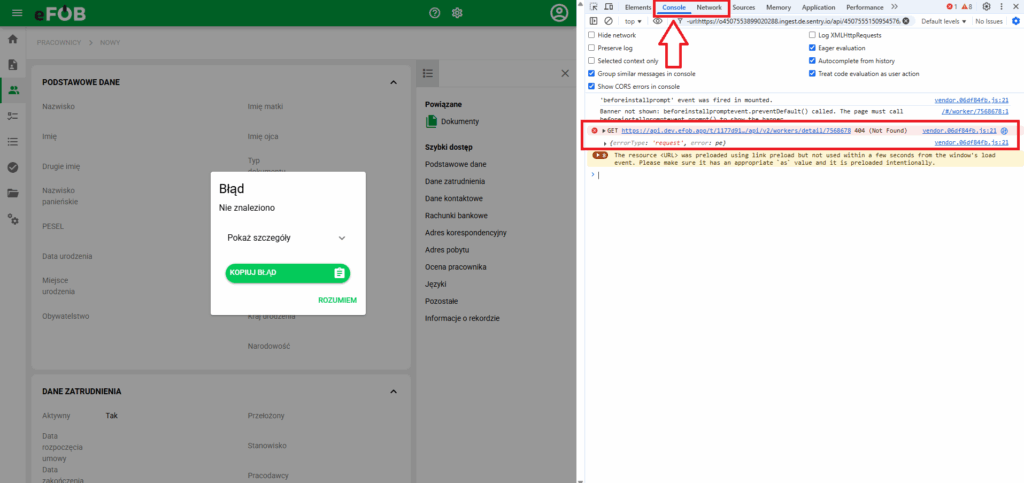
- Screenshot from the console or "Network" tab,
- A short recording replicating the problem.
Even if the error is not visible in our monitoring, this information will allow us to find the cause and solution faster.
Share supporting material safely
Before sending a screenshot or recording, hide:
- personal data that is unnecessary for diagnosis, such as employee names, PESEL numbers, and information from HR documents,
- access details, such as passwords, login codes, QR codes for setting up login verification, and links for account activation, password resets, or case access.
Keep the error message and details needed to explain the problem visible. Use the agreed support channel; do not publish the material in public tickets. Send additional diagnostic files when support requests them.
If you are unsure what to hide, start with the steps, date, time, and error message. Before sending screenshots or recordings, ask your administrator or support which material is needed.
Server errors and unknown messages
While working with the application, you may see general messages that don't mean much at first glance. Typical examples are:
"Error. A server error occurred. Report the problem to your administrator." "AxiosError: Request failed with status code 500" "Unexpected error occurred"
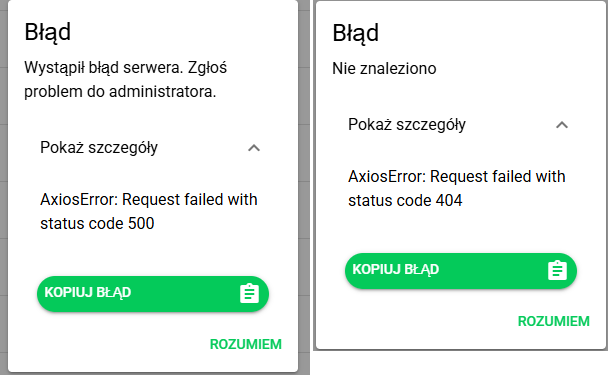
Most often, this indicates a technical problem on the server side.
Although to the user it looks like "something went wrong", for the IT department these messages are a valuable clue. Different error codes indicate different causes of problems:- 400 – Invalid request: the application sent data that the server cannot process.
- 404 – Resource not found: The address the application tried to reference does not exist.
- 500 – Server Error: a problem on the server side - e.g. overload, code error or temporary failure.
What should I prepare for reporting?
- Screenshot of the error message (e.g. popup on the website),
- Screenshot from the console or the "Network" / "Network" tab,
- Video (30-60 seconds) showing step by step what you do until the error occurs,
- Description of the situation - e.g. "I clicked Log in → selected a document → the application hung."
How to check error details in browser?
Many people don't know that web browsers have built-in diagnostic tools. They are mainly used by programmers, but in problem situations they can help anyone. Here's how to open them:
- Press F12 (Windows) or Cmd+Option+I (macOS). Alternatively, use Ctrl+Shift+I.
- In the new window you will see several tabs - the most important are:
- Console – application error messages are displayed here, e.g. failed queries, script problems.
- Network – shows all application connections to the server. Here you will find information which query resulted in an error.
- Refresh the page (F5 key) to trigger the problem again and see it in the logs.
- Click on the item marked in red - in the details you will find information that will allow support to understand the cause of the error.
Note: Include a screenshot showing the error in the console or Network tab. Hide personal data and access details before sending it. Send additional diagnostic files if support asks for them.
Why is it important?
A message such as "Something went wrong" may not identify the cause. Include a screenshot of the console or Network tab showing the error. Before sending it, hide personal data and security-sensitive information, such as passwords, login codes, and access links. The screenshot and a description of your steps help identify when the problem occurs.
Electronic signature errors (Signius)
The system uses integration with the Signius platform. It is responsible for handling electronic signatures. If a problem occurs when signing a document:
- First, check the Signius Knowledge Base - there you will find detailed instructions for different types of errors.
- If your problem is not described, report it to support and prepare:
- Document number,
- Type of signature (e.g. regular, qualified),
- Screenshot of the error message,
- Device, system and browser information.
Summary
Remember: some technical problems can be resolved in a few minutes when the report contains all the necessary information. Include the details and describe what you did step by step. This helps the IT team diagnose and resolve the problem quickly. Attach screenshots, but hide personal data and access details before sending them.