How does search work?
Description
The search option is found in many application modules. Its purpose is, as the name suggests, to search for the things we are interested in, among others: employee, document or case.
Each search engine contains different fields, depending on the module we are in.
Search engine location:
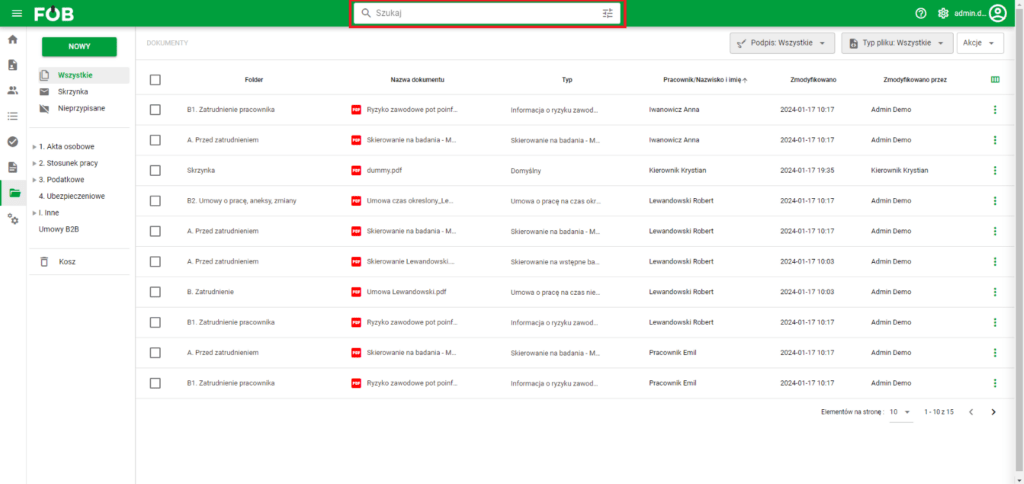
Search Engine
The search engine is located at the top and is woven into the green menu bar of the application.
Basic search
To use the search engine, we can enter the phase we are interested in in the white field with a magnifying glass and the word SEARCH, and then confirm the search with the keyboard button ENTER.
After doing this, the application will search for the specified phase and display the results.
To undo the search options, press the X button:

Undo search
Advanced search
If we want to search for a specific file that has many dependencies, we can use the advanced search under the button below:

_Advanced_search_button
Clicking the button opens one of the personalized (in terms of modules) consoles:
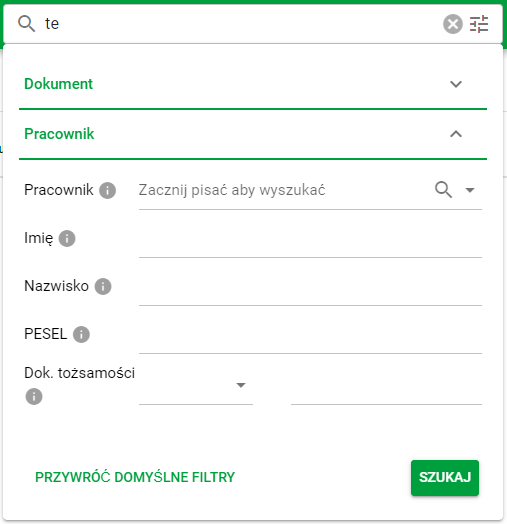
Advanced search window
We can supplement this console with additional information, which limits the number of files that will appear in the search summary.
To finish the search, click the green button SEARCH