The application cannot start because the browser is blocking site data storage
This message means that the browser is blocking data that eFOB needs to work properly.
This includes cookies and data saved in the browser. Without them, the application may not start correctly, remember that you are logged in, or keep the selected company.
What should I do first?
Follow the steps below. After each step, return to eFOB and click Refresh page.
1. Open eFOB directly in the browser
If the eFOB link was opened from email, a messenger, or a company application, the page may be running in a restricted browser view.
Try opening eFOB directly in the browser:
- Copy the eFOB page address.
- Open Google Chrome, Microsoft Edge, or Safari.
- Paste the address into the browser address bar.
- Log in again.
On an Android phone, select Open in Chrome if this option is available.
2. Check whether the browser allows eFOB to save data
Check in the browser whether eFOB can save cookies and data needed by the application.
In Google Chrome on a computer:
- Open eFOB.
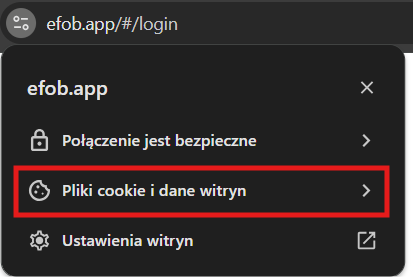
- Click the icon on the left side of the page address.
- Select Cookies and site data.
The next steps are a more advanced browser settings check. If you are not sure what to select, contact eFOB support.
- Open Manage on-device site data.
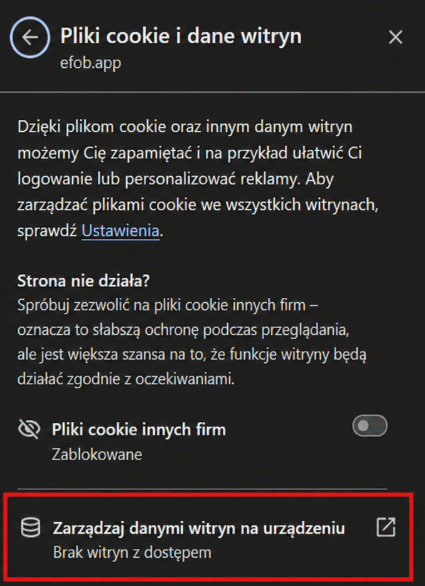
- Check whether the eFOB domain is shown as allowed. If you see that the domain is blocked, choose the option that allows the site to save data.
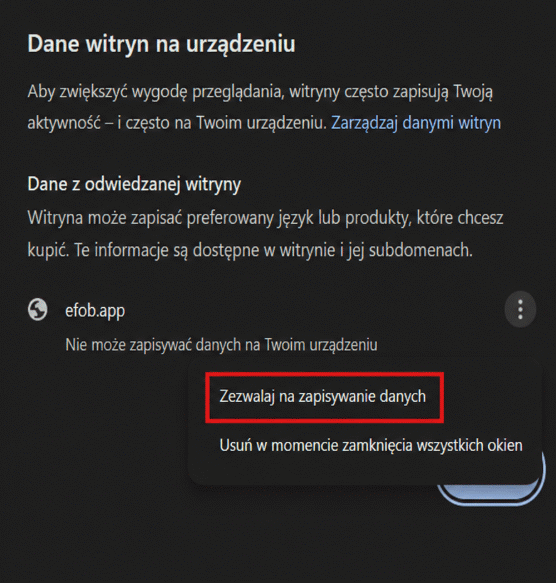
The message Third-party cookies: blocked does not always mean there is a problem. For this error, the most important thing is whether the browser allows data to be saved for the eFOB domain.
In Google Chrome on Android:
- Open Chrome.
- Go to Settings.
- Select Site settings.
- Check the On-device site data or Third-party cookies section.
- Make sure that eFOB is not blocked.
Option names may differ depending on the Chrome version.
3. Clear data only for the eFOB site
If the settings look correct, remove the data saved for eFOB and open the application again.
In Google Chrome:
- Open browser settings.
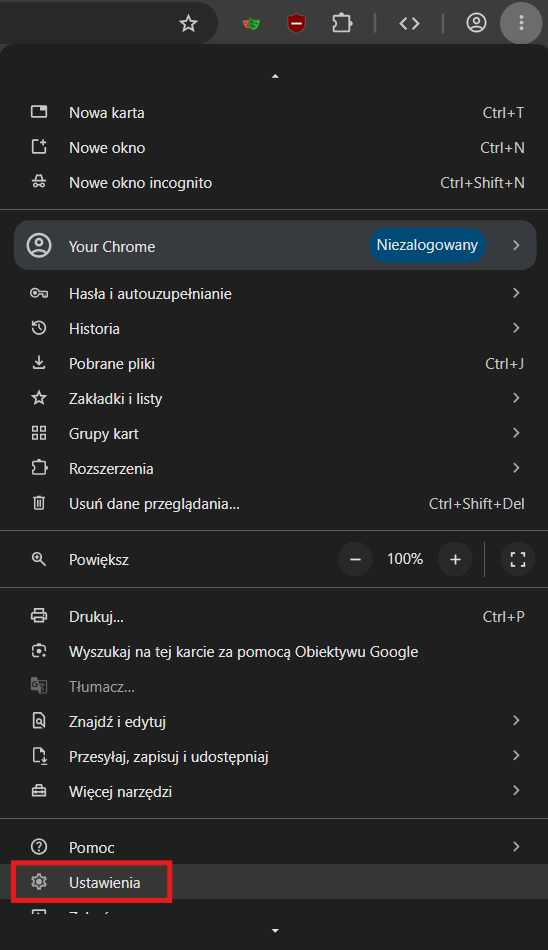
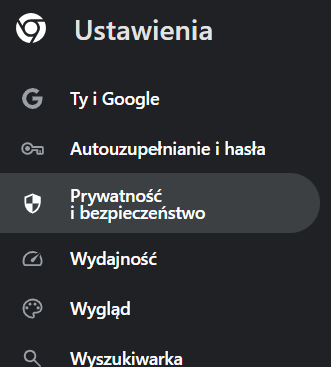
- Go to Privacy and security.
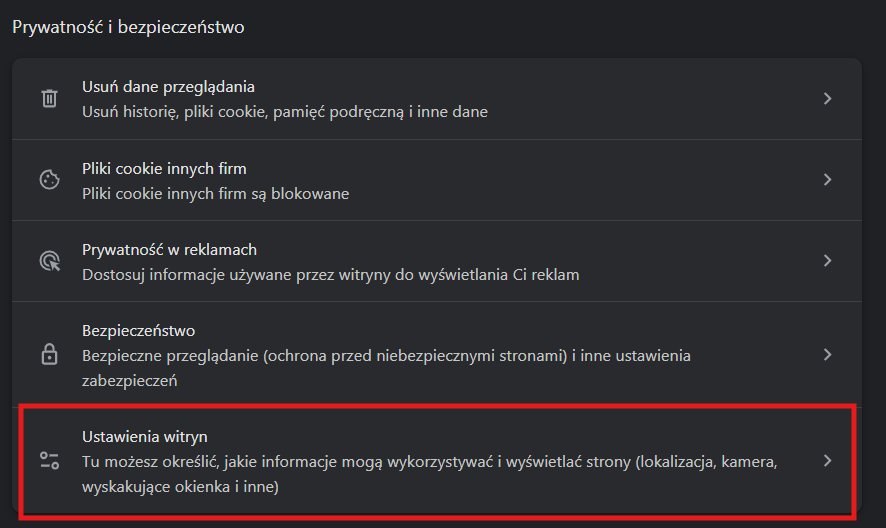
- Open Site settings.
- Go to the View permissions and data stored across sites list.

- Find the eFOB domain.

- Delete this site's data.
- Open eFOB again and log in.
You do not need to delete data for all websites. It is enough to clear the data saved for eFOB.
4. Disable private or incognito mode
If eFOB is open in incognito mode or private browsing mode, open the application in a regular browser window.
Some privacy settings may limit site data storage in these modes.
5. Check privacy-blocking applications and extensions
The problem may be caused by tools that block cookies, site data, or tracking.
Check especially:
- AdGuard,
- Blokada,
- NextDNS,
- DuckDuckGo Privacy Protection,
- Brave Shields,
- Ghostery,
- Privacy Badger,
- company security applications,
- company DNS filters or VPNs with privacy protection.
If you use such a tool, add the eFOB domain to exceptions or temporarily disable protection for this site and refresh the application.
Company phone or work computer
On company devices, some settings may be managed by the IT administrator. This especially applies to phones with a work profile, managed browsers, and company security applications.
If you cannot change cookie and browser data settings or the problem returns after completing the steps above, contact the IT administrator in your organization.
Can VPN cause this problem?
VPN itself usually does not block site data storage in the browser. However, VPN may work together with a company security filter, DNS filter, or privacy protection application.
If the problem occurs only when VPN is enabled, report it to your IT administrator and ask them to check whether the eFOB domain is restricted by company security policies.
What should I provide to support?
If the message still appears, prepare information that will help diagnose the problem faster:
- the eFOB page address where the problem occurs,
- device model,
- operating system, for example Android, iOS, Windows, or macOS,
- browser name and version,
- information whether the device is company-managed,
- information whether VPN, AdGuard, Blokada, NextDNS, or a similar tool is used,
- information whether the link was opened directly in the browser or from email, a messenger, or another application,
- a screenshot of the visible message.
With this information, support will be able to determine whether the problem is caused by browser settings, the device, a company profile, or additional security software.