Status of the case
Case states can be compared to rooms connected by doors. Moving from one state to the next means moving to the next stage of case work. There are several types of states:
Initial state
This is the first "room" where each new case of a given type begins. At this stage, you perform the first steps that start the entire process.
Transient states
These are further "rooms" in which appropriate activities are carried out: completing data, verifying information or making decisions. Moving to the next stage depends on the process configuration, permissions, and required conditions, such as completing fields or signing documents.
Final states
These are the last "rooms" where the case is sent after all activities are completed. They usually summarize the process and prepare documents for the final package. There may be several final states - different endings depending on the type of case.
Due to the way states work:
- initial state has no predecessor,
- final states do not lead to subsequent stages,
- other states allow both entry and exit to other states.
If you cannot move to the next stage
Check the main buttons and the More menu. Some actions are available only when a form condition is met. For a disabled action, check its explanation, required fields, and signature statuses.
If a required signature is missing, also check documents regenerated after a data change. A new file may need signing even if its previous version was signed. If the message requires a PDF, attach a document in that format before trying to sign again.
If the form requirements are met but an action remains unavailable, ask the process owner to check permissions and transition conditions. Do not change data solely to bypass a restriction.
Change data used in a document
Changing a field used to produce a document may require a new version. Before confirming, read the message listing the documents affected by the edit:
- for a generated document, the system may require confirmation before removing the outdated version;
- for an attached or signed document, the configuration may block the field change or allow it after you confirm removing the document;
- if no such action is configured, the existing document may remain unchanged, so check that it still matches the form data.
If you do not want to remove the document, cancel the change. If editing is blocked, agree on the next step with the process owner. After a confirmed change, check that the correct document has been produced and whether required signatures must be collected again.
Examples of States
For a case of the type "Application for issuing employee documentation", the first (initial) status is Created. At this stage the situation is as follows:
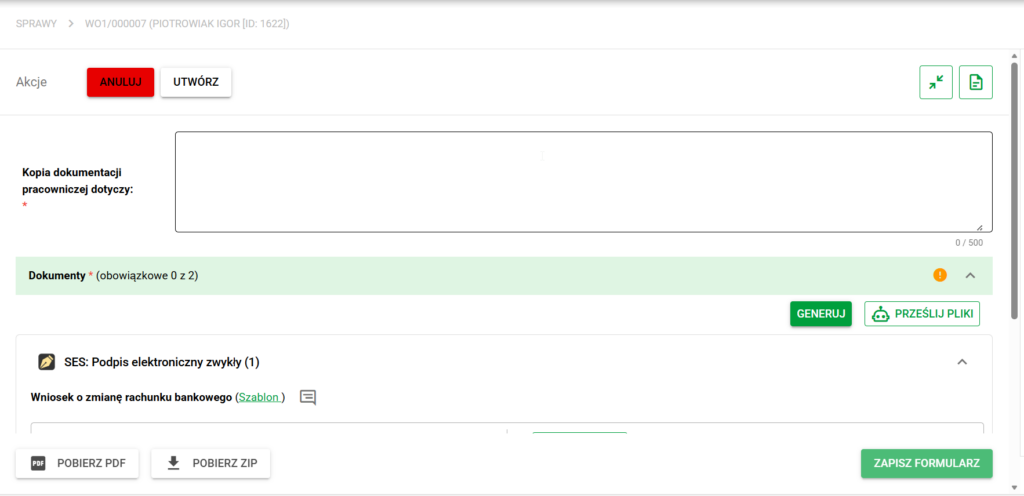
After completing all required fields, adding appropriate documents and submitting the necessary signatures, the Create button visible in the upper part of the screen is activated. It can be compared to turning a key in a lock - only then can you move on.
Clicking the Create button takes you to the next state where the appropriate documents are generated. This status is called Employee Signature Pending.
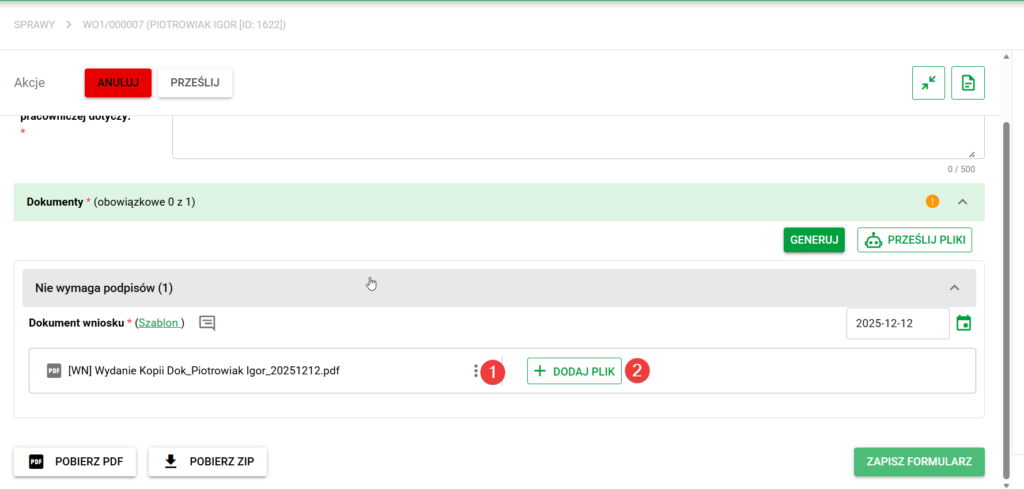
In this state, you must upload the generated document and sign it with a facsimile. You can first download the document from the menu that opens after clicking the three dots icon (1), and then add it again using the Add file button.
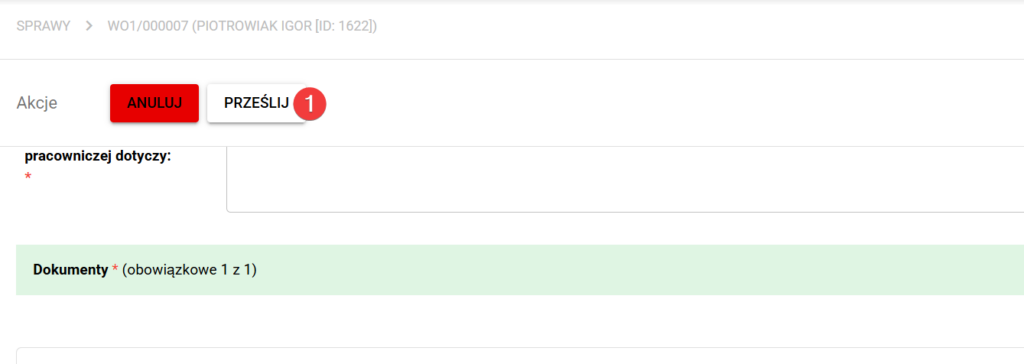
After uploading the document and completing the required data in the field above, the Submit button (1) is activated, which allows you to proceed to the next stage.
After completing these steps, the case moves to the Review state. At this stage, the HR employee can verify the application and - if necessary - add additional documents.
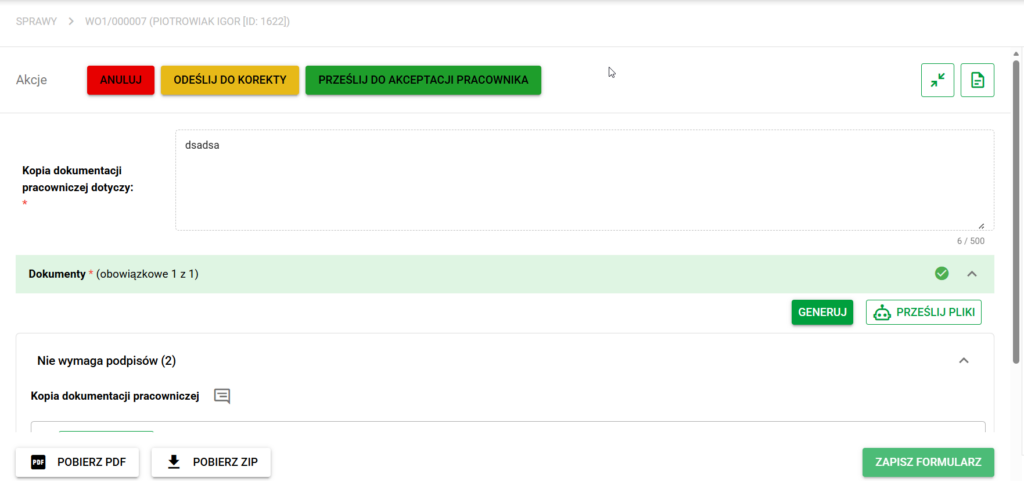
If everything is correct, you can select Submit for employee approval. The case will then move to the status of Employee Acceptance.
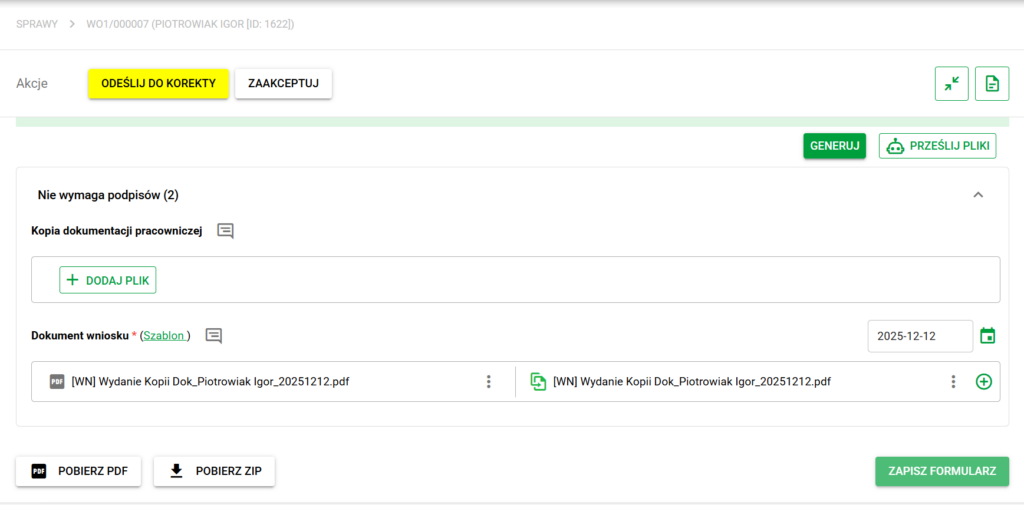
The employee can accept the case or send it for correction. If accepted, the screen will update and the case will move to the Accepted status.
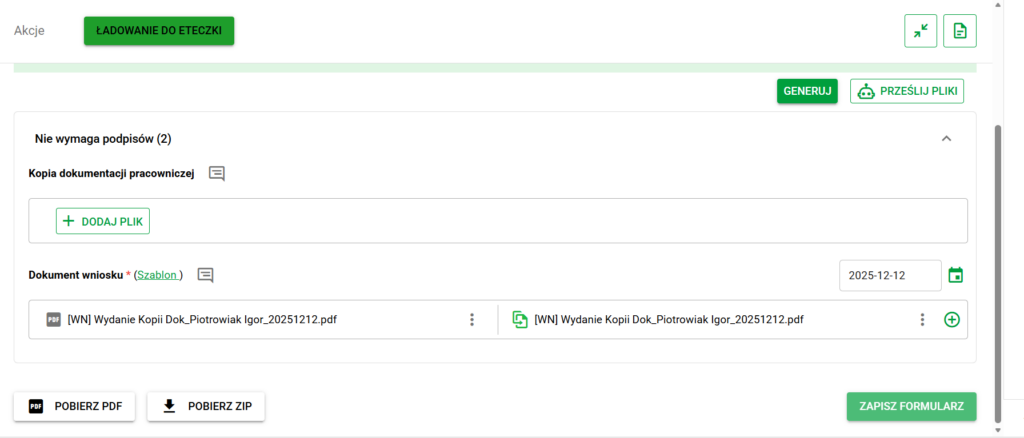
At this point you need to file the documents from the case into eFile. The case will go to the Loading into eFile state, in which the documents will be prepared and the HR employee will be able to confirm their loading.
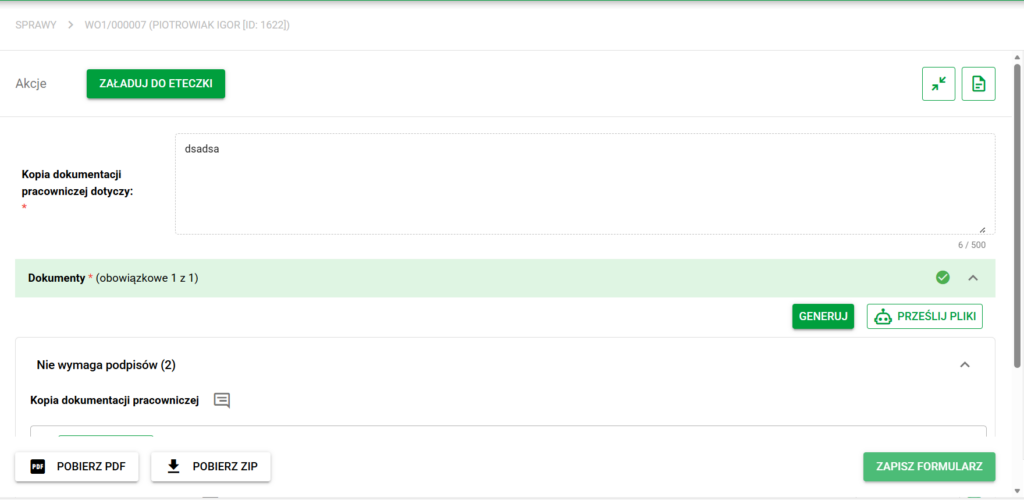
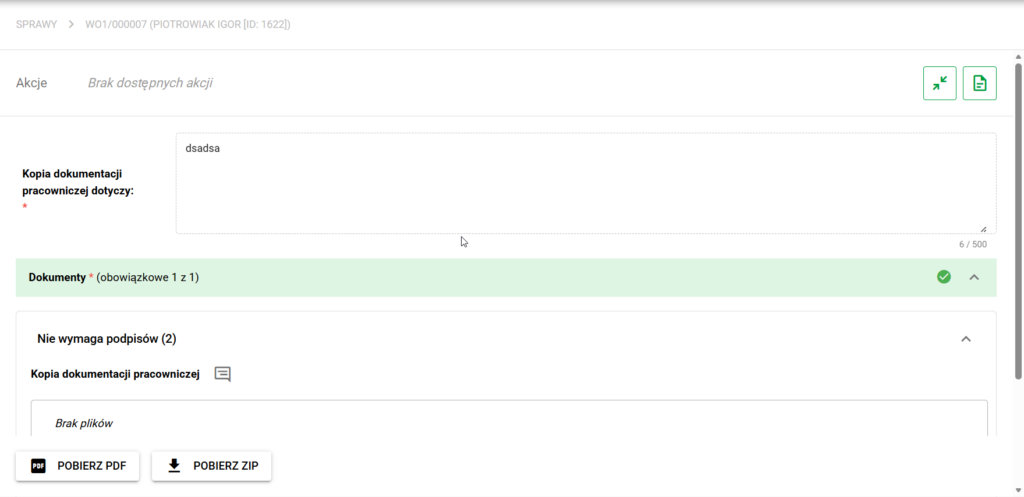
After confirming the operation, the status will change to Documents loaded. No more actions will be available at the top of the screen and the case will be closed.