Process Library - ready-made business processes
Introduction
eFOB lets you create case types from ready-made templates for employee and candidate matters. This helps organizations launch repeatable HR, administrative and compliance processes more quickly, without building each workflow from scratch. The templates include configured forms, stages, documents, signatures and notifications, so users can start working with a ready-made workflow straight away.
This article describes six ready-made case types:
- Employee statements, consents and confirmations – handling documents submitted by an employee.
- Candidate statements, consents and confirmations - handling the candidate's questionnaire and documents.
- Agreement changing the terms of employment – preparing and signing an annex to the employment contract.
- Pay transparency request/report - handling questions, reports and requests related to remuneration.
- Confidential complaint or violation report – a safe, confidential path for reporting complaints and irregularities.
- General report - a universal process for matters that do not have a dedicated workflow.
The case types described here are available in the Process Library and can be implemented and modified by the organization's administrator. Administrators can adapt forms, stages, roles, documents and process rules to their organization's needs. For more complex changes or workflow extensions, the eFOB team can help with configuration and further development as part of a support package.
For general information on how the Cases module works, see Cases - introduction.
Adding ready-made case types from the library
The organization's administrator can add the case types described here directly from the Process Library.
To implement a selected case type:
- Go to Administration → Add → From library.
- Select the case type you want to use.
- Import it into your organization by clicking Add process.
- If needed, adapt the process configuration, roles, permissions and form content to your company's requirements.
To implement other cases (document workflows) in your organization, contact the eFOB team. We will help you launch the selected workflows and adapt their configuration to your company's needs.
How to start using a ready-made case type
How a case is started depends on who initiates the process and how the case type is configured.
For HR, Payroll and administrators
When a case is created by someone handling the process on the organization's side:
- Go to the Cases module or the Cases tab on the employee's or candidate's profile.
- Click Add case.
- Select the appropriate case type.
- Select the person the case concerns, if the process requires it.
- Complete the initial form and proceed through the workflow stages.
For employees and candidates
For processes that can be initiated by an employee or candidate:
- Go to the My cases module.
- Click Add case.
- Select an available case type.
- Complete the required information and create the case.
- Follow the instructions displayed at each process stage to complete the next steps.
For details on creating cases, see Adding a case. For information on process stages and available transitions, see Case status.
Basic case stages
All of these processes lead the case through subsequent stages that organize the work and show which stage a given case is at. Depending on the process, these include, among others:
- New – the case has been created, data is being filled in.
- To employee or Employee signature – the employee completes data or signs the prepared document.
- Under verification or For verification – the person handling the case checks the completeness of the data and documents.
- Response or For signature – a response is being prepared or a company-side signature is being completed.
- To eFile – the documents are waiting to be saved in the employee's records.
- Completed – the case has been closed.
There are also exceptional stages such as Rejected and Cancelled, used when a case does not end in the standard way.
The forms in these workflows also include descriptions and step guidance for the user. They explain what needs to be done at a given stage, how to complete the fields, and what the next transition in the workflow should be.
Email notifications
All case types described in this article have automatic email notifications configured. The system informs the appropriate people about key events, such as case creation, data awaiting completion, document generation, a document awaiting signature, a report being submitted for processing, and the case being completed, rejected or cancelled.
The notification scope depends on the process and stage. Messages are sent to the employee (or the candidate in the statements workflow) and, when action is required on the company's side, to the appropriate role, such as HR, Payroll or the Confidential role.
The system automatically informs process participants about key case-related events. Notifications help coordinate subsequent actions, remind users about tasks that need to be completed, and provide updates on status changes and process completion.
The detailed notification scope depends on the case stage, the user's role and the process configuration. The organization's administrator can adapt notifications to the company's needs, including when they are sent, who receives them and which events users are informed about.
Employee statements, consents and confirmations
What it is for
The Employee statements, consents and confirmations case (OZP) lets you handle one or more employee documents in a single workflow, without creating a separate case for each document.
The system guides the documents through process stages covering data preparation, employee-side data completion, signing or confirming documents, verification, and filing in eFile.
How the workflow works
- HR creates the case and selects the documents to be handled.
- Depending on the document type, HR, the employee or both parties complete the required data.
- The system generates the relevant documents and sends them for signature or confirmation.
- Once the employee has completed their actions, the people responsible for handling the process verify the documents.
- After all required signatures have been obtained, the documents are saved to the employee's eFolder and the case is completed.
This outline describes the general process flow. The following sections provide details on available documents, process participants, permissions, stages, transitions and notifications.
Documents
The available documents are grouped by topic:
Personal data and familiarization with documentation
- Employee personal questionnaire
- Statement of familiarization with documentation and procedures
Occupational health and safety (OHS)
- Statement of familiarization with occupational risk
Parenthood
- Statement – childcare (Article 188 of the Labour Code)
Tax and insurance (social security) statements
- Statement for social security and tax purposes
- Statement – tax base
- PIT-2
- Statement – annual limit of the assessment basis for pension and disability insurance contributions
- Application to register family members for health insurance
Employee Capital Plans (PPK)
- Information regarding PPK
- Declaration of resignation from making contributions to the Employee Capital Plans (PPK)
Consents and other statements
- Employee statement of familiarization with the purposes, scope and manner of using video monitoring
- Statement on providing information electronically
- Employee statement on the use of a private car/motorcycle for business purposes
- Consent to the use of image
- Authorization to process personal data
The generated documents are saved in the appropriate folders of the employee's eFolder, matched to their type (e.g. Employee hiring, OHS, Parenthood, Other documentation, Tax, Insurance, PPK).
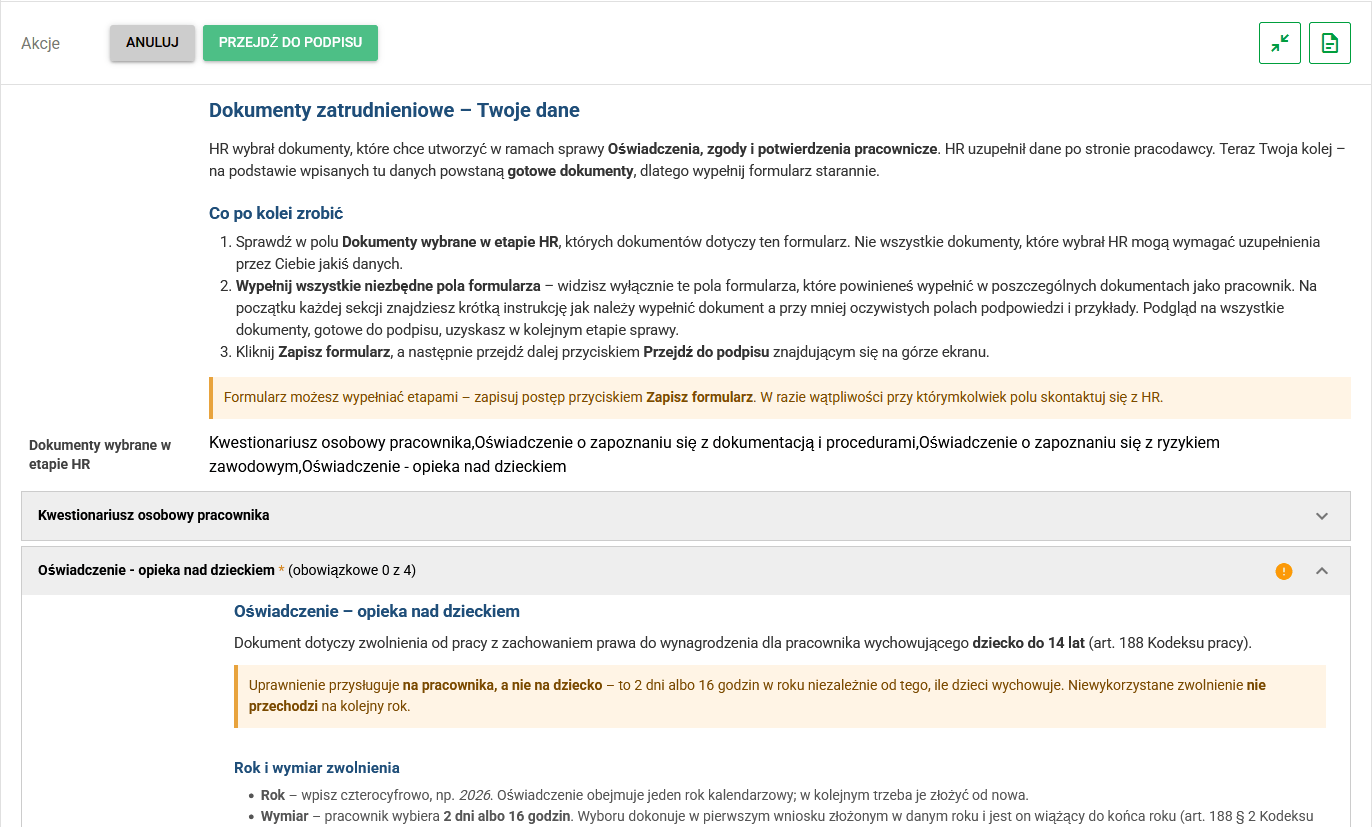
Employee completing data after the case is passed on
Permissions and roles
The following roles participate in handling the case:
- HR - creates the case, verifies documents, coordinates the subsequent process flow and is responsible for filing case documents into eFile.
- Employee - completes the required data and signs or confirms the documents prepared within the case.
- Payroll - participates if a selected document requires additional verification or approval.
- Manager - participates when an additional signature or confirmation is required on the organization's side.
The involvement of each role depends on the selected documents and the process configuration.
Stages and transitions
The process guides the case through stages corresponding to the actions performed by its participants. Each stage offers specific actions to move to the next step, return to an earlier stage or finish handling the case.
The table below lists all stages and available transitions in this process.
| Stage | What happens at this stage | Possible transitions |
|---|---|---|
| New | HR selects the documents and completes the data required at the start of the case. | Pass to employee or Cancel |
| To employee | The employee completes their own data if the selected document requires it. | Go to signature or Cancel |
| Employee signature | The system generates the documents and the employee signs or confirms them. | Pass for verification, Return to editing, Send back for correction, or Cancel |
| For verification | HR checks the completeness of the data and documents. | Send for signature, Send back for correction, Reject case, or Cancel |
| For signature | The documents wait for a company-side signature or confirmation if required by the selected workflow. | Accept and send to eFile, Accept and complete, Send back for verification, or Cancel |
| To eFile | The signed documents are waiting to be saved in the employee records. | Save to eFile and complete, Return to verification, Reject case, or Cancel |
| Completed | The case has been completed after the documents were saved. | no further transitions |
| Rejected | The case has been rejected. | no further transitions |
| Cancelled | The case has been cancelled. | no further transitions |
Notifications
The table below shows the default notification scope for this case type. The organization's administrator can adapt notification settings to the organization's needs and procedures.
| Moment | Recipient | Purpose of the notification |
|---|---|---|
| Case created or returned for correction | HR | The case needs data entry or correction. |
| Transition to the To employee stage | Employee | The case is waiting for the employee to complete the data. |
| Transition to the Employee signature stage | Employee | The documents are ready for signature or confirmation. |
| Transition to the For verification stage | HR | The employee has completed their step and the documents are ready for review. |
| Transition to the For signature stage | HR, Payroll, or Manager | The documents are waiting for a company-side signature or confirmation. |
| Transition to the To eFile stage | HR | The signed documents are waiting to be filed in eFile. |
| Case completion, rejection, or cancellation | HR and Employee | The final outcome of the case. |
Candidate statements, consents and confirmations
What it is for
The Candidate statements, consents and confirmations case (code OZK) is used to prepare and handle documents and statements related to recruitment, including a personal questionnaire for a job applicant.
Separating this process from the employee workflow allows it to run before employment, without assigning employee permissions to the candidate. The organization can collect the required data, prepare documents and manage recruitment in a structured way.
How the workflow works
- HR creates the case and passes it to the candidate.
- The candidate completes the required data in the case form, including education, professional qualifications, employment history, profession or specialization, and other information required by law.
- Based on the entered data, the system generates the Personal questionnaire for a job applicant document.
- The candidate reviews the generated document and signs or confirms its content.
- HR verifies the document's correctness.
- Once the process is complete, the document is saved in the Before employment folder of the candidate's eFolder and the case is completed.
This outline describes the general process flow. The following sections provide details on generated documents, process participants, permissions, stages, transitions and notifications.
Documents
The case generates a Personal questionnaire for a job applicant. The document is signed by the candidate and, once the process is complete, saved in the Before employment folder.
Permissions and roles
The HR and Candidate roles participate in handling the case.
HR creates the case, passes it to the candidate and oversees its progress. The Candidate completes the required data and signs or confirms the generated personal questionnaire.
After the candidate has completed their actions, HR is responsible for further handling and document archiving. In the final stages, the candidate retains read access to the case, while HR can continue to manage it.
Stages and transitions
The process takes the case from creation by HR, through data completion and document signing by the candidate, to verification and filing in eFile. Each stage offers specific actions to move through the process.
The table below shows the default process flow and available transitions.
| Stage | What happens at this stage | Possible transitions |
|---|---|---|
| New | HR selects the documents and completes the data required at the start of the case. | Pass to candidate or Cancel |
| To candidate | The candidate completes their own data if the selected document requires it. | Go to signature or Cancel |
| Candidate signature | The system generates the documents and the candidate signs or confirms them. | Pass for verification, Return to editing, Send back for correction, or Cancel |
| For verification | HR checks the completeness of the data and documents. | Send for signature, Send back for correction, Reject case, or Cancel |
| For signature | The documents wait for a company-side signature or confirmation if required by the workflow. | Accept and send to eFile, Accept and complete, Send back for verification, or Cancel |
| To eFile | The signed documents are waiting to be saved in the candidate's records. | Save to eFile and complete, Return to verification, Reject case, or Cancel |
| Completed | The case has been completed after the documents were saved. | No further transitions |
| Rejected | The case has been rejected. | No further transitions |
| Cancelled | The case has been cancelled. | No further transitions |
Agreement changing the terms of employment
What it is for
The Agreement changing the terms of employment case type supports the entire process of changing an employee's employment terms, from preparing data through agreeing and signing the document to filing it in eFile.
The process can be used for changes to remuneration, position, full-time or part-time status, workplace, department, organizational unit or contract type, among other employment terms.
How the workflow works
- HR or Payroll create the case and complete the data for the agreement changing the terms of employment.
- In the form, they specify the scope of changes and enter the current and new employment terms.
- After the case is passed to the employee, the system generates the agreement changing the terms of employment.
- The employee reviews the document and decides whether to sign it or send it back for correction.
- After signing, the document is passed to HR or Payroll for verification of the completeness of the data and documentation.
- The document is then sent for signature to the person representing the employer.
- Once all required signatures have been obtained, the document can be saved in the employee's eFolder, or the case can be completed according to the organization's process-handling practices.
This outline describes the general process flow. The following sections provide details on the form, process participants, documents, permissions, stages, transitions and notifications.
Form data
When creating the agreement, the person opening the case provides information identifying the document and specifies the planned changes to employment terms. The system uses this data to generate the agreement.
| Field | Required | Description |
|---|---|---|
| Annex/agreement number | Yes | The number of the annex being prepared. |
| Effective date of the change | Yes | The day from which the new terms apply. |
| Source contract type | Yes | The type of the current contract to which the annex relates. |
| Source contract date | Yes | The signing date of the current employment contract. |
| Source contract number | Yes | The number of the current contract. If contracts are not numbered in the organization, the field can be completed according to local practice. |
| Person representing the employer | Yes | The person who will sign the annex on behalf of the employer. |
| Justification/description of the change | No | Additional context for the change, for example a promotion, salary increase, or reorganization. |
| Scope of changes in the contract | Yes | A list of the contract elements changed by the annex. Multiple options can be selected at the same time. |
The Scope of changes in the contract field specifies which employment terms are to be changed. Based on the selected options, the form automatically displays additional sections for the current and new employment terms.
Depending on the selected scope, fields may appear for remuneration, position, full-time or part-time status, working hours, workplace, department or organizational unit, contract type, and other employment terms.
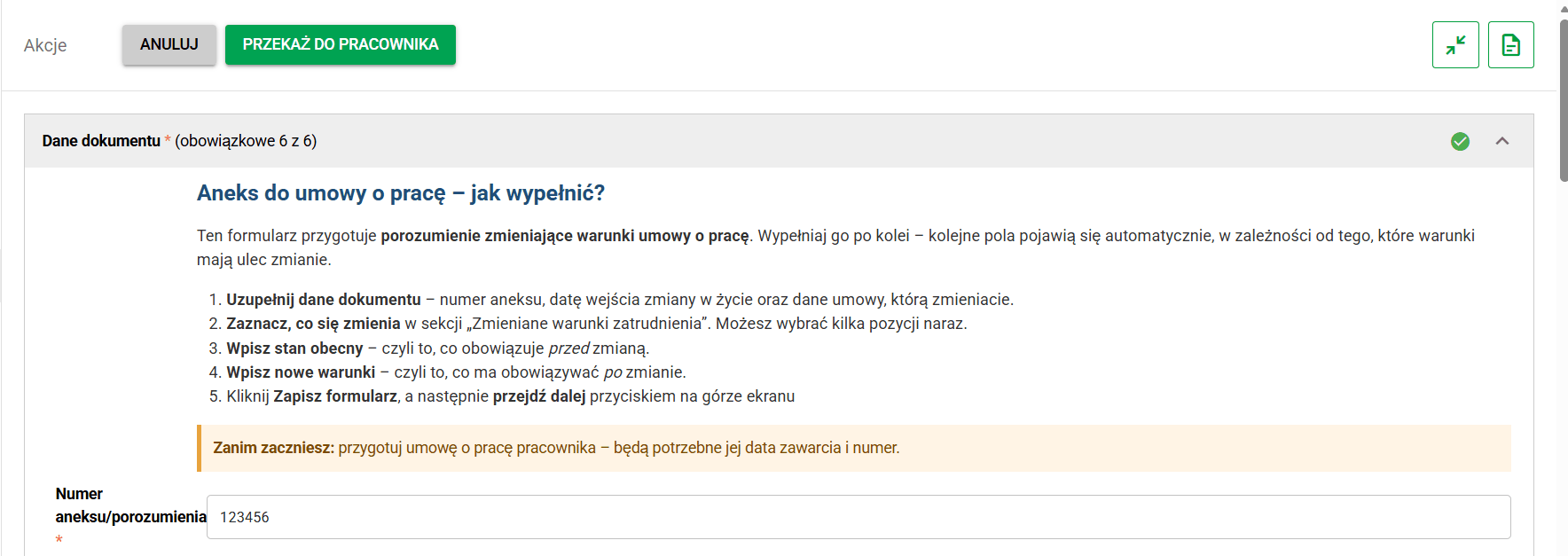
Creating the case and completing the agreement data
Documents
The process generates an Agreement changing the terms of work (annex to the employment contract) document. It is generated automatically from the data entered in the case form after the case is passed to the employee.
Once the process is complete, the signed document can be saved in the Employment contracts, annexes, changes folder of the employee's eFolder.
Employee signature
Once generated, the document is made available to the employee for review. At this stage, the employee can sign it and pass the case on, or send it back for correction if changes are needed.
Employer-side signature
After successful verification, the document is sent for signature to the person representing the employer, assigned to the appropriate managerial role. Once signed, the document can be passed to eFOB, or the case can be completed according to the process configuration.
Signature methods
The process uses a qualified signature or a handwritten signature handled outside the platform. For details on signing electronic documents, see How to sign electronic documents using a Qualified Signature?.
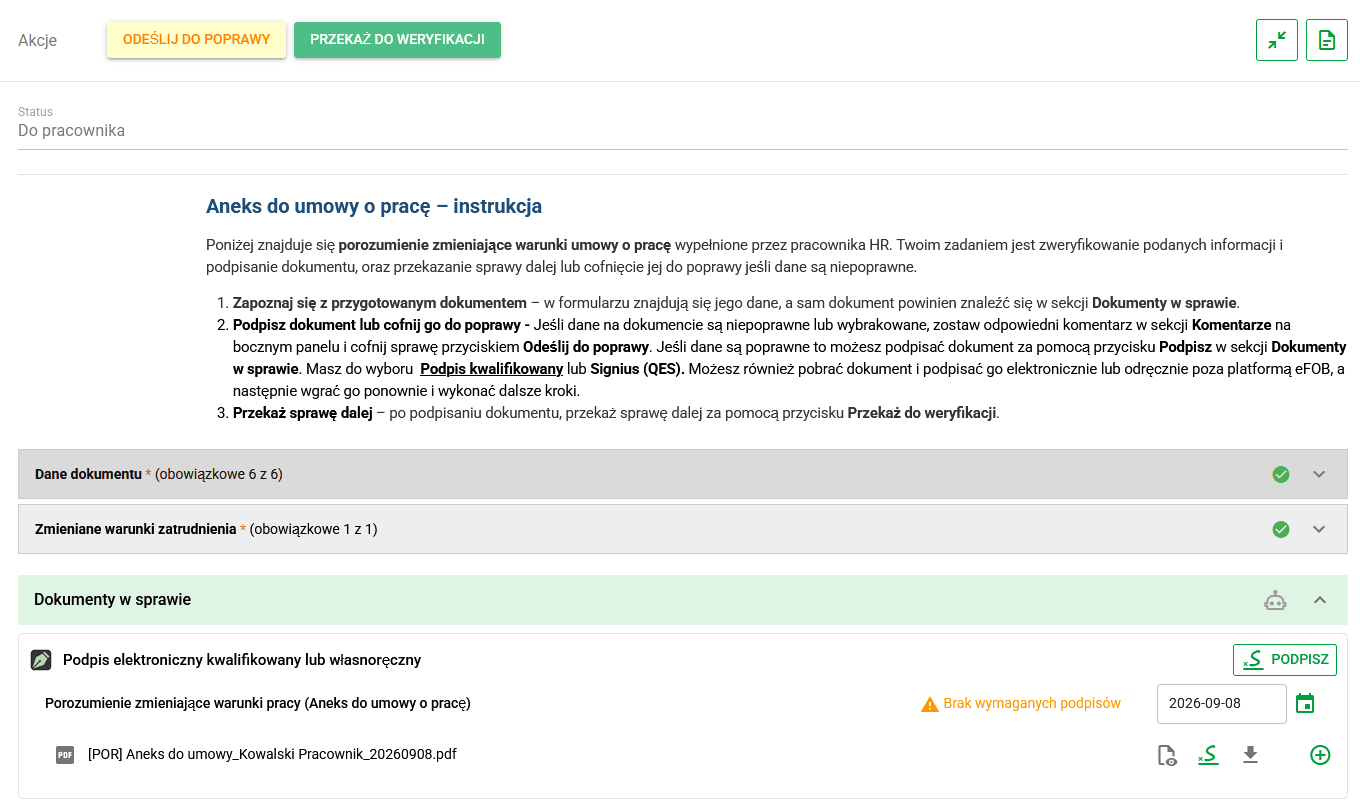
Employee signing the agreement
Stages and transitions
The table below describes the process in detail, including its stages and available transitions. Depending on the current stage, participants can perform specific actions that affect how the case proceeds.
This is the default process configuration. The organization's administrator can adapt stages, transitions and associated actions to the organization's needs and procedures.
| Stage | What happens at this stage | Possible transitions |
|---|---|---|
| New | HR or Payroll complete the agreement data and select the change scope. | Pass to employee or Cancel |
| To employee | The employee reviews the prepared annex, signs it, or sends it back for correction. | Pass for verification, Send back for correction, or Cancel |
| Under verification | HR or Payroll verify the data and the signed document before employer-side signature. | Send for signature, Send back for correction, Reject case, or Cancel |
| For signature | The employer-side person signs the document or sends it back to verification. | Accept and send to eFile, Accept and complete, Send back to verification, or Cancel |
| To eFile | The signed document is waiting to be saved in the employee records. | Load to eFile, Return to verification, Reject case, or Cancel |
| Completed | The case has been completed. | no further transitions |
| Rejected | The agreement was not accepted. | no further transitions |
| Cancelled | The case was cancelled. | no further transitions |
Notifications
The table below shows the default notification scope for this case type. The organization's administrator can adapt notification settings to the organization's needs and procedures.
| Moment | Recipient | Purpose of the notification |
|---|---|---|
| Case created or returned for correction | HR and Payroll | The case needs data completion or correction. |
| Transition to the To employee stage | Employee | The document is ready for signature or confirmation. |
| Transition to the Under verification stage | HR and Payroll | The employee has signed the document and the case is waiting for verification. |
| Transition to the For signature stage | Manager | The agreement is waiting for the employer's signature. |
| Transition to the To eFile stage | HR | The signed document is waiting to be filed in eFile and the case is ready to be completed. |
| Case completion, rejection, or cancellation | Employee, HR, and Payroll | The final outcome of the case. |
Pay transparency request/report
What it is for
The Pay transparency request/report case type handles requests, inquiries and reports related to pay transparency, from submission by the employee through review to preparing and delivering a formal response. Depending on the organization, HR, Payroll or both teams may participate in the process.
The process can be used for:
- requests for information about remuneration,
- inquiries about remuneration criteria,
- reports of discrepancies or doubts regarding the pay policy,
- preparing remuneration summaries,
- preparing pay analyses and reports.
This allows the organization to register, review and document pay-transparency matters in a structured way, with consistent handling and document archiving.
How the workflow works
- The employee creates the case, selects the request or report category and completes the required information.
- Based on the entered data, the system generates the request document, which the employee signs or confirms.
- After signing, the employee can add attachments and pass the case for verification.
- HR or Payroll review the scope of the case, verify that the submitted information is complete and prepare a response.
- Based on the data entered by the person handling the case, the system generates the response document.
- Once the review is complete, the response is delivered to the employee. The documentation can be filed in eFile, or the case can be completed according to the process configuration.
This outline describes the general process flow. The following sections provide details on forms, documents, process participants, permissions, stages, transitions and notifications.
Request or report form
The request or report form adapts to the selected case category. Depending on the request type, some fields may be shown or hidden, so users provide only the information needed to handle the case.
| Field | Required | Description |
|---|---|---|
| Case category | Yes | The type of request or report related to pay transparency. |
| Data scope | Conditional | This field appears for the Request for remuneration information category. It lets the employee indicate whether the request concerns their own remuneration, averages in a comparison group, or both. |
| Comparison group | Conditional | This field appears when the selected data scope includes comparison-group averages. |
| From | Conditional | Start of the data period. It is hidden for inquiries about remuneration criteria and for reports of doubts regarding the pay policy. |
| To | Conditional | End date of the data period. The same visibility rules apply as for the From field. |
| Description of the matter or question | Yes | The content of the request or report. It is worth stating clearly what information the employee expects to receive. |
| Expected response or actions | Yes | The response or action the employee expects. |
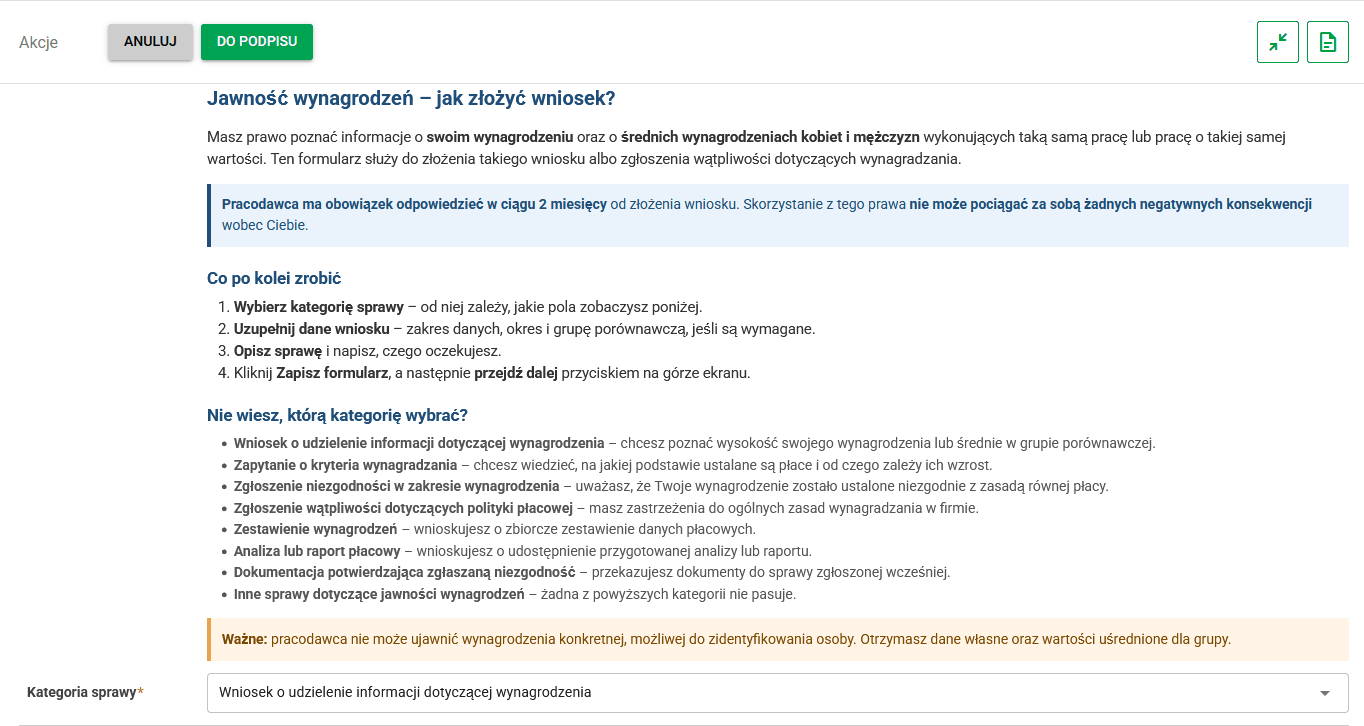
Form of the pay transparency request
Response form
At the Response stage, the person handling the case prepares a response for the employee. The available fields depend on the report type, selected case category and review result. The form therefore displays only the information needed to prepare a response for that case.
| Field | Required | Description |
|---|---|---|
| Review result | Yes | The substantive outcome of the review: information provided, partially provided, refused, or the report deemed unfounded. |
| Response content | Yes | The actual response for the employee. |
| Justification for refusal or partial disclosure | Conditional | This field appears for a partial response, a refusal, or when the report is deemed unfounded. |
| Applicant's remuneration (gross PLN) | Conditional | This field appears when the data scope includes My remuneration and no refusal was selected. |
| Components included in the listed amounts | Conditional | Additional details for own-remuneration data. |
| Average remuneration of women (gross PLN) | Conditional | This field appears when the selected data scope includes a comparison group. |
| Average remuneration of men (gross PLN) | Conditional | This field appears when the selected data scope includes a comparison group. |
| Remuneration criteria | Conditional | This field appears for categories related to remuneration criteria and doubts about the pay policy. |
| Pay progression criteria | Conditional | This field appears for the same categories as remuneration criteria. |
| Corrective actions | Conditional | This field appears for a remuneration discrepancy report or supporting documentation for such a discrepancy. |
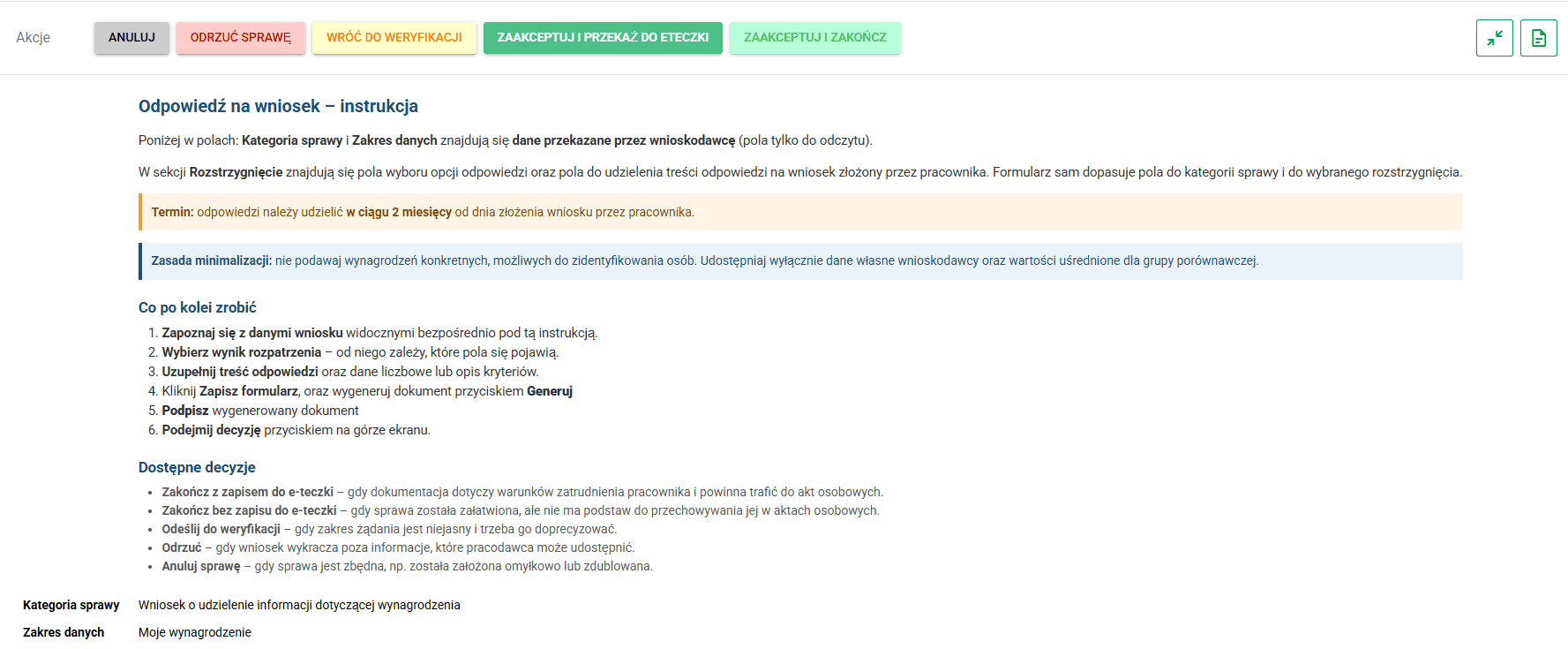
Response form completed by HR or Payroll
Documents
The process generates two documents:
- Request for remuneration information - generated from the data entered by the employee. Once the process is complete, it can be saved in the Other folder.
- Remuneration information (response) - generated from the response prepared by HR or Payroll. Once the process is complete, it can be saved in the Payroll lists and payment requests folder.
The request document is generated after the employee completes the form and passes the case for signature. The response document is generated after the person handling the case prepares the response.
Once the response is generated, the employee is notified that handling of the case is complete. Depending on the process configuration, the documentation can be saved in the employee's eFolder, or the case can be completed without additional archiving.
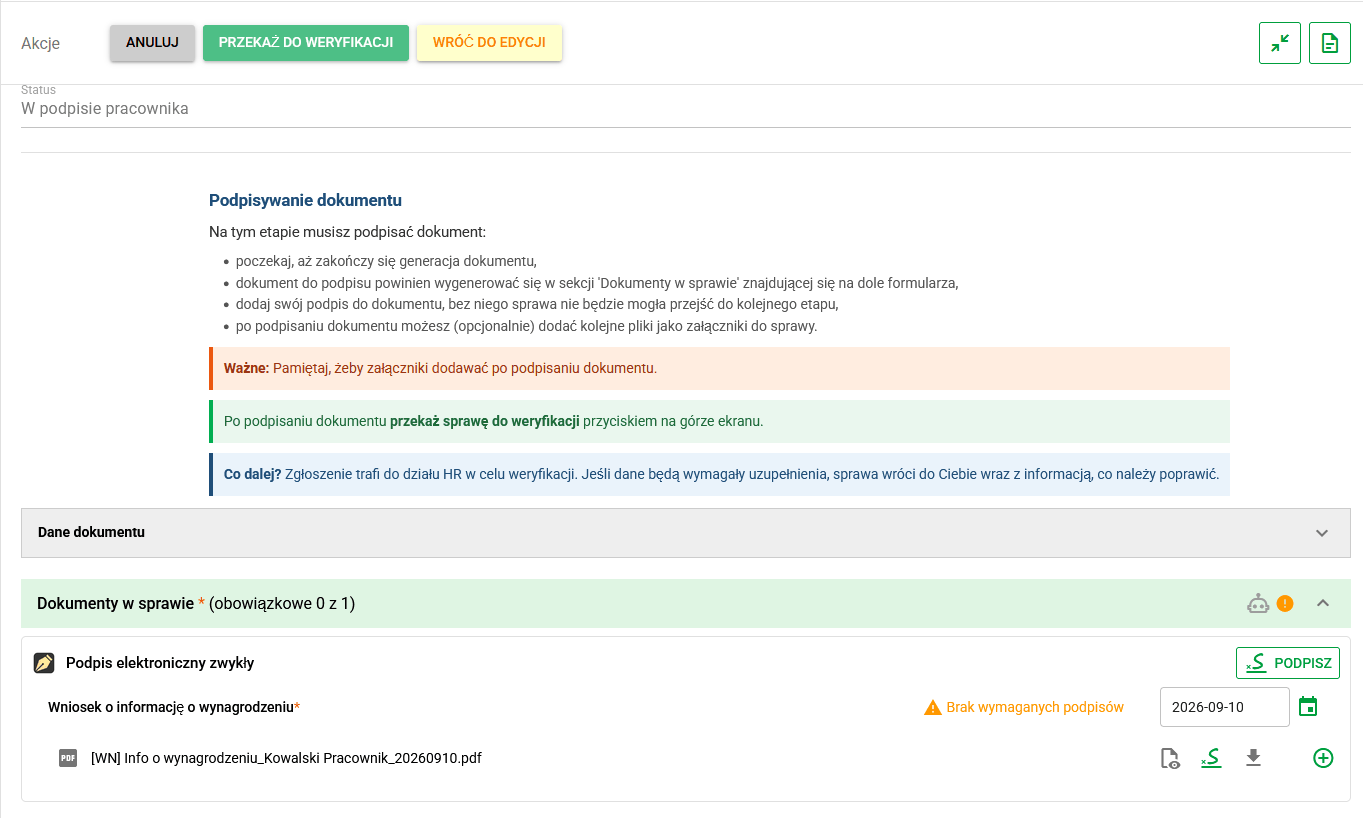
Stage where the employee signs the request
Stages and transitions
The process takes the case from submission of the request or report by the employee, through verification and response preparation, to completion or filing the documentation in eFile. Each stage offers specific actions to move through the process.
The table below shows the default process flow and available transitions.
| Stage | What happens at this stage | Possible transitions |
|---|---|---|
| New | The employee fills in the request or report and saves the form data. | Go to signature or Cancel |
| Employee signature | The system generates the request document. The employee signs it and can add attachments before passing the case on. | Send for verification, Return to editing or Cancel |
| Under verification | HR or Payroll check the scope of the case and completeness of the request, and decide how to proceed. | Go to response, Send back for correction, Reject case or Cancel |
| Response | HR or Payroll complete the response form and generate the response document. | Accept and complete, Accept and send to eFile, Return to verification, Reject case or Cancel |
| To eFile | The documents are waiting to be saved in the employee's eFolder. | Load to eFile, Return to verification or Cancel |
| Completed | The case has been completed. | no further transitions |
| Rejected | The request or report has been rejected. | no further transitions |
| Cancelled | The case has been cancelled. | no further transitions |
The three key steps are submission of the request, signing the document and preparation of the response by HR or Payroll.
Notifications
The table below shows the default notification scope for this case type. The organization's administrator can adapt notification settings to the organization's needs and procedures.
| Moment | Recipient | Purpose of the notification |
|---|---|---|
| Case created or returned for correction | Employee | The request needs completion or correction. |
| Transition to the Employee signature stage | Employee | The request document is ready for signature. |
| Transition to the Under verification stage | HR and Payroll | The signed request is waiting for review. |
| Transition to the Response stage | HR and Payroll | The case is ready for a response to be prepared. |
| Transition to the To eFile stage | Employee, HR and Payroll | The response is ready; the documentation is waiting for final closure or storage in eFOB. |
| Case completion | Employee | Confirmation that the case has been completed. |
| Case rejection | Employee | The request has been rejected. |
| Case cancellation | Employee | The case has been cancelled. |
Confidential complaint or violation report
What it is for
The Confidential complaint or violation report case type supports the secure, confidential reporting of complaints, violations and other irregularities that require restricted access to information. The report's content is available only to the reporting person and users with the appropriate permissions to handle confidential cases.
This process is suitable when an employee wants to submit information that requires discreet review or formal documentation. It can be used to report:
- a violation or other irregularity,
- an employee complaint,
- mobbing,
- discrimination,
- a conflict of interest,
- a violation of ethical rules,
- an incident that requires formal reporting and documentation.
Restricted access helps the organization handle confidential matters securely while allowing them to be documented, verified and archived according to applicable procedures.
How the workflow works
- The employee creates the report, selects its category and describes the circumstances, including the sequence of events, the people concerned and the reason for submitting it.
- In the form, they can also identify available evidence, describe attachments and specify the expected actions or resolution.
- Based on the entered data, the system generates a Complaint or violation report document, which the employee signs or confirms.
- After signing, the employee can add attachments containing supporting materials or evidence related to the report.
- The report is passed for verification to people authorized to handle confidential cases, who check that the information and attachments are complete.
- After verification, the report can be sent back for correction, rejected, completed or passed to the document-filing stage if the documentation should be saved in the employee's records.
This outline describes the general process flow. The following sections provide details on the form, documents, process participants, permissions, stages, transitions and notifications.
Form data
When creating a confidential report, the employee describes the matter, the circumstances of the event and their expectations for further action. The information should allow authorized handlers to assess the matter and take appropriate action.
| Field | Required | Description |
|---|---|---|
| Report category | Yes | The type of report. You choose one category that best matches the nature of the matter. |
| Description of the matter | Yes | A detailed description of the event. It is best to describe it step by step: what happened, when, where and who was involved. |
| Justification | Yes | Why the reporting person considers the situation improper and what impact it has had or may have. |
| Evidence or attachments (description) | No | A description of the evidence or materials available. The files themselves are added to the case as attachments. |
| Expected actions | No | The action the reporting person expects. |
The Report category field allows the user to select one of the available values, such as an employee complaint, mobbing report, discrimination report, conflict of interest or violation of ethical rules.
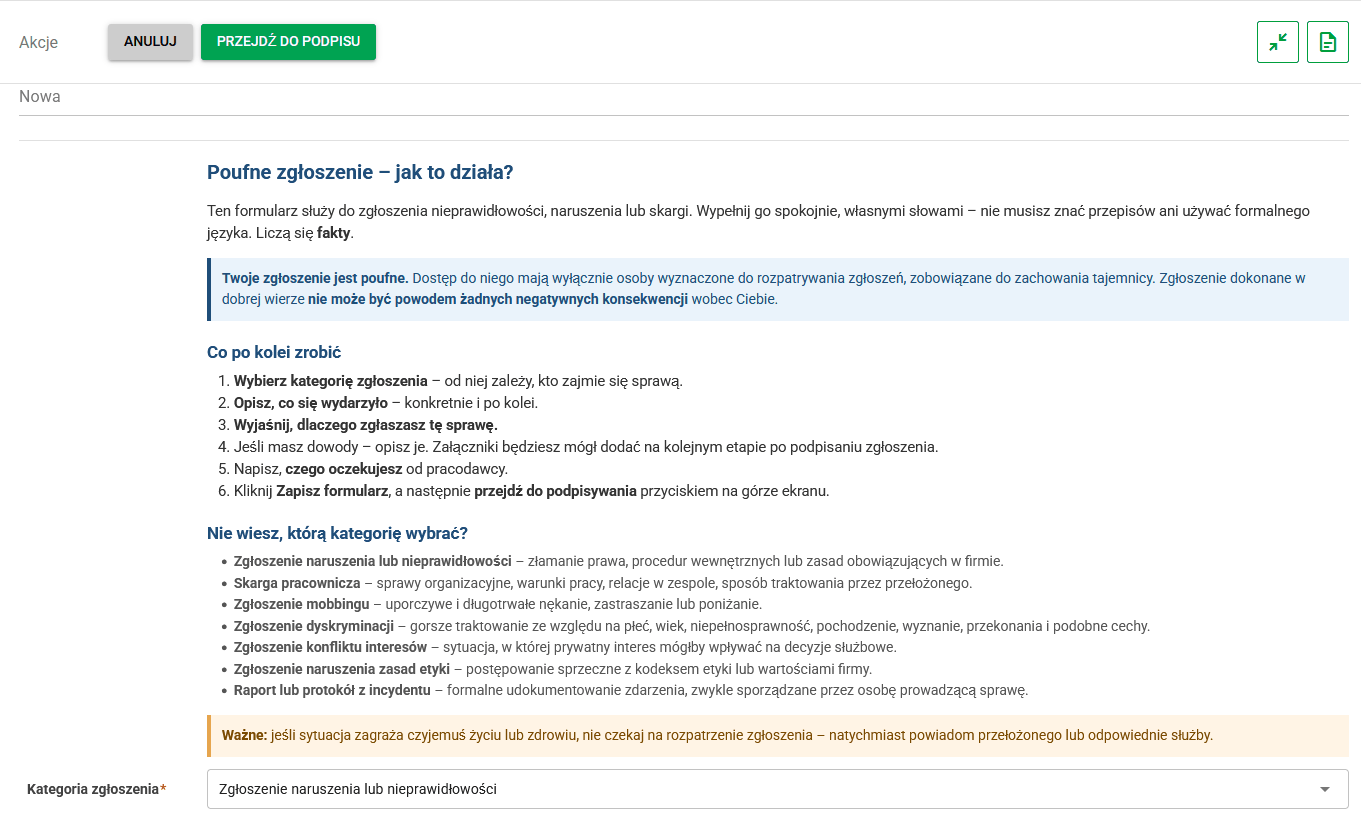
Confidential complaint or violation report form
Documents
The process generates a Violation report document from the data entered by the reporting person. The document is made available for signature or confirmation before the case is passed on for further handling.
Once the process is complete, the document can be saved in the Other folder. If required by the way the case is handled or by the organization's procedures, the documentation can also be passed to the employee's eFolder.
After signing, the reporting person can add attachments containing supporting materials or evidence. During verification, the people handling the case check that the submitted information and attachments are complete.
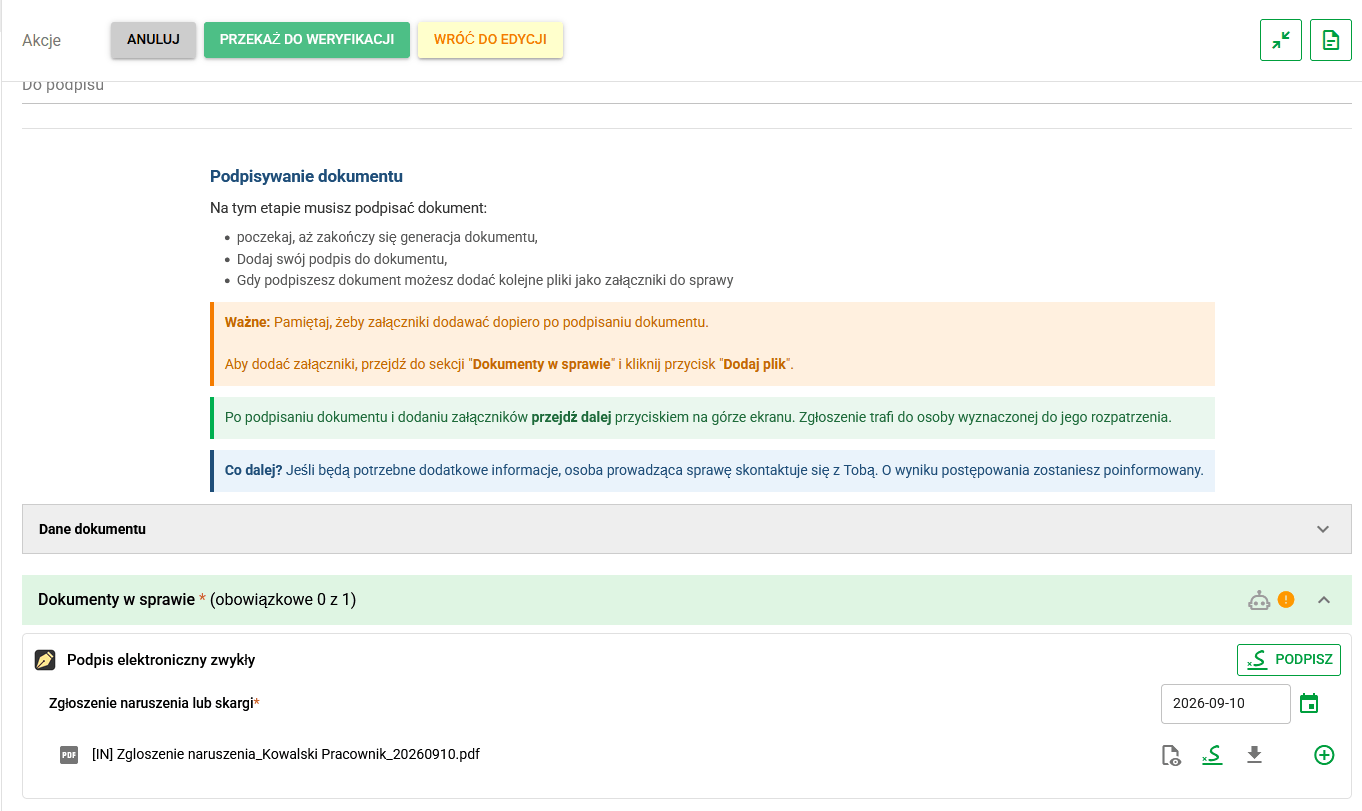
Stage where the employee signs the generated document
Stages and transitions
The process takes the report from creation by the employee to case closure or filing the documents in eFile. At each stage, users can continue handling the report, send it back for correction or complete the process using the available actions.
| Stage | What happens at this stage | Possible transitions |
|---|---|---|
| New | The employee fills in the confidential report form and saves the case data. | Go to signature or Cancel |
| For signature | The system generates the report document. The employee signs it and can add attachments only after the signature is completed. | Send for verification, Return to editing or Cancel |
| Under verification | An authorized person checks that the report and attachments are complete, and decides how to proceed. | Accept and complete, Accept and send to eFile, Send back for correction, Reject case or Cancel |
| To eFile | The documents are waiting to be saved in the employee's eFolder. | Load to eFile, Return to verification or Cancel |
| Completed | The case has been closed. | no further transitions |
| Rejected | The report has been rejected by an authorized handler. | no further transitions |
| Cancelled | The case has been cancelled. | no further transitions |
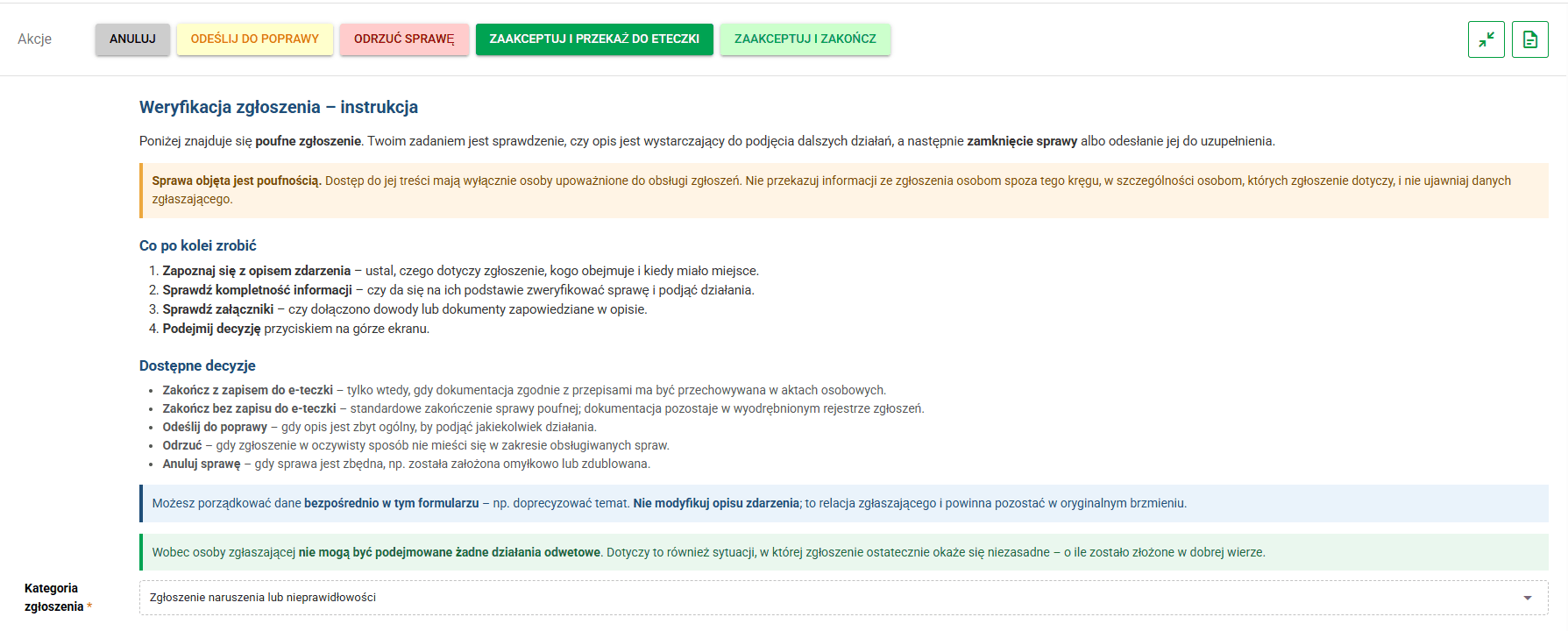
Report verification stage handled by authorized confidential-report staff
Notifications
The table below shows the default notification scope for this case type. The organization's administrator can adapt notification settings to the organization's needs and procedures.
| Moment | Recipient | Purpose of the notification |
|---|---|---|
| Case created or returned for correction | Employee and confidential handling staff | The confidential report has been registered or returned for completion. |
| Transition to the For signature stage | Employee | The report document is ready for signature. |
| Transition to the Under verification stage | Authorized confidential-report handlers | The signed report is ready for review and a decision. |
| Transition to the To eFile stage | Authorized confidential-report handlers | The documents are ready to be filed in eFile. |
| Case completion | Employee | Confirmation that the case has been closed. |
| Case rejection | Employee | The report has been rejected after review. |
| Case cancellation | Employee | The case has been cancelled. |
General report
What it is for
The General report case type lets employees submit information, documents and materials to HR when the organization does not have a dedicated process for them. It handles the General report document and its attachments in a single workflow.
This process is suitable when you want to submit information or documentation in a structured way, but the available case types do not match the report. It can be used to submit:
- an employee's letter,
- an official note,
- photographic documentation,
- a report or analysis prepared by the employee,
- a document confirming the circumstances of the matter,
- an employee's certificate or statement,
- project or organizational documentation,
- other materials that do not require a dedicated handling process.
The employee creates the report and passes it on, while HR is responsible for verification and subsequent actions. This gives the organization a consistent way to handle non-standard matters, retain a history of actions and collect related documentation in one place.
How the workflow works
- The employee creates the report, selects its category, enters a subject and describes the matter.
- Based on the entered data, the system generates a General report document, which the employee signs or confirms.
- After signing, the employee can add attachments and supporting materials to the case.
- The report is then passed to HR for verification.
- HR checks that the report is complete, including its subject, description, signed document and submitted attachments.
- If the report needs to be completed or corrected, it is sent back to the employee. Otherwise, the case is completed or passed to the document-filing stage according to the process configuration and applicable procedures.
This outline describes the general process flow. The following sections provide details on the form, documents, process participants, permissions, stages, transitions and notifications.
Form data
When creating a report, the employee identifies the type of matter and provides the information needed to handle it. The form data is used to generate the report document and support its further handling by HR.
| Field | Required | Description |
|---|---|---|
| Report category | Yes | The type of matter being submitted. You select one category that best matches the nature of the report. |
| Report subject | Yes | A short, clear label that makes the matter easy to recognize in the list. |
| Description of the matter | Yes | The actual content of the report. It is worth stating clearly what the matter concerns, when it happened, who it concerns and what action the reporting person expects. |
| Additional remarks | No | Additional information that may help with verification or further handling. |
The Report category field identifies the material being submitted, such as an employee's letter, an official note, photographic documentation, a report or analysis prepared by the employee, a document confirming the circumstances of the report, a certificate, an employee statement, or project or organizational documentation.
These categories help the people handling the case identify its nature and the appropriate course of action more quickly.
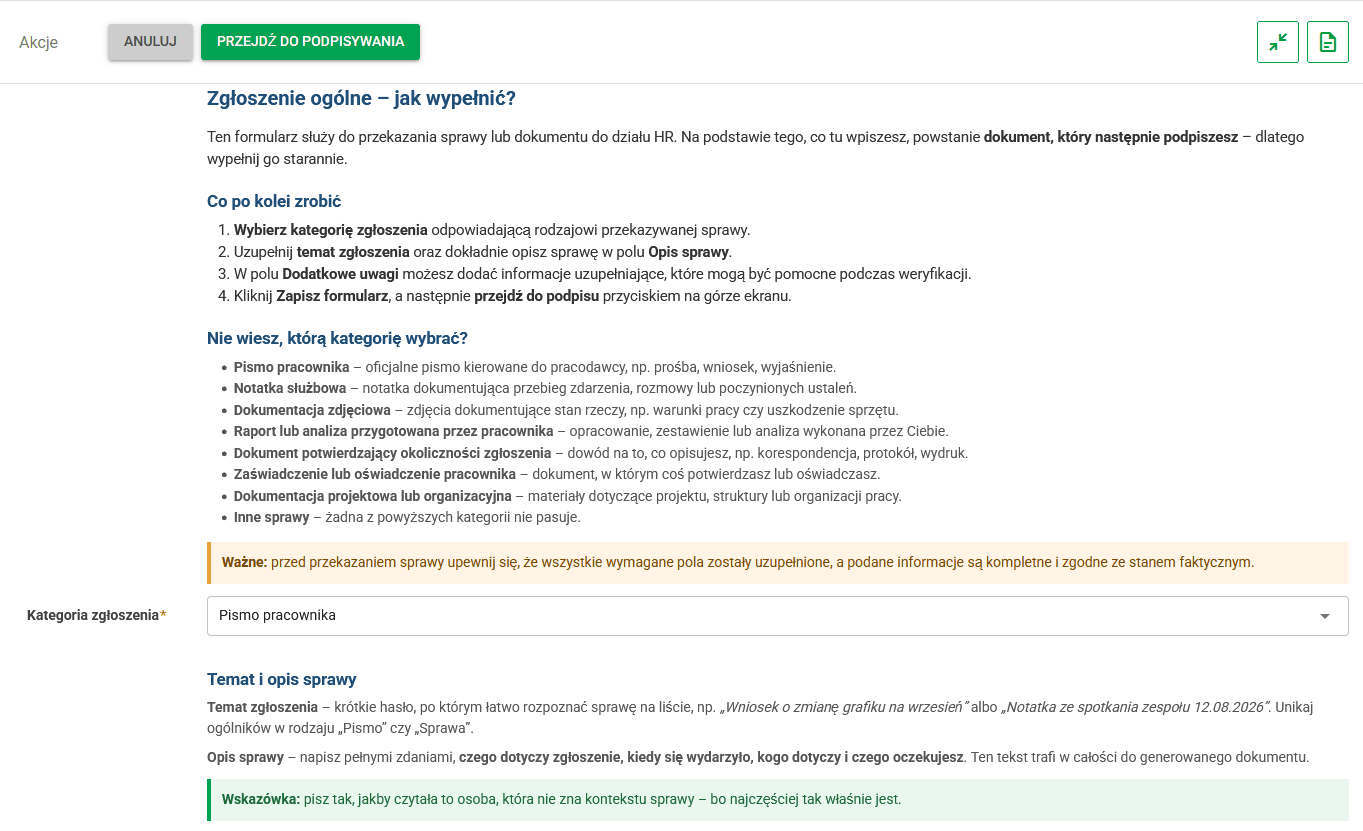
New case form as seen by the employee
Documents
The process generates a General report document from the data entered by the employee. The document is made available for signature or confirmation before the case is passed on for further handling.
Once the process is complete, the document can be saved in the Other folder. Depending on the process configuration and the organization's procedures, the documentation can also be passed to the employee's eFolder.
After signing, the employee can add attachments such as scans, photos, notes or other supporting materials. Attachments are stored with the case and can be used by HR during verification and further handling.
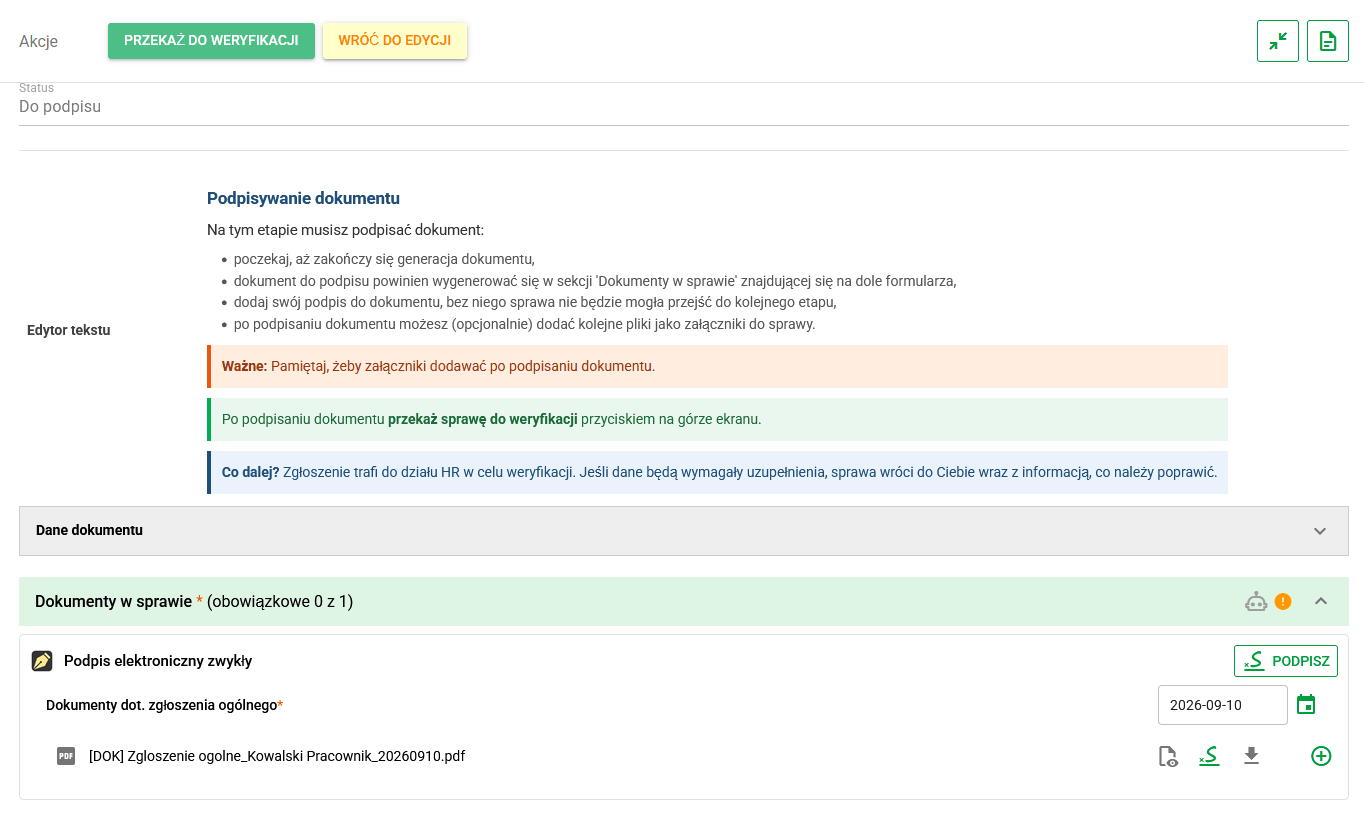
Stage where the employee signs the generated document
Stages and transitions
The process takes the case from creation of the report by the employee, through signing and HR verification, to completion or filing the documentation in eFile. Each stage offers specific actions to move through the process.
The table below shows the default process flow and available transitions.
| Stage | What happens at this stage | Possible transitions |
|---|---|---|
| New | The employee fills in the report form: selects the category, enters the subject and describes the matter. | Go to signing or Cancel |
| For signature | The system generates the report document. The employee signs it and, if needed, adds attachments to the case. | Send for verification, Return to editing or Cancel |
| Under verification | HR checks whether the report is complete, whether the description is correct and whether the signature and attachments are present. | Accept and complete, Accept and send to eFile, Send back for correction, Reject case or Cancel |
| To eFile | The document is waiting to be saved in the employee's eFolder. | Load to eFile, Return to verification or Cancel |
| Completed | The case has been completed. | no further transitions |
| Rejected | HR rejected the case. | no further transitions |
| Cancelled | The case has been cancelled. | no further transitions |
The three key stages are preparation of the report by the employee, signing the document and HR verification.
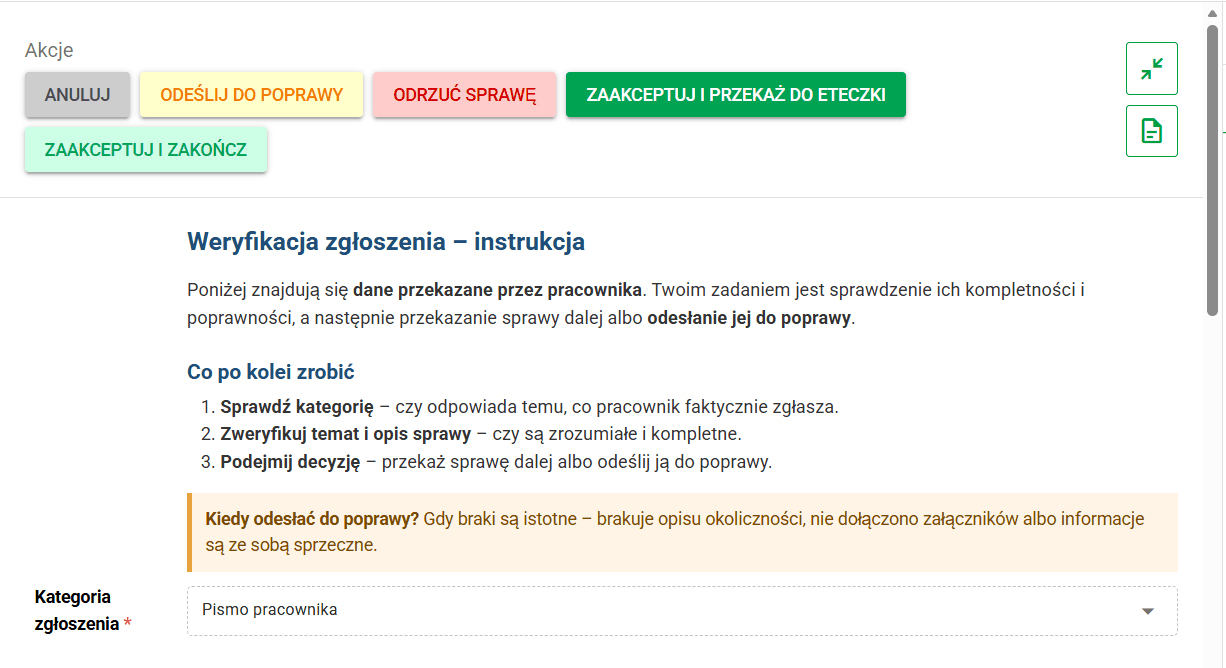
HR verification stage of the report
Notifications
The table below shows the default notification scope for this case type. The organization's administrator can adapt notification settings to the organization's needs and procedures.
| Moment | Recipient | Purpose of the notification |
|---|---|---|
| Case created or returned for correction | Employee | The report needs completion or correction. |
| Transition to the For signature stage | Employee | The document is ready for signature. |
| Transition to the Under verification stage | HR department | The signed report is waiting for verification. |
| Transition to the To eFile stage | HR department | The documents are ready to be filed in eFile. |
| Case completion | Employee | Confirmation that the case has been completed. |
| Case rejection | Employee | HR has rejected the report. |
| Case cancellation | Employee | The case has been cancelled. |
Summary
Ready-made case types help organize repeatable processes and communication between employees, candidates and HR staff. They guide users through defined stages, automate document generation, support signing, send notifications and allow documentation to be archived in eFOB.
Administrators can import case types from the Process Library and adapt them to the organization's procedures, roles and document workflows. For configuration and management details, see Case types.