Bulk case status changes
When to change case statuses in bulk
Bulk case status changes let you update the workflow status of several cases at once.
Use this when several similar cases need the same action. Select the cases and apply the action without opening each record separately.
Validation depends on the selected action and stage configuration. If the stage is editable, an action with form validation enabled checks saved data when called in bulk too. Before running it, check data, documents, and required signatures; do not use a bulk transition to bypass process requirements.
How to change case statuses in bulk
Open the Cases module to view the records available to you.
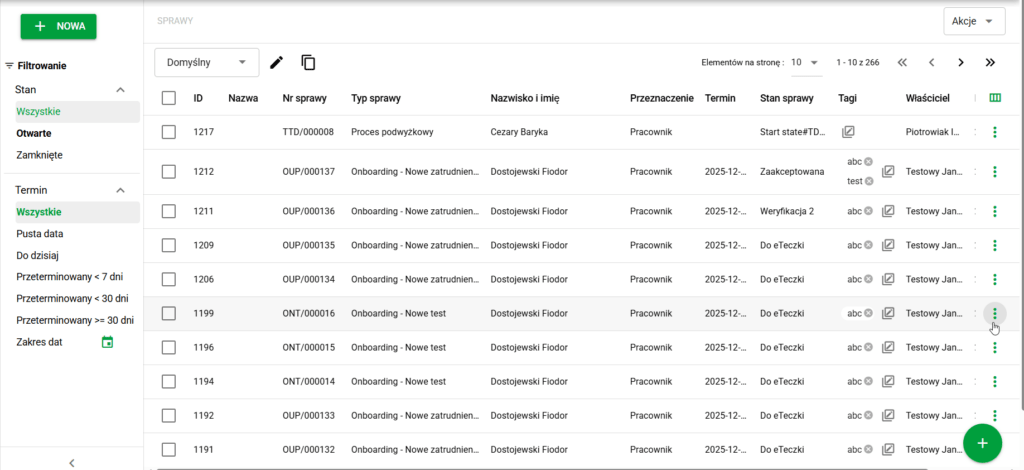
Use the checkboxes for each case to select the records whose status you want to change.
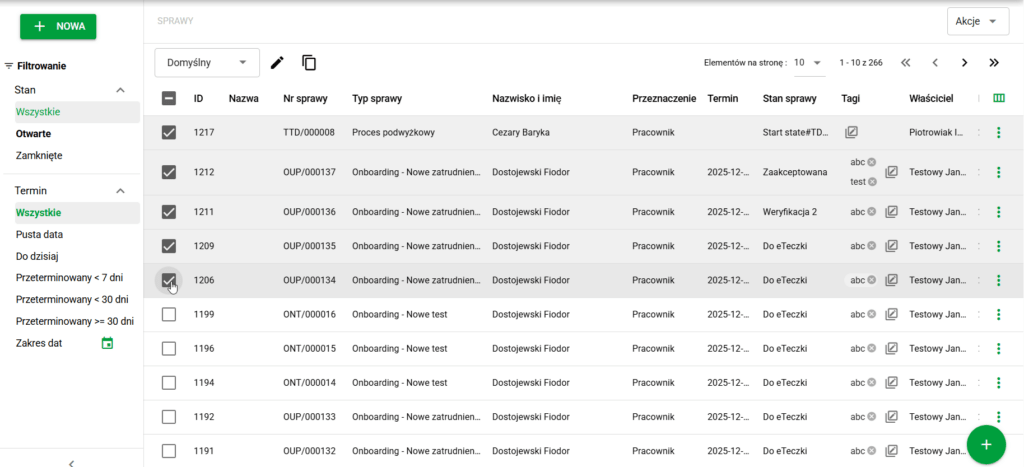
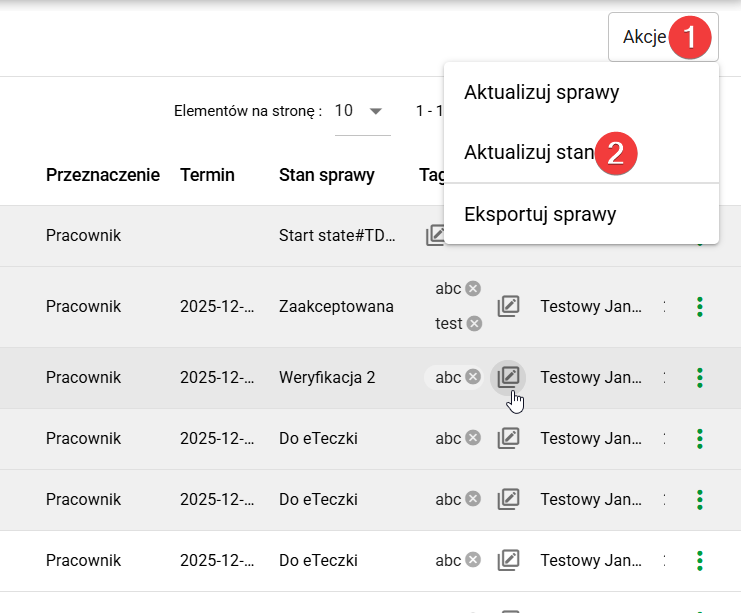
With cases selected, open Actions (1) in the upper left corner and choose Update Status (2). The action is unavailable if no cases are selected.
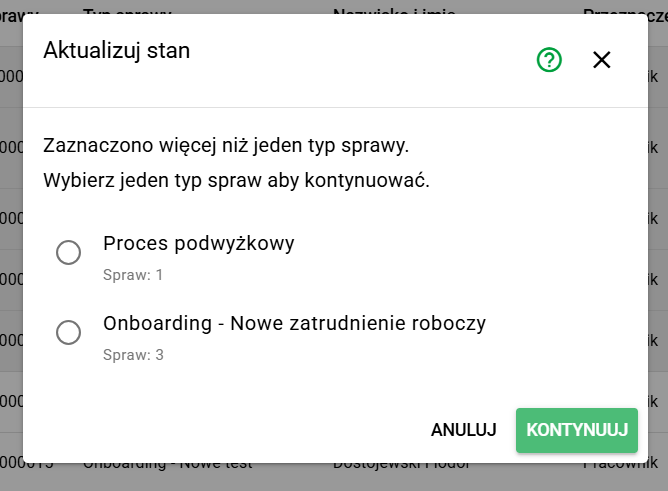
If the selection contains different case types, the system asks you to choose one. A bulk status change applies to one case type at a time.
After selecting the case type, you will see the available status-change actions.
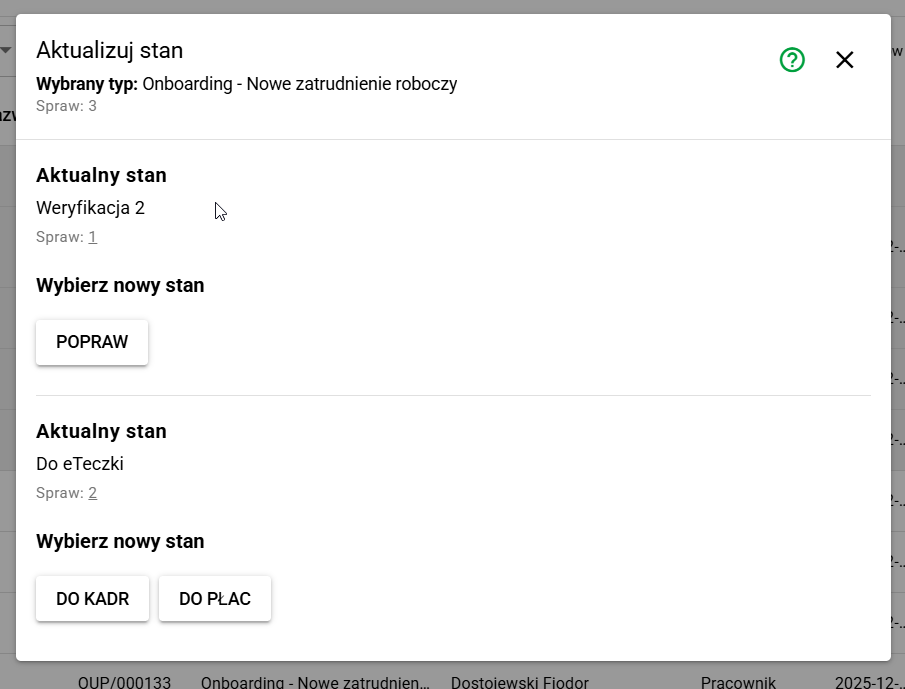
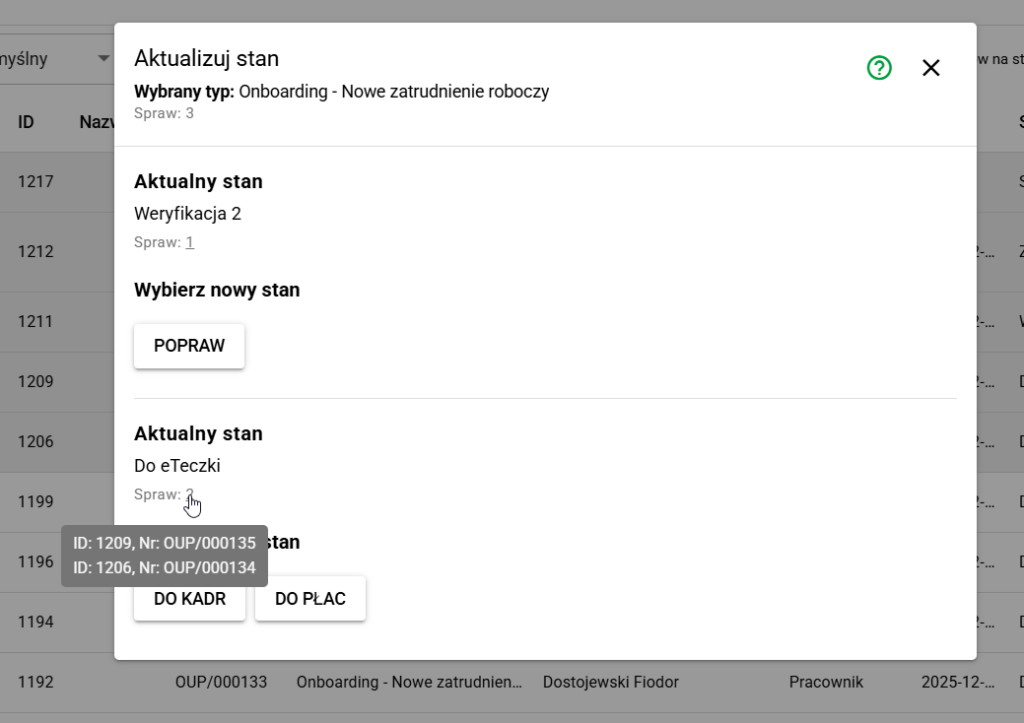
In the example, the selected Onboarding - New Hire cases are in different states, such as "To eFile" or "Verification 2". Hover over the count for a state to see which cases it contains.
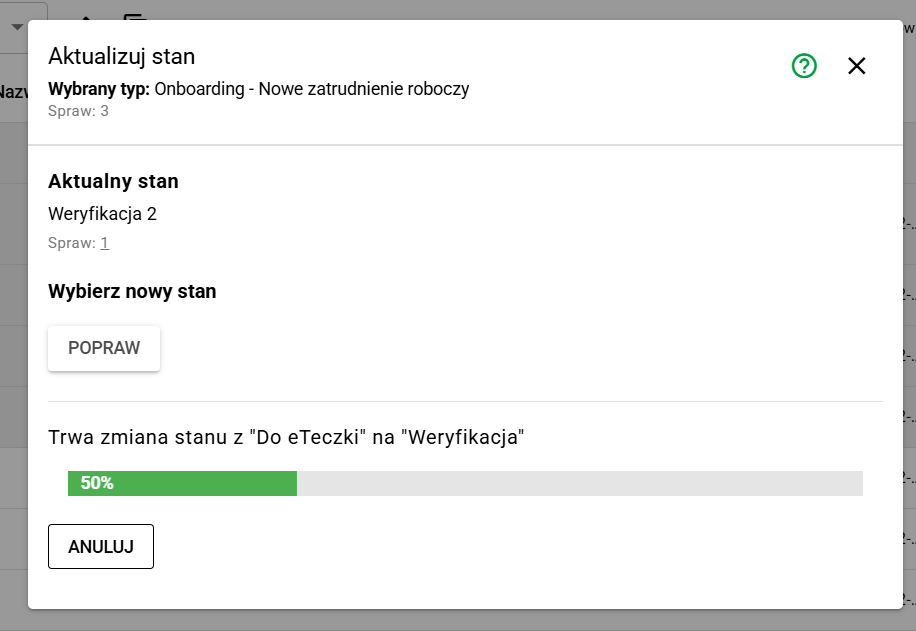
Select the operation. The system attempts the change for cases matching the selected type and state and displays progress. Some cases may change successfully while others fail.
After the update, the window does not close automatically. You can perform another status change for the same or other selected cases.
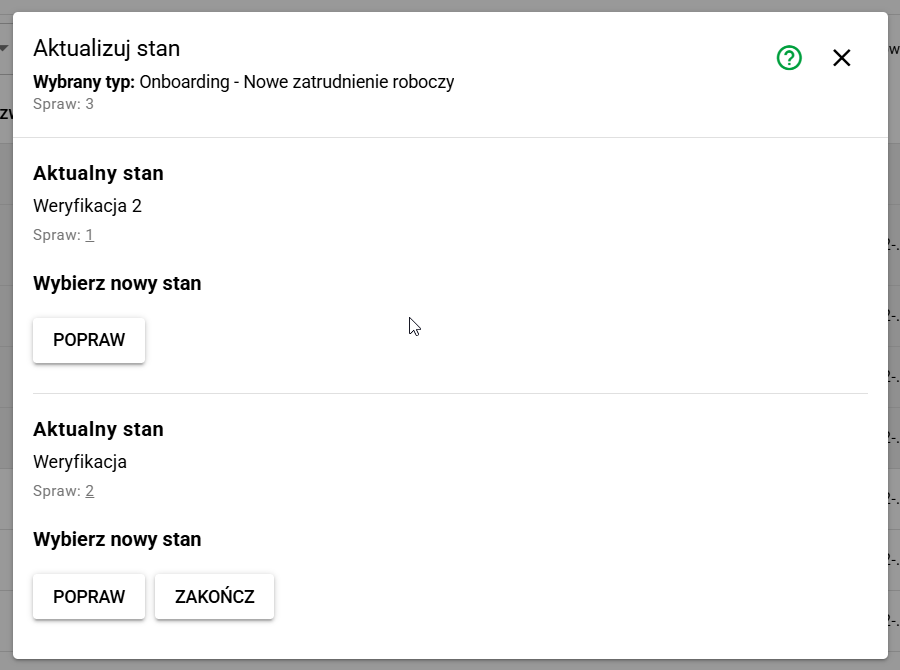
Before another operation, compare successful changes, errors, and current states. Read the messages for failed items. Retry only after checking which cases still need a change; do not repeat an operation on the whole original list without checking its results.