Mass signing of case documents
The Mass Signing of Case Documents feature allows you to sign documents from multiple cases at the same time without having to open each case separately. The solution is designed to handle larger volumes of documents, for example annexes, agreements or other letters requiring an electronic signature.
What is the function for?
The Sign documents action is available after selecting one or more issues on the list. The function can only be started when:
- the user has the authority to sign documents,
- the selected cases are of the same type,
- selected issues are in the same workflow state,
- in selected cases there are documents that can be signed.
If any of these conditions are not met, the signature activation button remains inactive.
How to prepare a list of issues for signature?
Before activating the signature, it is worth using the filters in the to-do list.
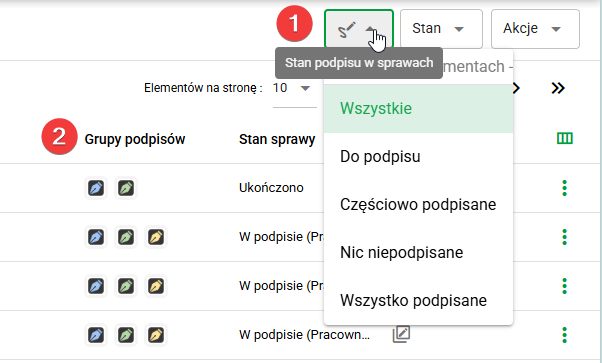
The system allows you to filter cases (1) according to the status of document signatures. The following options are available:
- All – no additional filtering,
- For signature – cases containing documents waiting for signature,
- Partially signed – cases in which some documents have already been signed,
- Nothing signed – cases in which there are no signed documents yet,
- Everything signed – cases in which all documents have already been signed.
Additionally, you can narrow down the list of cases according to their status, which makes it easier to work at a specific stage of the process, for example only for cases that are signed by the employer or employee.
The list of cases also includes a column called 'Signature Groups' (2), which visually represents the signatures in a given case.
How to start mass document signing?
Mass document signing can be started as follows:
- Open your to-do list.
- Use the filters to display cases containing documents for signature.
- Select one or more issues.
- Select the Sign documents action.
Information visible in the mass signature window
The mass signature window presents summaries regarding the selected set of issues:
-
Selected cases – the number of selected cases and the number of cases that the user can actually edit and sign.
-
Documents to be signed – the number of documents that can be signed in selected cases.
-
Files – number of PDF files that can be signed.
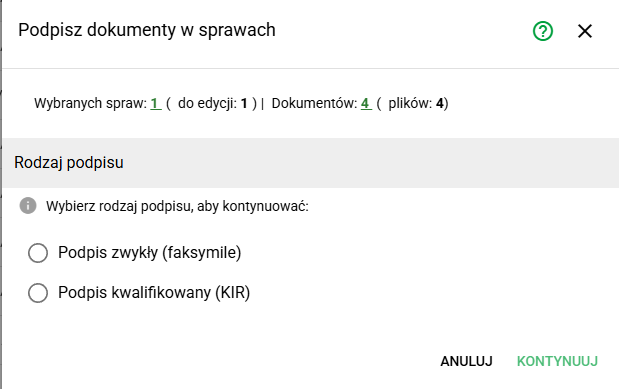
When you hover over the counters, additional information may be displayed, such as the case number, case type, case stage, or document and file names.
Select the type of signature
Depending on the configuration and permissions, the user can choose one of the supported signature methods:
Qualified signature
This option is used to sign documents using a qualified electronic signature. After proceeding to the next step, the system transfers the appropriate files to the standard qualified signature component, also used elsewhere in the system.
This mode should be selected when documents require a formal qualified signature. After selecting a qualified signature, the system opens the signature window known from other parts of the application. The next process is analogous to standard document signing.
Facsimile signature
This option is used to mass apply a graphic signature to PDF documents. In this mode, the user can specify the position of the signature on the document page and its size. The function is intended for mass operations performed by people with appropriate authorizations.
Bulk signing with facsimile signature
After selecting a facsimile signature, a separate Sign Documents dialog box is displayed. It allows you to set signature parameters for all selected files.
The window includes the following information and options:
1. Information about documents
The summary section displays:
- number of files without signature,
- number of files already signed,
- total number of files to be signed.
There is also an option 'Re-sign files' for PDF files that already have a signature.
2. Page settings
You can specify which page of the document the signature should be placed on. Settings available include:
- first page,
- last page,
- indicated page number.
3. Signature position settings
The system allows you to select a ready-made signature position or set the position manually. The ready-made settings may include, for example:
- left bottom,
- middle down,
- right bottom.
You can also set the horizontal and vertical offset of the signature.
4. Signature size settings
In this area you can specify the size of the signature, for example small, medium or large, and define its width. If the maintain aspect ratio option is available, the system will maintain the correct proportions of the signature image.
5. Preview
Before performing the operation, you can use the Preview function to see what your signature will look like:
- the first selected document OR
- a sample five-page document
The preview does not save changes and does not sign documents.
6. Signing documents
After clicking the Sign button, the system starts mass signing of documents in accordance with the selected settings. The operation includes all files that meet the signature conditions. Once completed, the documents receive the appropriate status.
Warnings during facsimile signing
When signing documents using facsimile, the system may display additional warning messages:
- if the document contains a qualified signature, the system will inform you that adding a facsimile may invalidate the existing qualified signature,
- if the document has already been signed by the current user, the system will ask for confirmation before adding another signature,
- if the document has been signed by another user, the system will display the following message:
File already signed
The document has already been signed by another user. Do you want to add another signature?
This message is intended to reduce the risk of accidentally adding an additional signature to a document.