Bulk editing of case data
What can you update?
Bulk editing lets you update selected information in several cases at once:
- Tags assigned to cases;
- Deadlines;
- Owner;
- Comments.
Use it when several cases need the same data change.
Bulk data editing applies selected changes to accessible cases without opening each record. Before confirming, check the selection scope and which items you can edit.
How to edit case data in bulk
Open the Cases module to view the records available to you.
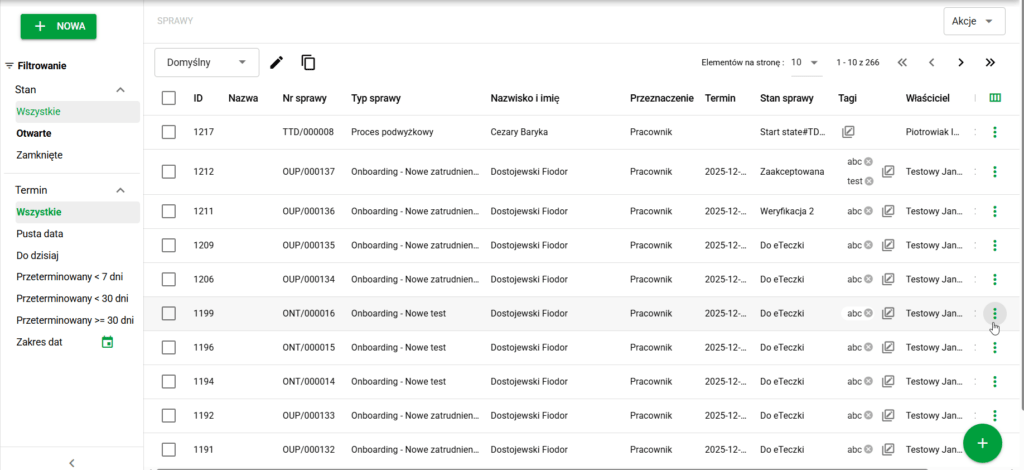
Use the checkboxes next to the cases to select the records you want to update.
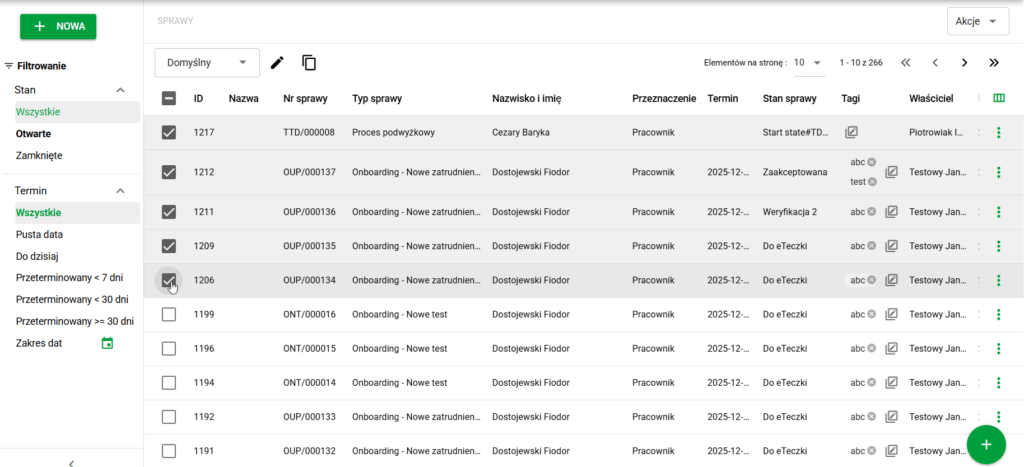
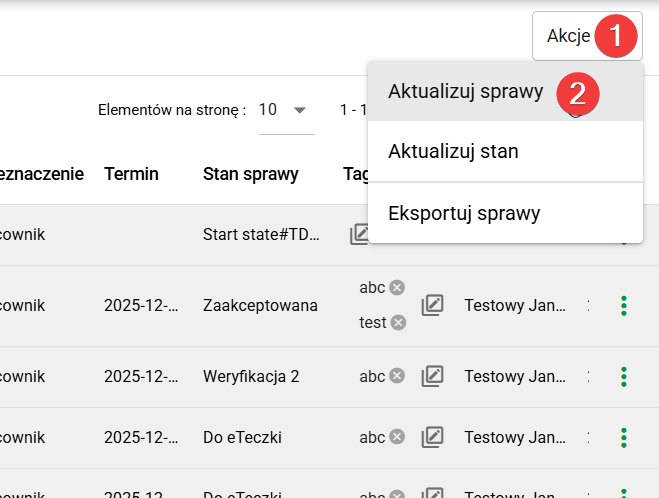
With cases selected, open Actions (1) and choose Update Cases (2). The action is unavailable if no cases are selected.
Unlike bulk case status changes, data updates can include different case types. After you choose Update Cases, the screen shows the selected types and the number of editable and non-editable cases. Hover over a count to see which cases it includes.
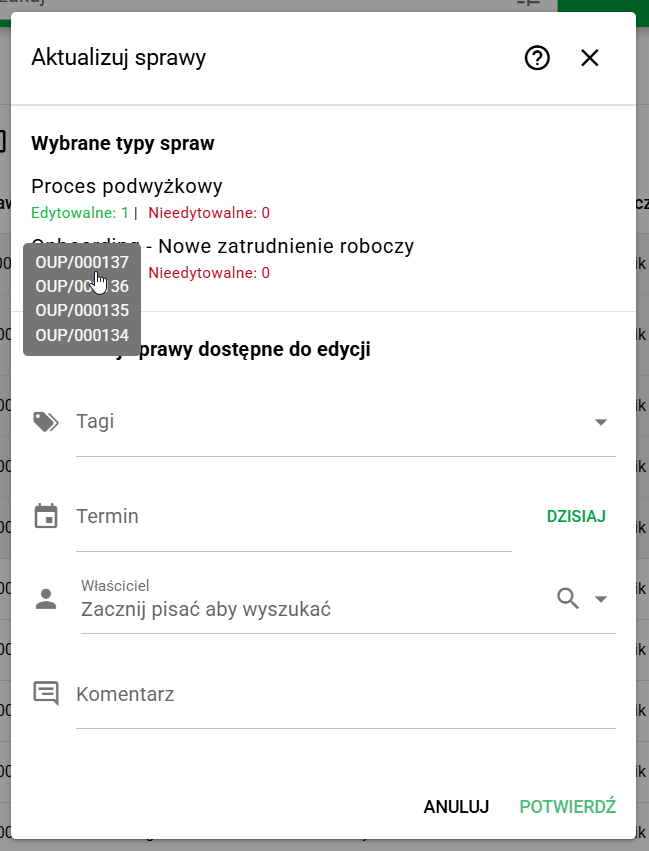
On the bulk update screen, you can change:
- Tags: search for a tag or select it from the drop-down list.
- Date: enter a date or use the calendar icon on the left. Select Today to use the current date.
- Owner: search by name or select a user from the drop-down list.
- Comments: enter text to add as a new comment to each updated case.
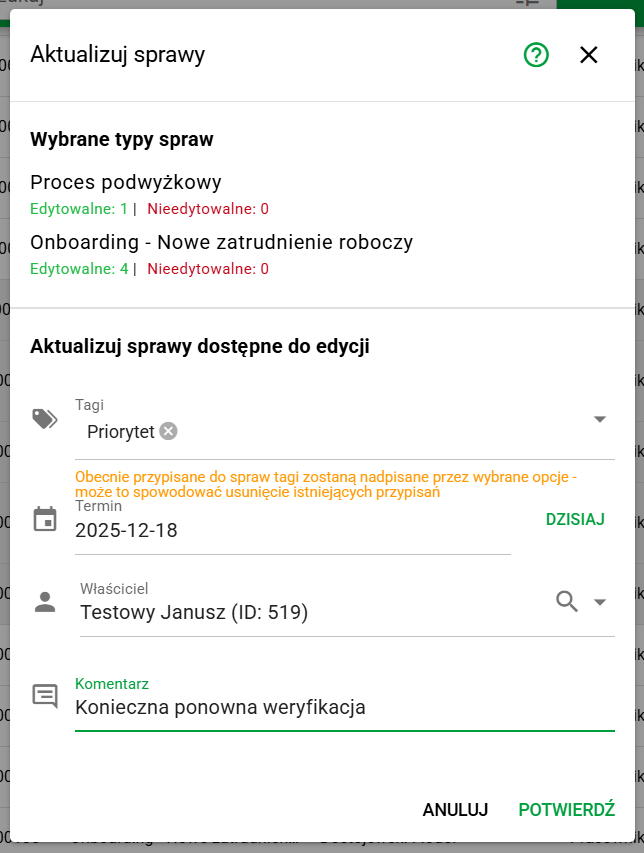
Example bulk update settings
After entering the data, select Confirm in the lower right corner to start the update.
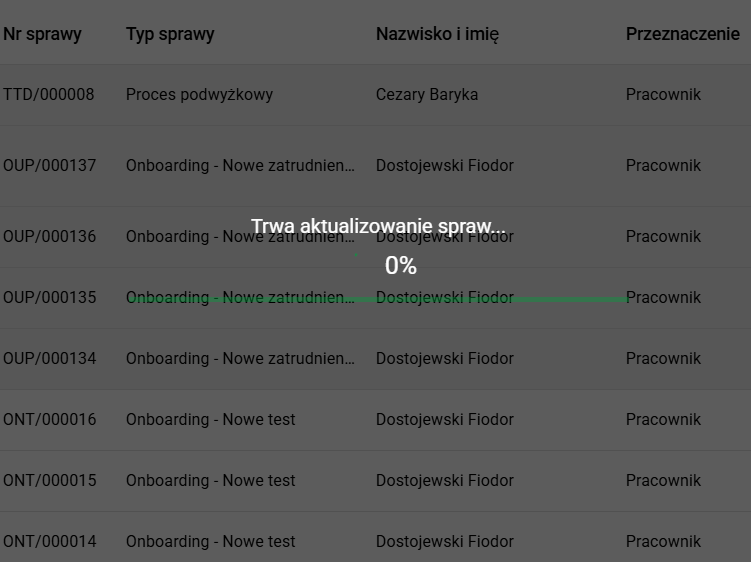
When the update finishes, you return to the main view of the Cases module.