Creating cases in bulk
When to create cases in bulk
Bulk creation lets you create multiple cases of one type at once. Use it when:
- you carry out a repeatable process (e.g. onboarding, annex to the contract, training),
- you want to save time and reduce the number of manual operations,
- you serve a larger number of candidates or employees.
How to start bulk case creation
- Go to the Cases module.
- Select Add multiple cases.
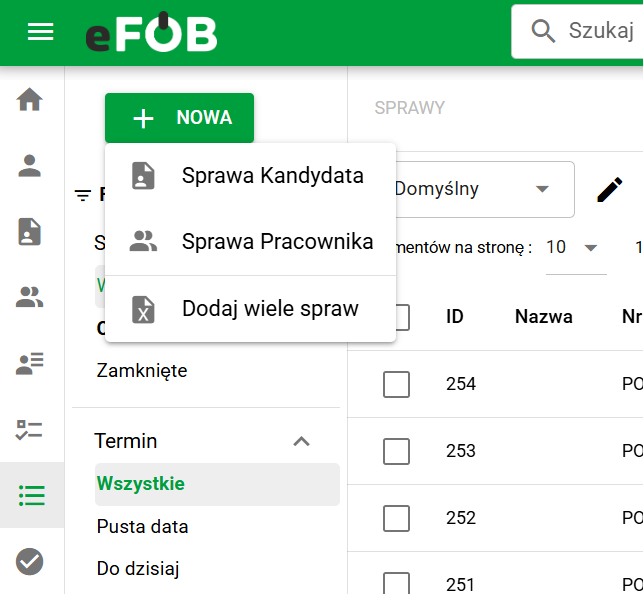
Add multiple cases menu
Configure bulk case creation
After selecting this option, you will be taken to the next screen.
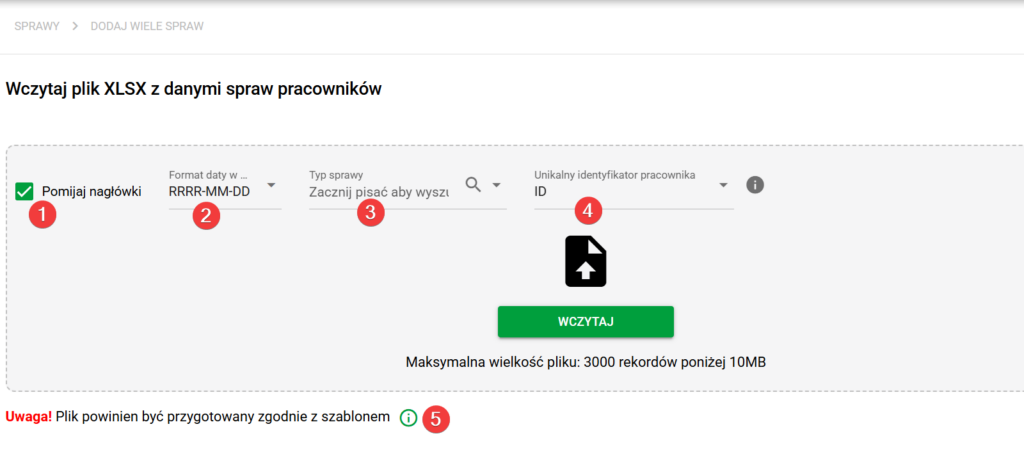
Cases are created based on an Excel file, so in the first step you can:
- Select whether to skip the header row (1).
- Select date format if present in the data (2).
- Before loading Excel, indicate the mandatory case type (3) that is to be created.
- Specify how to identify employees in the system (4):
- (eFOB)ID,
- External ID 1 or 2,
- PESEL number,
- ID document number,
- PESEL and identity document number (if the first one is missing).
After selecting the case type, download the Excel template (5) to prepare your import data.
Preparing the Excel template
To download the Excel file template, on the bulk case creation screen, you must first select the case type that you want to create. After selecting it, next to the information about data preparation in accordance with the template, a download icon will appear - in the place marked on the screen above (5).
Bulk creation lets you fill in the initial form data in advance. The Excel template contains columns matching the form fields.
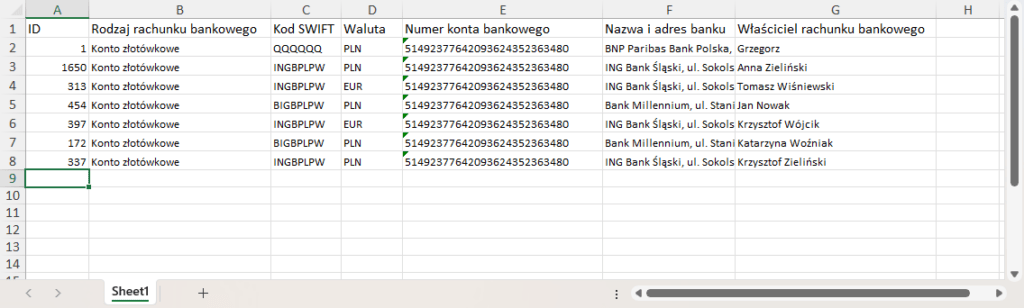
For example, for the case type "Application to change a bank account", the template will look like this:
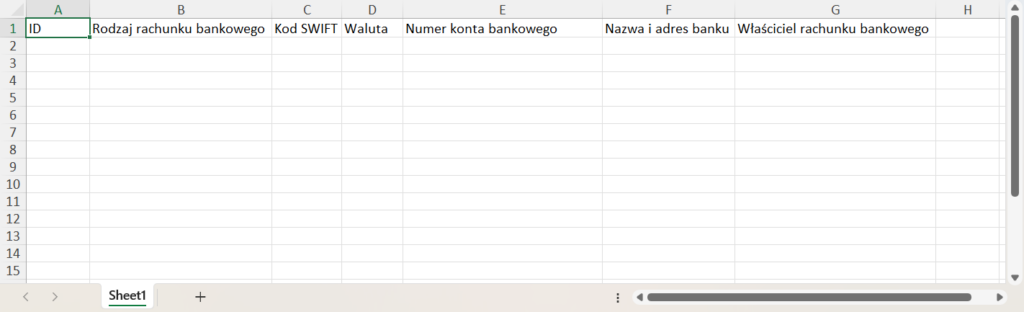
Because ID was selected to identify employees in the previous screen, the first column in the file was marked as ID. The remaining columns correspond to the names of the fields available in the case creation form.
Each subsequent line in the template corresponds to one newly created case. According to the information visible on the adding cases screen, the file:
- cannot contain more than 3000 records,
- cannot exceed 10 MB.
Below is an example of an Excel file prepared for mass creation of cases for seven employees:
Sending data from an Excel file
Once the Excel file template is completed and saved, you can upload it to the system.
Save your latest Excel changes before selecting the file. Use a file without password encryption or macros; save an ordinary .xlsx copy if necessary. The limits of 3000 records and 10 MB still apply.
Important: close the file in Excel before uploading it. Saving the file alone is not enough; it must also be closed.
Click Load and select the prepared file. The system then starts reading its contents.
If the column names in the Excel file match the field names in the case creation form, the system will automatically match the data and start binding the fields to the file contents.
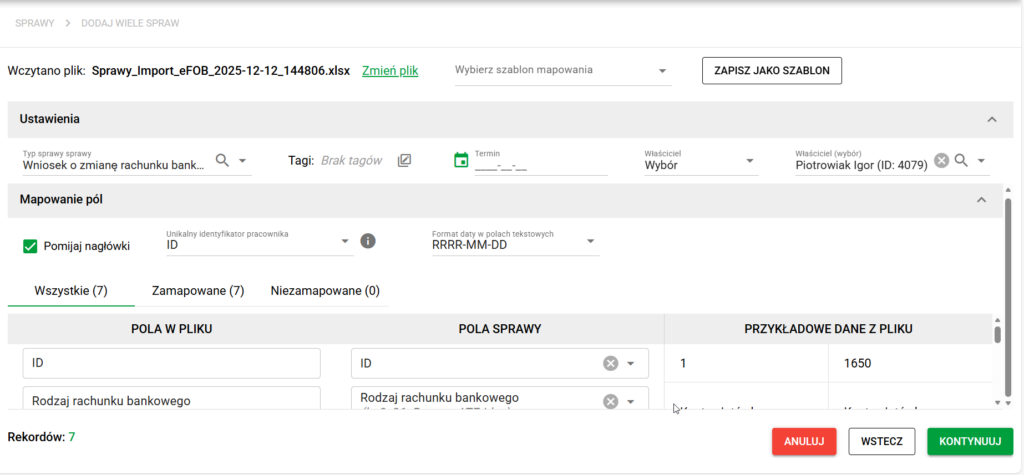
Screen for assigning fields to columns
If all columns have been correctly matched to the fields, the system will display the appropriate mapping. Still, it's worth checking them carefully. If any column has been assigned incorrectly, you can easily indicate the correct field by selecting it from the drop-down list.
On the right side of the screen, example data from an Excel file is displayed, which additionally helps to verify the correctness of assigning columns to fields.
Once all data is correctly linked, click Continue. You will be transferred to the next screen where the system will perform data validation - it will check, among other things, whether:
- date fields contain correct values,
- number fields do not contain text,
- required fields have been completed.
A validation summary will appear at the bottom of the page:
- number of cases with correct data (4),
- number of cases containing errors (5).
Each row will be given a specific status (1). If errors are detected, detailed information will appear in the Import Comment column (2). Additionally, you can delete selected records before continuing the process by using the trash icon in the Action column (3).
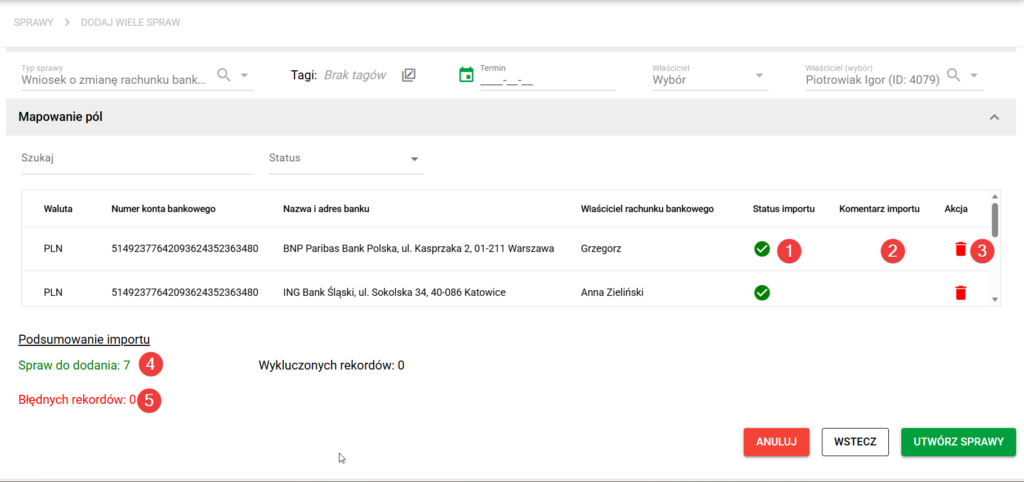
Once import verification is complete, click Create Cases. The system will start the process of creating new cases, and an information window will be displayed on the screen confirming the start of the operation.
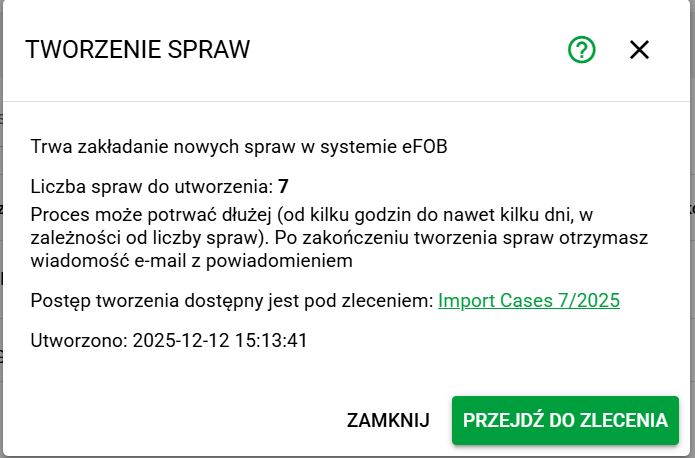
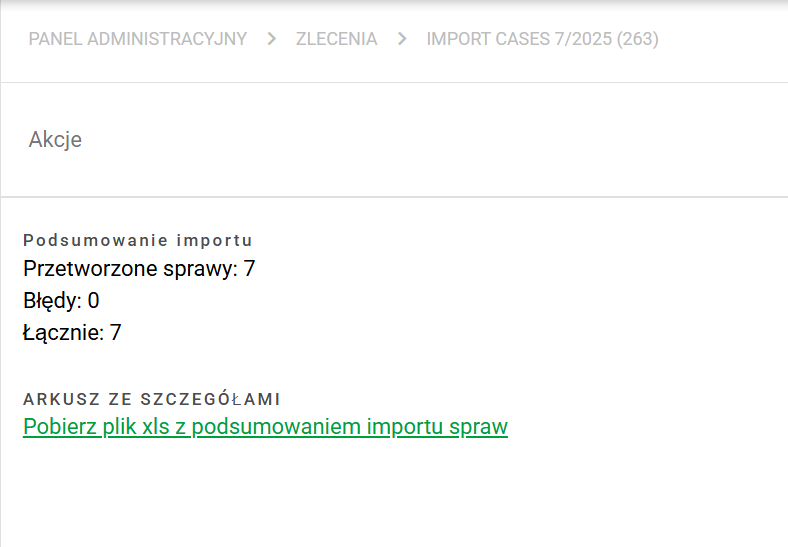
Select the green button to open the job; the appropriate permission is required. When case creation finishes, use the import summary to download an Excel file with the results.