Filling in a case form
A case form consists of sections and fields configured by the administrator for the given case type. This article describes the mechanisms that help you fill it in faster and without errors.
This guide covers Cases and My cases. The available fields and buttons depend on the user's permissions and the process stage.
Where to start
After you create a case or open an existing one, the application places the cursor in the first available field you can fill in. If it is in a collapsed section or group, the application expands that part of the form.
Automatic focus skips hidden fields, read-only fields and fields locked by document dependencies. It does not remove editing restrictions or open fields you cannot access. Checkboxes and radio buttons may need to be selected manually.
Form sections
Form fields are grouped into sections. Sections containing required fields are expanded initially. The section containing the first focused field may also be expanded.
- Click a section header to expand or collapse it.
- The Expand sections / Collapse sections button above the form expands or collapses all sections at once.
- A section header may have an icon and a colour set by the administrator; they help you find the right part of the form.
The button initially says Expand sections. The first click expands all sections, even if some are already open. Clicking Collapse sections then collapses them together.
Setting today's date in one click
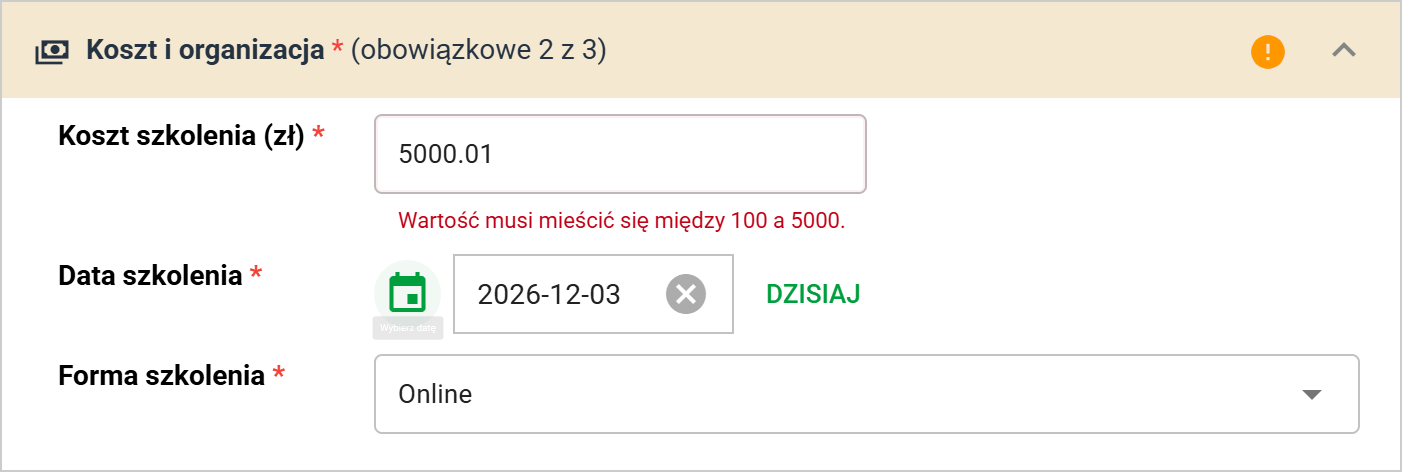
An editable Date field has a Today button that inserts the current date without opening the calendar. The clear icon removes its value. If the field is required, enter a date again before submitting a valid form.
Read-only date fields have neither the Today button nor the clear icon. Setting today's date does not bypass the administrator's rules: if only future dates are allowed, today's date will not pass validation.
The case Due date also has a Today button, with the calendar icon on the left. It has no clear icon. The case due date and dates within the form are separate values.
Lists that depend on another field
Some choice lists take their values from hierarchically linked dictionaries, e.g. Grade depends on Position. Such lists work in cascade:
- While the parent field is empty, the dependent list asks you to pick a value in the parent field first.
- Once a parent value is chosen, the dependent list shows only the matching entries plus the entries shared by all values.
- If dependent fields already contain values, changing or clearing the parent value requires confirmation. Confirming clears their values, including subsequent dependency levels. Choosing Cancel restores the previous parent value and preserves the existing answers.
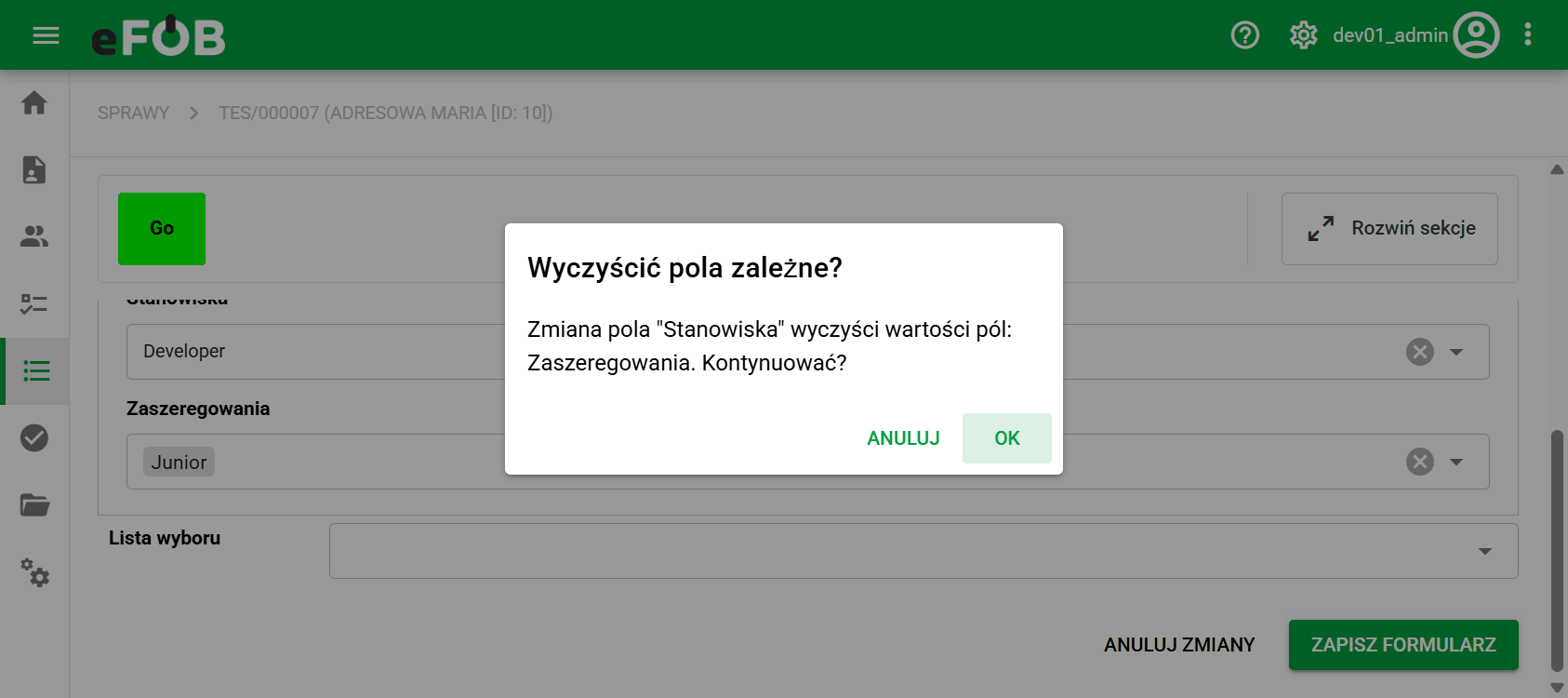
In longer dictionary lists you can type part of the name in the Search in dictionary field to narrow the results quickly.
Conditionally shown fields
The administrator can make the visibility of a field depend on the values of other fields, e.g. the End date field appears only after you mark the contract as fixed-term. Such fields appear and disappear live while you fill in the form. A hidden field is not counted as required in the section summary.
A condition can use several answers joined by AND or OR, including answers in another subform available at the current stage. For example, a travel justification may be needed for classroom or hybrid training, but not for online training.
Validation messages
Every field may have correctness rules set by the administrator. When a value does not meet them, a specific message appears under the field, for example:
- "Enter at least 2 characters" or "The maximum length is 60 characters",
- "Only letters and spaces are allowed",
- "The date cannot be earlier than today",
- "The field value must be greater than the value of the Date from field", shown when the field is compared with another field,
- a custom message from the administrator, if one was defined for the field pattern.
Messages below narrow controls, such as numbers and dates, use the width of the field row. Read the whole message before correcting the value.
Required status, format and comparison with another value are separate rules. For example, the training cost may need to be between PLN 100 and PLN 5000, while funding must not exceed the cost entered by the applicant.
Correct the reported errors before submitting. Checks when moving to the next stage also depend on the transition's Validate form setting. Saving draft data does not confirm that the request is complete.
Historical values
If a case stores a dictionary value that was later disabled or removed, the field still shows it with the note (Historical value). After the value is changed, that entry can no longer be selected again.
The administrator-side configuration of these mechanisms is described in Form fields and Case dictionaries.