Example case types and workflows
Below are three examples of business processes that can be defined in eFOB as case types, together with their key elements.
1. Onboarding / hiring
Purpose: Introducing a new employee to the organization and guiding them through collecting data, generating documents and preparing them for further handling.
Case type configuration elements:
- Case fields: employee, employment start date, city, company, department, position, employment type, supervisor.
- Forms: an employment data form completed by HR and a personal data form completed by the employee.
- Transitions (workflow):
- "New" → "Employee data" → "Document signing" → "Verification" → "To eFile"
- Additional "Cancelled" status or a return to an earlier stage if the data needs correction.
- Document types: employment contract, personal questionnaire, consents and statements required for hiring.
- Signatures: depending on the document, either a qualified signature or a facsimile.
- Notifications: to HR, the employee and other people involved in preparing the employment process.
Example workflow
The example below shows one possible onboarding workflow configuration for hiring. It can cover the full path from case creation, through data collection and document signing, to final verification.
A. Creating the case
HR creates a new case for the future employee and selects the appropriate onboarding process. The general case creation flow is described step by step in Adding a case.
At this stage, HR can immediately indicate the employee concerned by the process and start preparing the data needed for employment.
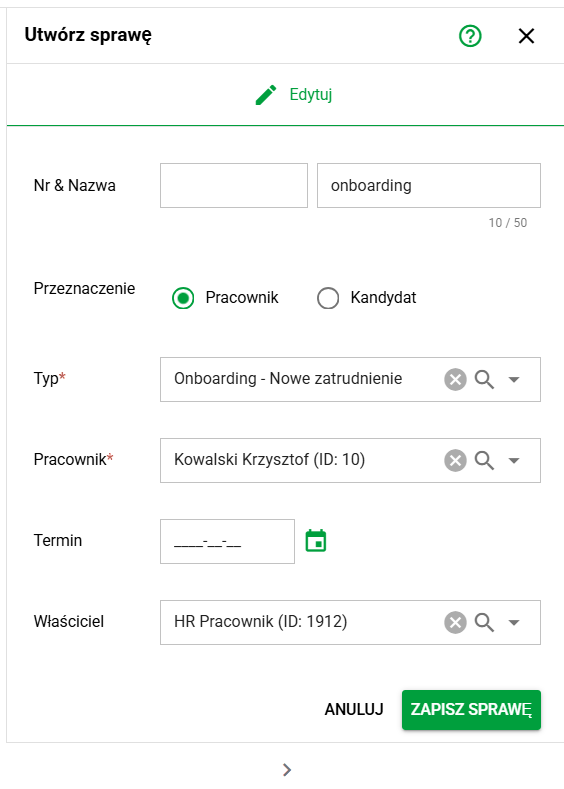
Creating a case for a new hire
B. HR completes the employment data
At the beginning, HR fills in the key information needed to prepare the hiring process. This can include the city, company, position, department and other organizational data required to generate the documents.
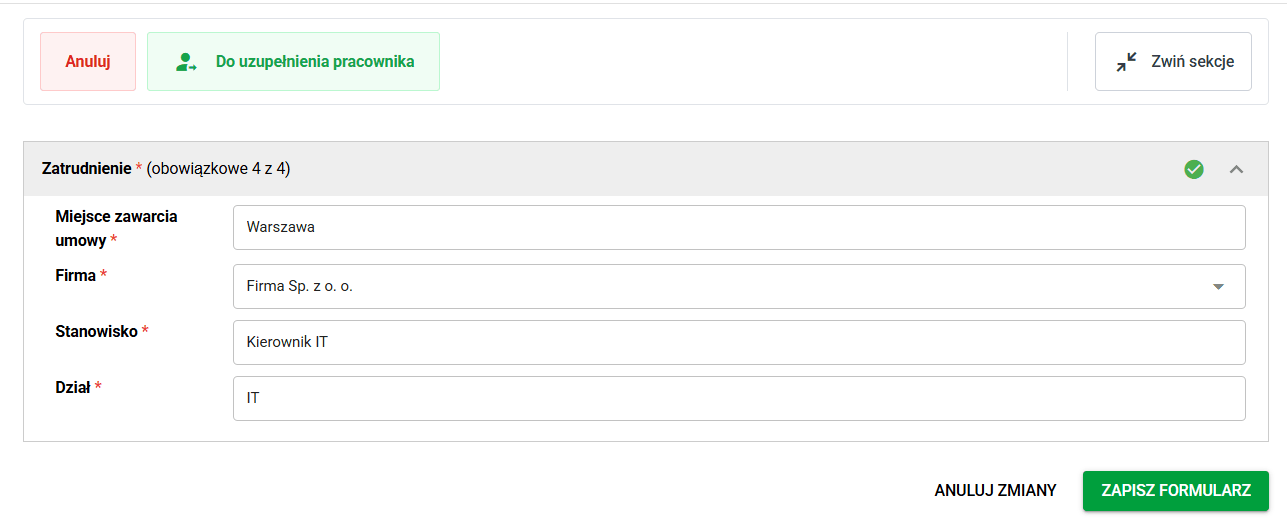
HR completing the core employment data
C. The employee completes their personal data
After the initial data is prepared, the case is passed to the employee. At this stage, the employee completes their part of the form, mainly personal data and the information required to prepare the employment documentation.
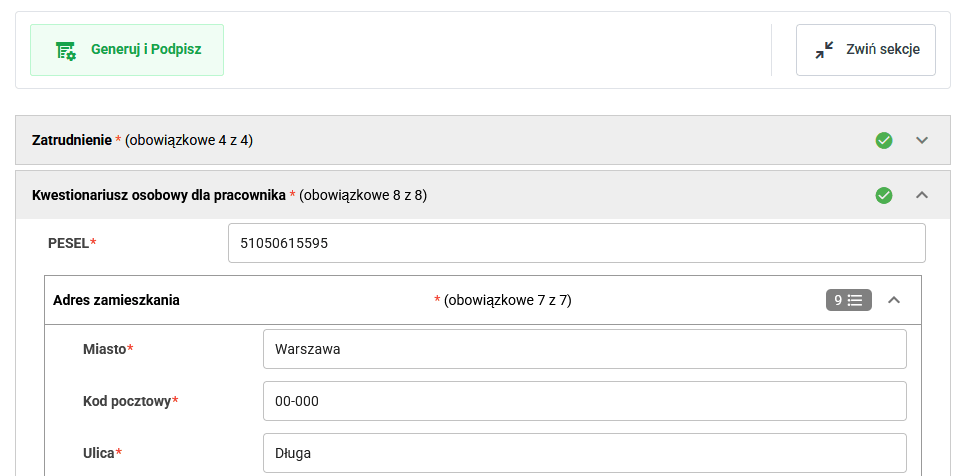
The employee completing their personal data
D. Document generation and signing
Once the data has been collected, the case moves to the stage where the system generates the documents required for hiring. The employee can then sign them according to the workflow configuration. Depending on the document type, this may be a qualified signature or a facsimile.
If you want to learn more about the general rules for signing electronic documents in eFOB, see How to sign electronic documents using a Qualified Signature?.
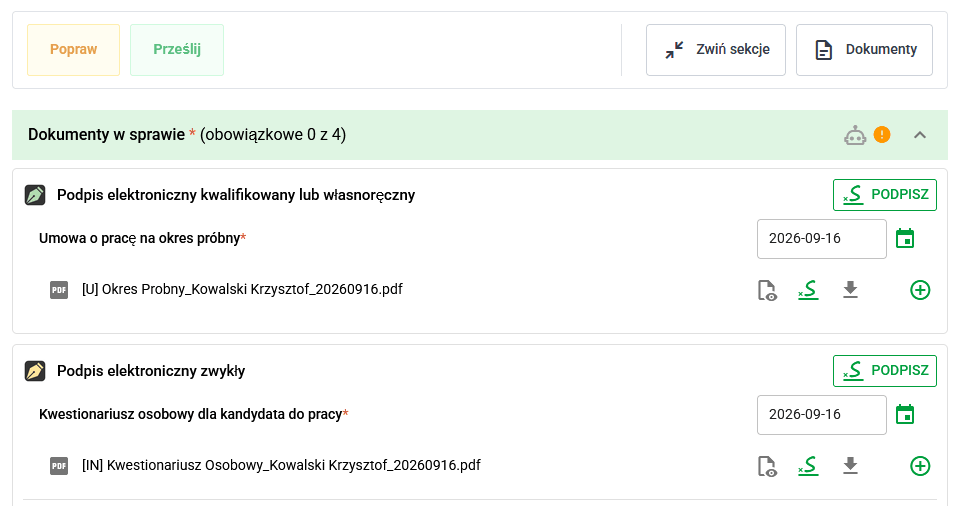
Generating and signing documents in the onboarding workflow
E. HR verification
After the employee completes their actions, the case returns to HR. At this stage, HR can check the completeness of the data and documents, pass the case on to the document-filing stage or send it back to an earlier stage if corrections are needed.

Verification of the documents and decision on the next step in the onboarding workflow
2. Contract annexes
Purpose: Preparing, signing and completing the workflow for an agreement changing employment terms.
Case type configuration elements:
- Case fields: employee, annex or agreement number, effective date of the change, source contract type and number, person representing the employer, justification, and the scope of changes in employment terms.
- Forms: an agreement form where, after selecting the scope of changes, sections for the current and new employment terms are displayed.
- Transitions (workflow):
- agreement data preparation → employee signature → HR or Payroll verification → employer-side signature → completion or filing in eFile
- return for correction or cancellation when required by the workflow
- Document types: agreement changing the terms of work (annex to the employment contract).
- Signatures: qualified signature or a handwritten signature handled outside the platform, depending on the workflow configuration.
- Notifications: to HR or Payroll, the employee, and the person representing the employer at the relevant stages.
Example workflow
The example below shows a simple contract annex workflow based on the ready-made Agreement changing the terms of employment case type. This process is already available in the library and is described in more detail in Process Library - ready-made business processes.
A. Creating the case
An HR or Payroll user creates a new case and selects the appropriate process type. The general case creation flow is described step by step in Adding a case.
At this stage, the user can immediately indicate the employee concerned by the annex and enter the key process identification details.
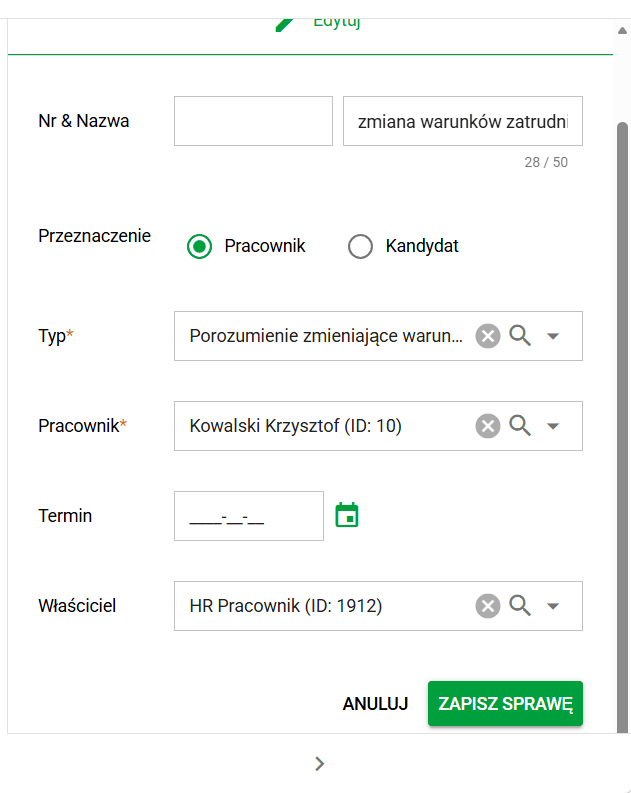
Creating a case for a contract annex
B. Selecting the responsible people
The case can include people responsible for the later stages, for example a manager or a person representing the employer. This ensures that at the next stage the document is routed directly to the correct person for signature or approval.
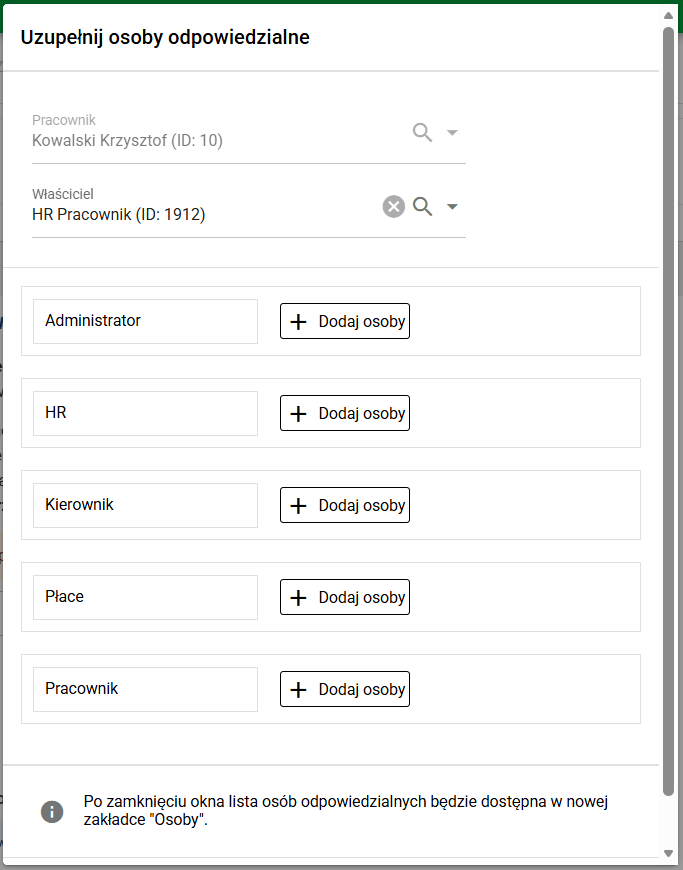
Selecting the people responsible for the next workflow stages
C. HR completes the data
At the beginning, HR completes the employee data and the details of the current contract to which the annex applies. Here the user can indicate, among other things, the annex number, the effective date of the change, the source contract type, and the person representing the employer.
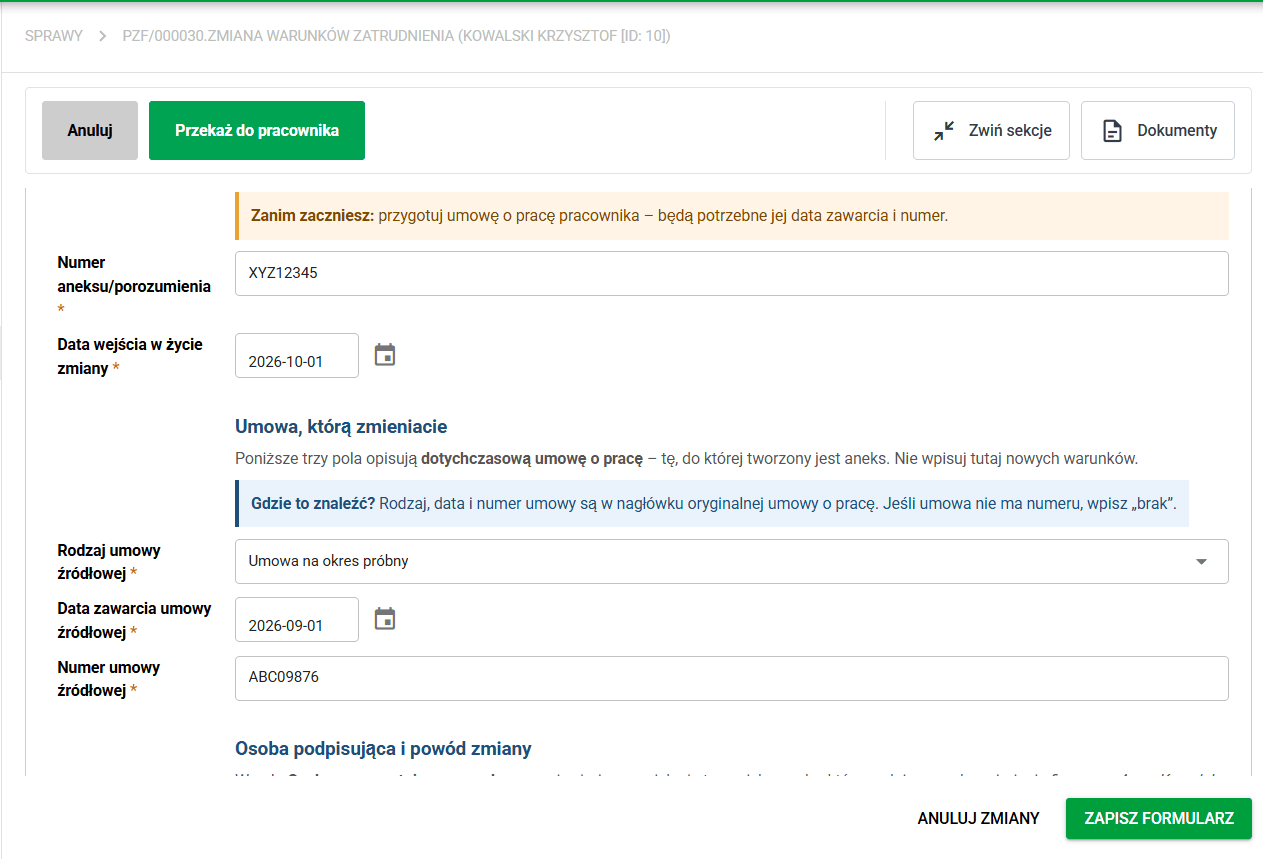
Completing the employee data and the current contract details
Next, HR selects the scope of changes and enters the new employment terms, for example a change of position, salary, or FTE. These values are then used to generate the annex document.
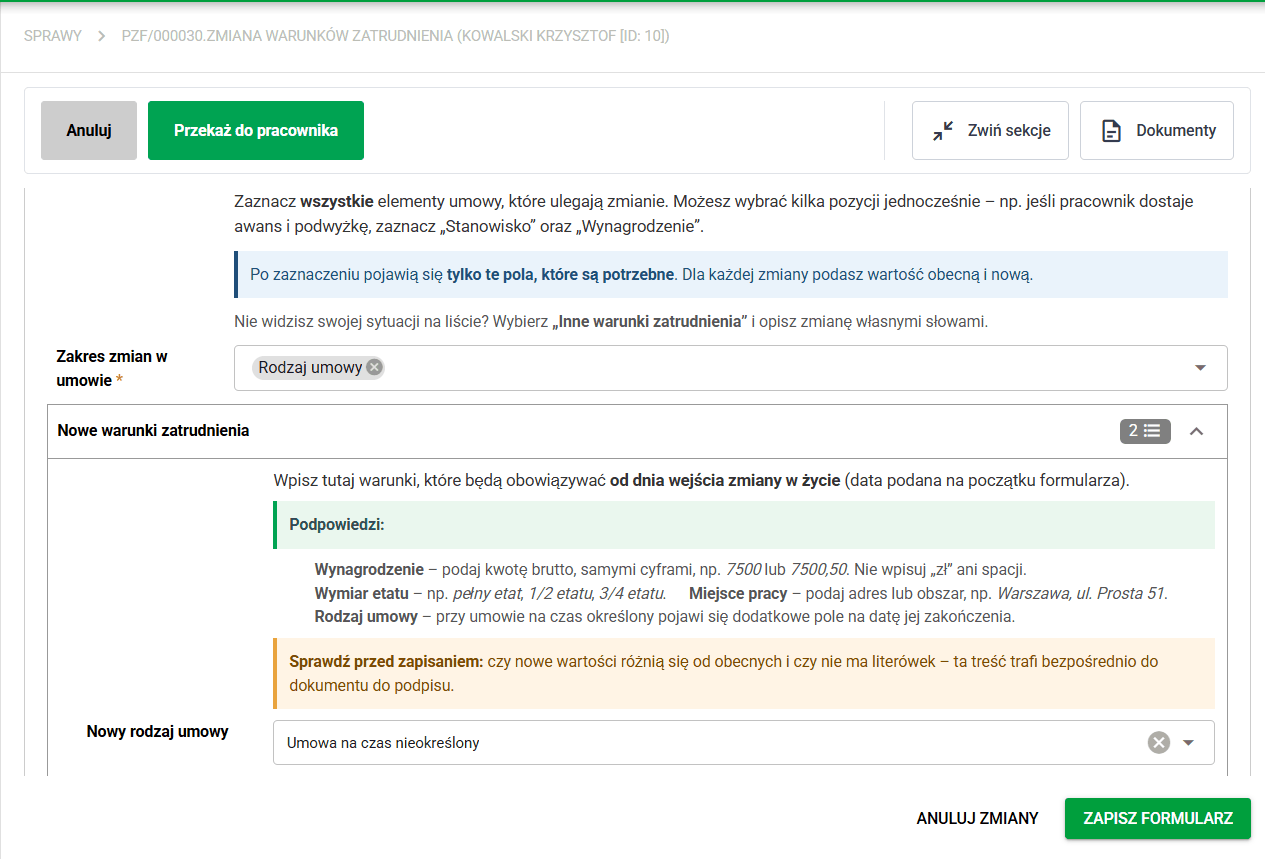
Indicating which employment terms are being changed
D. Document generation and employee signature
After the case is moved to the next stage, the system generates the annex document based on the data saved in the form. The employee reviews the content and signs the document to pass the case for verification.
If the data is corrected at an earlier stage and the case returns to the signing step, the document can be generated again using the updated information.
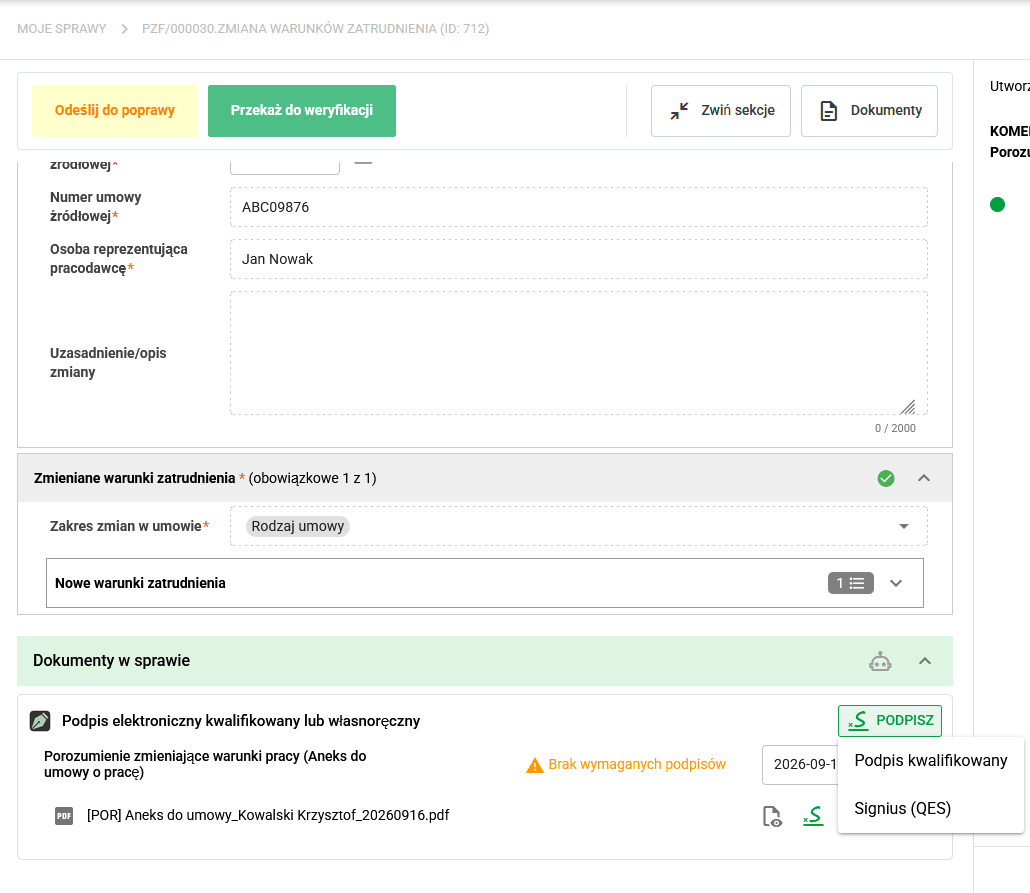
Employee signature on the generated annex
E. HR verification
After the employee signs, the case returns to HR. At this stage, HR can verify the data and the document, and then decide whether to move the case forward, send it back for correction, or use another available action according to the organization's process rules.

Verification of the annex and the decision on the next step
F. Manager or employer-side signature
After successful verification, the document is sent for the organization-side signature. In most cases this is the manager or another person representing the employer. This stage completes the formal approval of the document on the company side.
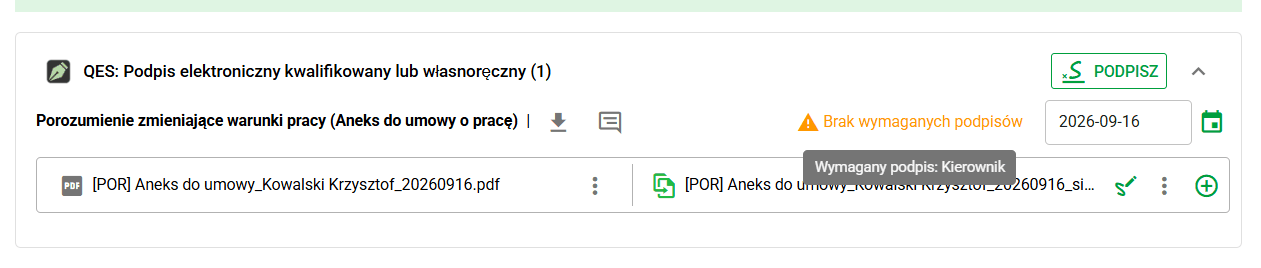
Employer-side signature
G. Acceptance and case completion
After all required signatures have been collected, the person handling the case can decide whether the document should be sent to the employee's eFolder or whether the process should be completed without any additional document upload.

Acceptance stage with the final available actions
If the organization archives the document in eFOB, the next stage allows the signed annex to be uploaded to the appropriate employee folder.

Filing the signed annex or completing the case without archiving
3. Employee / contractor statements
Purpose: Handling one or more employee or contractor documents within a single case, without creating a separate workflow for each document.
Case type configuration elements:
- Case fields: employee or contractor, selected document list, and the fields required by particular statements, consents and confirmations.
- Forms: a document selection form and data sections completed by HR, the employee, or both sides, depending on the selected documents.
- Transitions (workflow):
- document selection and data completion → employee signature or confirmation → HR verification → optional additional organization-side signatures → completion or filing in eFile
- additional cancellation or return paths when required by the process
- Document types: for example the personal questionnaire, confirmations of familiarization with documentation and procedures, OHS statements, tax and insurance documents, PPK documents, and other employee consents and statements.
- Signatures:
- employee-side signature or confirmation,
- additional organization-side signatures when required.
- Notifications: reminders for the employee and notifications for the people handling the case at later stages.
Example workflow
The example below shows a simple workflow for employee statements based on the ready-made Employee statements, consents and confirmations case type. This process is already available in the library and is described in more detail in Process Library - ready-made business processes.
A. Creating the case
An HR user creates a new case and selects the appropriate process type. The general case creation flow is described step by step in Adding a case.
At this stage, the user can immediately indicate the employee concerned by the case and start collecting the documents required in the process.
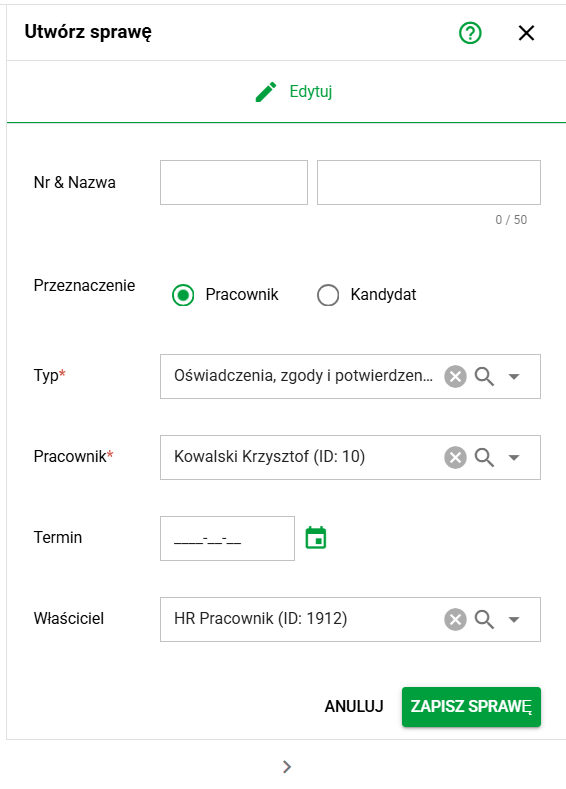
Creating a case for employee statements
B. Selecting the responsible people
The case can include people responsible for the later stages, for example HR, the Manager, or Payroll. This ensures that the system knows who should receive the case if any of the selected documents requires additional verification or a company-side signature.
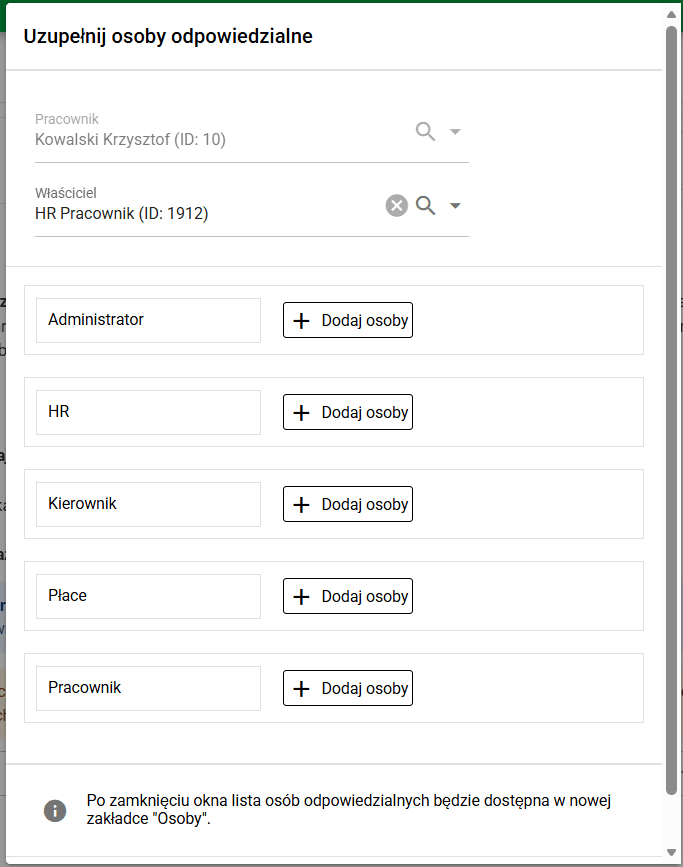
Selecting the people responsible for handling the case
C. Selecting the documents to be handled
At the beginning, HR selects the document types that should be prepared in this specific case. The user can choose one document or several at once, depending on the process needs, for example a combination of tax statements, OHS confirmations, and organizational consents.
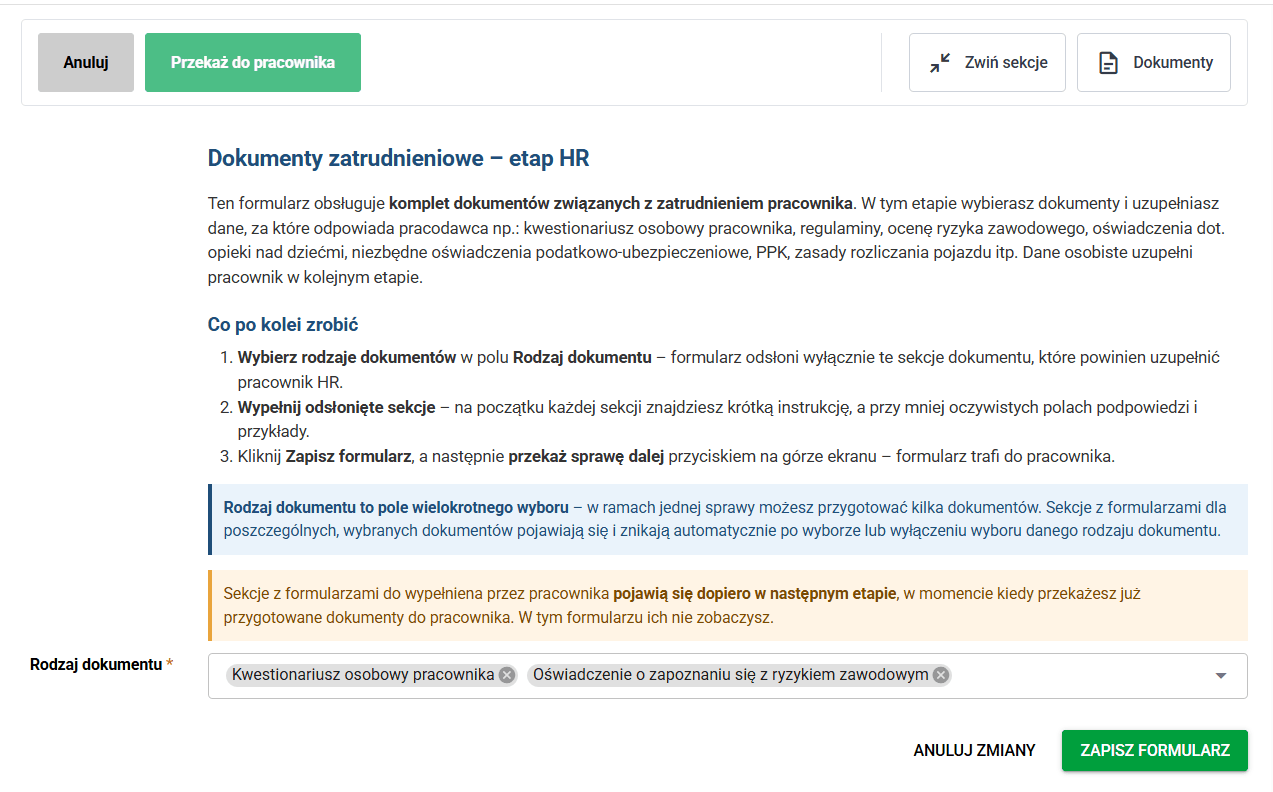
Selecting one or many documents within a single case
D. HR completes the data
For some documents, the data is completed immediately by HR. This may include organizational information, values required to prepare the document, or fields that the employee is only expected to confirm at a later stage.
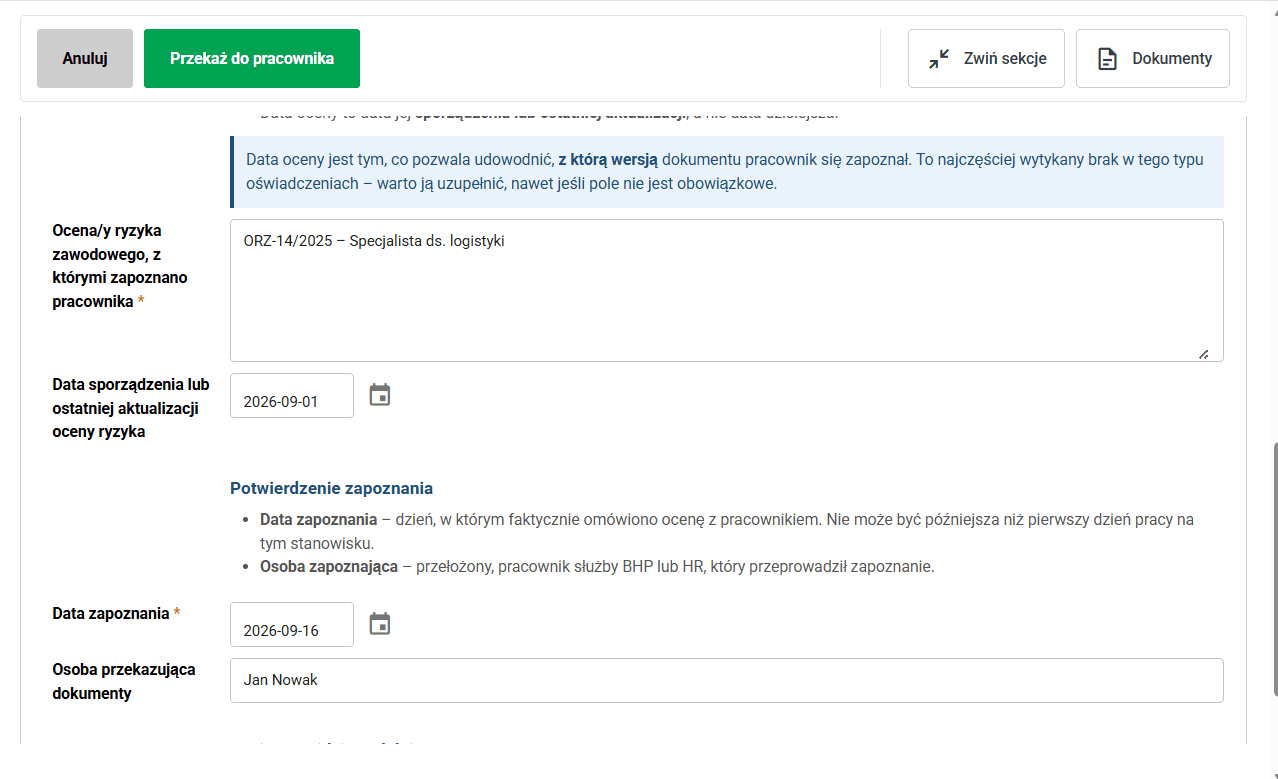
Completing the data by HR before passing the case to the employee
E. Employee completes their data
After the case is passed on, the employee completes their part of the data. The scope of fields depends on the selected documents, so within one process the employee may complete just a single statement or a broader set of information required for several documents at once.
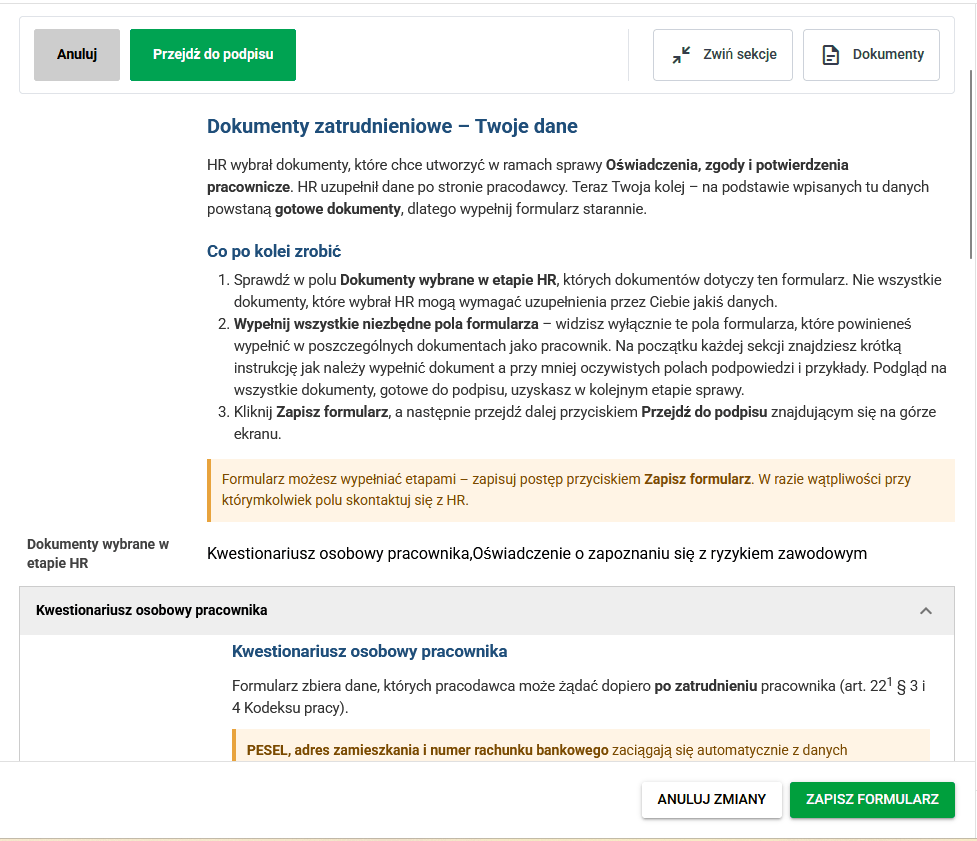
Employee completing their part of the data
F. Document generation and employee signature
Once the data is completed, the case moves to the generation and signature stage. The system prepares the documents based on the collected information, and the employee can sign or confirm them.
At this stage, the employee can also return the case to correct their own data or send back for correction the data that was previously entered by HR.
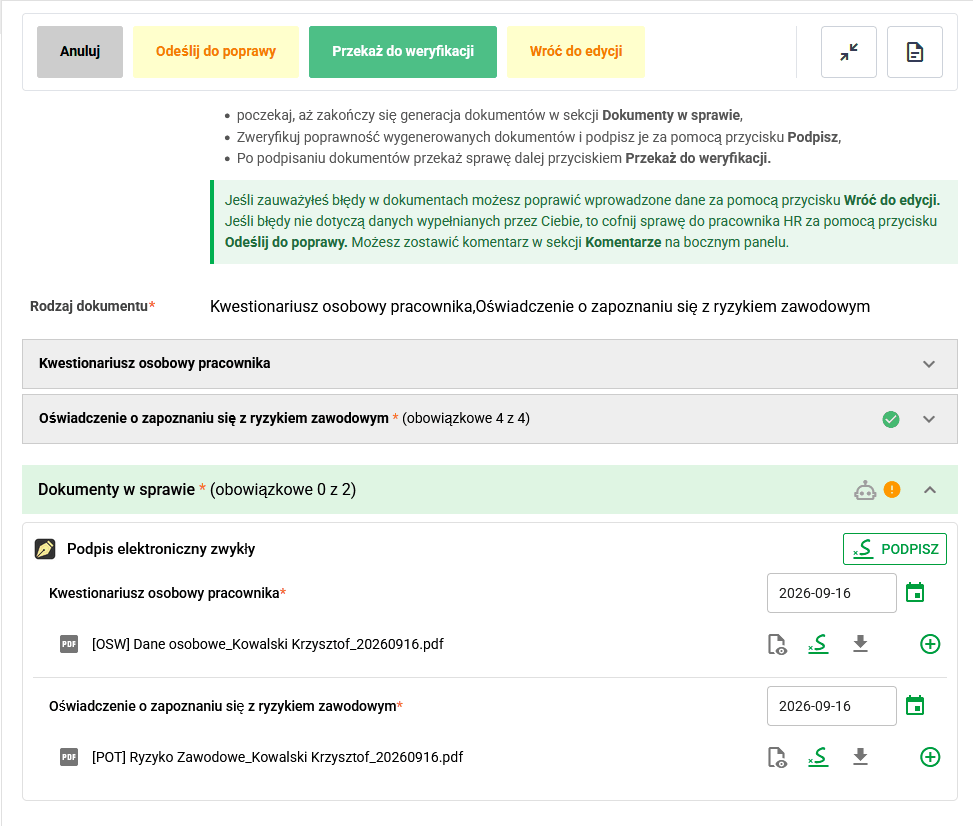
Signing or confirming the documents by the employee
G. HR verification
After the employee completes their actions, the case returns to HR for verification. At this stage, HR can still check the completeness of the data and documents, send the case back for correction, reject it, or pass it on to the next signatures on the HR, Manager, or Payroll side if those are required for the selected documents.
If no additional organization-side signatures are required for the selected document set, the process can move directly to the final actions.
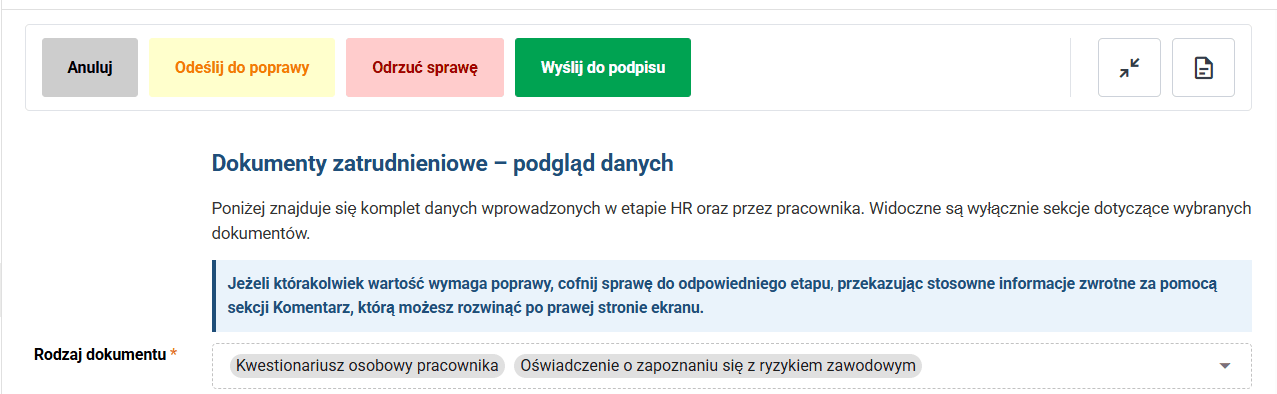
Verification of the documents and decision on the next actions
H. Acceptance and case completion
At the organization-side signature stage, the person handling the case decides whether to accept the documents and send them to eFOB, complete the process without uploading, cancel the case, or send it back for correction.

Final available actions for the documents handled in the case
If the organization files the documents in eFile, the final step allows them to be filed in the appropriate employee eFolders. This option is useful when the documents should be formally archived after the workflow is completed.

Filing the documents after the workflow is completed