Adding a case
To open this form from a link in the client's system, see Opening a new case from an external system.
How to add a new case?
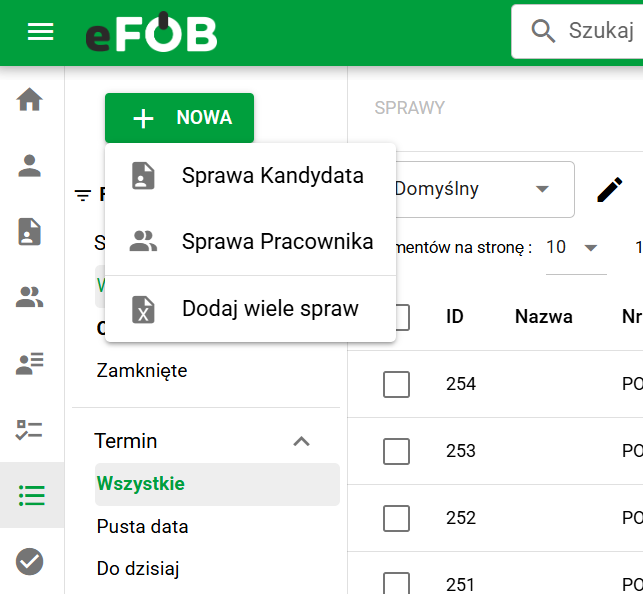
To add a new case:
- Open the case-creation form from New case in the menu or using the + button in the lower right corner.
- In Case details, select the Designation, such as an employee or candidate case.
- Select the case type. The list shows types matching the selected designation.
- Select an employee or candidate if the chosen case type requires one.
- Complete the case name and any other fields you need, such as deadline and owner.
- Create the case and continue.
- If the Responsible persons step appears, complete the necessary assignments. Then finish the wizard.
The case stages are tailored to the designation and case type. Assigning responsible persons is optional, and not every case requires an employee or candidate.
If loading the next view fails after creation, read the message and use the retry action available in that view. The case may already have been saved, so do not immediately start creating the same request again.
Not every case concerns a specific person
Whether the employee or candidate selection field appears in the form depends on the case type selected in the form – more precisely, on the setting the administrator gave that type. There are three possible situations:
- a person is required – the case cannot be saved until you indicate an employee or a candidate,
- a person is optional – the field is visible, but you can leave it empty and fill it in later,
- the case does not concern a person at all – after selecting such a type, the employee and candidate selection fields disappear from the form. Such cases are created, for example, for purchase requests or administrative requests.
If you expect a person selection field and it is not there, check the selected case type – it is most likely a type run without a candidate or worker. This setting is described in the article Case types.
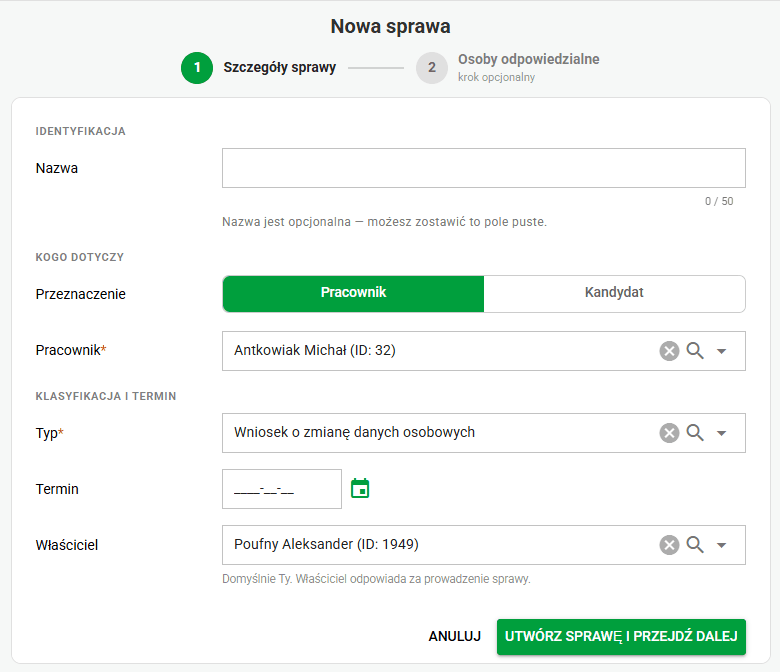
Adding case window
Edit or Delete an existing case
You have two options to edit a case:
- (Option 1) Click the ⋮ icon (three dots) next to the selected record and select
- Edit
- Delete
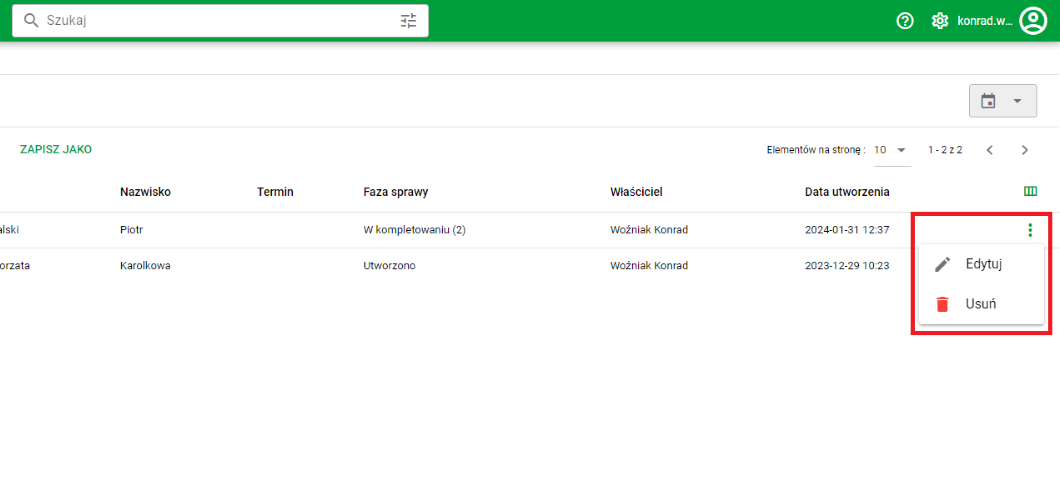
Edit button
- (Option 2) Click directly on the case row to Edit or View the record (depending on permissions).
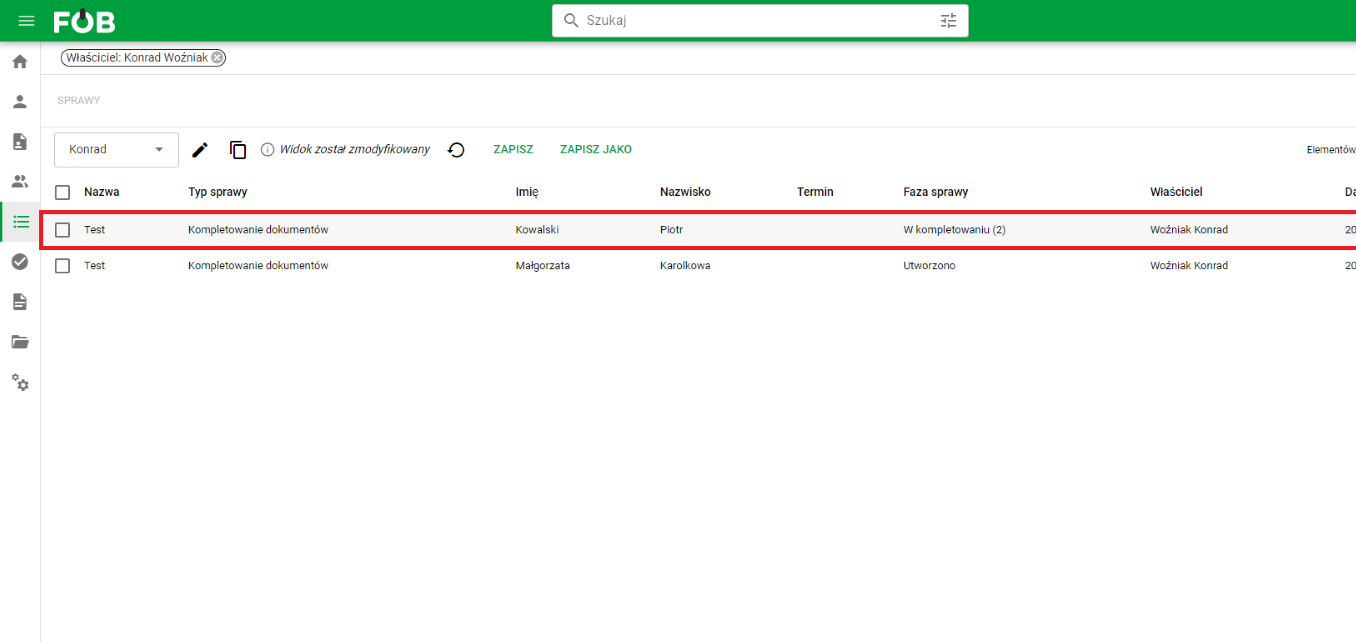
Record selection
We can modify the data of our Case in the drop-down panel on the side. It is possible to modify:
- Tags
- Name of the case
- Deadline
- Owner
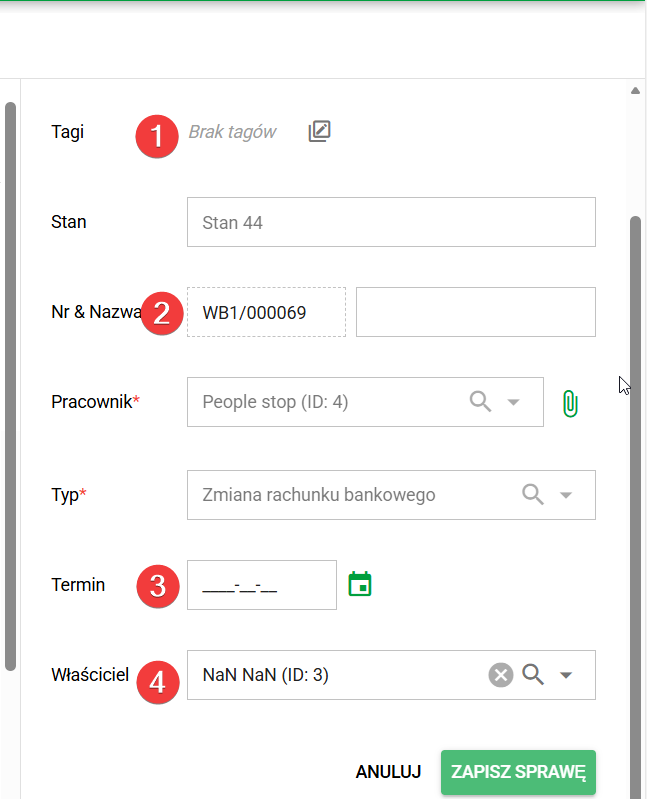
Case editing panel
After making changes, you must select Save case.
Adding and editing a case in the CANDIDATES module
You can also add or edit a case from the Candidates module:
🔹 Go to candidate, 🔹 On the Cases tab you will find buttons that allow you to add or edit cases - they work the same as in the Cases module.
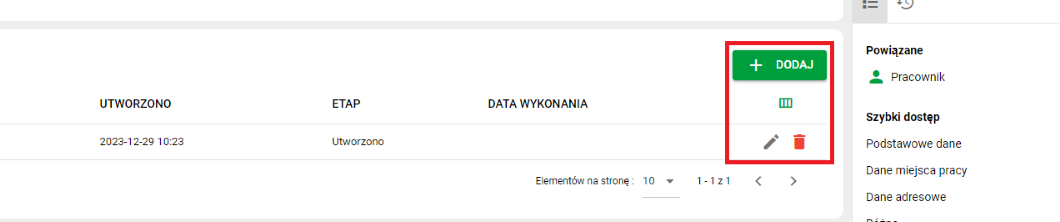
Function buttons
Each button opens a form that corresponds to its version in the CASES module. Add/edit forms can be found at the beginning of the article.
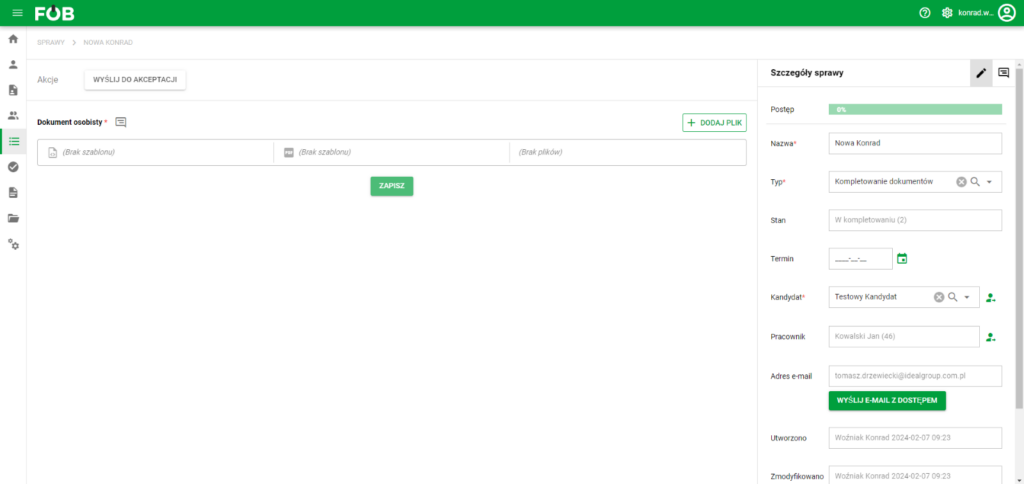
Sample case window
After creating a case:
Left side – Files
- Add files related to the case, e.g. recruitment documents, via the + Add files button.
- After adding the files, the Action button is activated - you can report that the files are waiting for further decisions. Adding a case

Action buttons
Right side – Details and actions
- Preview of case progress,
- Possibility to edit case data,
- Sending emails with access to the application.
Bulk adding cases
In addition to "manual" creation of Cases, our system also allows you to create many cases for many Employees at once. This option saves a lot of time while maintaining full control over the processes.
More about mass creation of Cases in the article: Adding a case – eFOB
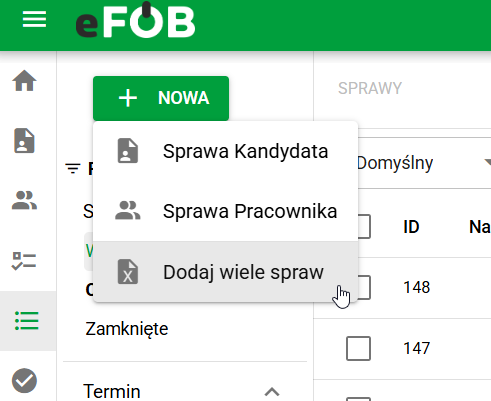
Mass Case Creation Button