Screen workers
The EMPLOYEES screen is a screen used to display information about employees assigned in a given company. We can add and import employees here. This module also has the option of generating documents.
Main view
In this view we see a summary of employees:
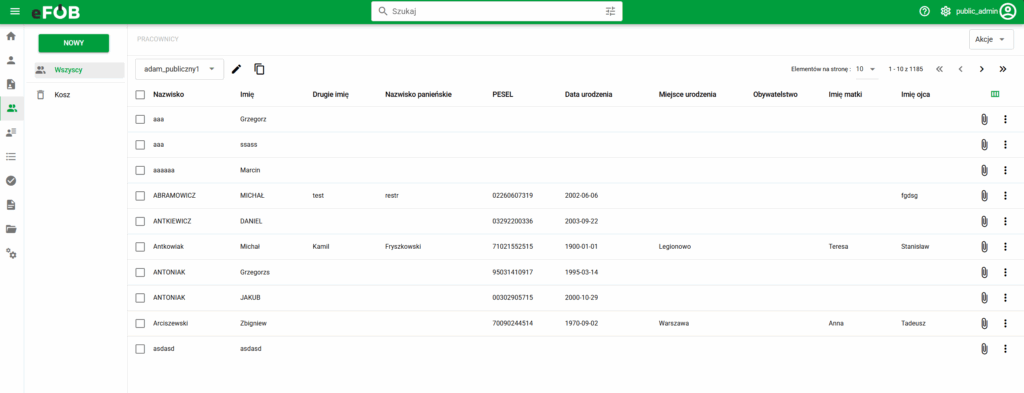
Employee Summary
Table records can be sorted by the following columns:
- Name
- Name
- PESEL number
- Date of birth
- Document number
We can freely change the layout of the table and its headers. More in the article:
Adding employees
To add an employee, expand the menu under the "New" button in the upper left corner:
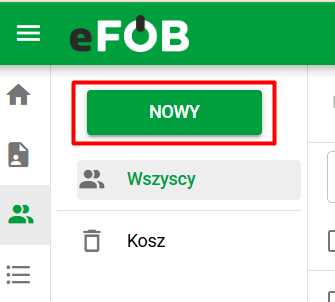
Add employee button
After clicking the button, the system allows two options for adding an employee:
Manual, single worker
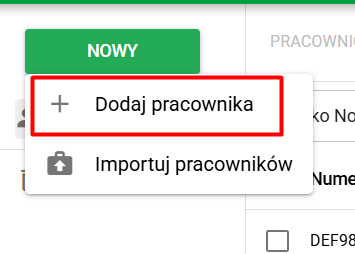
Adding an employee manually
Please complete all mandatory fields (marked with a red asterisk). Additional fields are available and can be completed as needed.
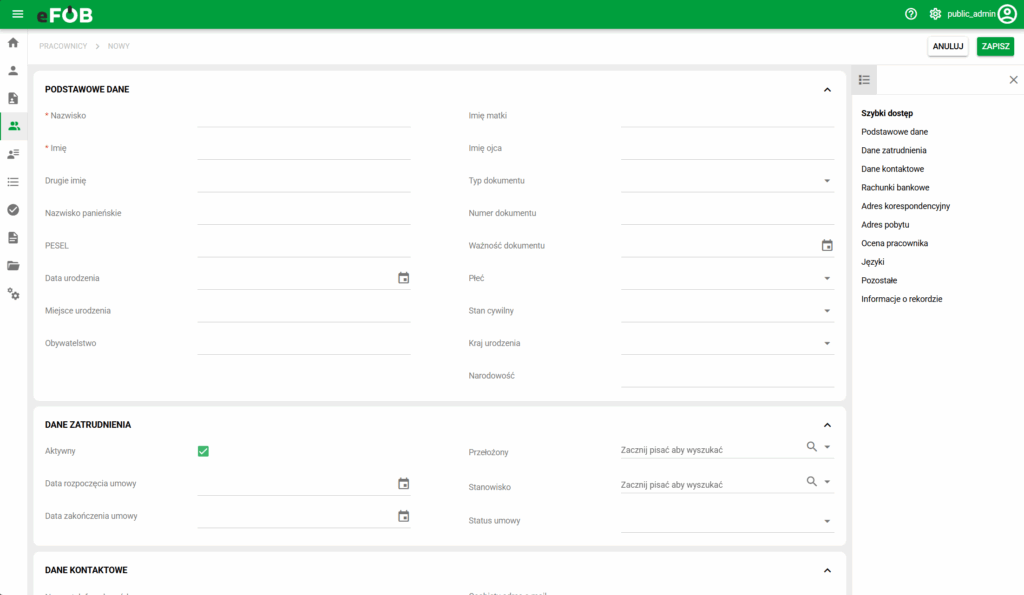
Employee Data Screen
After completing the information, we use the green button in the upper right corner, which confirms the new employee we have entered:

Save button
Massive, many workers
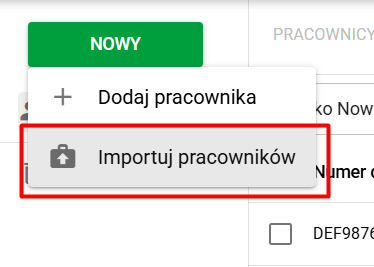
Employee import
The whole thing is written in the article:
Edit employee
To open the edit form, click on the record you are interested in. A new window will open with the completed data:

Sample record
You can also use the THREE DOT button assigned at the end of each record:
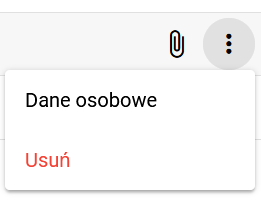
Three dots button
As we can see, there is also an option to remove an employee.
In the employee edit window, data is grouped into sections which can be collapsed for the user's convenience by using the button in the upper right corner of each section.
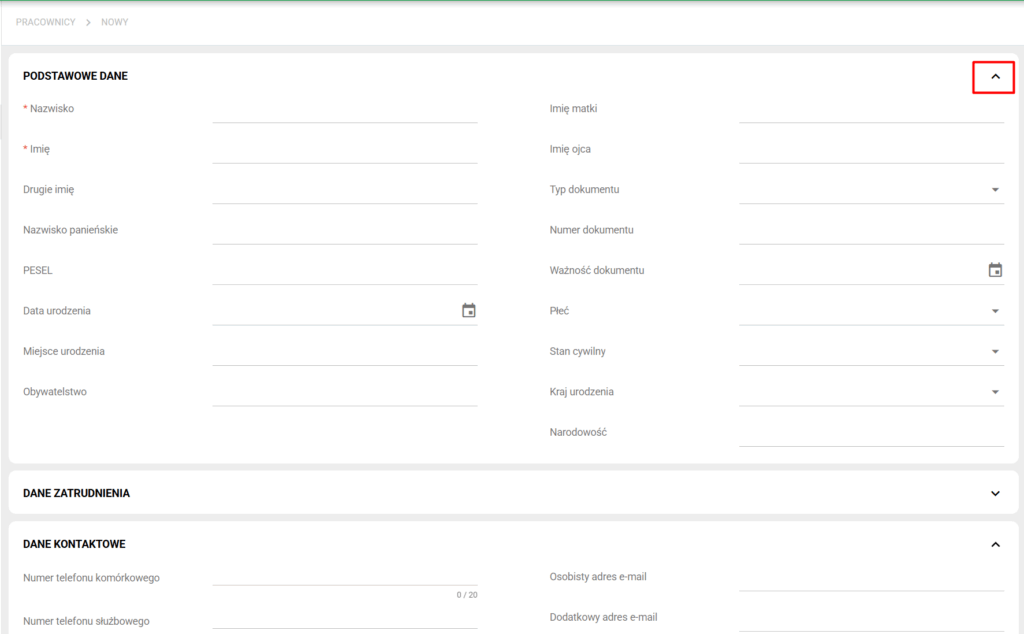
Collapsible sections in the employee edit window
Going to documents assigned to a specific employee:

Go to document
By using the button:
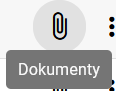
Document opening button
For a given record, we can easily go to the DOCUMENTS module where we will be greeted by all the files assigned to the previously selected employee (in our case KONRAD test):
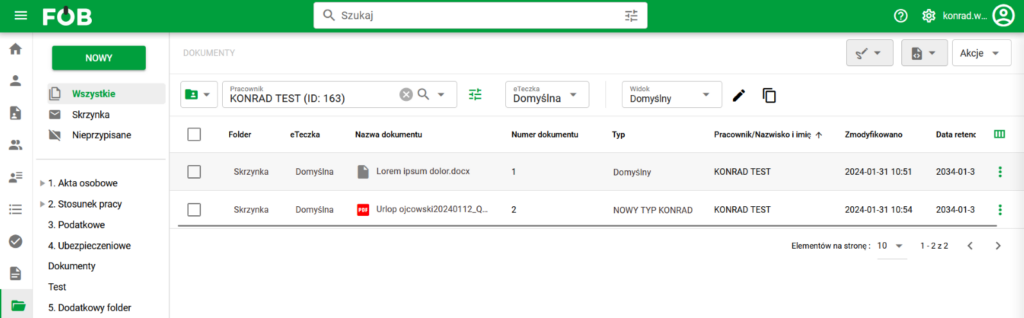
Documents module
Rating on an employee record
An employee record can contain rating and comment fields. Their visibility and editing depend on permissions for that data, not just access to Employees.
Check and change a rating
- Open the correct record in Employees.
- Find the available rating and comment fields.
- If you have editing permission, enter the rating and comment, then save changes using the form.
- Check the saved value on the correct record.
If the fields are hidden or read only, ask an administrator to check rating permissions. Do not put the comment in another field merely to bypass a restriction.
The record rating and your organization's process
The rating field does not define a formal appraisal workflow. Your organization determines its stages, participants and approval process. Confirm with the process owner where to carry out each action and record the result.