Employee filtering
Basic filtering
Filtering in the EMPLOYEES module is done using the search engine built into the green menu bar of the application.
In the example below, after entering the user's name and surname and confirming with the ENTER button, the application searches for all employees who match the given parameters:
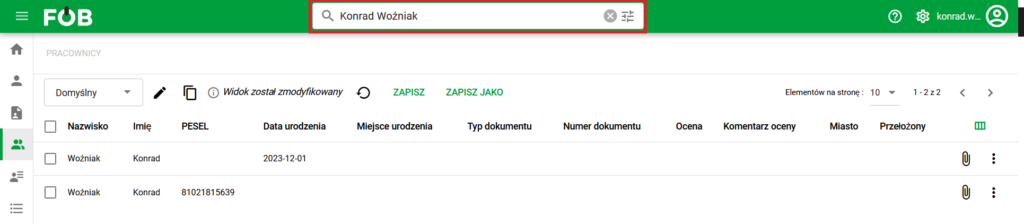
Basic filtering
Advanced filtering
To use this option, click the button at the very end of the search engine:

Advanced filter button
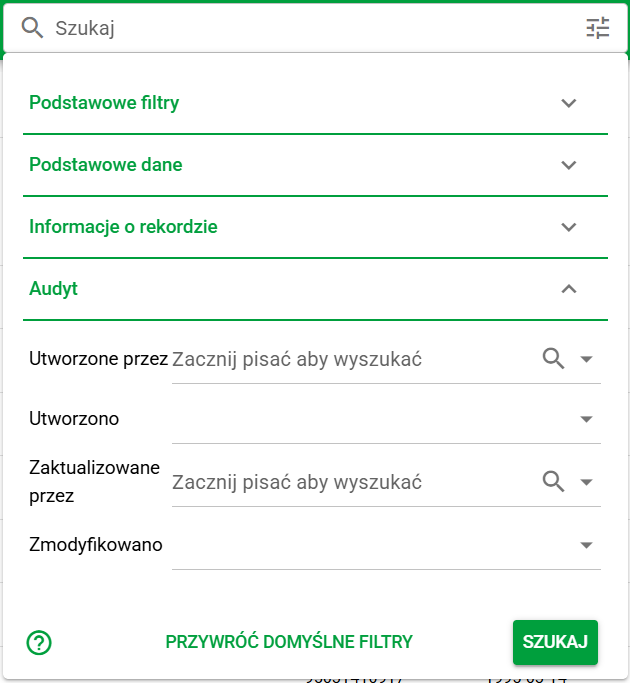
It will open the advanced filtering panel:
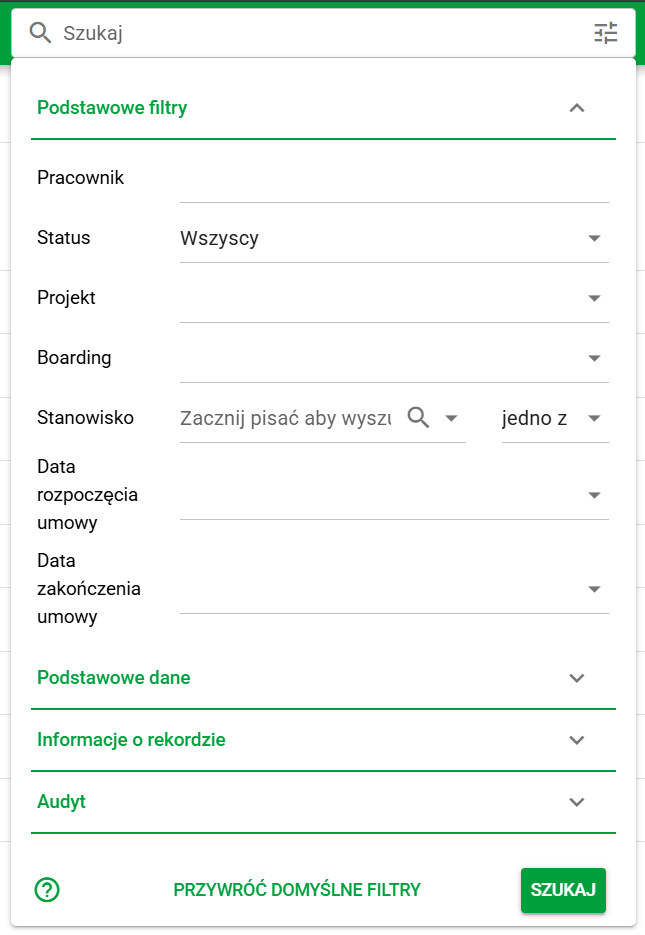
Advanced filtering
Here you will find additional fields responsible for more precise filtering among employees, divided into four sections:
- Basic filters - contains filters by: Employee's Name and Surname, Status (Active/Inactive), Project (or Projects), Employee's Boarding Status, Position, Contract start and end dates;
- Basic data - contains filters by: PESEL number, employee's date of birth, ID document type and number;
- Record information – contains filters by internal (eFOB) and external ID fields
- Audit – allows filtering by who and when created/modified the record
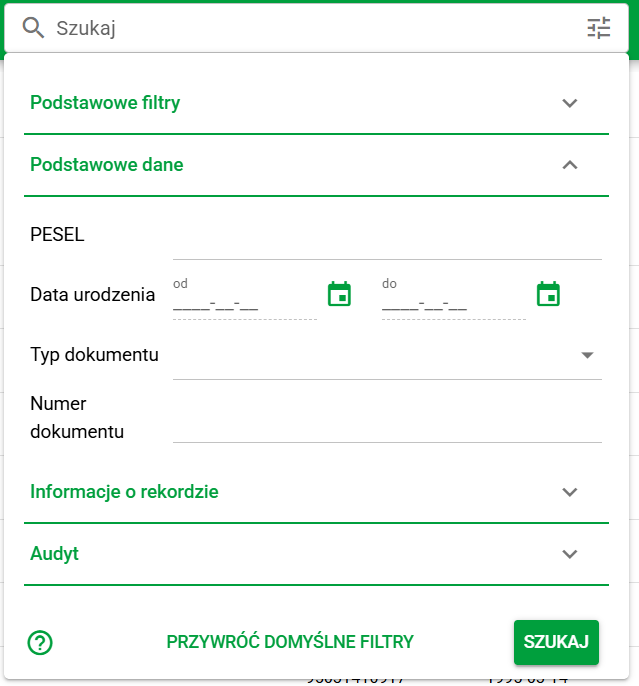
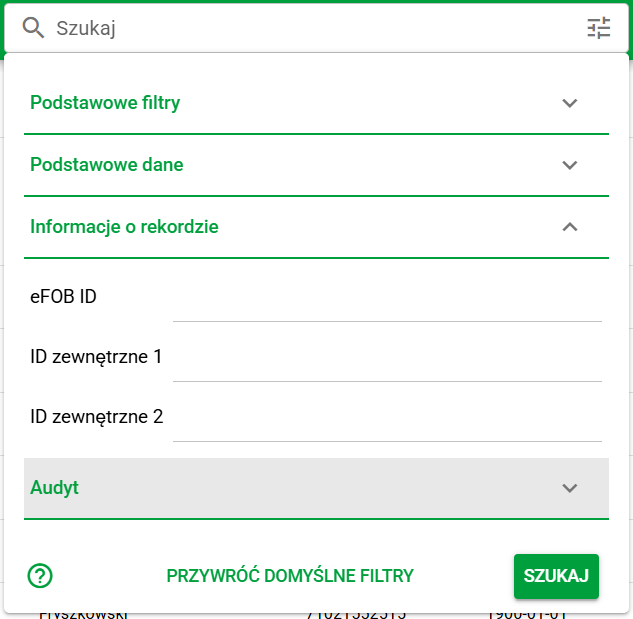
To confirm the selected configuration, use the green SEARCH button at the end:
Validate Configuration
Saving the filter view
After performing the search, the user will be able to save the configuration permanently by saving it in the views panel:

Saving a filter view
More information on this topic in the article:
In the VIEWS section