Employee attributes
Employee attributes extend the standard employee record with organization-specific fields, such as Boolean values, numbers, dates and selection lists.
Employees list
In the Employees list, you can enable columns with current attribute values (as of today). The system provides one column per attribute definition, and each column can be shown or hidden as needed.
Attribute columns:
- are hidden by default,
- are managed in the Columns panel,
- are saved in Views, so each team can keep layouts tailored to their work.
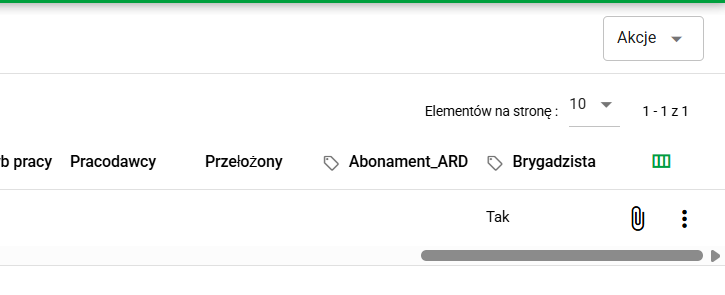
Attribute columns shown in the employees list
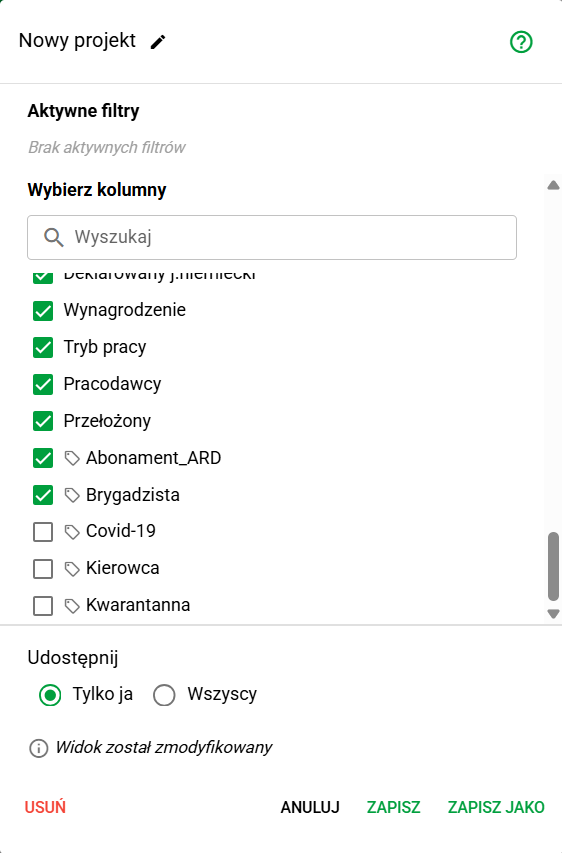
Column configuration and attribute-column selection in a table view
Filtering by attributes
The advanced filter panel includes an Attributes section (collapsed by default). It lets you combine attribute conditions with other employee filters and narrow results more precisely.
Available controls depend on the attribute type:
- Yes/No for Boolean values,
- selection-list control for Selection list attributes,
- contains for text values,
- from/to ranges for numbers,
- from/to ranges for dates,
- value state: Any value or No value.
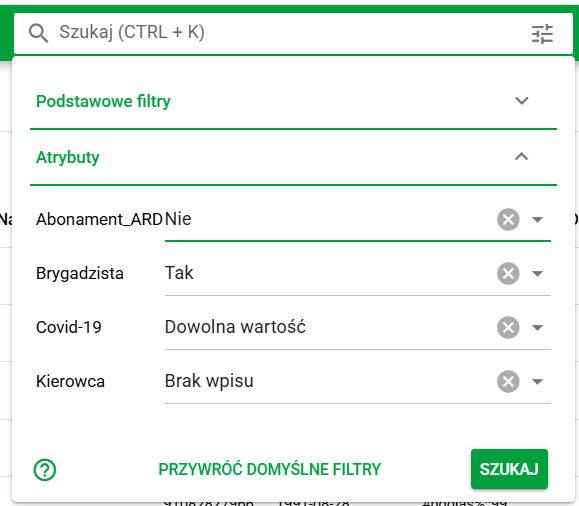
Attribute-filter section in advanced employee filtering
Bulk action: Change attributes
For selected employees, a bulk action called Change attributes is available. This is useful when you need to apply the same update to many records without opening each employee profile separately.
The operation has 3 steps:
- Configuration Select the target attribute, new value, and validity period.
- Preview and validation The system checks selected records and shows which rows can be updated and which require correction.
- Result You get a per-record summary of what was changed.
In the validation step, the system marks records with statuses:
- Ready,
- No changes,
- Conflict,
- No permission.
This makes it easy to confirm exactly which rows will be changed before saving.
Ending a value is a correction of an existing entry, so it requires the Correct attribute history permission. Records of employees for whom you lack it get the No permission status.
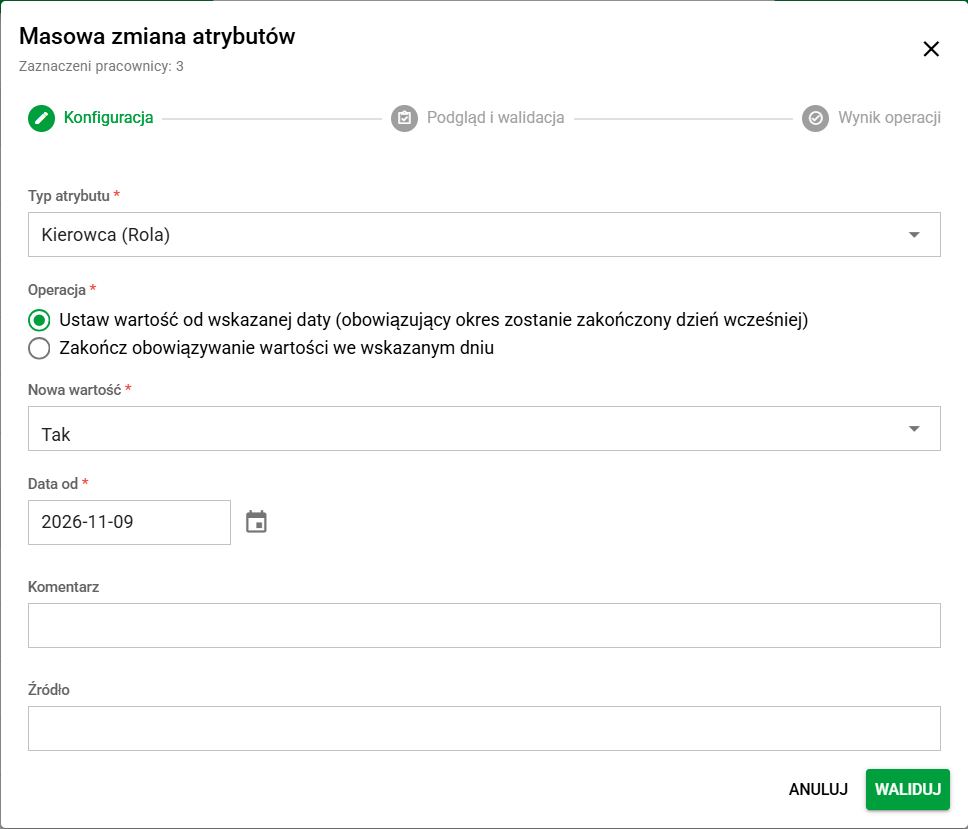
Step 1: bulk-operation configuration
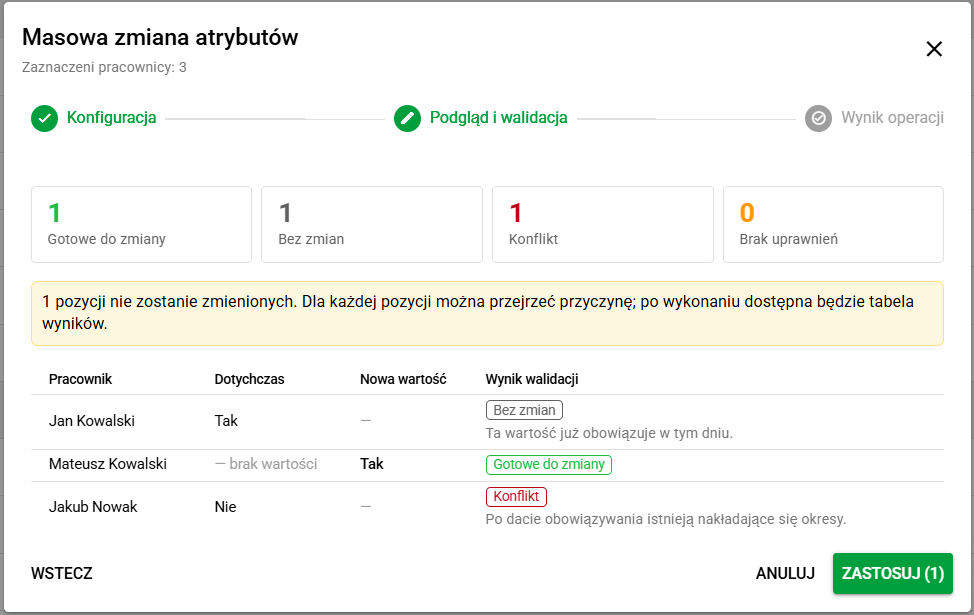
Step 2: preview and validation of selected records
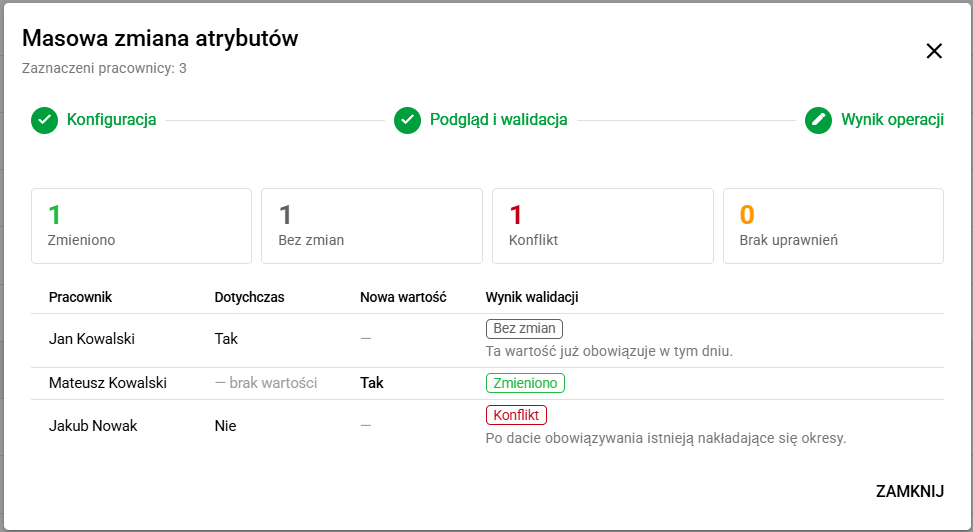
Step 3: execution summary and final result
Employee record
The employee record includes an Attributes top tab with filtering and a table of entries.
Filters and table
The top area contains filters:
- search,
- Category,
- Validity period: Current / All / Deleted,
- As of date field (today by default),
- Clear filters button.
The attributes table is sortable and includes:
- Name,
- Category,
- Value,
- Status,
- Start date,
- End date,
- Actions.
The + Add button creates a new entry, and selecting a row opens edit mode. The Actions column also has an Add next version button, which opens a new-entry form filled in with the attribute and the value from its latest period. In daily work, this tab is used both for ongoing updates and for controlling validity periods of existing values.
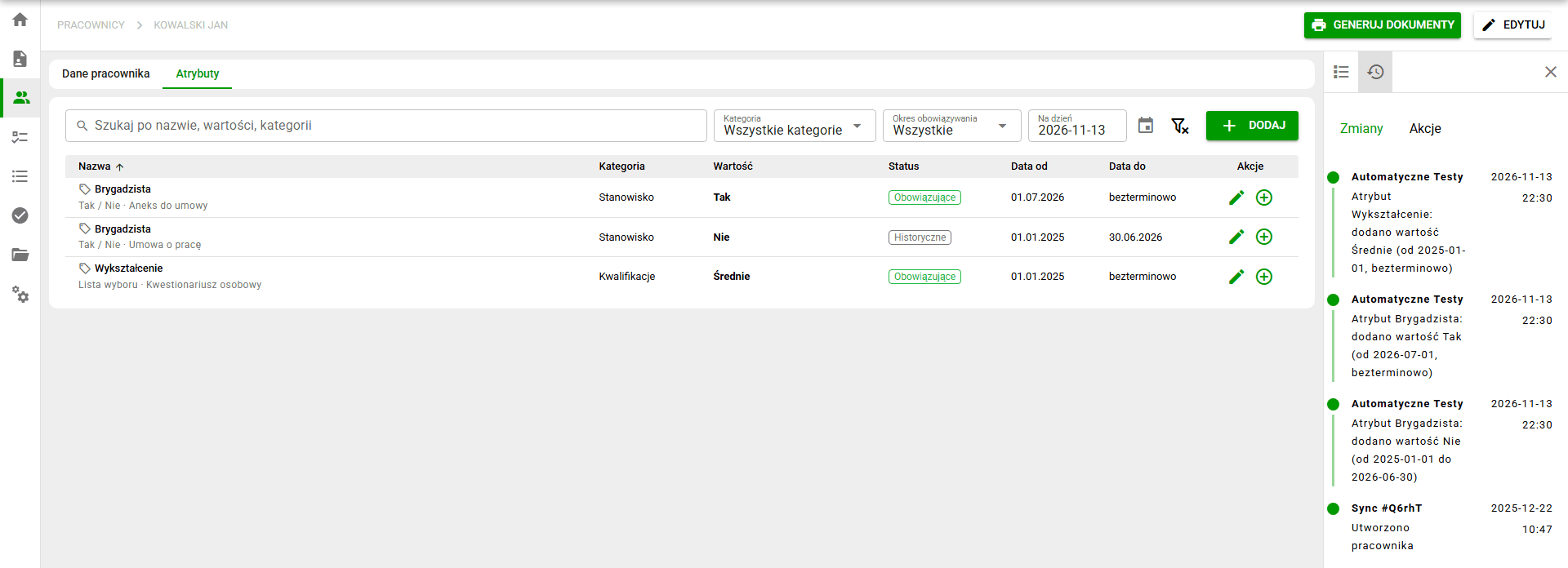
Attributes list with filters and validity-period controls
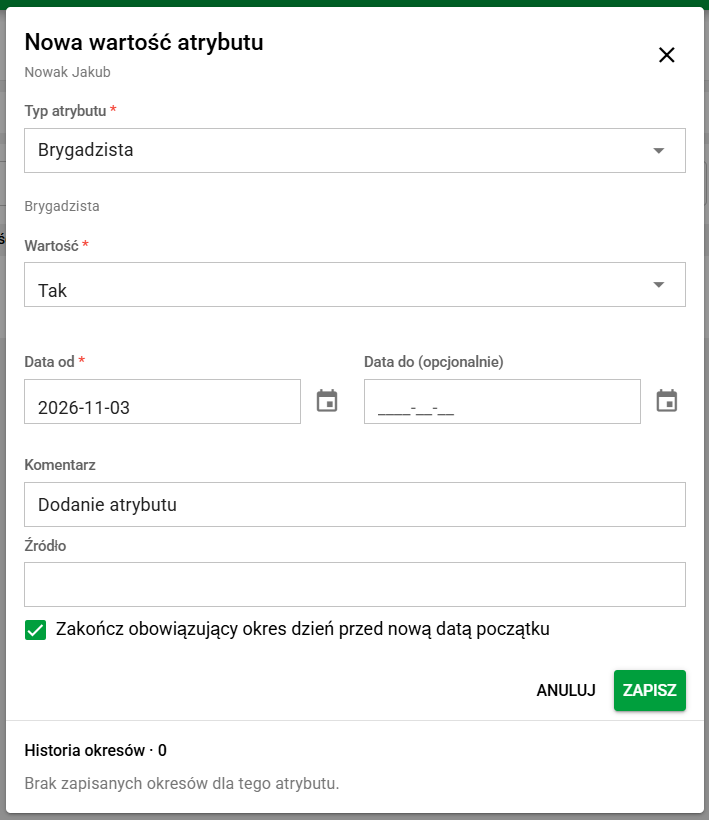
Form for adding a new attribute entry
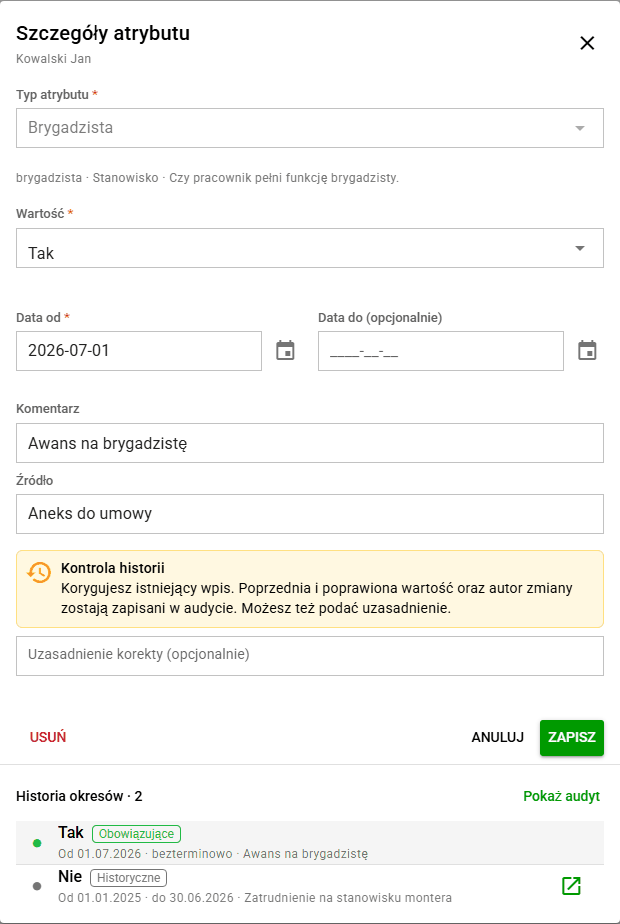
Form for editing an existing attribute entry
Details panel and change history
The details panel shows:
- value,
- validity period,
- comment,
- source,
- History control (with an optional justification for the correction),
- period history,
- access to audit preview.
Changing or deleting an existing entry is a correction, whatever its dates. The user must have the Correct attribute history permission; without it, the entry can only be previewed. A justification for the correction is optional, and the audit trail records the previous value, the corrected value and the author of the change.
When a value changes from a given day, add a new entry with + Add or Add next version instead of correcting the existing one. That needs only the Change attributes permission, even when the start date is in the past.
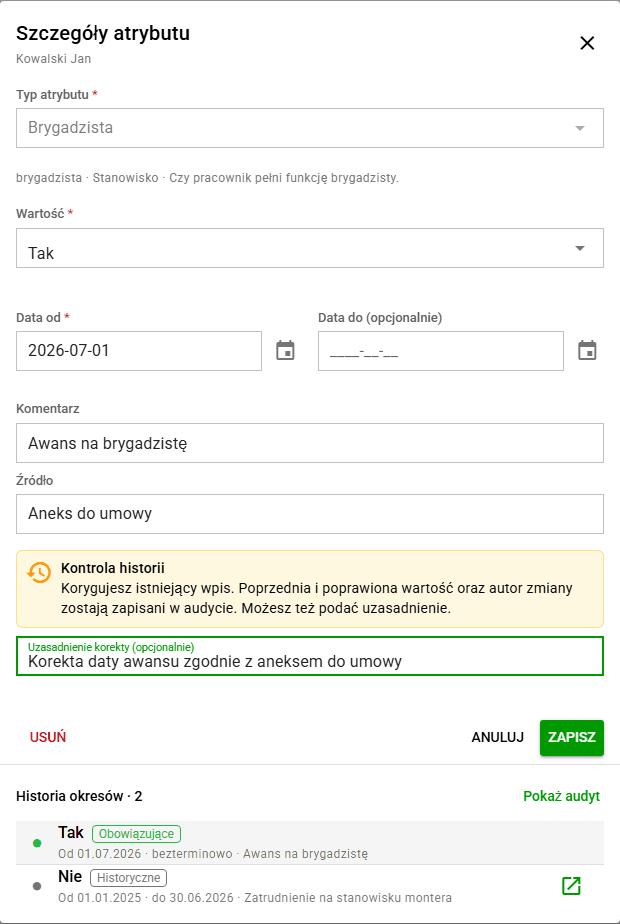
Historical-value update with an optional justification for the correction
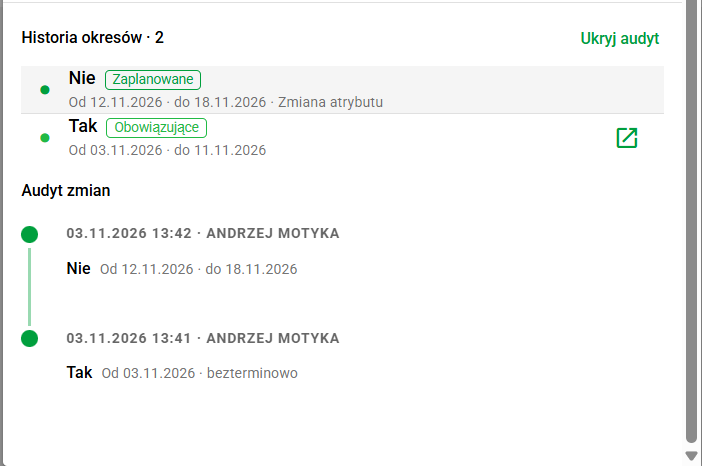
Attribute-value history with period timeline
In the Changes side panel, you can review all attribute operations, including deletions. Each entry includes author, date, justification, value and period.
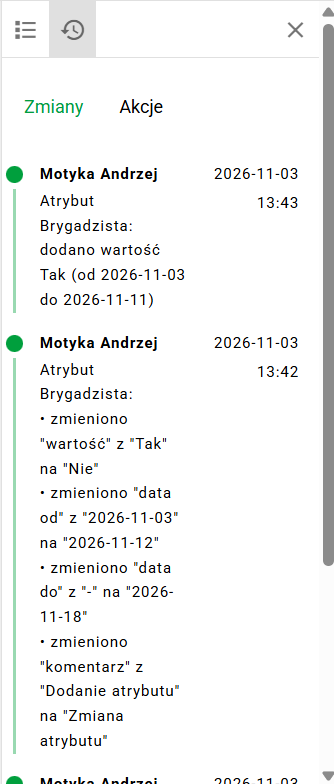
Attribute-change audit panel in the employee record
Permissions
Administrators grant access to attributes in module access roles (MDL), in the Employees (Full form) section:
- View attributes: the Attributes tab in the employee record, and attribute columns and filters on the list,
- Change attributes: adding new entries, including backdated ones and in XLSX imports,
- Correct attribute history: changing and deleting existing entries, whatever their dates, and ending values in the bulk action; it also requires the Change attributes permission,
- Bulk change attributes: the Change attributes bulk action; it also requires the first two permissions.
In data access roles (DS), the first three permissions in the same section define which employees they apply to. If you cannot see the Attributes tab, or the bulk action marks a record as No permission, ask an administrator to check both kinds of roles.
For more about roles, see Module access permissions (MDL) and Data access permissions (DS).