Generate documents
Selection of records to generate
Starting the document generator in the Employees module is possible in two ways:
- For a single employee In the main table, select the employee you are interested in and go to his or her personal data by clicking on a given record, or open the three-dot menu and click the PERSONAL DATA option. In the opened details view, click the "Generate documents" button.
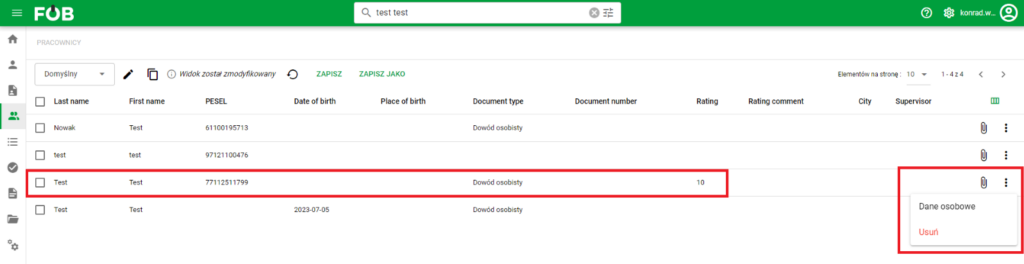
Personal data button
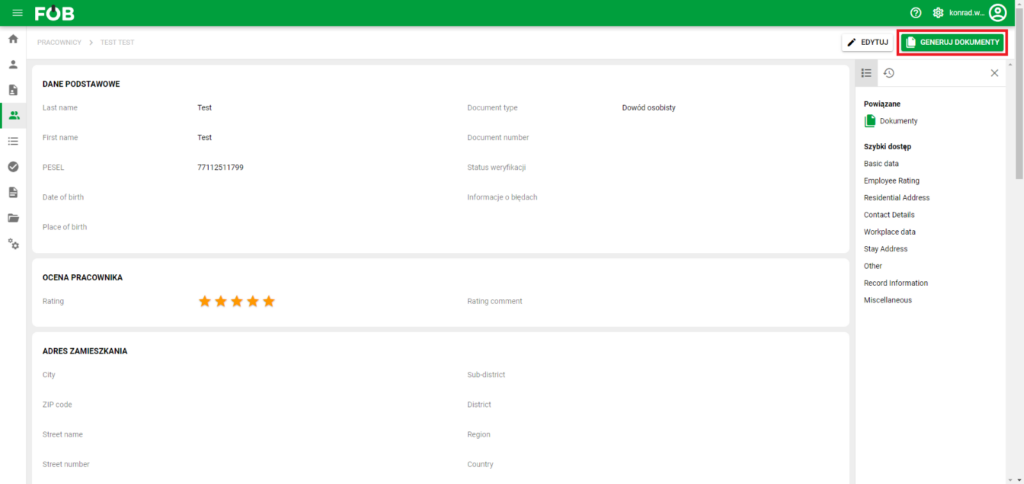
Generate documents button
- For multiple employees In the main table, select the records you are interested in, then expand the "Actions" menu in the upper right corner and select "Generate documents".
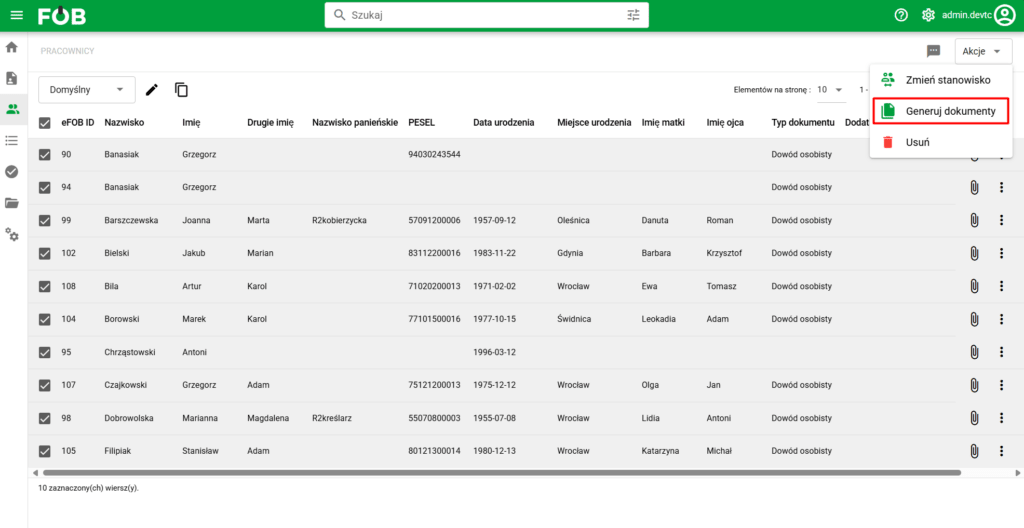
Generating documents for multiple employees
Configuration of the list of documents to be generated
In the generator screen, we can configure the list of documents to be generated. To do this, select Document Type and Template Version and then click "Add". In the list displayed below, we can set the date on the document for individual templates.
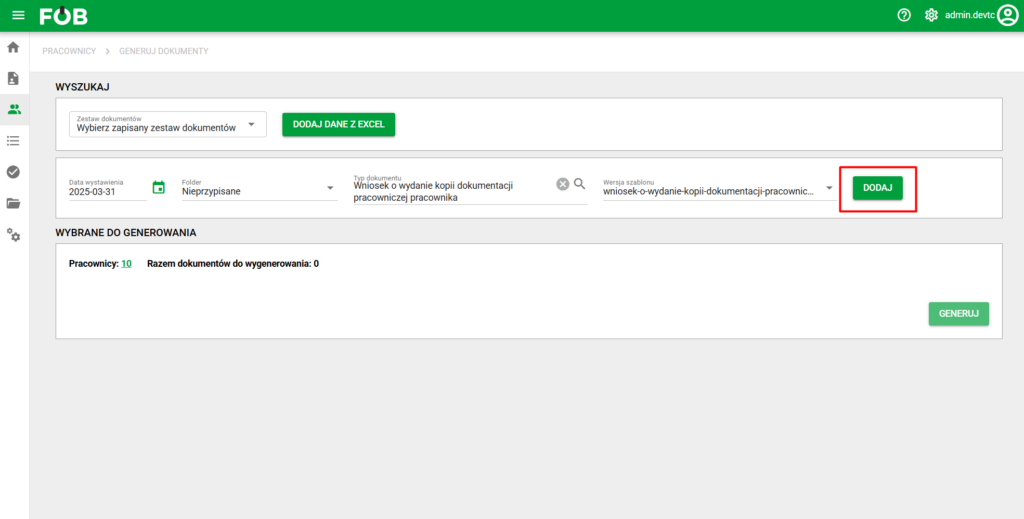
Adding items to generate
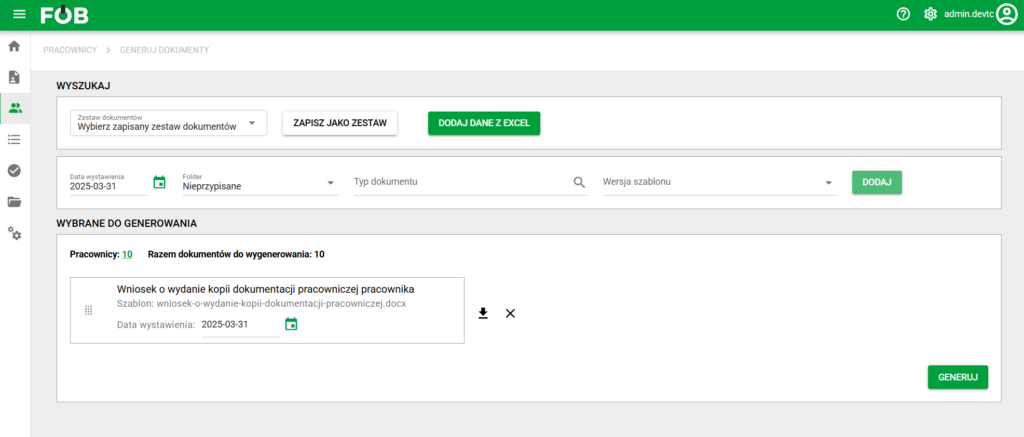
List of selected to generate
Extended data
For properly configured templates, it is possible to extend the data included in the generated document with data provided in the attached Excel file.
The file must meet the following requirements:
- maximum file size 2 MB
- maximum number of rows 16,000
- maximum number of columns 256
- the first line of the file must contain column names (headers) consistent with the fields in the document template that we want to complete
- the file must contain a column used to identify the employee
To upload the file, select the "Add data from Excel" option on the screen.
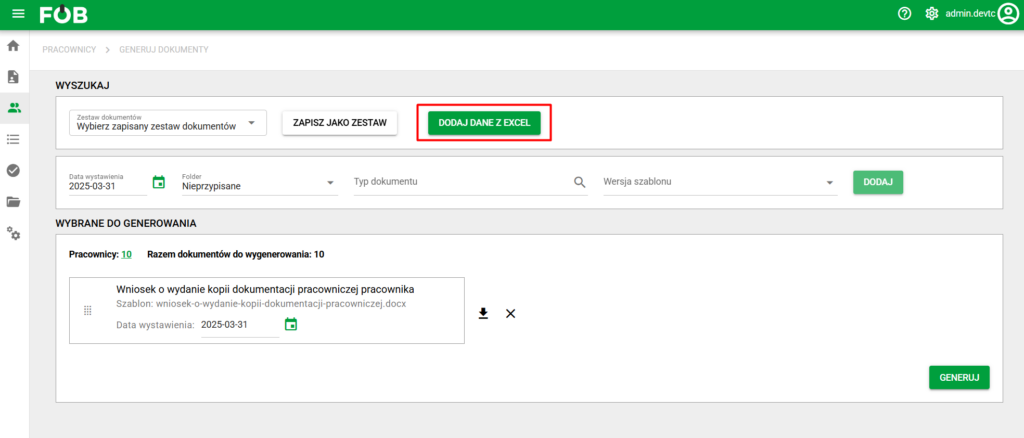
Add Excel file button
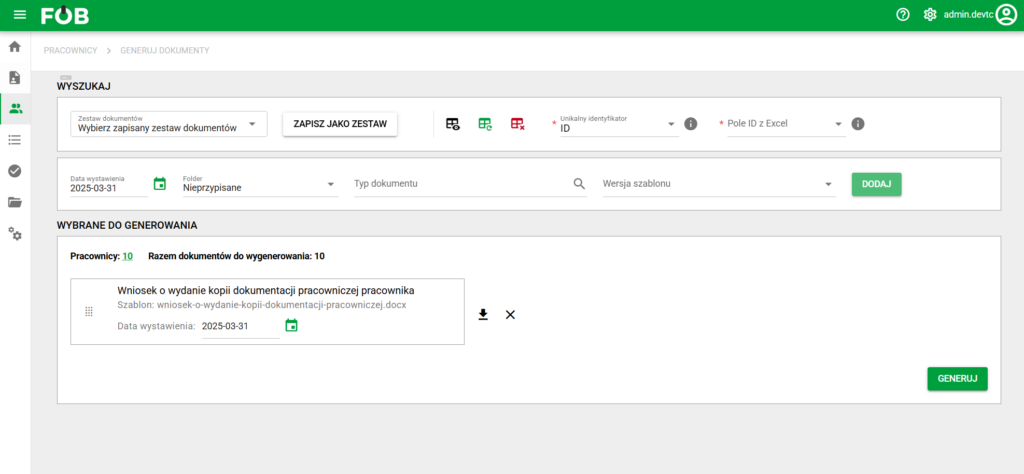
Options for Excel file
After uploading the file, the actions that can be performed on it will be displayed:
- Data preview from Excel – opens a window with a preview of the headers and sample data of the file
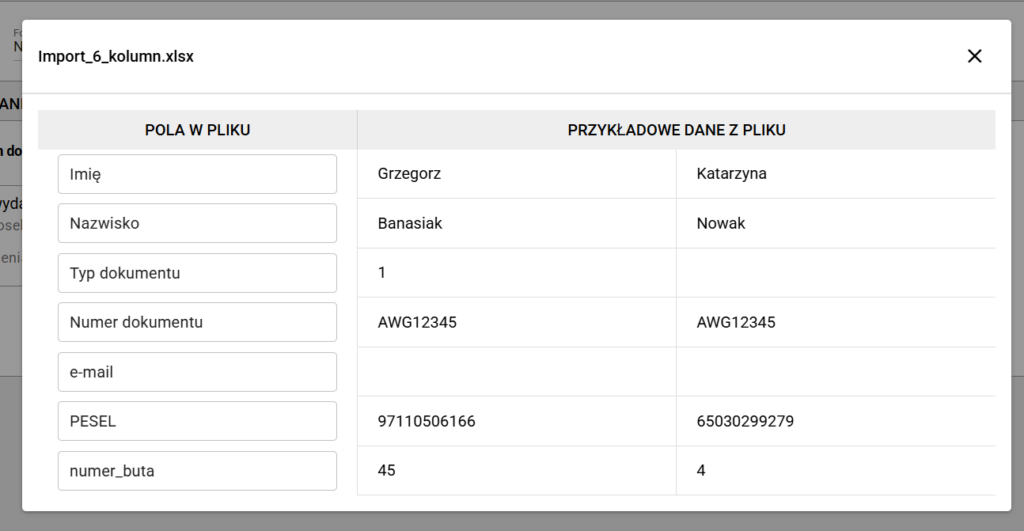
Data View from Excel
- Changing the Excel file – allows you to upload a new file
- Delete Excel file
In order for the data to be correctly assigned to the appropriate employees, you must set the values of the following fields:
- Unique identifier – indicates the field by which Excel rows will be matched to the employees for whom we are generating documents
- ID Field from Excel – indicates a column in the file that contains the identification field indicated in the Unique Identifier field. This column must be non-empty for all rows.
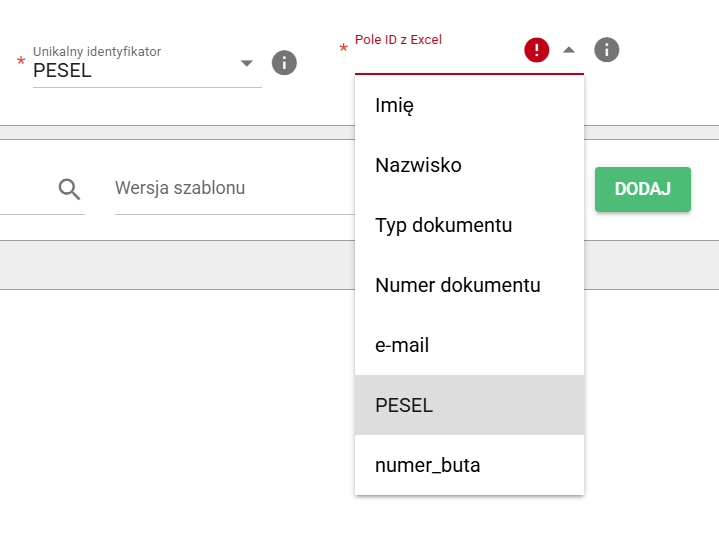
Identification field for Excel file
IMPORTANT: If the file contains rows that do not match the employee records selected for generation, they will not be taken into account. In turn, if no match is found for the selected employees in the Excel file, the generated document will not contain additional data.
Generate
Once you have finished configuring the document list, click the Generate button. The process of generating subsequent items will begin and information about the progress will be displayed on the screen. Once generation is complete, the files can be downloaded individually as a PDF or in bulk as a PDF or ZIP.
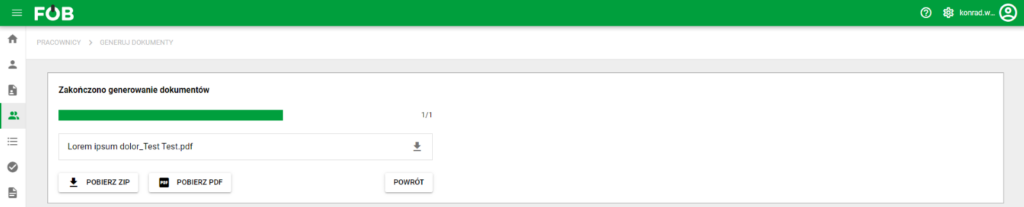
Generator Summary
3D codes are automatically added to the generated documents, which include, among others: information about the document type and the assigned employee. Thanks to AI, this allows for automatic identification of documents after they are scanned and added to eFOB.
Document sets
The list of selected documents can be saved as a reusable document set. To do this, click the "Save as set" button, give a name and determine the visibility of the set (only for me/for everyone). The next time you generate it, it will not be necessary to add further documents - just select the appropriate set from the list.
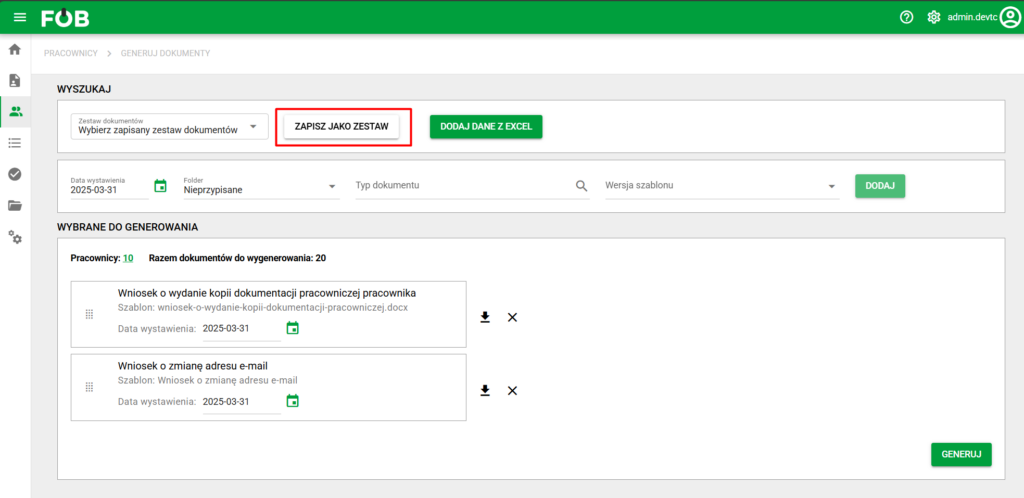
Saving a Document Set
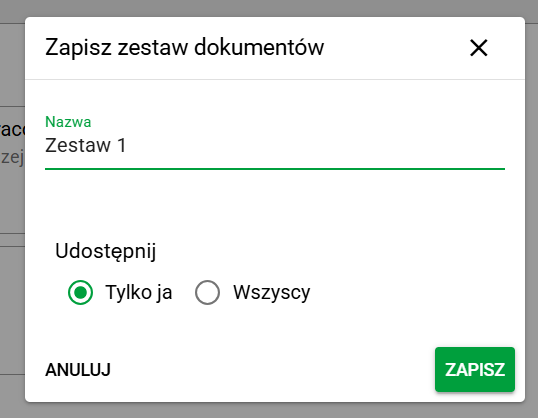
Adding set window
After making changes to an existing set, the user can choose between the Save and Save As options. Sets can also be edited (modify name and visibility) and deleted.
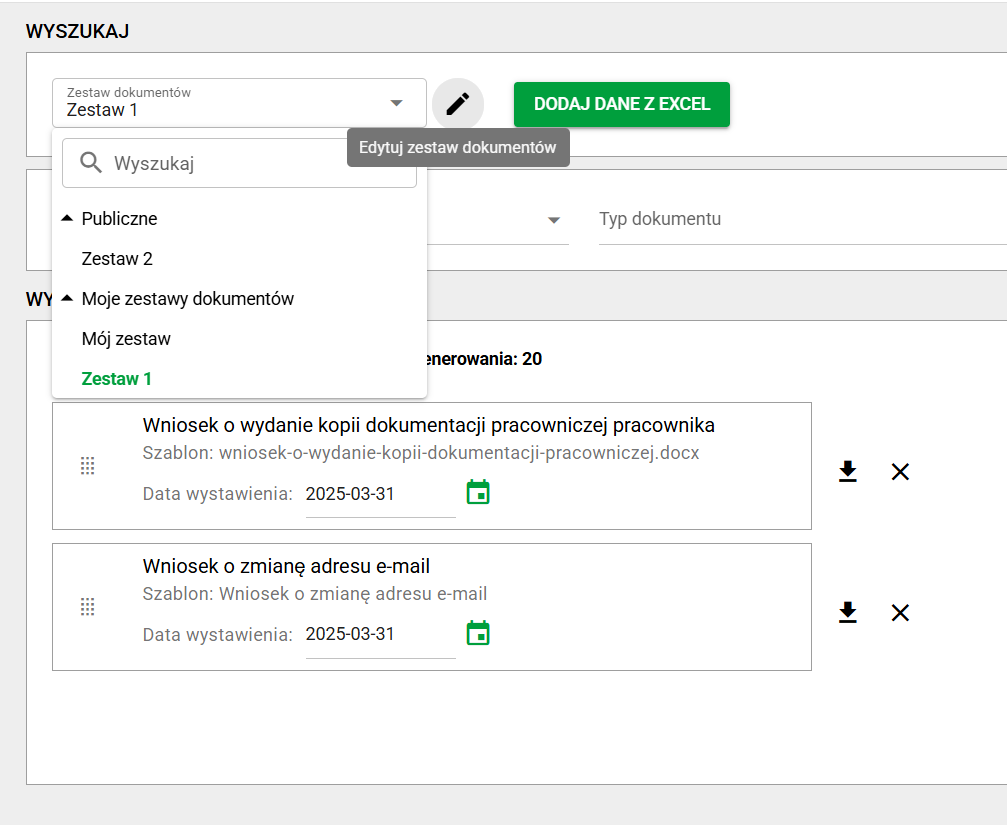
Selecting Document Sets
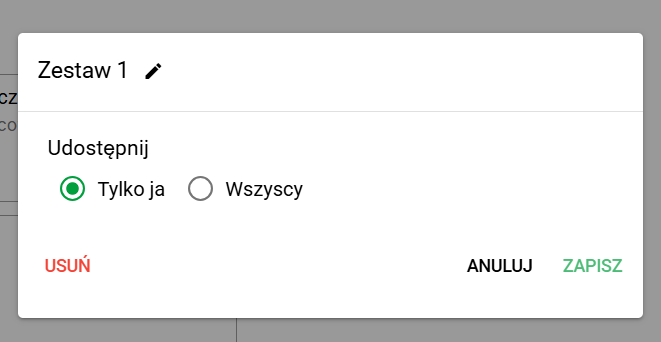
Set edit window