Mass adding employees
Bulk addition of employees is available in the Employees module under the "+" button in the lower right corner of the application. Select the “Import employees” option from the drop-down list.
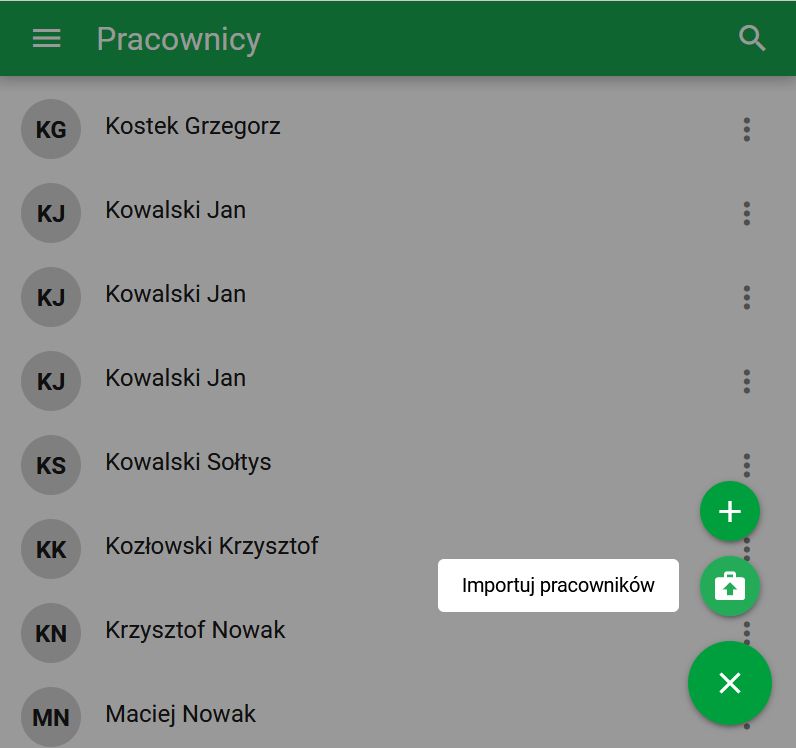
Figure 1. Import of employees
Upload an Excel file
Import allows you to bulk add or update multiple employees to eFOB based on an xlsx file.
A sample file structure is available for download at the "szablon" link.
The xlsx file may contain columns with data:
- First name
- Last name
- Date of birth
- Place of birth
- PESEL number
- Gender – please provide: male – male, female – female, other – other, unspecified – unspecified
- IBAN number: the complete account number in the format used by its country; do not add
PLto a foreign account - Identity-document type: use the current code in the field reference below
- Document ID – identification number of the indicated type of identity document
- Email address
- Second email address (if available)
- Telephone number
- Work telephone number
- Start and end date of the contract
- Employee's address
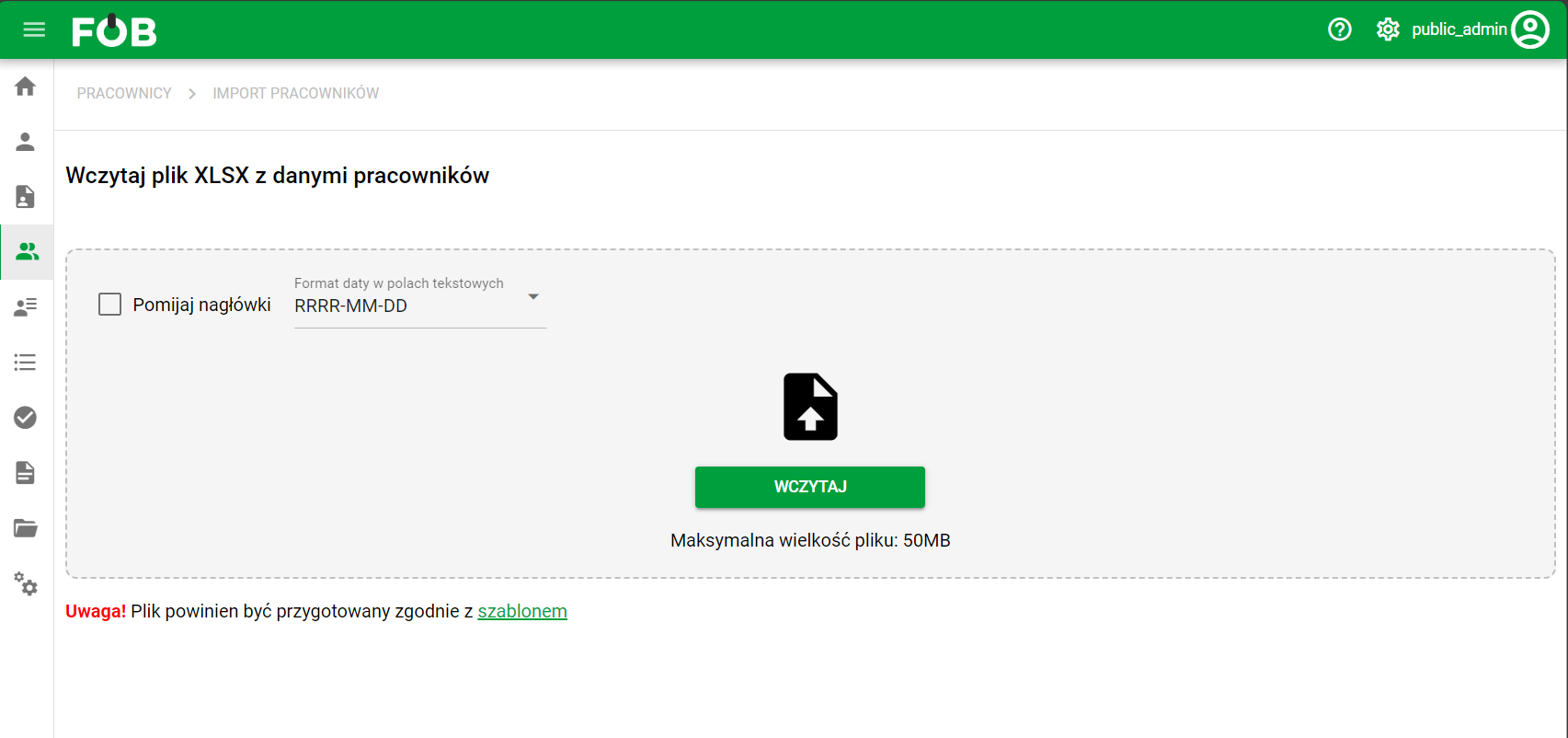
_Fig 2. Window for adding an xlsx file _
Column mapping
After uploading the file, a screen mapping the columns from the file to the employee's fields from eFOB will be displayed. To import employees, you must select a mapping for at least one column. The contents of columns for which mapping is not set will not be taken into account during import.
The system automatically proposes mapping if the column names from the first line of the file match the eFOB fields. It is important that the column names in the file are linguistically consistent with the selected application language, otherwise the system will not be able to propose a mapping.
When selecting a mapping, ensure that a given eFOB field is selected only once. If a field is selected multiple times, it will not be possible to continue the import.
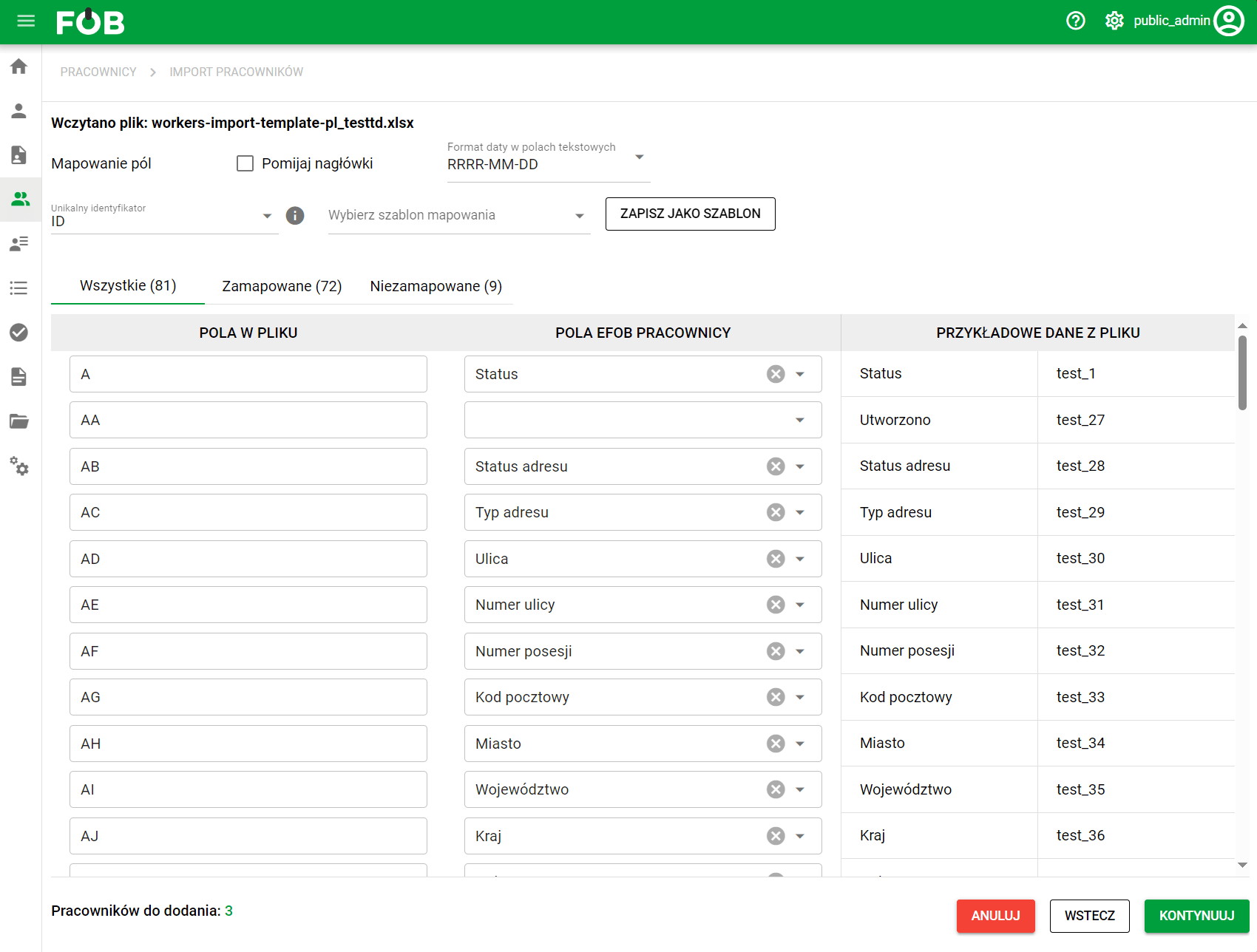
_Fig 3. Column mapping window _
The mapping screen also provides the following options:
– selection of the “Unique identifier” identification field – based on the indicated value, the system will verify whether the employee specified in the sheet already exists in the database and whether he should be updated
– selection of date format in text fields – the default date format in eFOB is ‘YYYY-MM-DD’. If the dates in the file are entered in a different format, you must indicate it so that the system can read and save the data correctly
– “Skip headers” option – should be selected if the first line of the file contains column names and should not be treated as employee data when importing
– selection or saving of a mapping template – the assignment of eFOB fields to specific columns of the file (e.g. column A - First name, column B - Last name) and other import settings: unique identifier, omitting headers and date format in text fields are saved. This will facilitate subsequent imports from files with the same structure.
Import an employee without a PESEL number
If an employee has no PESEL number, use their identity-document number and complete the document type. Do not enter a fabricated PESEL merely to pass validation.
- Prepare the identifying data in the file, including the identity-document number and type.
- In column mapping, select an available Unique identifier that matches the data in the file and the employee record.
- Check that the identifier points to one correct person. When updating records, do not rely on the name alone.
- Read the validation comments. A missing identifier, duplicate, or multiple matching records must be resolved before import.
If the file includes people with and without PESEL, check the selected identification method's requirements for every row. After import, compare the created and updated record counts with the expected result.
Import fields
Some employee fields use stored codes, such as gender. The reference below gives the code to enter in Excel in parentheses. Do not translate these codes or replace them with your own description. Before reusing an older file, check the current values, particularly marital status and disability level.
Gender:
- Male (male)
- Woman (female)
- Other (other)
- Unspecified (unspecified)
Document type:
- ID card (1)
- Passport (2)
- Driving license (3)
- Other (4)
- Identity bulletin (5)
- Electronic identity card (6)
- Residence permit (7)
- Employment permit (8)
- Temporary identity document (9)
- Residence card (10)
- Registration certificate (11)
Marital status:
- Unmarried (unmarried)
- Married (married)
- Widowed (widowed)
- Divorced (divorced)
Country of birth:
- Name of a European country (two-letter ISO 3166-1 alpha-2 code, e.g. PL, DE, FR; list: ISO 3166-1 alpha-2 - Wikipedia, the free encyclopedia)
Employers:
- Employer's name (full name according to Dictionaries → Employers)
Agreement status:
- Missing set of documents (Brak kompletu dokumentów)
- In preparation (W przygotowaniu)
- To be checked (Do sprawdzenia)
- Sent (Wysłana)
- Sent to eFOB (Wysłane do eFOB)
Country:
- Name of a European country (two-letter ISO 3166-1 alpha-2 code, e.g. PL, DE, FR; list: ISO 3166-1 alpha-2 - Wikipedia, the free encyclopedia)
Degree of disability:
- Severe (severe)
- Moderate (moderate)
- Mild (mild)
- Profound (profound)
Certificate of no criminal record:
- No information (Brak informacji)
- Criminal record (Karany)
- No criminal record (Niekarany)
- Polish criminal-record certificate available (Ma krk PL)
- EU criminal-record certificate available (Ma krk EU)
Professional status:
- Unemployed (Bezrobotny)
- Looking to change jobs (Chęć zmiany pracy)
- Manual worker (Pracownik fizyczny)
- University student (Student)
- School student (Uczeń)
Verification Status:
- To be verified (Do weryfikacji)
- Verified (Zweryfikowany)
- Draft (Roboczy)
- Needs correction (Do poprawy)
- Sent to FOB (Wysłane do FOB)
Data verification
After mapping is completed and “Continue” is clicked, the data from the file is verified. The results along with information about possible errors are displayed in a table.
Below the results table, there is a summary with the number of correct and incorrect records. When you click the "Import Employees" button, the system will add or update employee records that do not contain errors.
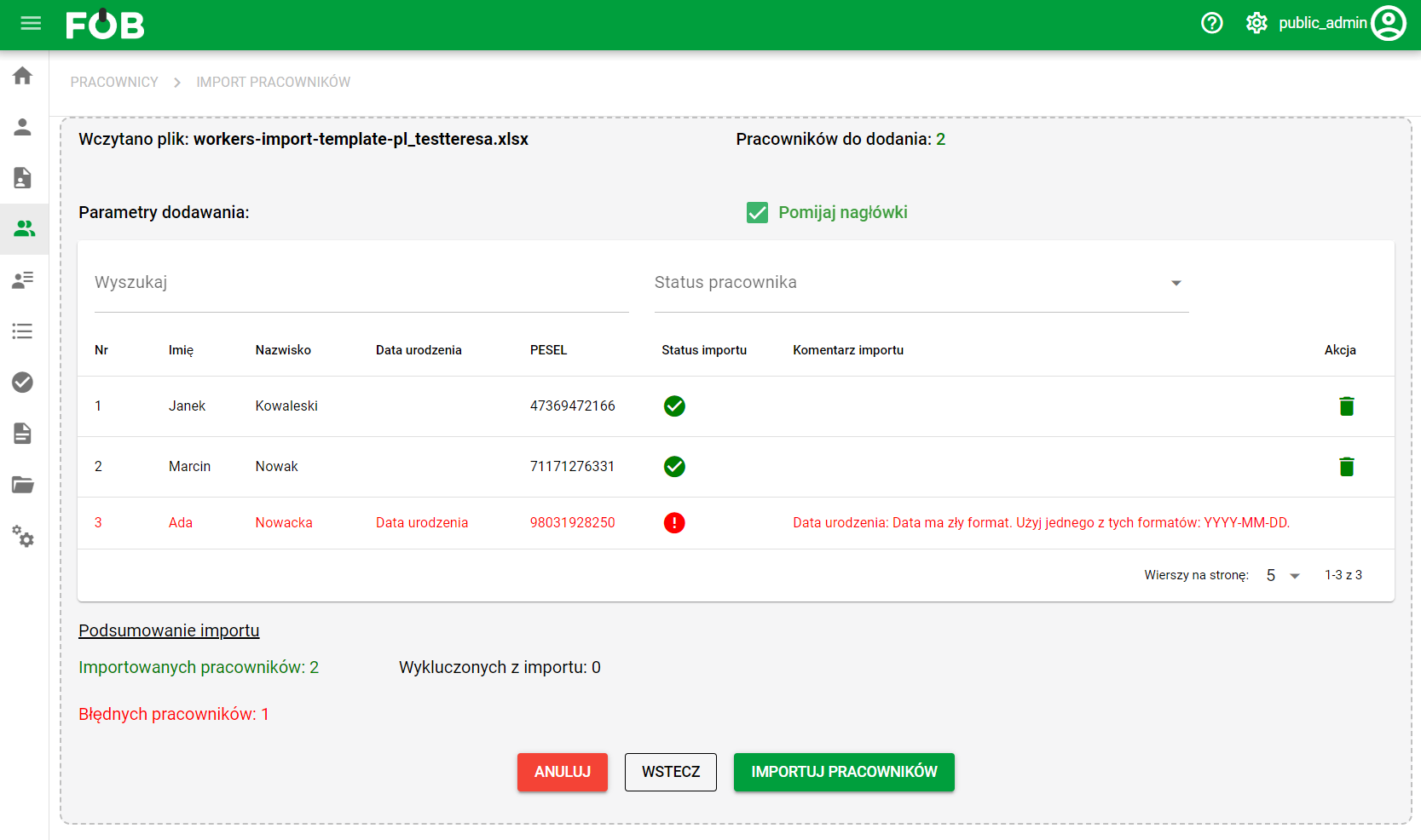
_Fig 4. Window with the results of file processing _
After successful import, a message will be displayed with a summary of the number of newly added or updated employees.
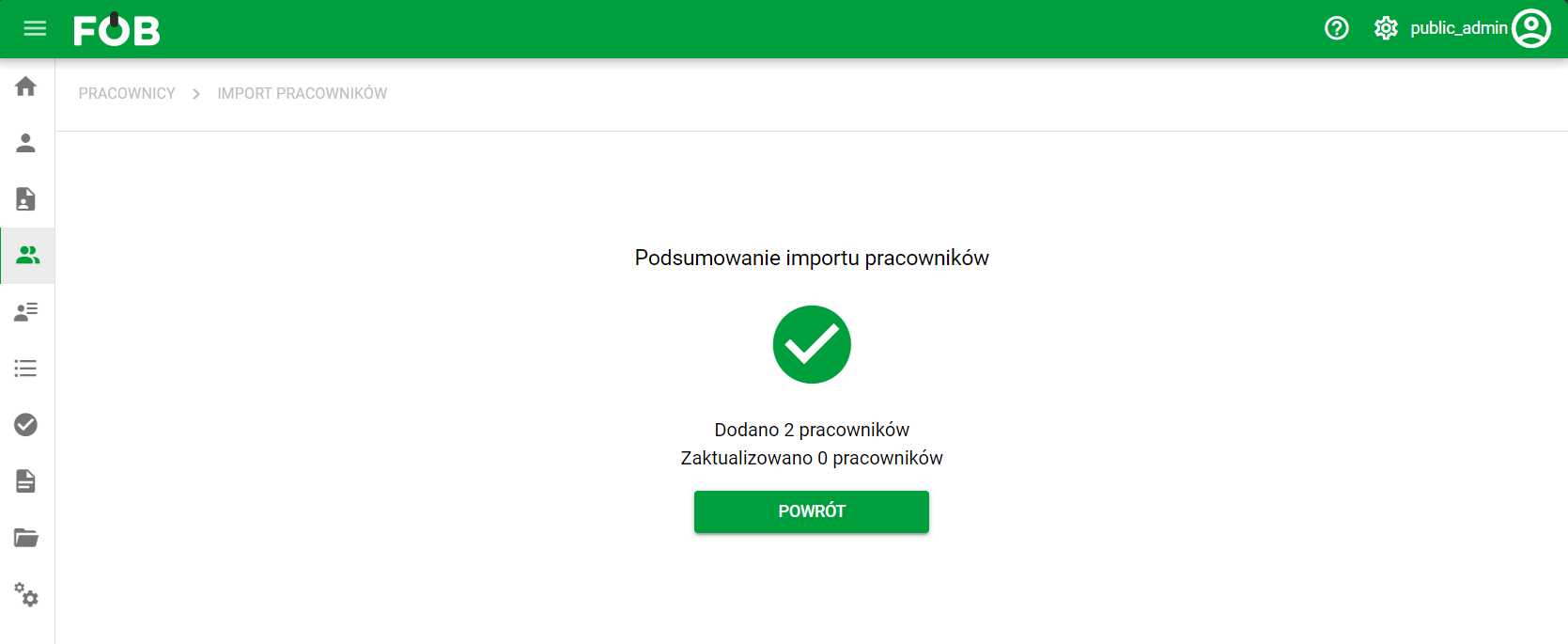
_Fig 5. Import summary _