Default view
To ensure safe and appropriate use of the system, some functionalities will be available only to users with employee status. Therefore:
- The MY AFFAIRS module will be hidden for users who do not have an employee status assigned.
The default view shows the different types of issues you can add.
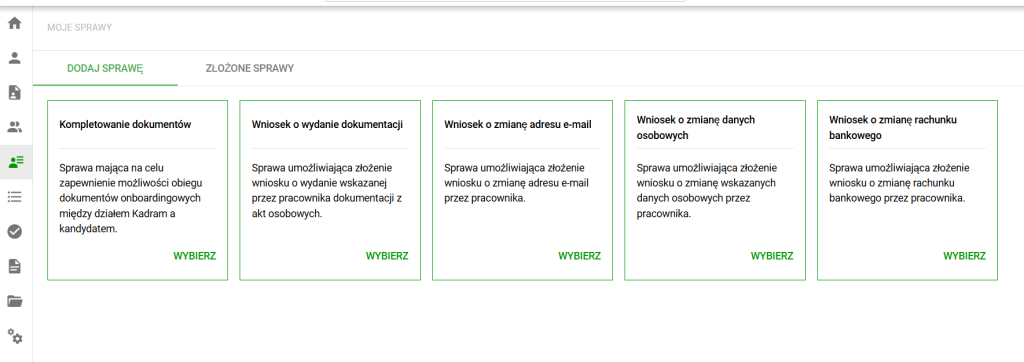
My affairs. Main view
Main view
The main view, also known as the add case view, contains 5 basic case types:
- Completing documents A case aimed at ensuring the circulation of onboarding documents between the Human Resources department and the candidate.
- Application for documentation A case enabling the submission of an application for documentation from an employee's personal file.
- Request to change e-mail address A case enabling an employee to submit an application to change his e-mail address.
- Application to change personal data A case enabling an employee to submit an application to change personal data.
- Application to change bank account A case enabling an employee to submit an application to change a bank account.
Adding a case
After clicking on the selected case, we go to the view of adding a case
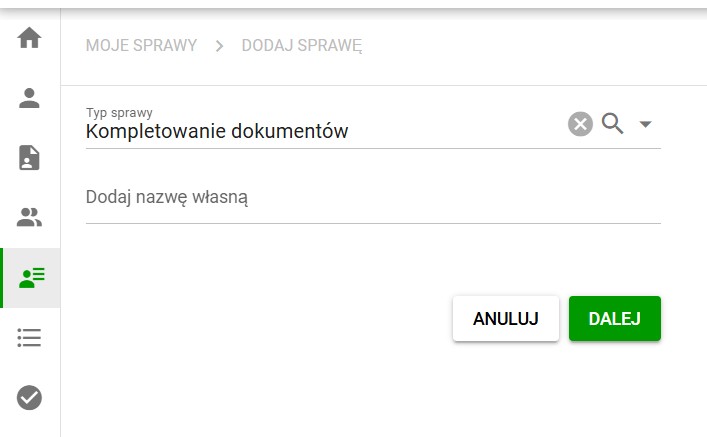
There are two fields in the added case view:
- Case type
- Custom name (optional)
Important: The number of available fields depends on the selected case type.
Additionally, there is a field for entering a comment, which will also appear on subsequent views. You can only add a comment after you save the case.
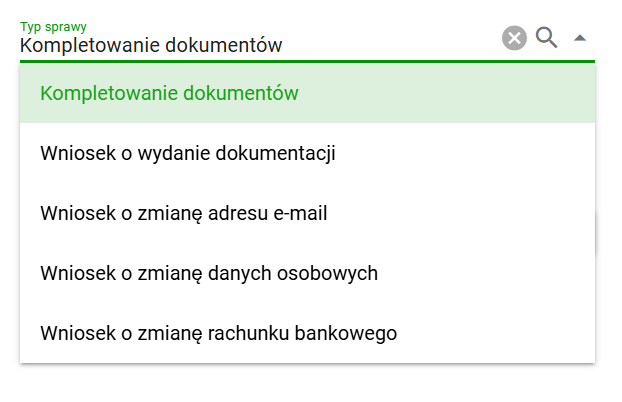
If you accidentally select the wrong case type, you can change it at this stage by clicking the “Case type” field.
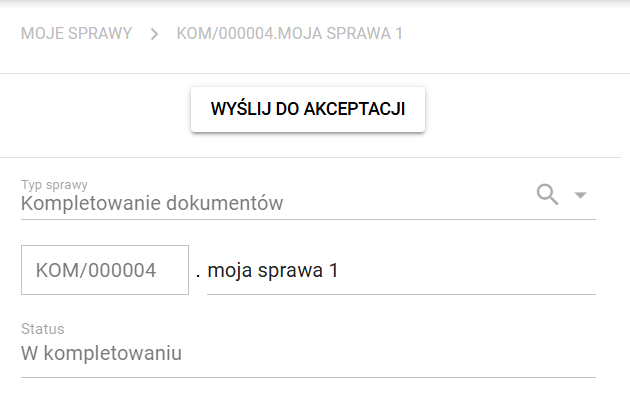
After adding the case, the case details view and the SEND FOR COMPLETION button will appear.
At this point, only the name can be changed. After making the change, the SAVE CHANGES button will appear and the view will update with the new name.
Letters and numbers separated by a slash will appear before the proper name. The letters indicate the case type and the numbers show the case number in order:
- COM – Completing documents
- WO1 – Application for issuing documentation
- WE1 – Request to change e-mail address
- WD1 – Application to change personal data
- WB1 – Application to change the bank account
This view also includes the Status field, which will change while the case is being processed.
After clicking the SEND FOR COMPLETION button, the inscription on the button will change to SEND FOR ACCEPTANCE and the case status will change to “Under completion”.
After clicking SEND FOR ACCEPTANCE, the case status changes, and instead of the SEND FOR ACCEPTANCE button, two new options will appear:
- SEND FOR CORRECTION – By selecting this option, the process returns to the SEND FOR ACCEPTANCE view.
- ACCEPT – After acceptance, the case status changes to Loading documents into eFile. At this stage you can still send the case for correction.
Once the administrator has filed the documents from the case in the employee's eFolder, no changes other than renaming the case are possible.