Case Finder
The Cases module contains all the cases you have access to. However, their number may be large, which is why the eFOB system provides search and filtering tools that allow you to quickly and precisely find a single case or a group of cases.
Filter by Check
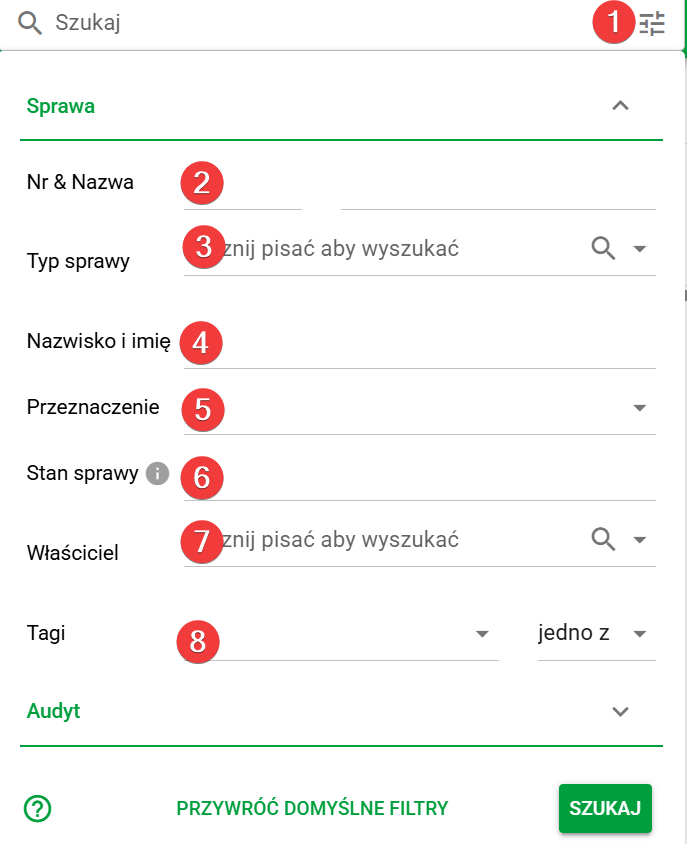
At the top of the Cases module screen there is a search field and next to it there is an icon of three horizontal lines (1). Clicking this icon opens the advanced filtering panel where you can narrow down the list of cases according to selected criteria.
The available filters allow you to search for cases by:
- case number or name (2),
- case type (3),
- name and surname of the person concerned by the case (4),
- purpose – for an employee or candidate (5),
- current status of the case (6),
- case owner (responsible person) (7),
- assigned tags (8).
By combining several filters at the same time, you can quickly find exactly the issues that are important to you at a given moment.
Filter by audit
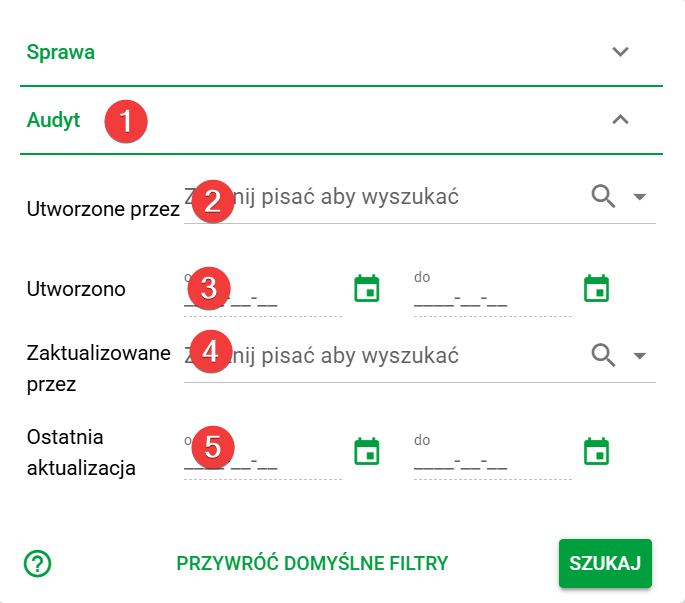
At the bottom of the filter panel there is a "Audit" drop-down field (1). After expanding it, additional filters will be displayed, which allow you to narrow down the list of issues based on audit data.
The available options allow you to filter cases by:
- the user who created the case (2),
- creation date range (3),
- user who last updated the case (4),
- date of last update (5).
Audit filters are particularly useful for change control, case history analysis and teamwork.
Search
Once all parameters are set, click the green button in the lower right corner to apply the filters. To clear your settings and return to the default view, select Restore Default Filters.