Adding a case
In the My cases module, an employee can create a new case on their own and pass it on for further handling according to the configured workflow. The available case types depend on the organization's setup and the user's permissions.
The user's own case form can also be opened from a link in the client's system. See Opening a new case from an external system for the link format and parameters.
This article shows the full journey of adding a case and moving it through the next workflow stages. This makes it easier to understand not only how to create a case, but also what happens later on the employee side and on the side of the people handling the report.
Adding a case and moving it through the next stages
To start a new case, go to the My cases section and choose Add case. At this point, the system shows the list of processes available to the employee.
1. Case list in the My cases module
After opening the My cases module, the user sees the list of cases they can start on their own. Depending on the organization's setup, this list may include requests, reports, or document-related processes.
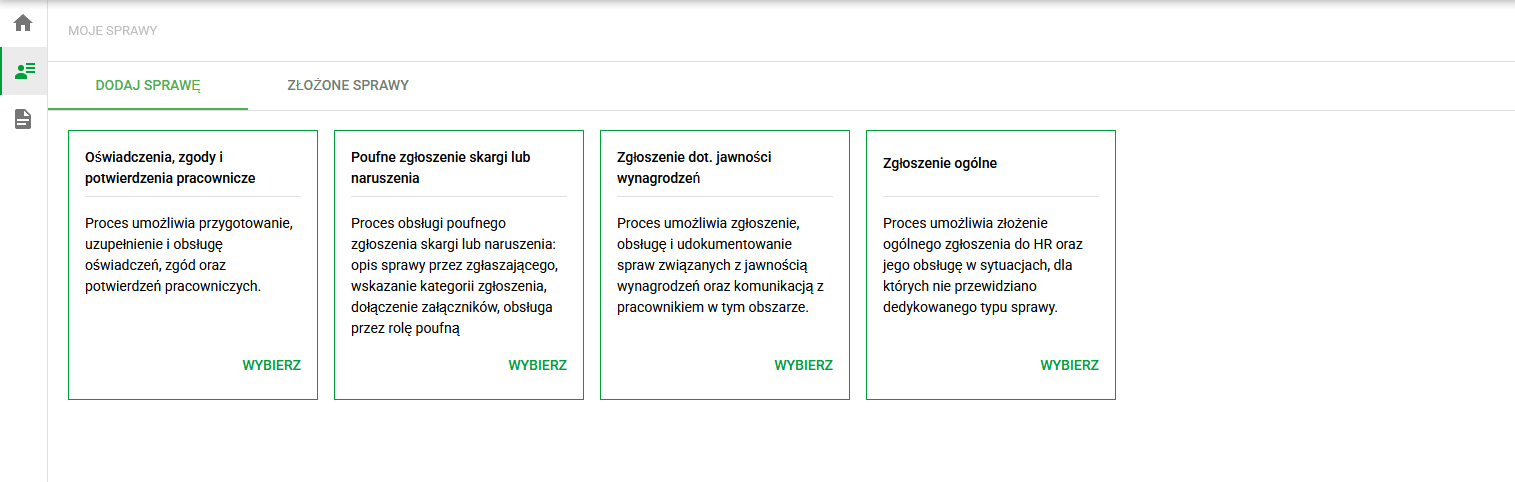
List of cases available to the employee in the My cases module
2. Selecting the case type
The employee selects the case type that best matches the need. In the rest of this article, the full journey is shown using the General report case type, which is also described in more detail in Process Library - ready-made business processes.
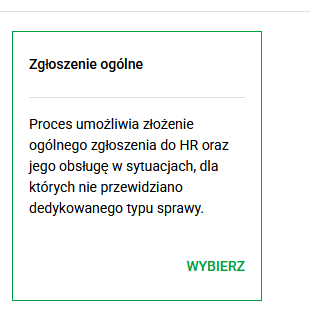
Selecting the General report case type from the list of available cases
If the user realizes before saving that another case type would fit better, they can still expand the list and switch to a different available process. This avoids starting over from the beginning.
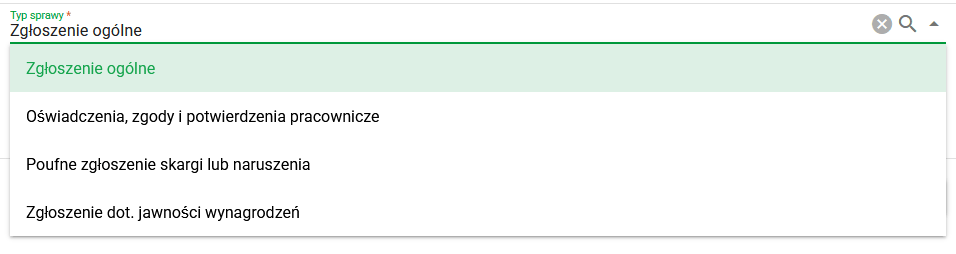
Expanded list of available case types before the form is saved
3. Creating a new case
After choosing the type, the employee creates a new case and can give it a custom name. A custom name makes it easier to identify the report later in the list of cases and in the activity history.
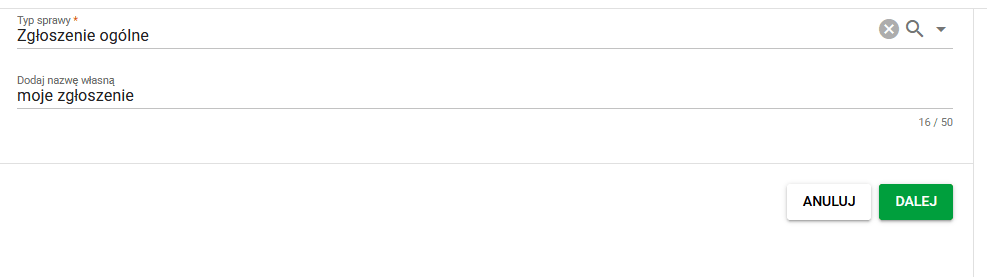
Creating a new case and giving it a custom name
4. Completing the case form
After the case is created, the employee moves to the form. Depending on the process type, the form can contain different fields that need to be completed at the beginning or at later stages. These values are then used by the system to move the case forward, generate documents and pass them on for further handling.
In the General report example, the first step is selecting the report category. The category helps HR understand more quickly what kind of information or materials are being submitted and what kind of follow-up is appropriate.
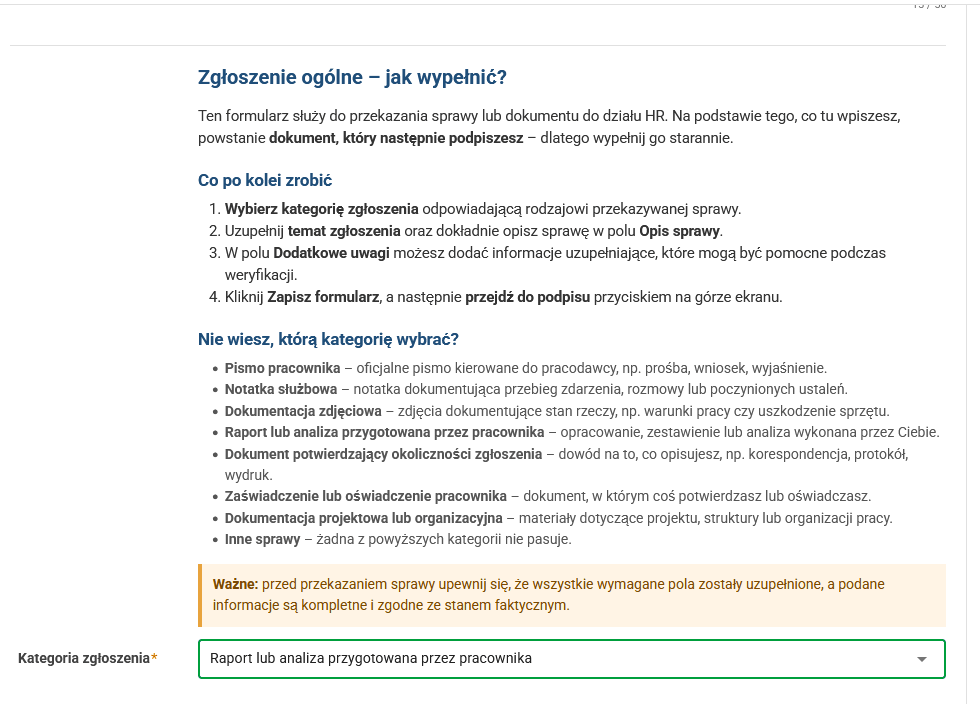
Choosing the report category in the initial form
In the next step, the employee completes the details of the case. In the General report example, this mainly means entering the subject and description of the report and, if needed, additional information.
It is worth describing the matter clearly and precisely so that the person verifying it immediately understands what it concerns and what action is expected.
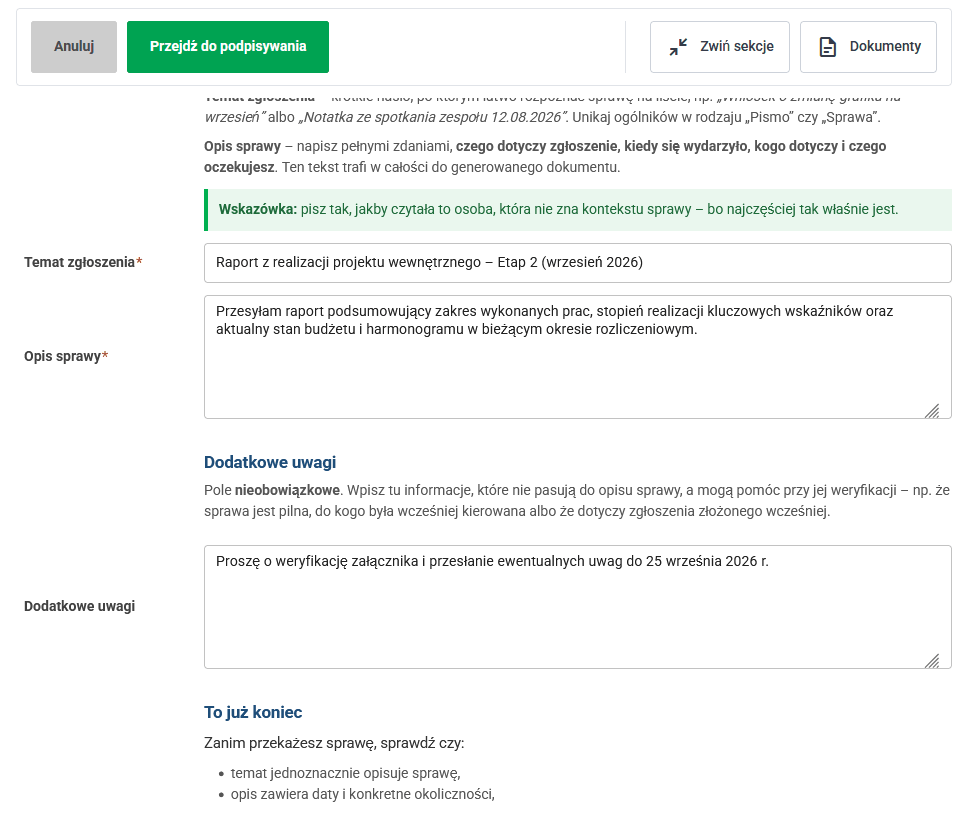
Completing the report details before the document is generated
5. Moving to the next workflow stage
After completing the form, the employee moves the case to the next stage of the process using the buttons available at the top of the screen. These buttons trigger the available transitions in the case, for example passing it to signing, to verification or to the next user responsible for further action.
In the General report example, the next step is moving the case to the stage where the generated document is signed.
6. Document generation and signing
In many workflows, the next stage is document generation based on the data previously entered in the form. The user then reviews the generated document and signs or confirms it according to the rules of the given process.
In the General report example, the system generates the document from the data entered by the employee. After reviewing the content, the employee signs it before the case is passed on for further handling.
If you want to learn more about the general rules for signing electronic documents in eFOB, see How to sign electronic documents using a Qualified Signature?.
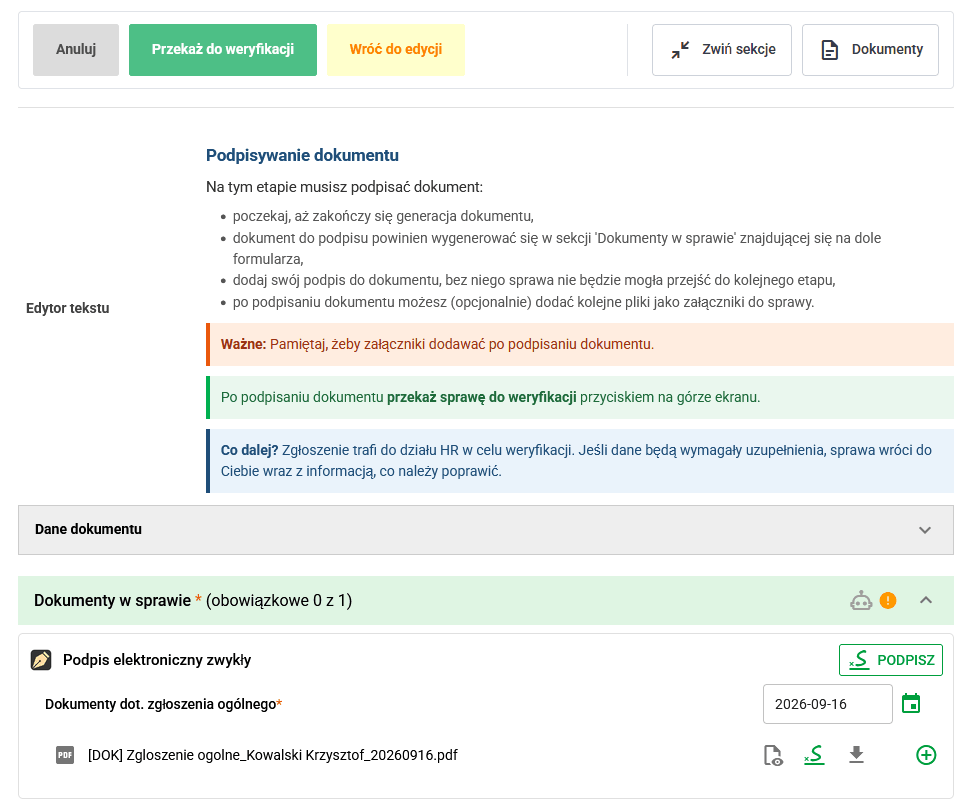
Stage where the document is generated and signed by the employee
7. Verification and decision on the next steps
After the document has been signed or confirmed, the case goes to the person or team responsible for verification. At this stage, they check whether the data is complete, whether the document is correct, and whether the case should be completed, corrected or moved further.
In the General report example, the case goes to HR. HR checks whether the report is complete, whether the description is correct, and whether the required documents or attachments are present. Depending on the result, HR can accept the case, send it back for correction, reject it, or move it forward according to the configured workflow.
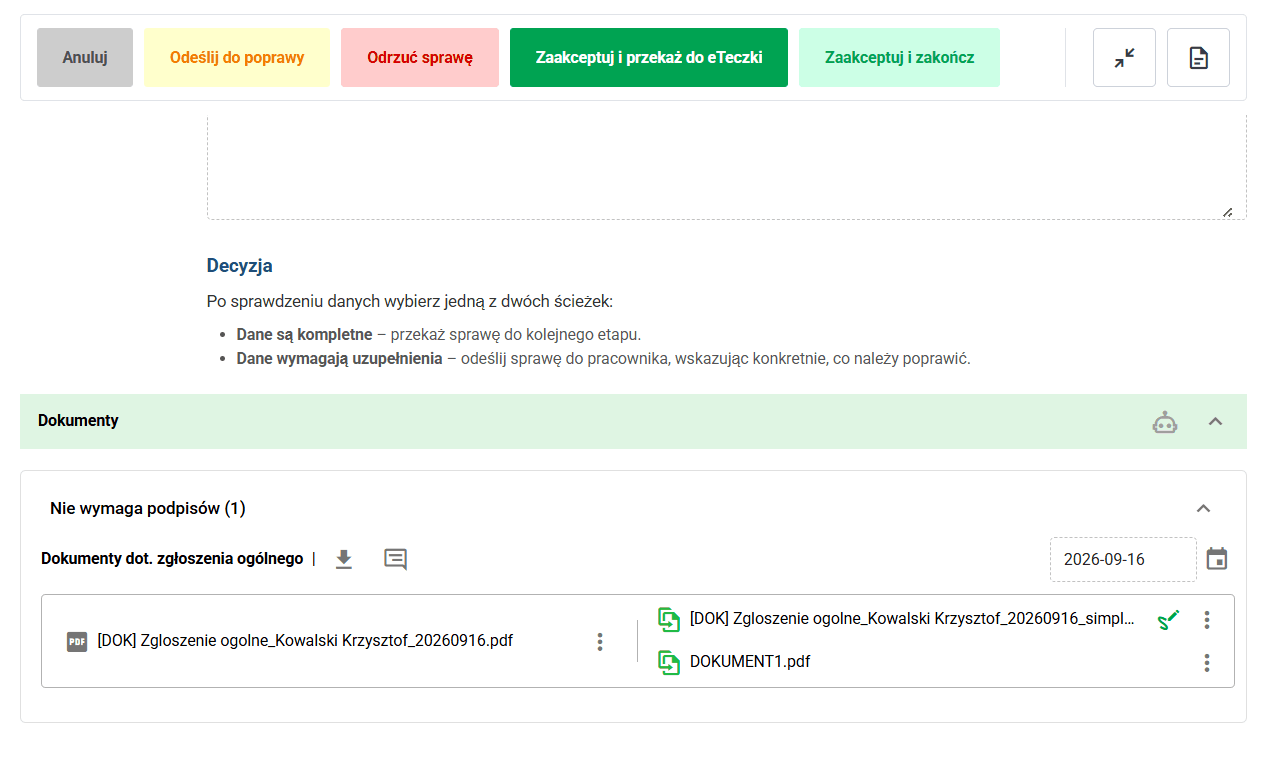
HR verification of the report
8. Filing the documentation in eFile
In some workflows, once the case is accepted, the documentation is moved to the document-filing stage. This allows the signed document and related materials to be added directly to the employee's records.
In the General report example, if the organization archives the report in the employee records, the case can be passed to the document-filing stage.

Filing the report documentation in eFile
Key transitions in the process
The table below shows the transitions a user is most likely to see in this example workflow.
| Stage | Most common actions |
|---|---|
| New | Go to signing or Cancel |
| For signature | Send for verification, Return to editing, or Cancel |
| Under verification | Accept and complete, Accept and send to eFile, Send back for correction, Reject case, or Cancel |
| To eFile | Load to eFile, Return to verification, or Cancel |
Regenerating a document after changing data
In some case types, the document is generated from data entered in the form. If you later change a field that affects the document content, the system checks whether an earlier version of the related document already exists and reacts accordingly.
The configuration of fields affecting document content is described in the Case document types article.
In practice, three scenarios are the most common.
Warning about removing a generated document
If the document was only generated earlier and does not yet have any attached files, the system shows a warning when the user tries to save changes or execute the next workflow action. The message explains that continuing will remove the generated file and that the document will need to be generated again based on the updated data.
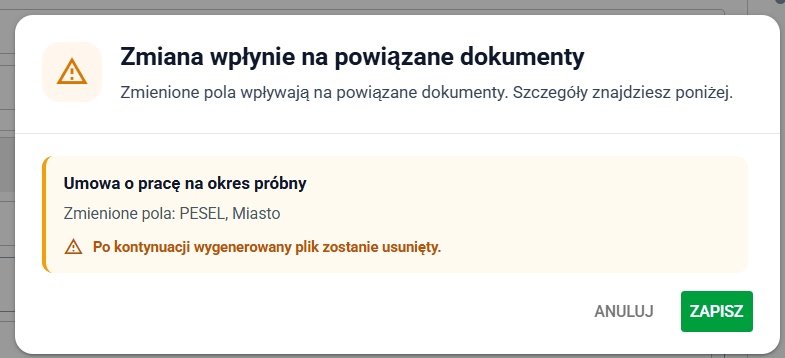
Warning about removing a previously generated document
Warning about removing a document related to a signature or attachments
If the document is configured with the Allow change after confirmation and remove document option and there is already a signed file or additional attached files related to it, the system shows a warning before saving the changes. The message explains that continuing will remove the generated document together with the files related to that stage.
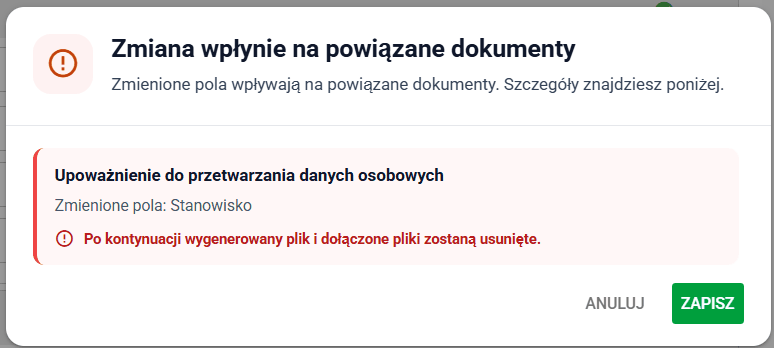
Warning about removing a document related to case fields
Blocked field editing
If the document is configured with the Block field change option and the related document already has attached files, the field becomes blocked directly in the form. Next to that field, the user sees a message explaining that it can no longer be changed because it affects documents with attached files.

Blocked editing of a field linked to a document