View documents in the application
Documents are available after logging in in the "My documents" tab.
The desktop version of the application (for a computer) has a side menu with folders: – Unread – where there are documents that have not yet been opened – All – this folder contains both open and not yet opened documents
In this view you can sort documents by name or date by clicking on the headers of selected columns.
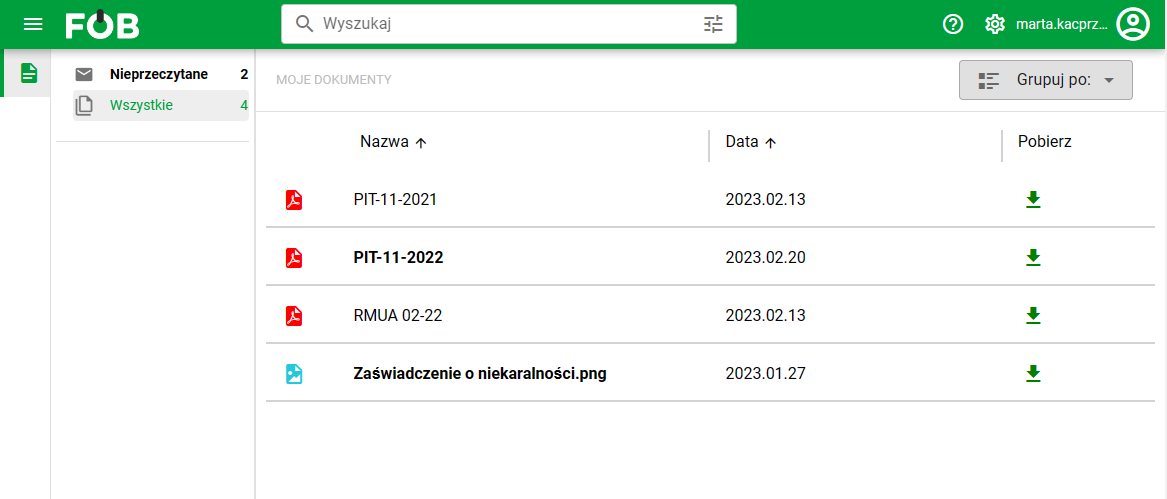
Fig 1. My documents – desktop view
grouping by date, month or year is also available.
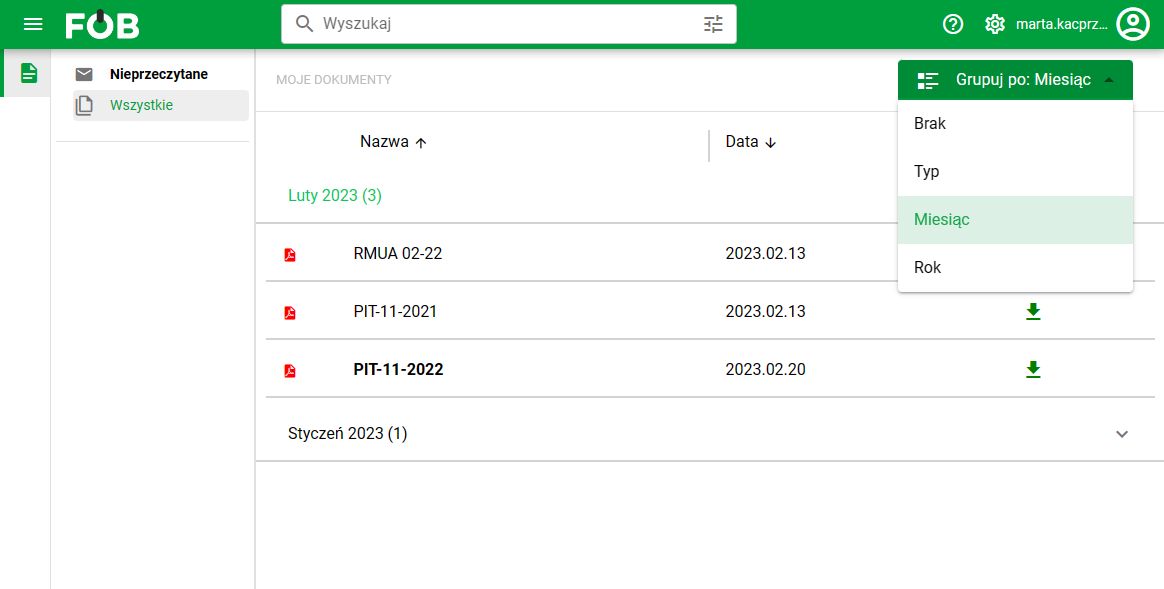
_Fig 2. My documents – desktop view, grouping _
There is a search bar on the top bar of the app. You can enter the text you are looking for or filter documents by specific data such as name, type or date.
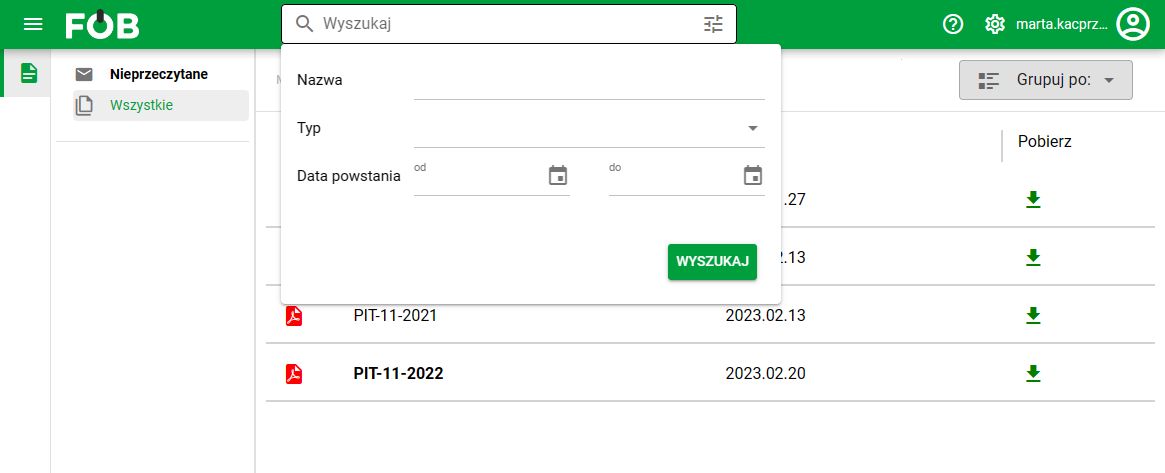
_Fig 3. My documents – desktop view, filtering _
To view the document, click on its name.
If you receive a message that preview is unavailable or the file cannot be viewed, download the document (by selecting the download icon) and open it directly from your device.
Files marked as potentially dangerous by the antivirus scanner are blocked from viewing and downloading.
Documents containing potentially dangerous files are marked at the main list level. When you try to download or preview such a document, an appropriate message is displayed. Such a file can only be approved as safe in the "Documents" module by a person with permissions to do so.
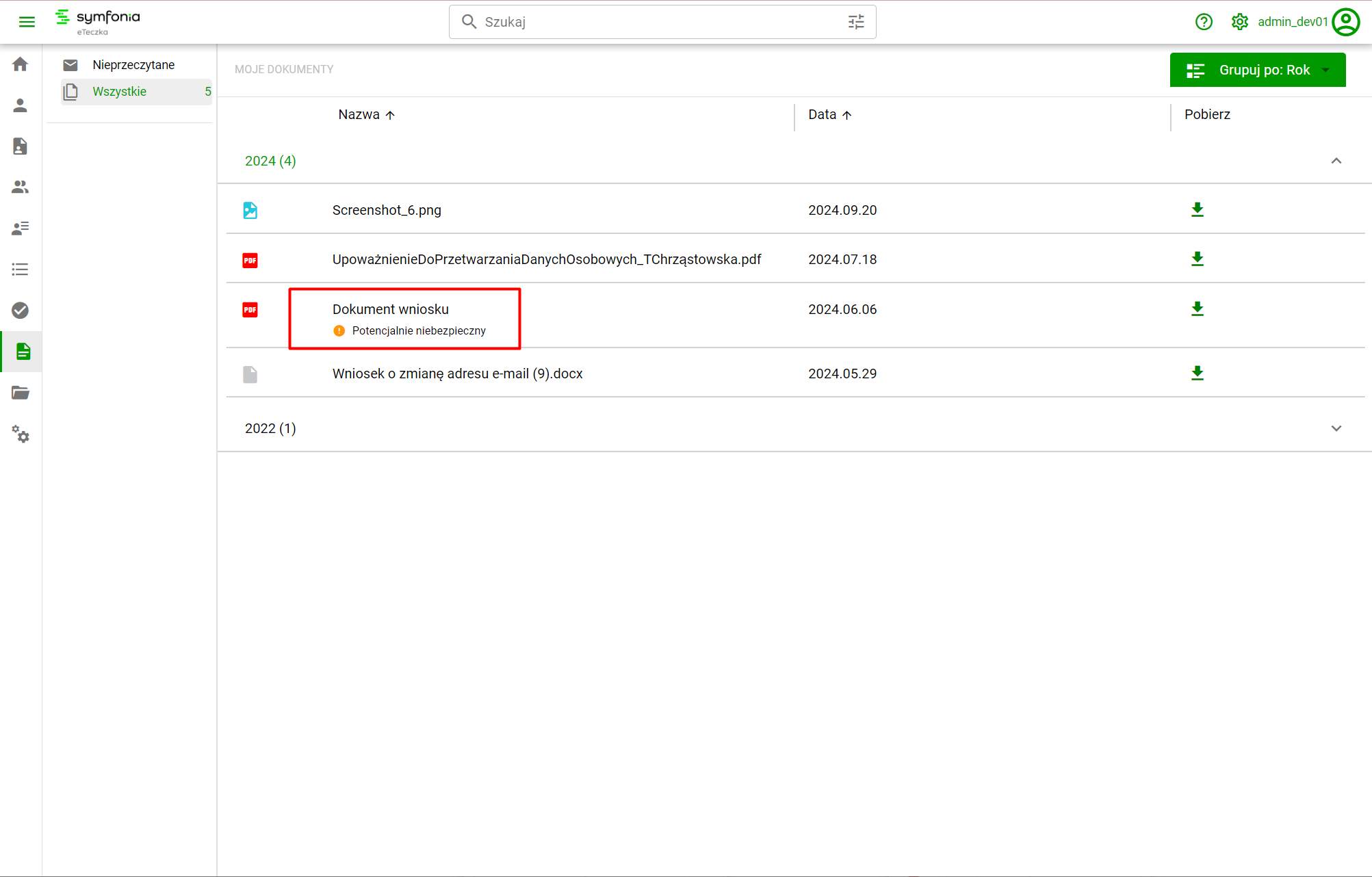
_Fig 4. My documents – a potentially dangerous document _
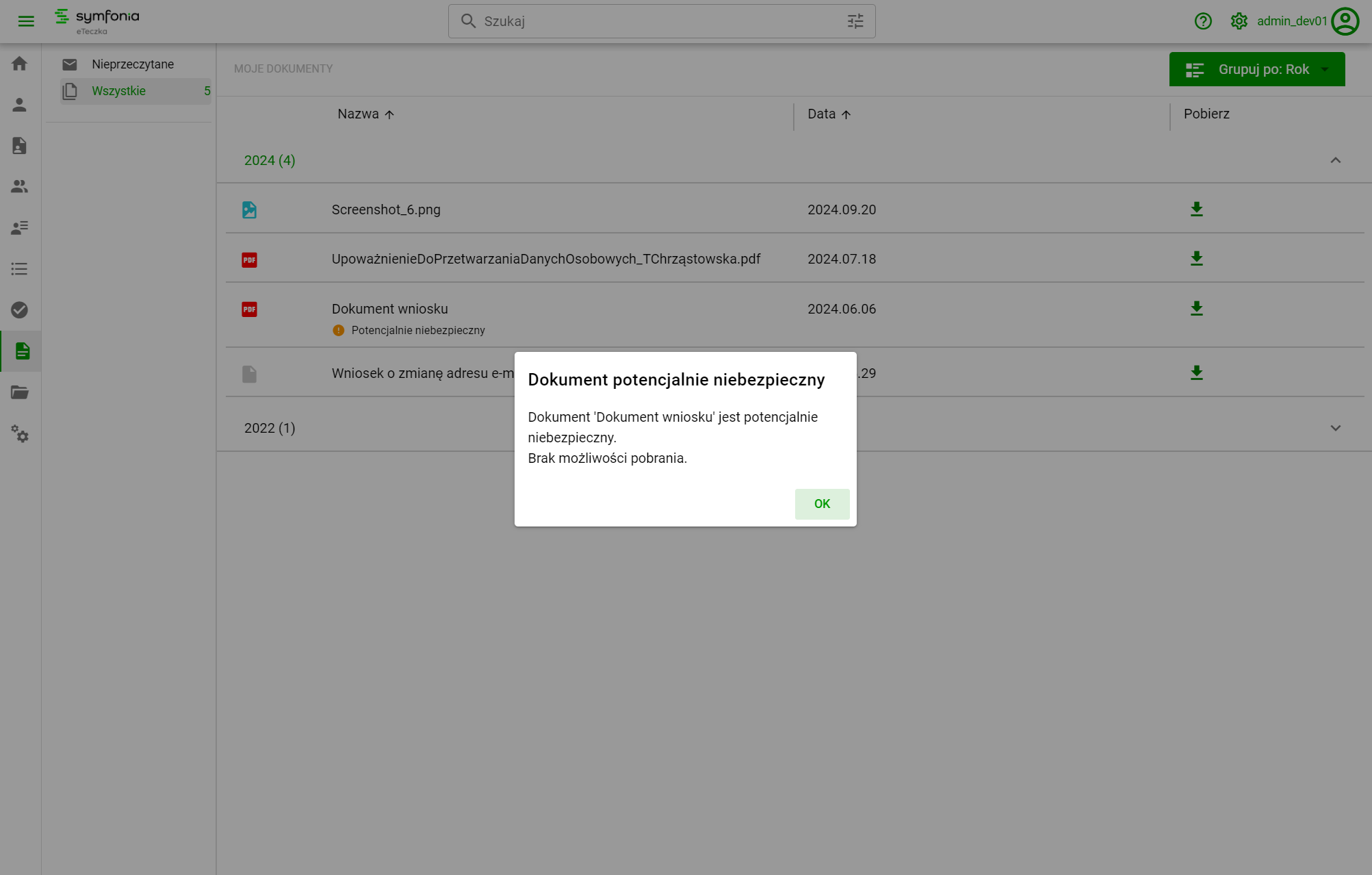
_Fig 5. My documents – blocking the download of a dangerous document _
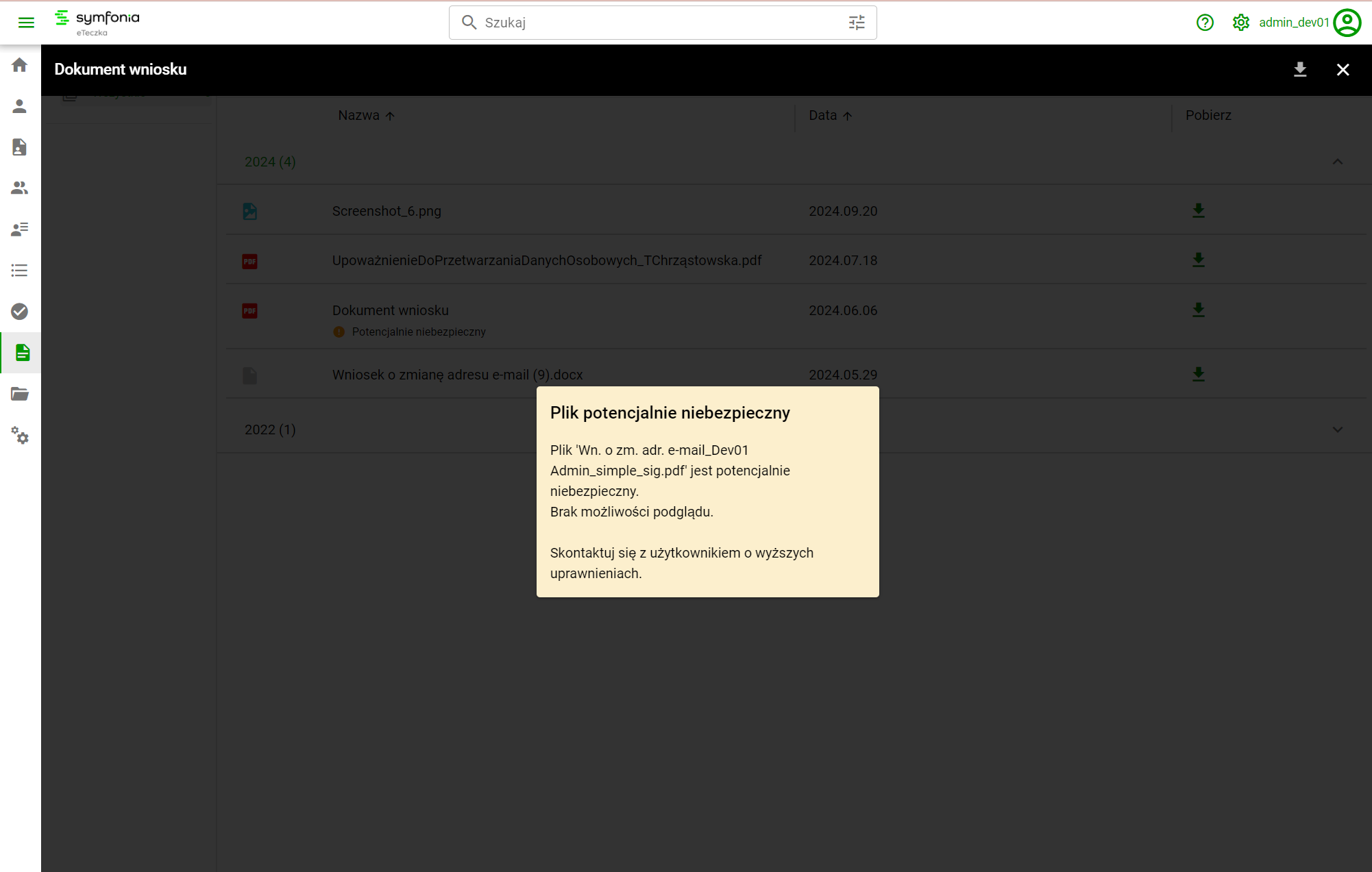
Fig 6. My documents - blocking the preview of a dangerous file
In the mobile view, sorting and grouping documents is available directly above the document list.
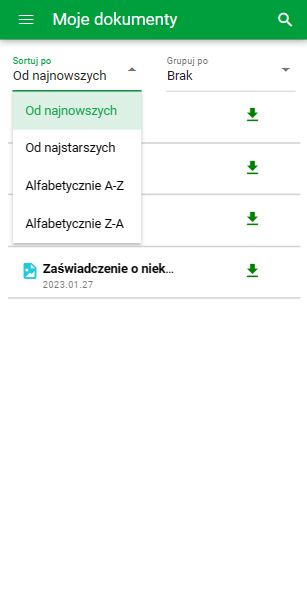
_Fig 7. My documents – mobile view, sorting _
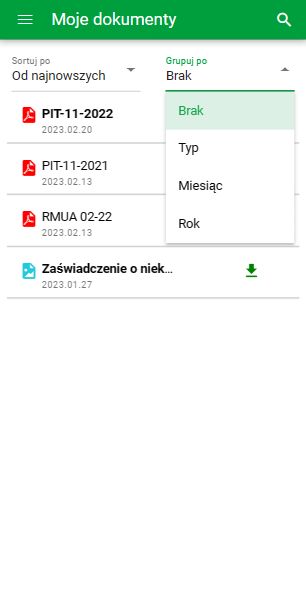
_Fig 8. My documents – mobile view, grouping _
Searching and filtering documents is available under the "magnifying glass" icon on the top application bar.
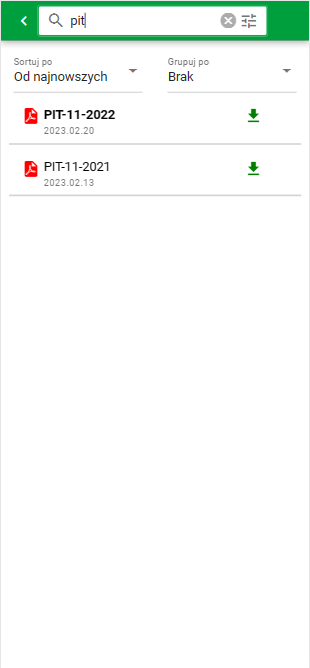
Fig 9. My documents – mobile view, search
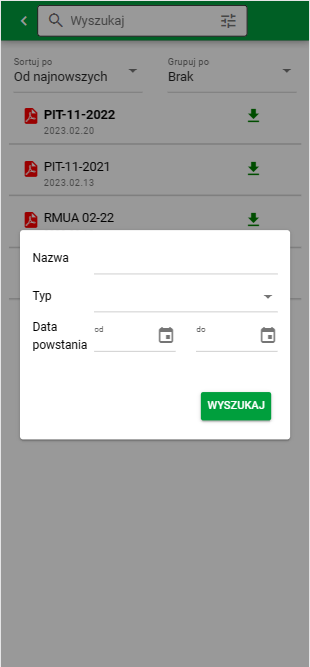
Fig 10. My documents – mobile view, filtering