Adding a candidate
Adding
To start the process of adding a candidate, go to the Candidates module
And find the green PLUS button at the bottom of the screen:

Add button
This will open a new screen where we complete the items we are interested in and those required marked with an asterisk:

Required data
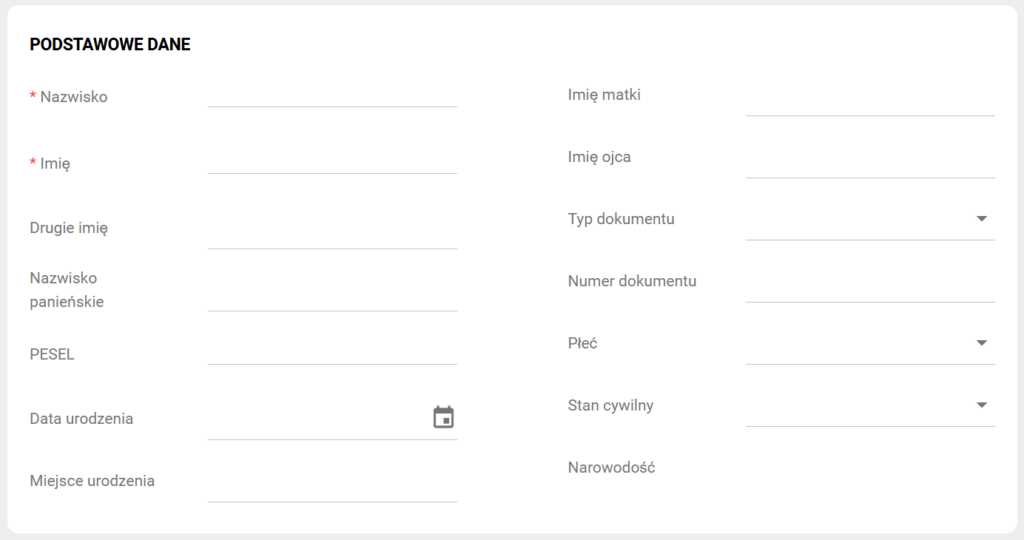
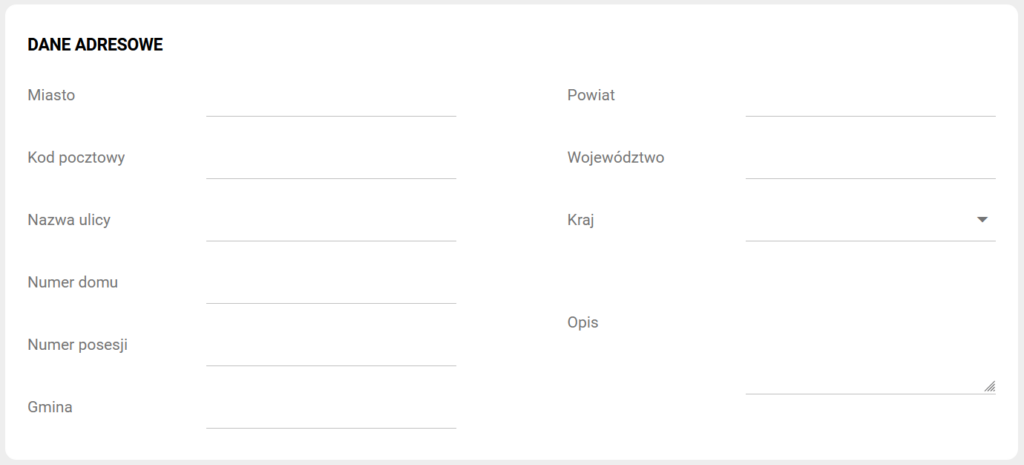
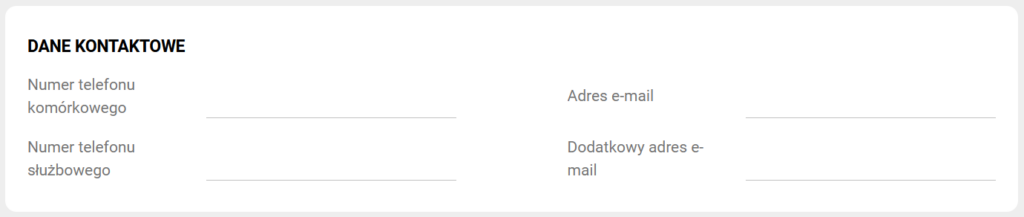
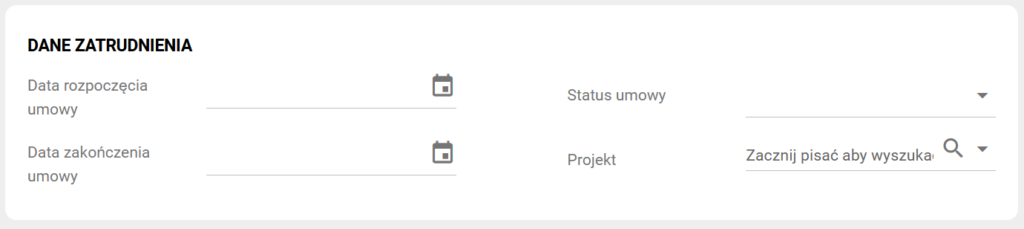
This screen is divided thematically into the following items:
Basic data:
Address details:
Contact details:
Employment details:
Stay address:

Language:
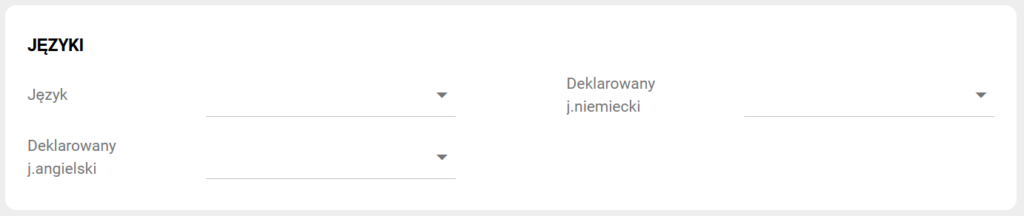
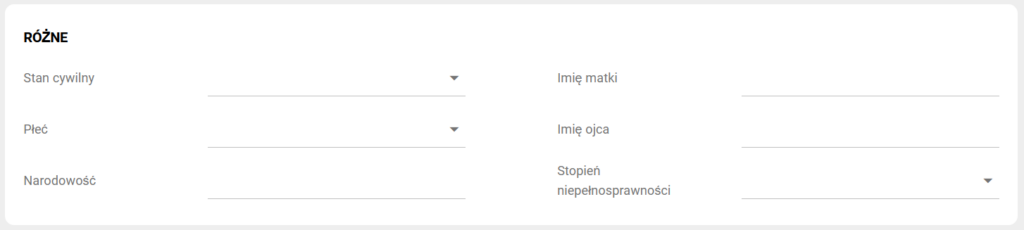
Other:

Various:
Record information:
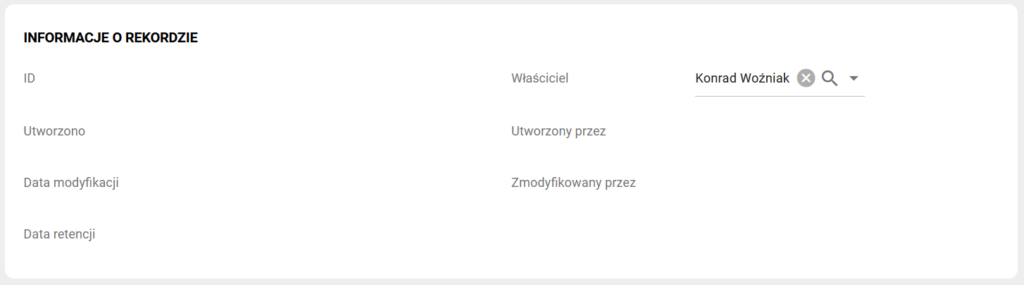
Record information is a place where you will find a summary of information regarding the creation and modification of the record (at the edit screen) once the record has been created and saved.
After filling in the candidate data, save our configuration using the green SAVE button located in the upper right corner:

Save button
The newly created candidate will appear in the basic view of the CANDIDATES module in the records table:

Table in the candidates module