Wholesale renumbering
Renumbering is also the accounting of documents. Each document has its own serial number within the folder. Whether documents are numbered depends on the folder setting in the administration panel. The newly added document automatically receives a starting number. Deleting documents or moving them between folders disrupts the numbering.
Bulk renumbering function
This function is used to renumber many documents of various employees, for the entire company or selected folders.
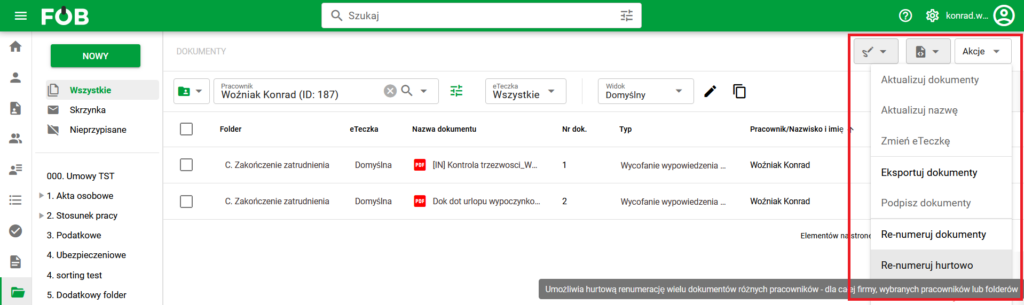
Wholesale renumbering
1. To use this function, go to the DOCUMENTS module.
2. Then select the ACTIONS button.
3. Use the Re-number Bulk option
4. After clicking, the settings selection window will appear:
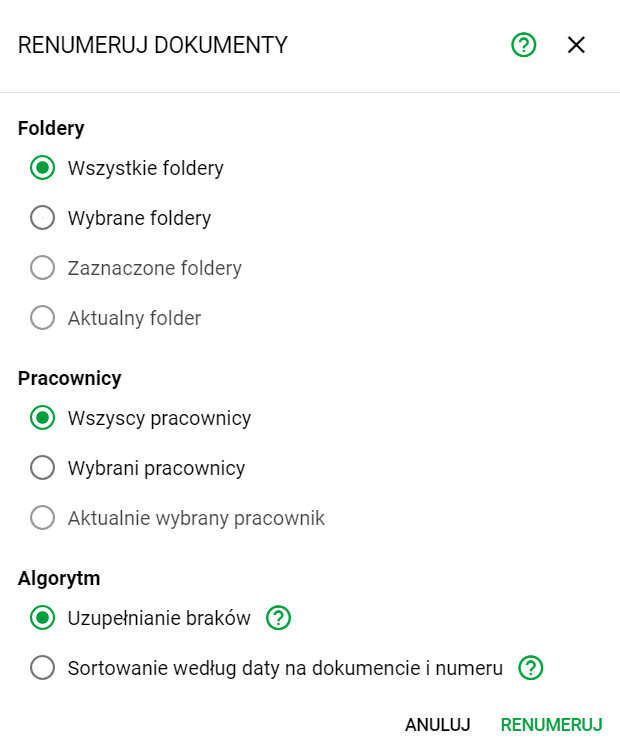
Renumbering settings
Here we decide on:
-
The range of folders in which the renumbering is to be carried out.
-
Employees who are to be affected.
-
Sorting algorithms.
5. After setting the options and clicking the green button RENUMBER, renumbering will begin and a new window will inform you about it:
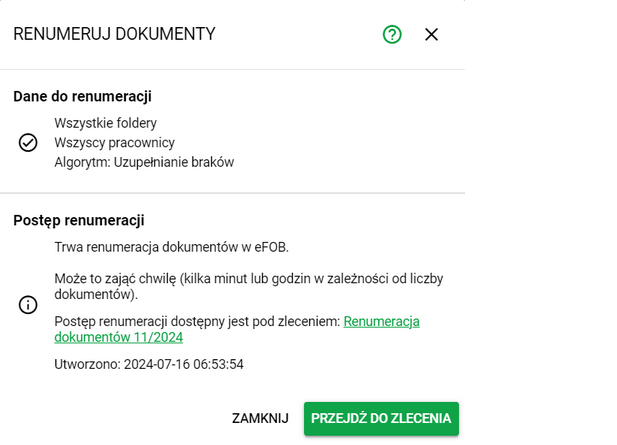
Information window regarding renumbering progress
Here we can go to the order screen where the progress of our specific renumbering is displayed, or close the window by pressing the X button.
Renumbering function
This function renumbers documents within a folder based on the selected algorithm.
1. To use this function, go to the DOCUMENTS module.
2. On the left panel, select the folder you are interested in:
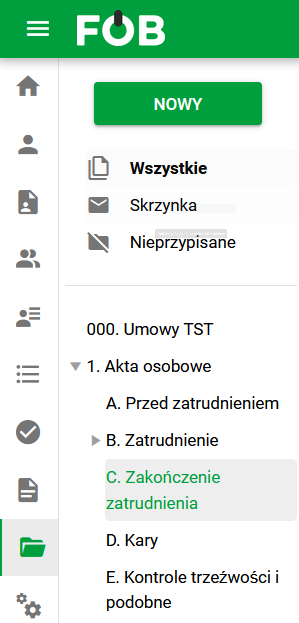
Selected folder
3. In the eFOB search engine, set the search to a single, specific employee and then select the ACTIONS button:
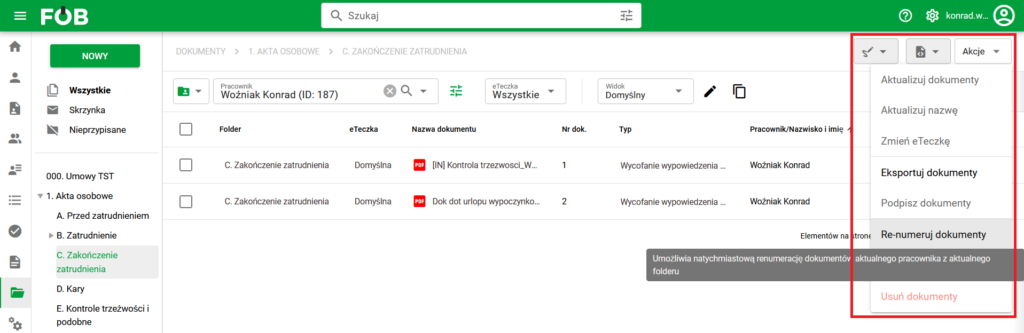
Renumbering
4. The item Re-number documents will appear in the newly displayed menu
5. After clicking, the algorithm selection window will open:
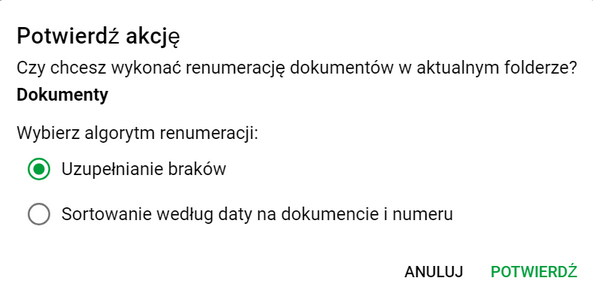
Confirmation window and algorithm selection
Here we define which algorithm will be applied to the selected folder.
6. After selecting the algorithm and using the CONFIRM button, a functionality will be performed that will result in displaying the renumbering summary:
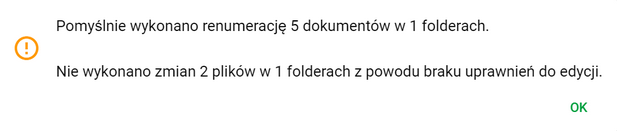
Renumbering Summary Screen
Algorithms
Completing the gaps – renumbers the documents by completing the missing numbers, according to the current order of the documents
Sorting by date on the document and number – renumbers documents by sorting them by date on the document, starting from the oldest. Documents without a date will be sorted according to the current numbering order and placed after documents with a date.
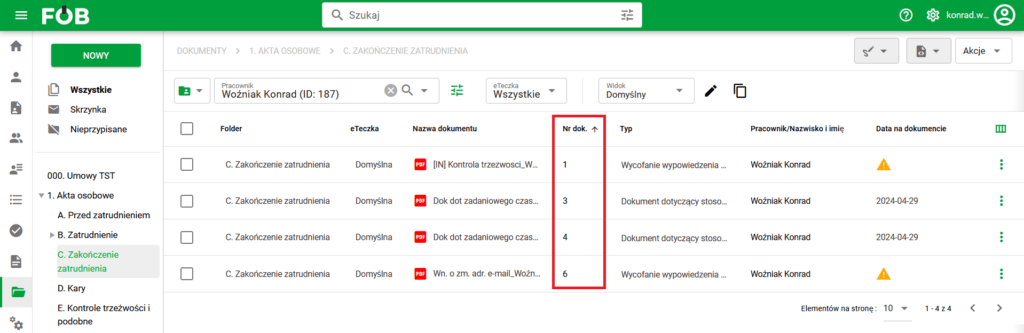
Documents before renumbering
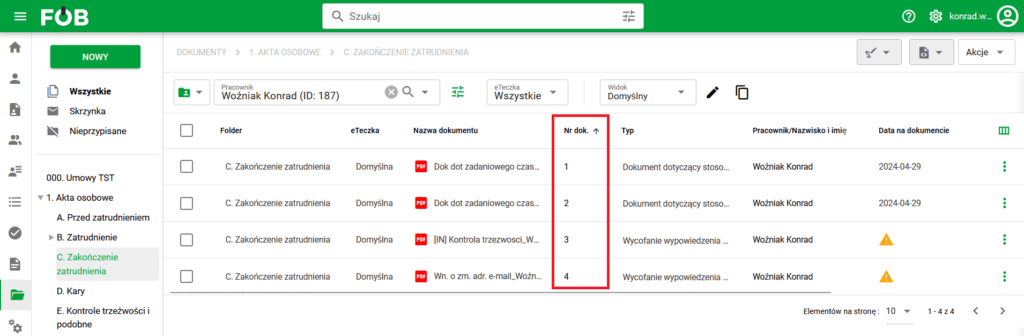
Documents after renumbering