Upload files
Upload files – adding documents in bulk
The Upload Files feature allows you to quickly add multiple documents to your eFOB. You can upload single files, multiple files at once, and - depending on the configuration and package - use automatic data recognition, OCR, 3D/QR codes and metadata completion rules.
How to start file transfer
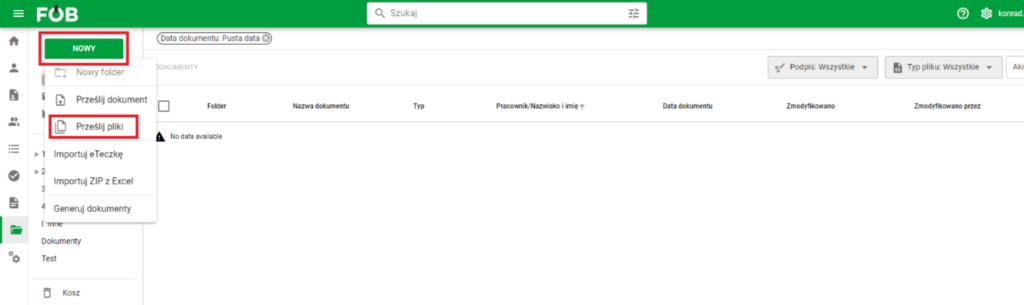
- Go to the Documents module.
- Click the New button.
- Select Upload Files.
After selecting this option, a file transfer window will open, where you can add documents and complete their basic data.
Add multiple files button
Setting data for added documents
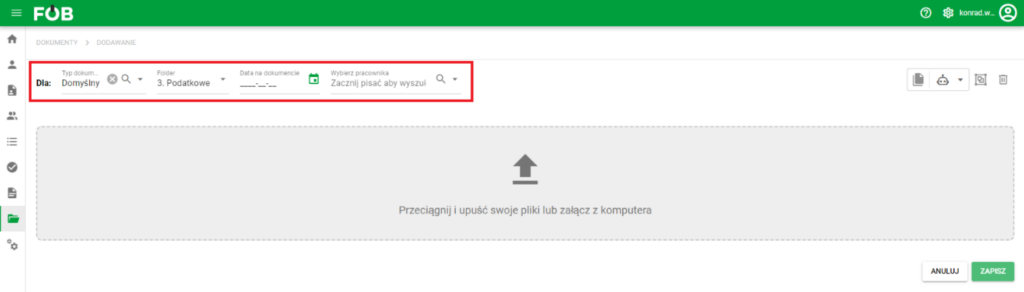
Before adding files, you can indicate default values that will be assigned to documents:
- employee,
- document type,
- folder,
- date on the document.
If you complete these fields before adding files, the system will automatically assign the indicated values to the documents being sent. This is especially useful when you add a larger number of documents of the same type or documents relating to one employee.
Adding files and folders
You can add files in two ways:
- by dragging files or folder to the gray field (drag & drop),
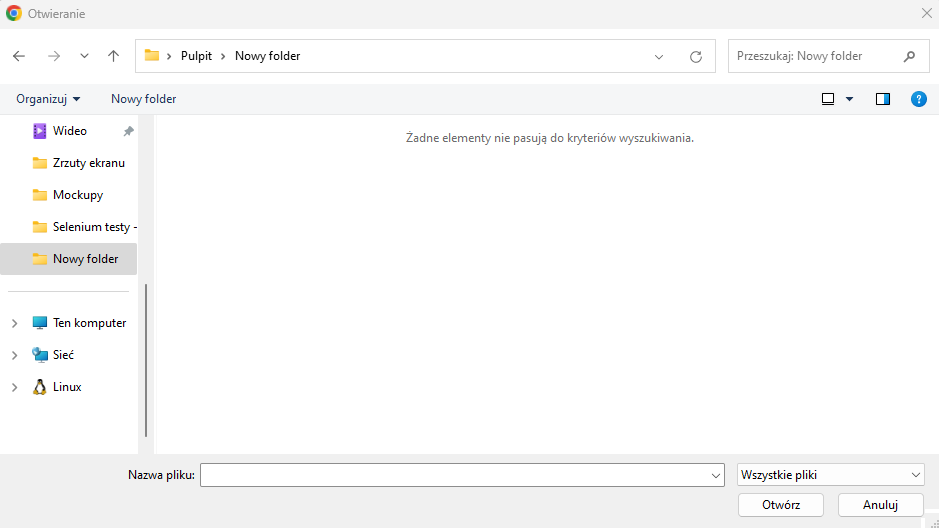
- by clicking the add box and selecting files from your computer.
To add documents, drag the files or folder to the gray box, or click the add box and select files from your computer.
System file adding screen
If you drag a folder, the system will process the files in it. This is useful when adding documents in bulk, previously organized in directories.
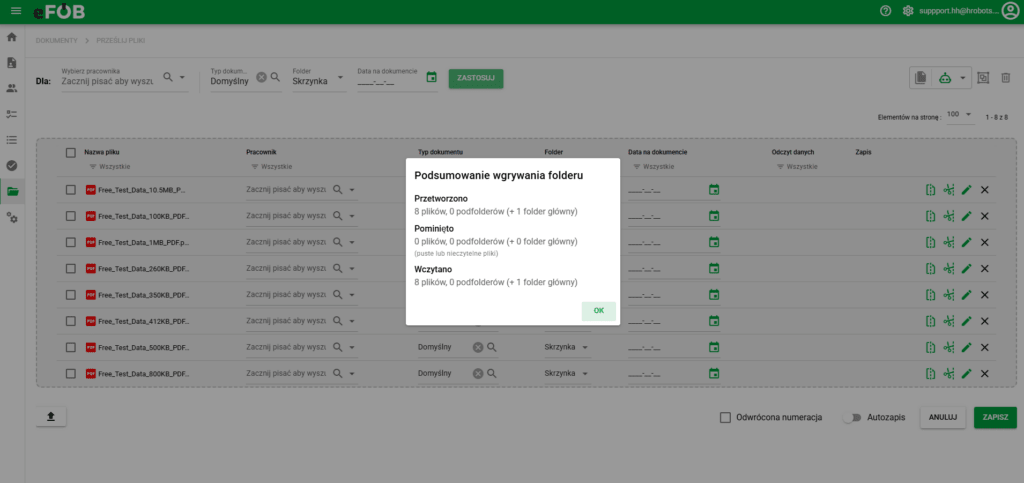
Folder upload summary
Once the folder is processed, the system displays a summary of the operation. The summary shows information about files and folders that were successfully added, as well as about files that could not be added.
If some files have not been added, the system will show them in the summary along with information allowing the user to verify the problem. This allows you to easily see which documents need to be re-added or corrected before attempting to import again.
Working on the list of uploaded files
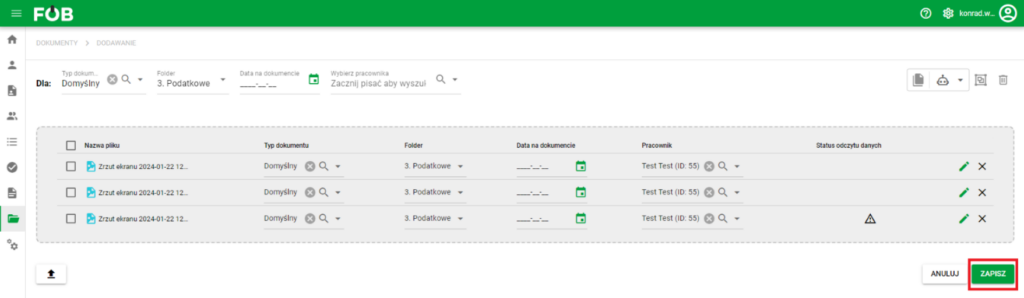
After adding the files, you will see a list of documents prepared for saving. At this stage you can:
- check the file name,
- supplement or change an employee,
- indicate the type of document,
- select a folder,
- complete the date on the document,
- remove an incorrectly added file,
- open preview or edit document data.
Merging PDF files
If several PDF files should form one document, you can use the file grouping/merging function. After selecting the selected items in the list, select the combine action to create one PDF document. The order in which documents are selected is important and is used to determine the order in which the final file is joined.
Note: Digitally signed documents should not be combined because modifying the file will invalidate previously submitted signatures.
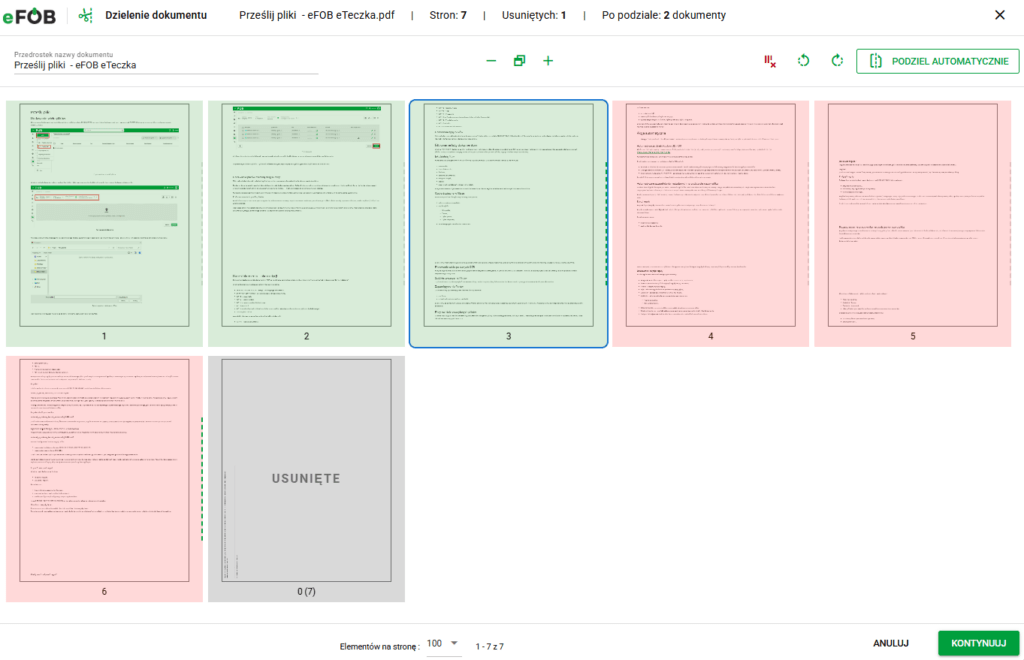
Split or edit PDF filesIf the PDF file should be divided into many files or we want to edit the PDF file before adding it (e.g. delete or rotate the page), we have the following options:
- automatic division - it is worth using it when documents have a repeatable structure of the place of division,
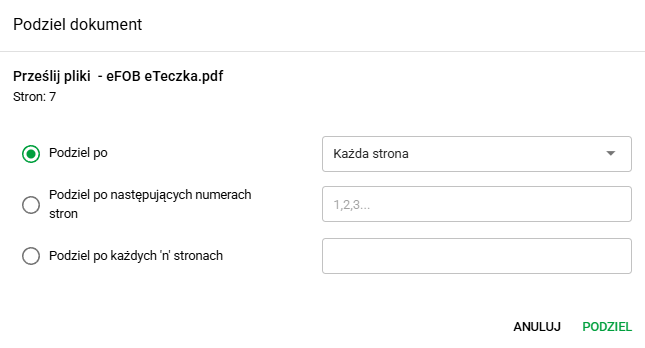
- visual division - allows you to manually indicate which pages should create separate documents, as well as perform basic page editing, e.g. deletion or rotation (note: this option is available for the purchased add-on or in the Enterprise plan).
Note: Do not split digitally signed documents because modifying the file will invalidate previously submitted signatures.
Filtering the document list
Filters are available above the list columns. They make it easier to work with larger numbers of documents, e.g. when you want to display only files without an assigned employee, only documents of a specific type, or records with an empty date.
Filters can work, among others: for:
- employee,
- document type,
- folder,
- dates on the document,
- data reading status,
- recording status,
- data recognized automatically.
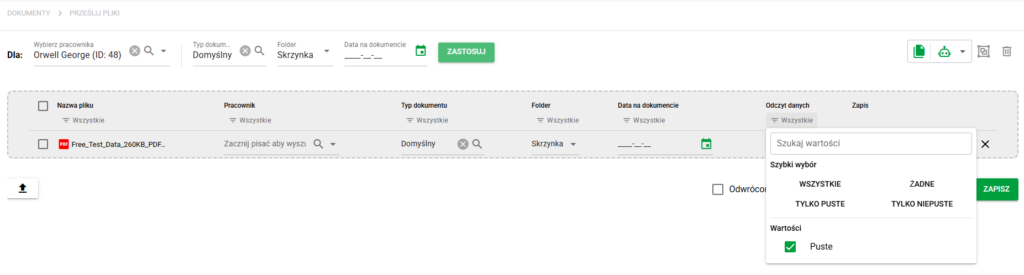
The set filters are remembered locally for the user:
- per company,
- in local browser settings.
This means that when you re-enter the Upload Files view, the list can open with the previously used filtering settings.
Save and autosave files
After checking and completing the file metadata, click Save.
The Autosave option is also available. It causes ongoing saving of added documents, even when not all metadata has been completed yet. This function is useful for larger numbers of files because it reduces the risk of losing your work and does not require you to wait until the end of the operation to save.
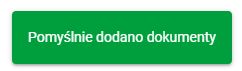
After successfully adding the files, the system will display a message at the bottom of the screen:
Allowed file types
The administrator has the option of specifying acceptable file types in the ADMINISTRATION module (eFOB Admin). This allows you to control the types of files sent to the system, including the functionality of adding multiple files.
Document data – editing window
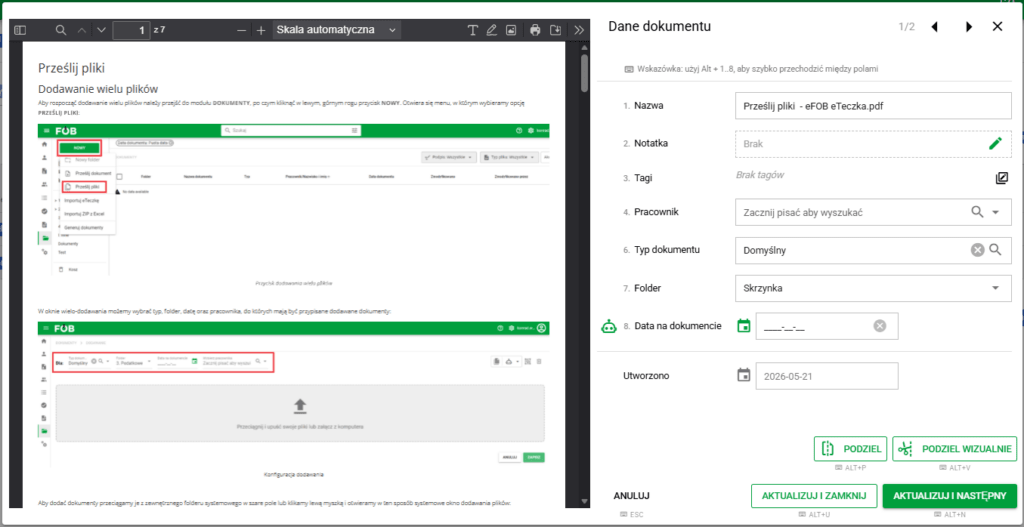
For PDF documents, you can open the edit window before saving by clicking on the file name or selecting Edit metadata. In this window you can check the document preview, complete the data, move to the next file, and in selected packages also use the PDF splitting or OCR function.
Tip: The edit window supports the following keyboard shortcuts to help you quickly work on multiple documents:
- SHIFT+ALT+RIGHT ARROW – go to the next document
- SHIFT+ALT+LEFT ARROW – go to the previous document
- ALT+D – delete date
- ALT+U – save and exit
- ALT+N – save and go to the next one
- ALT+P – divide
- ALT + V – divide visually (available only if you purchase the appropriate additional package)
- ESC – exit the window
and keyboard shortcuts specific to editing metadata fields:- ALT + 1 – Document name
- ALT + 2 – Note/description
- ALT + 3 – Tags
- ALT + 4 – Employee
- ALT + 5 – employee's eFolder (visible only in Employee mode)
- ALT + 6 – Document type
- ALT + 7 – Folder
- ALT + 8 – Date on the document (together with OCR available in higher eFOB packages)
Automation of work with documents
Note: The "Upload multi-scan" functionalities and automatic metadata completion based on file name and OCR text recognition are only available in Business / Professional / Enterprise packages.
Automate file naming and splitting with 3D and QR codes
The eFOB platform uses advanced 3D and QR code functionalities to maximally speed up and automate document handling. More about 3D and QR codes: QR and 3D code support
Thanks to the codes placed on documents, eFOB can:
- Multi-scan from 3D codes – automatically recognize and divide the scanned file into individual documents assigned to specific employees.
- Support for scans with QR codes - read data stored in the codes and assign them directly to the appropriate document metadata (e.g. employee, document type, period).
- Automatic assignment of file names - generate document names according to the established scheme, without the need for manual editing.
Result? Less manual work, faster digitization and full data consistency throughout the entire process.
Automatic rules
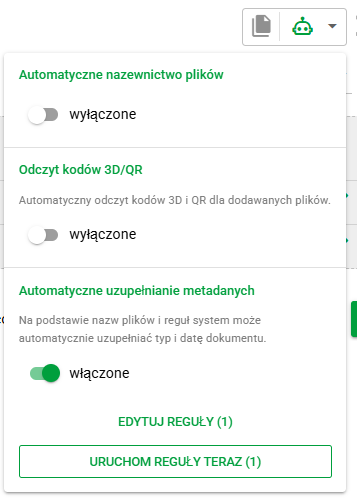
In the Upload files window, you can use automation rules mechanisms that limit manual filling of document metadata.
Depending on the configuration, the system can:
- complete metadata based on the file name or content reading using OCR,
- assign a document to an employee,
- recognize document type,
- complete the date on the document,
- build consistent document names based on saved naming rules.
Rules are especially useful when files are added according to a repetitive naming scheme. This helps reduce manual data entry, speed up bulk uploads, and keep one consistent file naming standard.
Rules can be configured and run from the automatic actions menu in the Upload Files view: