Update name
To change the naming, the user must check the checkboxes of the desired documents. The next step is to find and click the ACTIONS button located in the upper right corner:

Record selection and action button
In the newly opened menu, select the UPDATE NAME option:
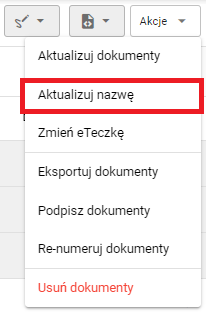
Update Name Button
This action will open the name update window:

Name update window
The upper part is responsible for giving the name. We can generate the name using variables loaded from documents, such as the document date:

Name generation options
To do this, click on one of the tiles:

Adding options
Plus means you can add a dynamic name. A tick means that this option has been added.
The next functions are the choice of letter case:

Case Selection
Whether automatic naming mode:

Naming Mode
Here you can choose a ready naming scheme or your own saved automatic naming rule. This means you do not have to build the name from scratch each time, and the same pattern can be used both while uploading files and when bulk-renaming documents that are already saved in the system. More information is available in Automatic naming rules.
Any date added to the document name can be personalized by changing the date format:
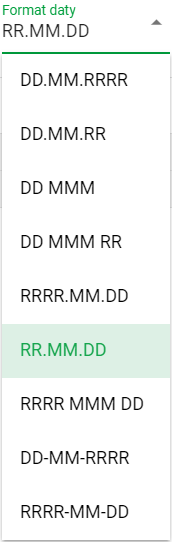
Date format
At the bottom of the screen we see a summary of the documents that will be renamed:

Summary
To enter a new name, click the button:

Accept button
This will populate the “New Name” field, which will be set once the process is complete
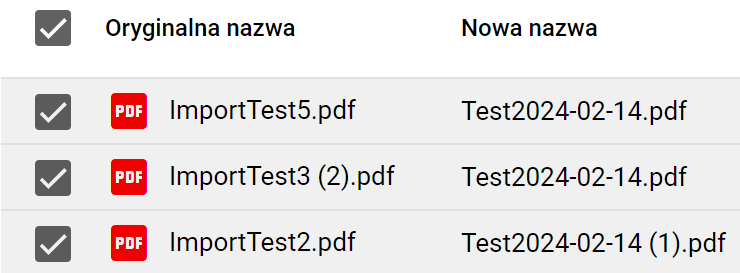
New Name Summary
Finally, click the button:

Save button
A progress bar for changing documents will appear:
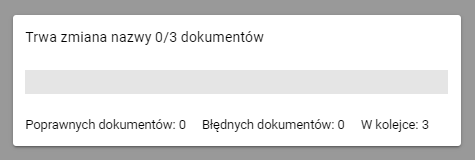
Progress bar rename