Update documents
Start the update
To update or edit multiple documents at once:
- Go to the Documents module.
- Select the documents you want to update.
- Click the Actions button in the upper right corner.
- Select Update Documents from the drop-down menu.

Selecting records
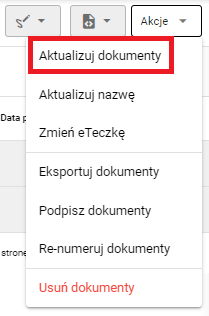
Document update button
After completing these steps, a cumulative update window will open, where you can change the selected data for all selected documents.
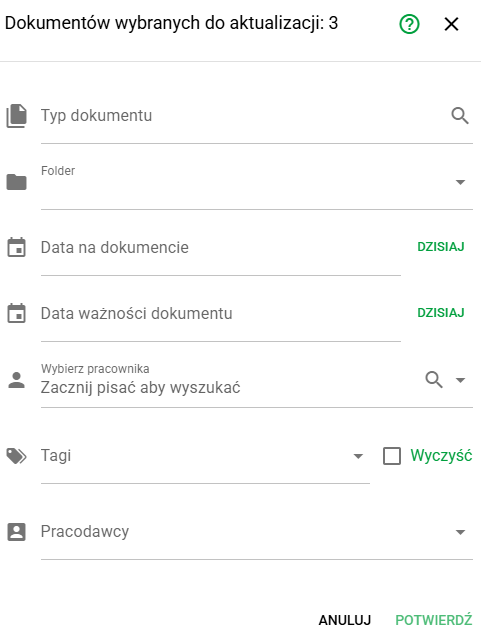
Document update options
In the form, you can indicate the values to be set for all selected documents. Completing the field means that the information will be updated collectively for the entire selected document group.
Document type
Allows you to assign a specific document type to selected documents. The field has a search icon, thanks to which you can quickly find the right type on the list.
Folder
Allows you to assign documents to a specified folder. The drop-down list allows you to select the available location of documents in the e-Folder structure.
Date on the document
Allows you to set or change the document date. After selecting the field, you can indicate the date manually or use the quick setting of the current date, e.g. "Today".
Document expiration date
Allows you to set or change the document expiration date for all selected documents. This field is particularly useful for time-sensitive documents, e.g. qualifications, tests or certificates.
Select an employee
Allows you to assign all selected documents to the selected employee. In the search box, start typing the employee's name, surname, or other identifying information to see matching results.
Tags
It allows you to assign tags to documents to facilitate subsequent filtering and searching. There may be a "Clear" option next to the field that allows you to remove current tags from your documents during a bulk update.
Employers
It allows you to assign documents to a selected employer from the list available in the system.
To save our changes, use the green button CONFIRM
The user will be informed about the correct change via a pop-up displayed at the bottom of the screen:

Popup