Rules for automatic metadata completion
Automatic actions in “Upload files”
Note: Automatic metadata completion based on file name and OCR functionalities are only available in Business / Professional / Enterprise packages.
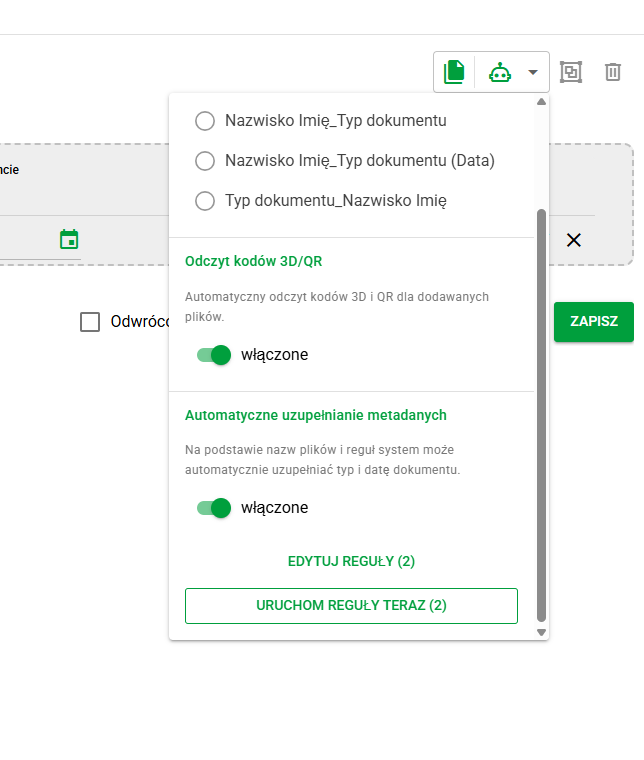
In the Documents / Upload files window, automatic actions are available that help you describe added documents more quickly. After enabling rules, eFOB can automatically fill in selected metadata, e.g. document type, date on the document or employee.
Rules can operate based on:
- file names – e.g. when files have repeatable names containing document type, date or employee ID,
- OCR – e.g. when the date is in the document content and not in the file name.
Thanks to this, you can reduce manual data entry, speed up the mass addition of files and increase the consistency of metadata in eFOB.
Rule sets
Rules are stored in the database in named sets, separately for each company. A saved set is also available after signing in on another device, so its configuration does not need to be recreated for subsequent document uploads.
The Rule set selector divides available configurations into:
- System rule sets – sets prepared in the system,
- Public rule sets – sets shared with authorized users in the company,
- My rule sets – the signed-in user's private sets.
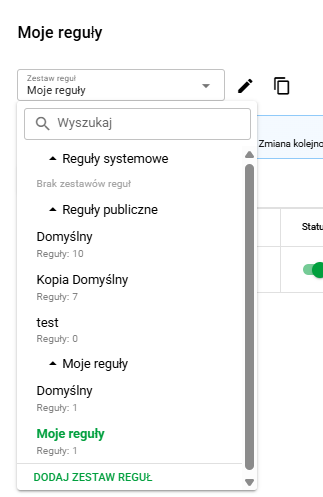
A private set is intended for personal use and is visible only to its owner. A public set can be used by other authorized people in the company. Access to public sets and the ability to change them depend on the user's permissions. A read-only set can be copied and the resulting copy can then be edited.
Adding a rule set
- Expand the Rule set list and select Add rule set.
- Enter a name for the set.
- In the Share section, select:
- Just me to create a private set,
- All users to create a public set.
- Select Save.
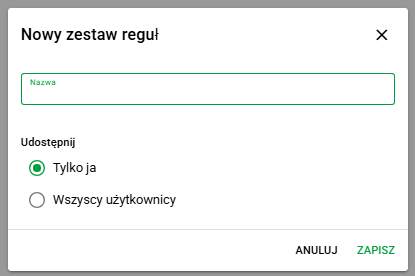
After creating the set, add rules to it and save your changes. When uploading files, select the appropriate set to apply its rules for automatically recognizing and completing document metadata.
List of metadata auto-complete rules
The Edit rules button opens the window for managing rules that belong to the selected set. From the rule set list, you can also rename a set, change how it is shared, create a copy, or delete it if your permissions allow it.
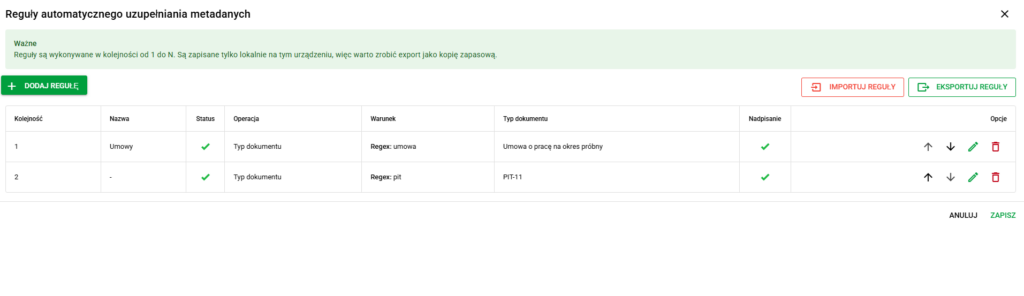
Execution order
The rules are executed according to the following rules:
- In order from 1 to N, so their position in the list matters. If multiple rules can match the same file, the previously executed rule will take precedence.
- In the first group, the file name rules (according to the Order field) are run, followed by the OCR rules (also according to the Order field).
- As part of OCR rule processing:
- first, the rules determining the Document Type are executed,
- then all other settings dependent on this setting are performed (regarding Date on the document and Employee).
This means that in practice it is worth configuring rules that recognize the document type first, and only then OCR rules that depend on this type, e.g. rules that read the date from a specific place on the contract, annex or agreement.
Thanks to this, the OCR rule does not have to analyze all documents in the same way, but can work precisely for selected document types.
Adding and editing a rule
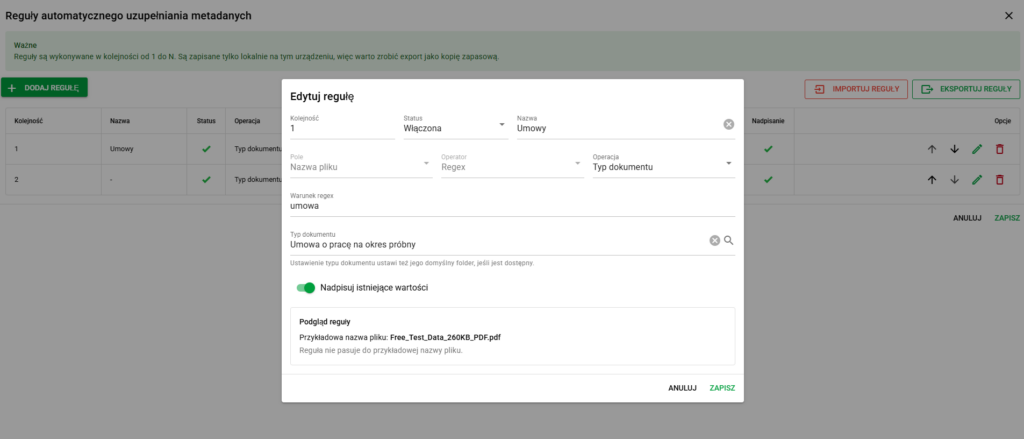
Each rule can contain the following elements:
- Order – specifies the rule's place on the list and the moment of its execution,
- Status – allows you to enable or disable the rule without deleting it,
- Name – optional description of the rule,
- Field – indicates the data source, e.g. file name,
- Operator – method of checking the condition, e.g. Regex or OCR,
- Operation – specifies what data is to be completed, e.g.:
- Document type
- Date on the document
- Employee
- Regex condition – expression that must be found in the file name,
- Target value – value set when the condition is met, e.g. a specific document type,
- Overwrite existing values – specifies whether the rule can replace a value that has already been filled in previously.
Import and export of rules
The following functions are available when editing the selected set:
- Import rules,
- Export rules.
They allow:
- create a configuration backup,
- transfer a set of rules between environments,
- share a ready-made configuration with other users.
Import adds rules to the currently selected set and does not automatically overwrite existing entries. After importing, review the added rules and save the changes to the set. Export saves the rules from the selected set to a file that can be used as a backup or imported in another environment.
Run the rules now
From the menu you can also use the Run rules now option. It allows you to immediately apply saved rules to documents in the current view, without having to manually set metadata for each file separately.
Rules based on filename
The simplest variant of the rule works based on the name of the added file.
Example:
If the file name contains the word umowa, the rule may automatically set the document type, e.g. Employment Contract.
Typical configuration:
- Field: File name
- Operator: Regex
- Operation: Document type
- Regex condition: e.g. contract
- Target value: selected document type, e.g. Employment contract for a trial period
After adding a file, the system checks its name. If the name meets the condition, eFOB completes the indicated metadata.
Rule preview for filename
You can use the preview when creating or editing a rule. The preview allows you to check whether the rule is working properly before saving it.
In the preview you can see, among others:
- example file name,
- information whether the rule matches this name,
- regex match result,
- value that will be set when the condition is met.
You can edit the sample file name yourself to test the rule with names that match how files are actually named in your organization.

Employee recognition based on file name
Metadata auto-fill rules can be used not only to recognize the document type or document date, but also to automatically assign the document to the right employee.
This is especially useful when the file names contain the employee's ID, e.g. PESEL, ID number from the system, external ID from the HR and payroll system or ID document number.
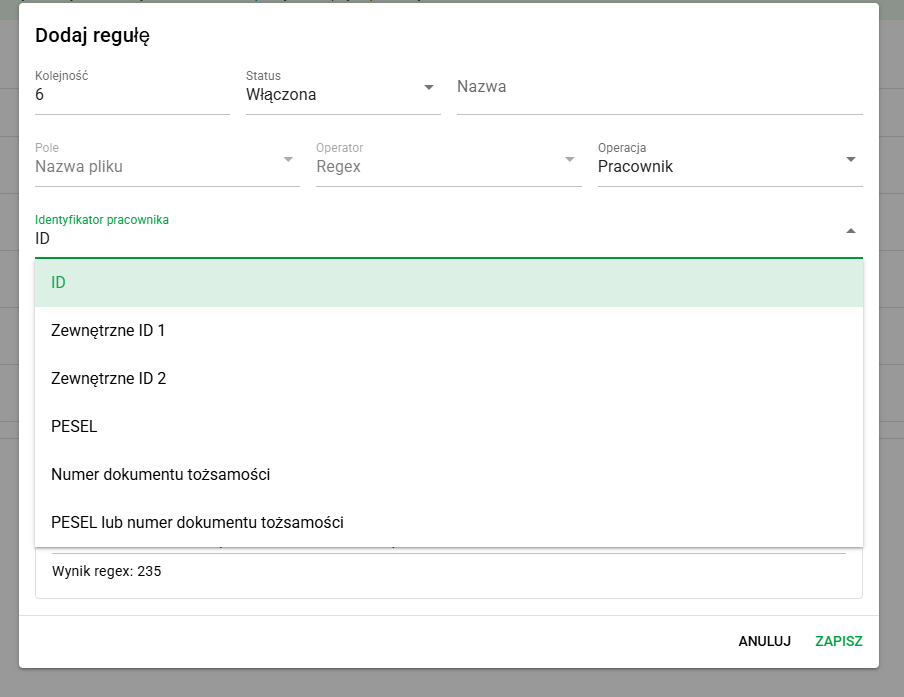
To create such a rule, set in the rule editing window:
- Field: File name,
- Operator: Regex,
- Operation: Employee,
- Employee ID: selected method of recognizing the employee.
Available include: the following employee IDs:
- ID – employee's ID in the system,
- External ID 1,
- External ID 2,
- PESEL,
- ID number,
- PESEL or ID document number.
After saving such a rule, the system analyzes the name of the added file. If it finds a value consistent with the set regular expression and it corresponds to the selected employee ID, the document will be automatically assigned to the right person.
Example:
If there is an employee with the PESEL number 01020356643 in the system and the user adds a file named:
umowa_o_prace_kowalski_01020356643.pdfyou can create a rule with the operation Employee, the PESEL identifier and the appropriate regular expression that searches for the PESEL number in the file name. After applying the rule, the system will automatically assign this document to the employee whose PESEL number matches the value found in the file name.
Similarly, you can create rules for other identifiers, e.g. employee ID or external ID from the HR and payroll system, if such values are used in the names of imported documents.
Example for employee ID:
Wniosek_o_zmiane_danych_osobowych_69828.pdf
If the number 69828 matches an employee ID in the system, a rule set to Operation: Employee and Employee ID: ID can automatically assign the document to that person.
Combining rules for document type and employee
Rules can be combined so that the system automatically completes more than one document information. For example for a file:
Wniosek_o_zmiane_danych_osobowych_69828.pdf
you can configure separate rules that:
- recognize the document type as Application to change personal data,
- recognize the employee by ID
69828.
Thanks to this, after adding a file, the system can automatically complete both the document type and assign it to the appropriate employee.
It is worth remembering that the rules are executed in a fixed order, so if there are more similar rules, you should ensure that they are properly placed on the list. It is best to place more specific rules higher so that they are applied before general rules.
OCR rules – automatic completion of metadata from the document content
OCR rules allow you to complete metadata based on text recognized from the document. This is especially useful when the date or other important information is in the content of the scan and not in the file name.
OCR rules can support, among others:
- recognition of date on the document,
- completing metadata based on text from the selected area of the document,
- limiting the analysis only to documents of a specific type,
- testing the operation of the rule on a sample document.
When should you use OCR rules?
OCR rules are worth using when:
- documents have a similar layout,
- the date is usually located in the same place in the document,
- the file name does not contain enough information,
and at the same time:
- you want to limit manual rewriting of dates from documents,
- you add larger packages of very similar scans and want to prepare them for publication in eFOB faster.
The three most common uses of OCR rules are described below: recognizing the date on a document, document type, and employee. All variants use a similar mechanism: a sample document, a designated OCR area and a preview of the result before saving the rule.
How to configure an OCR rule for a date on a document?
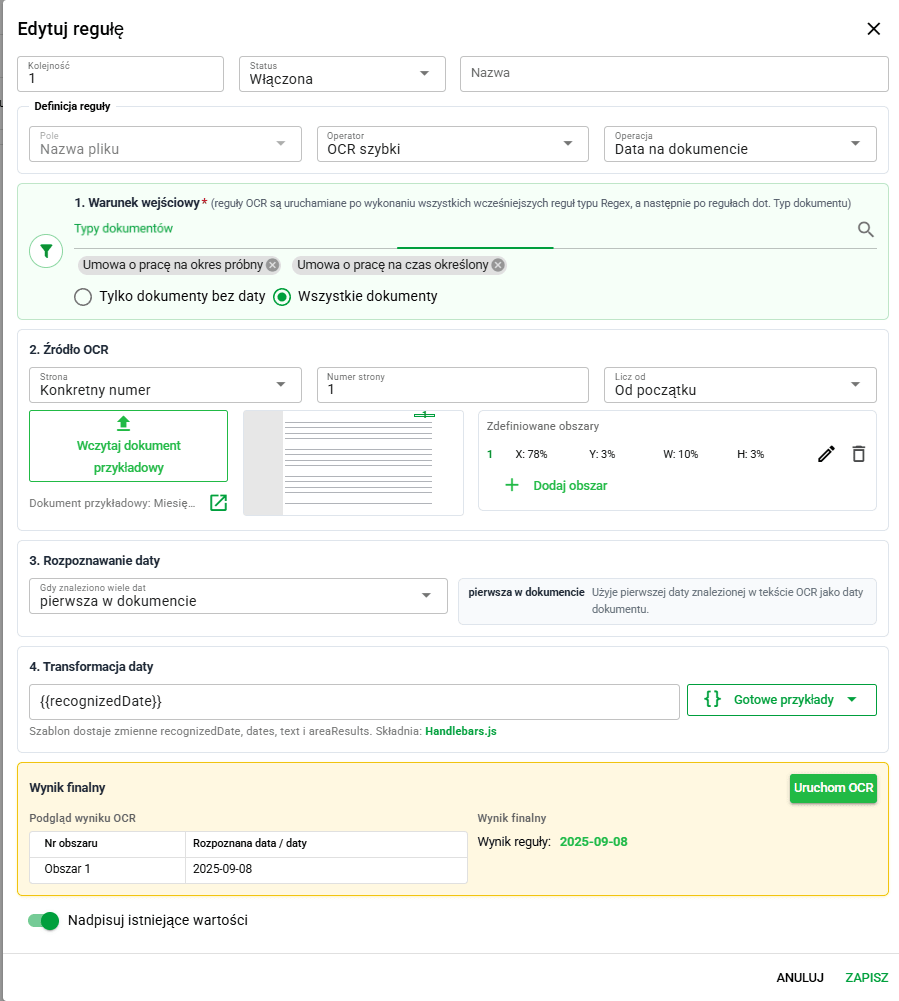
1. Rule definition
In the first part of the form, you should specify the basic operation of the rule:
- Field: File name
- Operator: OCR (fast or accurate) – the system will analyze the content of the document, not just the file name.
- Operation: Date on the document
2. Input condition – document types
In the Input Condition section, select one or more document types. This is required to ensure that the OCR rule only works for valid documents.
Example:
- Employment contract
- Annex
- Agreement
This allows you to reduce the risk of incorrect date recognition on documents that have a different layout or metadata filling logic.
3. OCR source
In the OCR Source section, indicate where the system should look for the date.
You can specify:
- document page, e.g. first, last or specific page number,
- whether the page number should be counted from the beginning or from the end,
- one or more OCR areas on the page.
It is recommended to indicate as small an area as possible where the date actually appears. This makes OCR work faster and has less risk of reading unnecessary dates from other parts of the document.
In practice, it is worth first clicking Load sample document and then marking the areas where the date appears on a typical document.
4. Date recognition
The Date Recognition section specifies how the system should interpret the found dates.
You can set a strategy for when OCR finds more than one date:
- first in the document – the system will select the first date found in the read text,
- last in the document – the system will select the last date found in the read text,
- earliest date – the system will select the oldest date in terms of the calendar,
- latest date – the system will select the latest calendar date,
- (currently not supported) require manual selection – the system will show suggestions, but will not select values automatically.
It is worth remembering that last in the document means the last date in the order of the OCR text read, and not necessarily the latest date in calendar terms.
5. OCR type
You can select the OCR type in the rule.
- Fast A fast and lightweight OCR variant, suitable for standard documents with clear printed text.
- This mode is a good choice when:
- documents are of good quality,
- the text is printed,
- you want to act faster,
- the document layout is simple and repeatable.
- Accurate
A more precise OCR variant, better for more difficult scans, photos and handwritten text.
This mode is worth choosing when:
- documents are of poorer quality,
- the date can be written by hand,
- scans are crooked or less legible,
- you want greater recognition efficiency.
6. Date transformation
Once the date is recognized, you can optionally apply Date Transformation.
The transformation allows you to change the recognized date to a different result value, e.g.:
- first day of the month,
- last day of the month,
- date increased or decreased by a specified number of days.
Example: If OCR recognizes the date:
2026-01-20
and the last day of the month was used in the transformation, the final result could be:
2026-01-31
In the transformation field, you can use ready-made examples or your own expression Handlebars. Example:
`{{lastDayOfMonth recognizedDate}}`
The template can use data returned by OCR, including: recognized date, list of dates, OCR text and results from individual areas.
7. OCR result preview
The OCR Result Preview section is used to test the rule on a sample document.
After clicking Start OCR, the system should show:
- area number,
- recognized date or dates,
- result selected in accordance with the strategy,
- result after transformation.
Example: Area No. -> Recognized date(s). Area 1 -> 2026-01-20 Area 2 -> 2026-05-06
If the selection strategy is the last one in the document, the system will select the date according to the order of the read OCR text. If a transformation was additionally applied, the final result will show the date after the transformation.
If too many dates appear in the preview, it is worth narrowing the OCR area or changing the date selection strategy. If the system does not find any date, check whether the selected area covers the correct place in the document and whether the selected OCR type is appropriate for the quality of the scan.
It is worth treating the preview as a test of the rule before saving it. This allows you to ensure that the rule works on a typical example document.
8. Final result
The Final Result section shows the final result of the rule.
It is worth paying attention to:
- date recognized by OCR,
- the area from which the result comes,
- date selection strategy used,
- transformation effect,
- value that will be saved in the document metadata.
Example:
Rule result (Area 1): 2026-01-31
Normalized date: 2026-01-31
Example of OCR operation: setting the end of the month date based on the date in the document
Let's assume there is a date on the document:
20 January 2026
An OCR rule can: 1. read the date from a selected area of the document, 2. normalize it to the format:
2026-01-20
3. apply transformation:
`{{lastDayOfMonth recognizedDate}}`
4. set the final result:
2026-01-31
Such a mechanism may be useful, for example, when the document indicates a date in a month and you want to save the last day of that month in the metadata.
Recognizing dates written in words OCR rules can also recognize dates written in words, e.g.:
23 August 2025
1 September 2026
20 January 2026
Once recognized, the system should save the date in a consistent format:
YYYY-MM-DD
Example:
23 August 2025 -> 2025-08-23
Thanks to this, document metadata is uniform regardless of how the date was written in the document content.
Example scenario
Let's assume that the organization regularly adds scans of employment contracts. The date of signing the contract is usually located at the top of the first page of the document.
In such a situation, you can configure an OCR rule that:
- only works for the document type Employment Contract,
- analyzes the first document or a specific page of the document,
- reads text only from the selected area of the page,
- searches for a date, e.g.
20 January 2026, - saves it as a date on the document in the format
2026-01-20.
Thanks to this, the user does not have to manually rewrite the date from each scan.
How to configure an OCR rule for a document type?
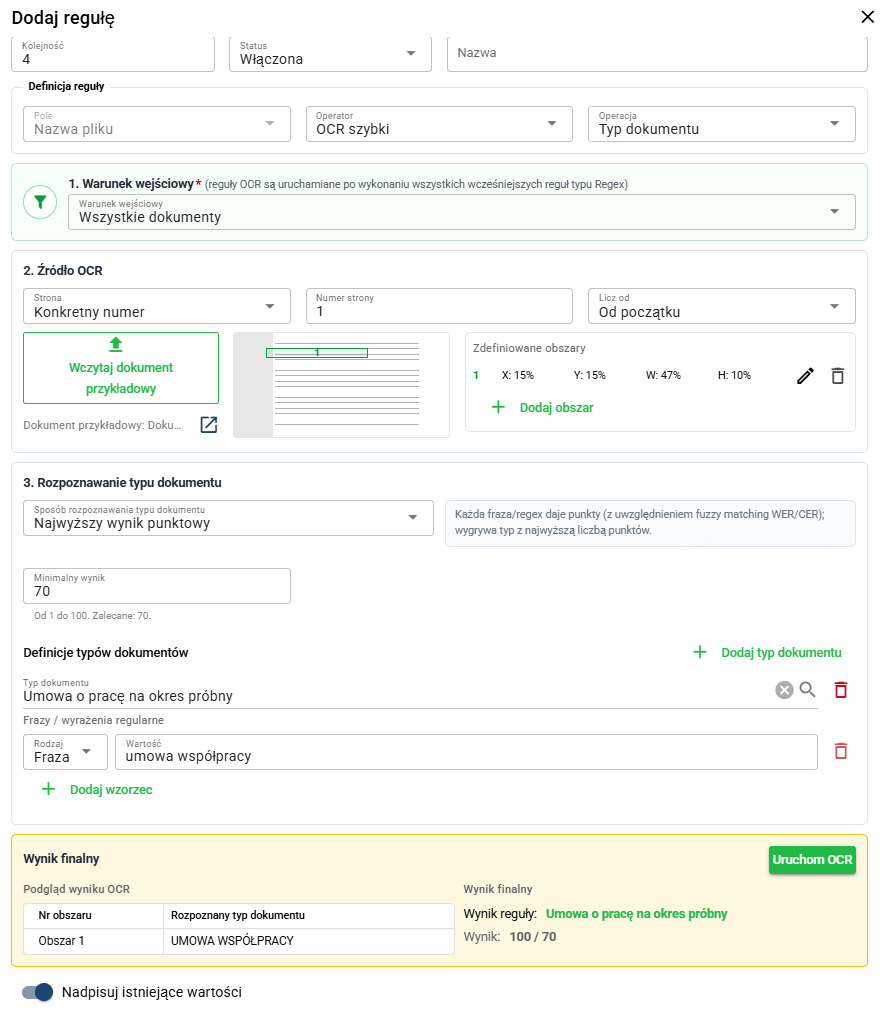
A document type OCR rule works similarly to a date OCR rule: it also uses a sample document, a selected area of the page, and a Run OCR button. The difference is that the system does not look for a date, but recognizes characteristic phrases indicating a specific type of document.
In the rule definition you should set:
- Field: File name,
- Operator: Fast or exact OCR,
- Operation: Document type.
In this variant, the input condition can be set:
- Only documents without type – will work for documents without a previously defined document type
- All documents – will work for all documents, regardless of whether the document type value has already been specified earlier
In the Document Type Recognition section, specify how the result will be selected. The system can compare the text read by OCR with the list of phrases assigned to selected document types and select the best-matching type.
For each document type, you can add one or more phrases, e.g.:
- Employment contract for a trial period
employment contracttrial period
- Cooperation agreement
cooperation agreementcooperation contract
It is worth using possibly characteristic phrases. Too general words, such as umowa, may match multiple documents and lead to misidentification.
In the Minimum Score field you can specify the match threshold. If the result is lower than the set value, the system should not automatically assign a document type.
After clicking Run OCR in the preview section, the system shows the recognized document type and the matching result. Before saving the rule, it is worth checking whether the final result corresponds to the expected document type.
How to configure an OCR rule for an employee?
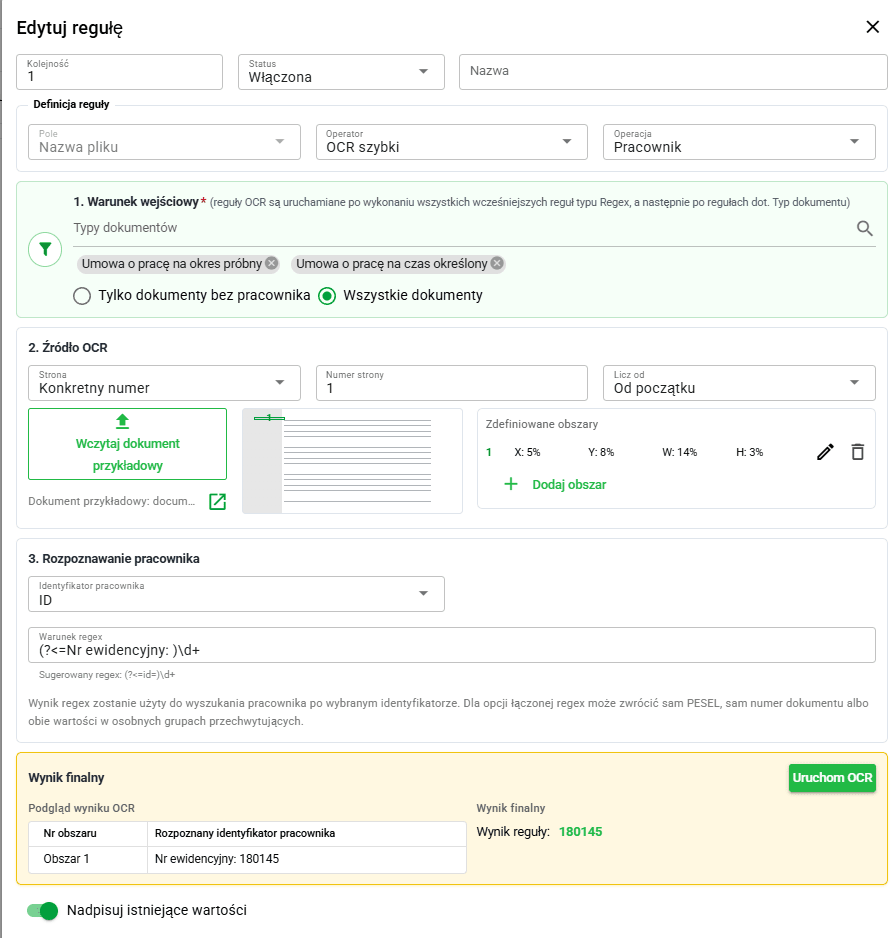
The employee OCR rule works similarly to other OCR rules: it uses a sample document, a selected area of the page, and the Run OCR button. The difference is that the system does not look for the date or document type, but only for the employee's ID visible in the document content.
In the rule definition you should set:
- Field: File name,
- Operator: Fast or exact OCR,
- Operation: Employee.
In the input condition, you can specify whether the rule should work only for documents without an assigned employee or for all documents. In practice, it is safer to start with the Only documents without employee option, so as not to overwrite previously completed data.
In the employee recognition section, indicate the identifier by which the system should assign the document to the person. This could be e.g.:
- employee ID,
- External ID 1,
- External ID 2,
- PESEL number,
- ID document number,
- PESEL or ID document number,
- first and last name,
- first name, last name, and date of birth.
Matching by name is useful when a scan has no numeric identifier. If several people have the same name, use the date-of-birth option and check the result. Do not assign a document on surname similarity alone; verify the person before saving when the match is ambiguous.
You can also provide a regex condition that will extract only the appropriate fragment from the OCR text, e.g. only the PESEL number, employee ID or document number. This is useful when there is more text in the selected area than the ID itself.
This variant of the rule is useful when the employee ID is in the document content, e.g. in the header, table, form or person section, rather than in the file name.After clicking Run OCR, the system shows the recognized ID and the rule result. If the value matches an employee in eFOB, the document can be automatically assigned to that person.
Example:
- recognized OCR text:
PESEL: 01020356643, - employee ID:
PESEL, - rule result: assigning a document to an employee whose PESEL is consistent with the value read from the document.
If the system does not assign an employee, it is worth checking whether the selected area covers the correct part of the document, whether the correct identifier type has been selected and whether a given value exists in the employee file.
Recognize document types with an AI Model
If you have a prepared AI Model rule for your organization's documents, you can use it instead of manually entering identifying phrases for every type. In this editor, AI mode is available in a rule loaded with a prepared model. You do not select it as a new operator in an ordinary OCR rule.
- Select the appropriate set and import the rules file containing the prepared model.
- Open the rule and check its recognized document types. Make sure they correspond to types used in the current company.
- Decide whether the rule should process only documents without a type or also documents that already have one. Start with a scope that will not overwrite checked data.
- Load a sample document and run the test. Check the recognized type, match score, and other suggestions.
- Test several different documents before saving the rule and applying it to an entire batch.
The score threshold and required difference between the best and next suggestion limit automatic selection of uncertain types. If a result fails these conditions, do not lower the thresholds merely to obtain any match. Check the scan quality, recognized types, and suitability of the model.
Running OCR does not supply a model missing from a rule. Arrange model preparation or changes with the person responsible for configuration; the window described here is for using and testing the supplied rule.
Rules good practices
- Start with simple rules based on filename.
- Add and test rules one by one.
- For OCR, choose as small areas of the document as possible.
- Apply the Document Types input condition so that the rule only works on the right documents.
- Use a sample document to test the rule before saving.
- If the documents are there
- good quality and contain printed text, select OCR fast.
- more difficult, contain handwritten text or less legible scans, select exact OCR.
- Use possibly characteristic phrases to recognize the type of document.
- To recognize an employee, check whether the selected ID exists in the employee file.
- If OCR returns too much text, narrow the area or use a regex condition.
- When there are many similar rules, set more specific rules higher.
- Export your rules regularly as a backup.
Good luck!