QR and 3D code support
Introduction
⚠️Note: The recognition option is available for the eFOB Professional and Enterprise packages.
In order to easily and effectively identify individual Document files on the eFOB platform, the following additional visual code recognition mechanisms are used:
- QR codes (full) – extended data according to the specifications below – available for generation in external systems
- QR codes (basic) – containing only information about the document type; available for download in the eFOB system in the form of a single code or a set of printable codes (stickers) from the menu (Document types - QR code generator - eFOB, additional description 'Short name of the document')
- 3D codes – generated automatically by the document creation mechanism in eFOB; their use and location are configured in the document template settings.
Recognition of QR and 3D codes in eFOB modules
QR and 3D codes are recognized when the automatically process option available in the right corner of the screen is enabled:

QR and 3D code recognition is available in the following modules -> functionalities:
- Documents -> Upload document
- Documents -> Upload files
- Matters -> Upload files (available if at least one document type has the option to generate from the eFOB system)
- My stuff -> NOTE: QR and 3D codes are not currently supported
Note: Multiscan currently only supports 3D codes.
Technical specifications of 3D codes
3D codes are generated on each page of the document and are read by a proprietary AI solution built into eFOB.
The codes contain the following data (according to eFOB identifiers):
- Employee ID (max. 400 thousand) or candidate (max. 600 thousand)
- Document type ID (max. 4000)
- Version number of the document template (max. 127)
- Document date (above 1970-01-01)
- Document page (max. 200)
Note: 3D codes currently do not include employer or company ID recognition - these options are available in the QR codes option (full).

Sample 3D code placed on the document
Technical specifications of QR codes (basic)
The functionality of basic QR codes containing only the document type is useful for mass printing of blank documents that are completed manually by employees.
Short Name is a Document Type setting field up to 32 characters long. It is used, among others, for generating QR codes. They should be placed on the first page of the document to automatically identify the document type itself.
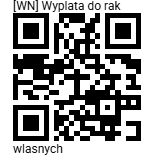
Sample QR code (basic)
Technical specifications of QR codes (full)
The QR codes used are based on Base36 encoding. The standard used makes it possible to encode many important information in a compact and readable form, while maintaining a low level of complexity of the code itself.The specification has been designed in an open manner, thanks to which QR codes (QR Code - Wikipedia, the free encyclopedia) can be generated in external systems (e.g. ERP), while maintaining full compliance and correct interpretation of data.
QR codes (full) contain the richest set of data, but require adequate space on the document to be recognized correctly, despite possible distortions caused by the printer/scanner.
The following QR code generation settings are recommended:
- Placing the QR code in the upper right corner, at least 15mm from the edge of the page,
- Code size 30mm x 30mm,
- Correction code 2-Q (25%), total string length 28 -> size 25×25, quiet zone 4 modules.
The codes contain 28 characters, divided into sections according to the table below:
| Section | Number of characters in Base36 | Range (in decimal numbers) | Description |
|---|---|---|---|
| Header | 2 | 0 - 1,296 | Protocol header. Contains the QR schema version, currently always M1. |
| T (tenant_id) | 4 | 0 - 1,679,615 | Tenant ID |
| E (employer_id) | 3 | 0 - 46,655 | Employer ID |
| DT (doc_type) | 3 | 0 - 46,655 | Document type |
| DD (date_days) | 4 | 0 - 1,679,615 | Number of days since 1970-01-01 |
| X1 (external_id_1) | 4 | 0 - 1,679,615 | Employee ID from the external system |
| X2 (external_id_2) | 4 | 0 - 1,679,615 | Another employee ID from the external system |
| C (CRC16) | 4 | 0 - 1,679,615 | CRC16 (CCITT-FALSE) calculated from all previous code characters, encoded in Base36 or ZZZZ if calculation is not possible. Acts as a number to validate the data. |
Information regarding this information can be obtained from the following sources on eFOB:
- Header – currently constant value M1.
- Tenant ID (T) – in the Administration module, go to Company Data and find Company Code (QR) there.
- Document type (DT) – in the Administration module, go to Document types, select a specific type and in it Type code (QR).
- Date (DD) – the number of days from 1970-01-01 necessary to count.
QR code example (full)
By completing the data in the following sections, we can obtain, for example, the code: M1YZUV001C5R0FR3001F2N9C0RS2. The string of characters will translate into the following QR code, which can be used to create, for example: QR Code Generator - Create Free QR Codes (in 'text' mode).

Sample QR code with CRC code