Preview PDF files
In the eFOB application, PDF file previews are available in many places using the built-in display. The article below describes its possible functionalities.
Overall appearance and basic functionalities
At the top of the component there is a toolbar containing the following options:
- text search engine in the document,
- selection box for the currently displayed page with scroll arrows,
- selection of document display scale (default adjusted to the screen size),
- buttons for inserting a text field, drawing on the document and inserting a graphic file
- buttons for printing and downloading the document
Sidebar
On the left side of the toolbar there is a button that opens the side panel. It contains a preview of all pages of the document, clicking on a given page will display it in the main preview window.
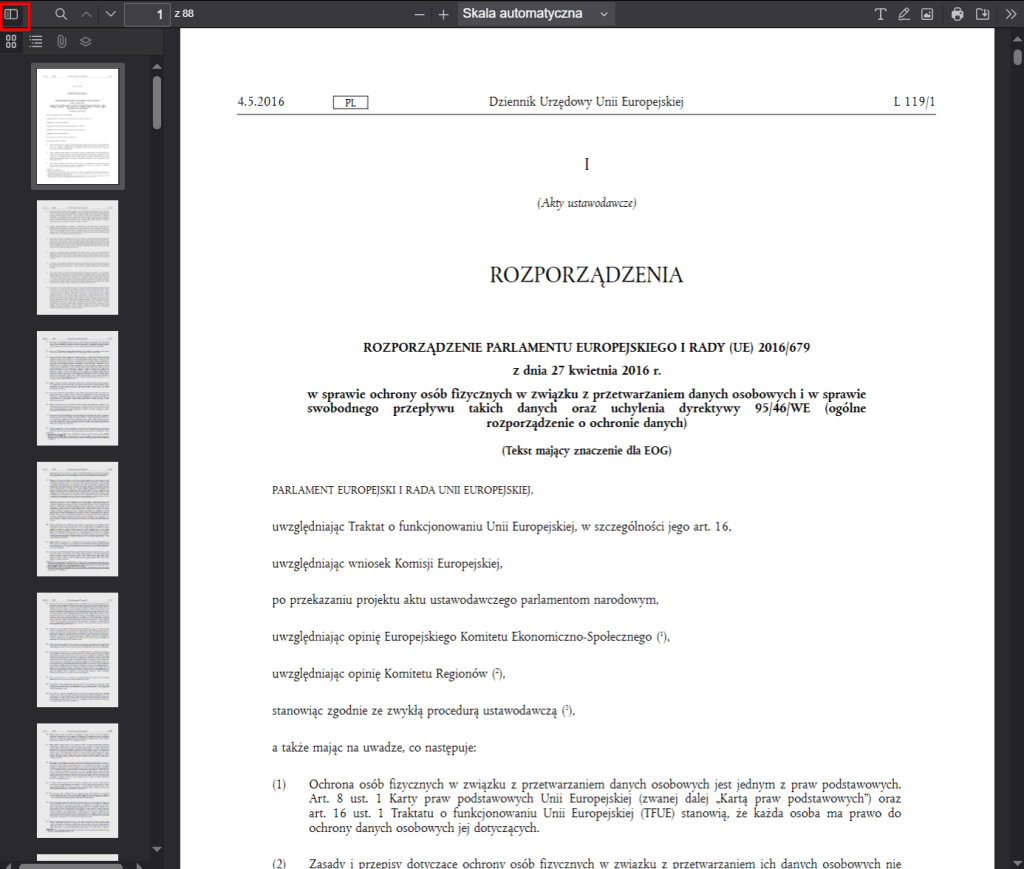
Pdf Viewer – side panel
Additional tools
On the right side of the toolbar there is a button that opens a menu of additional options.
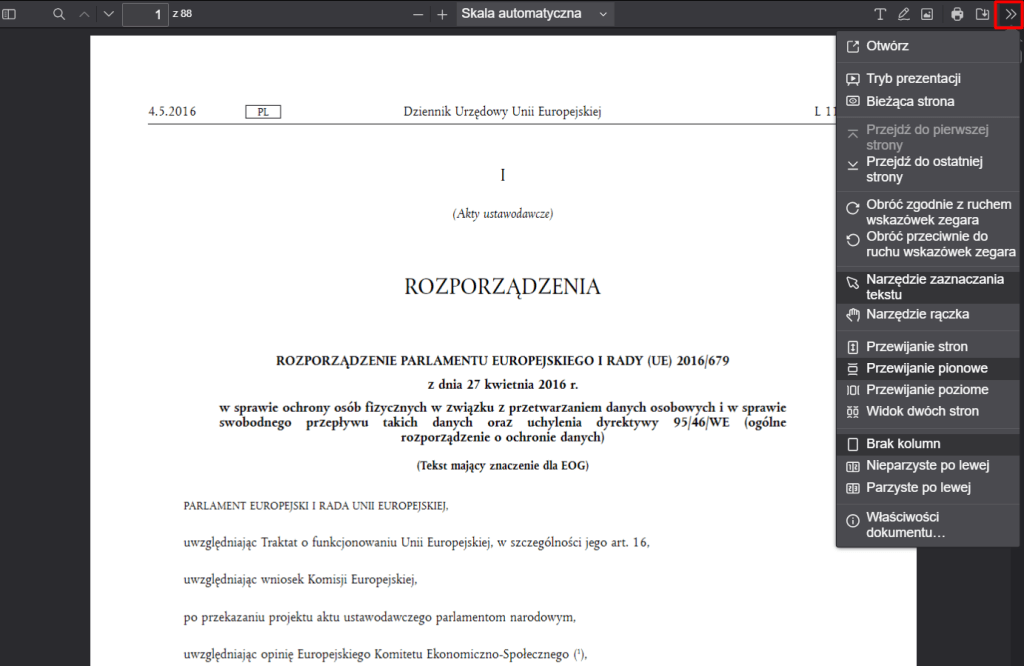
PDF Viewer – additional tools
PRESENTATION MODE – extends the editor view to the entire screen. To exit presentation mode, click the "Escape" button
CURRENT PAGE – when right-clicked, it allows you to copy a link to the current page of the document
TEXT SELECTION TOOL/HAND TOOL – Selecting one of these options sets the appearance and function of the mouse cursor. The default option is the ability to select text. The handle tool allows you to scroll through a document by holding and dragging the left mouse button
VIEW AND SCROLLING PAGES – possible selection of one of four options:
- page scrolling – displays one page of the document at a time, scrolling possible using the arrows on the toolbar;
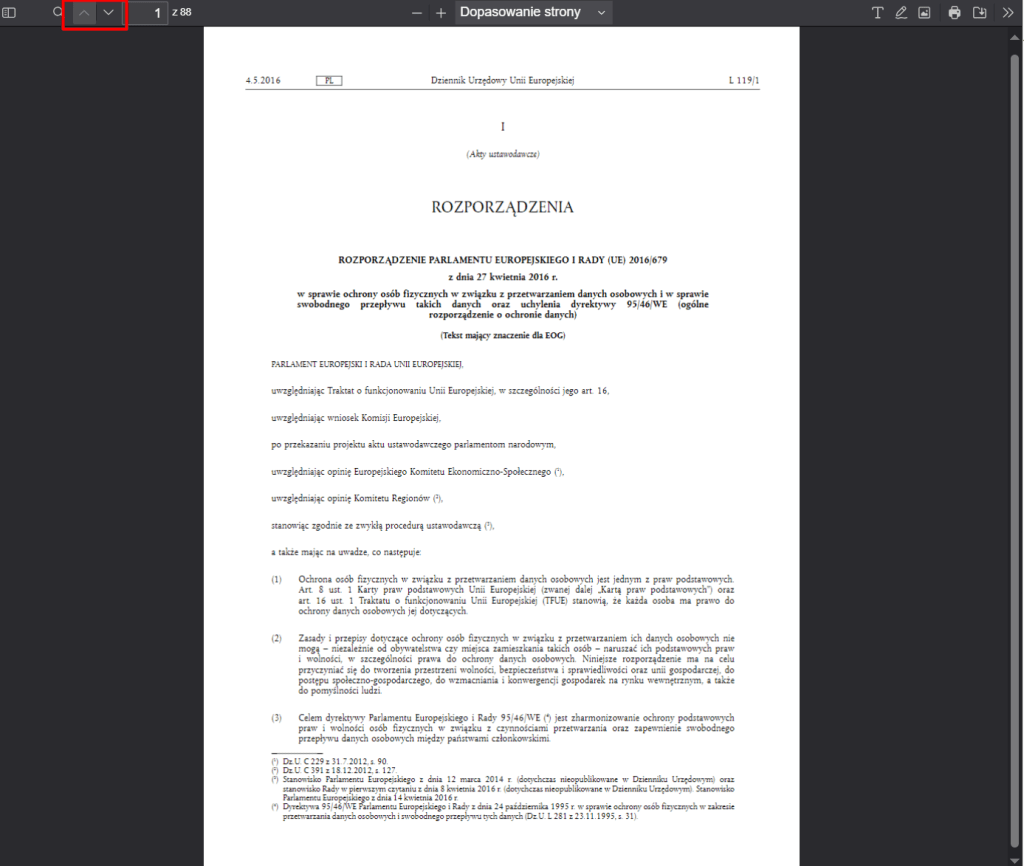
P_page scrolling_
- vertical scrolling – default option, allows you to scroll pages vertically using the scroll bar on the left or using the mouse scroll button;
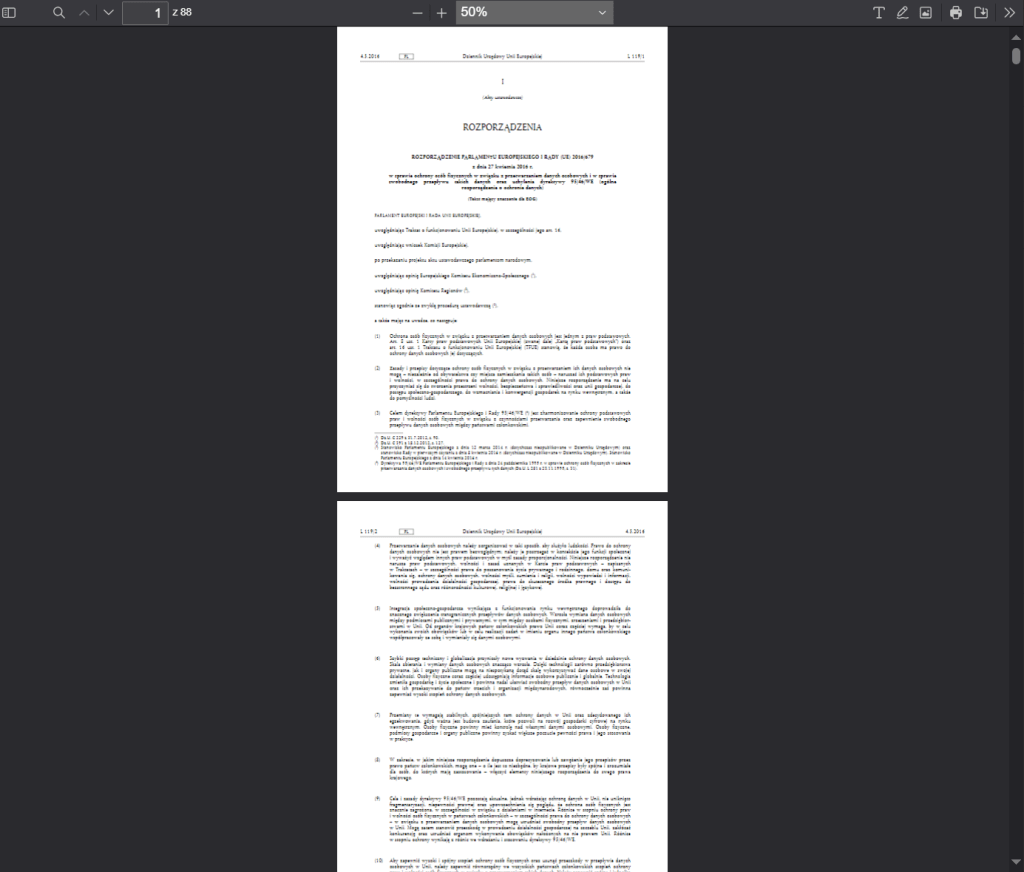
P_vertical scroll_
- horizontal scrolling – an option analogous to vertical scrolling, pages are displayed horizontally one next to the other
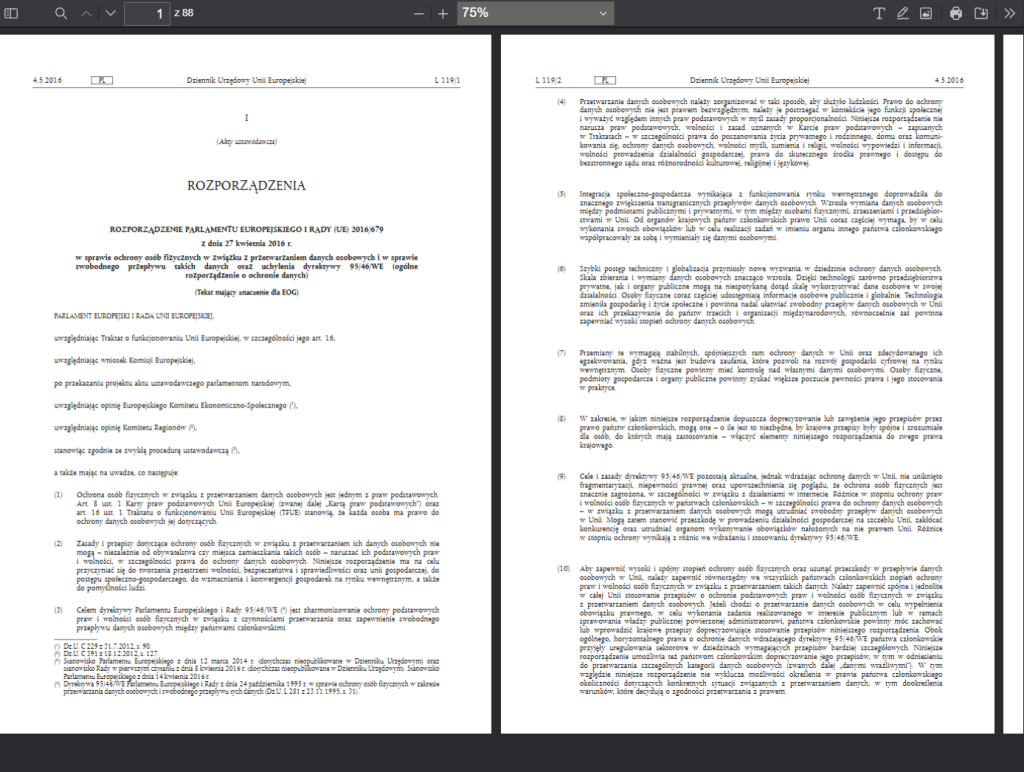
Option – horizontal scroll
- two-page view – displaying two pages side by side, scrolling works as in the "vertical scrolling" option
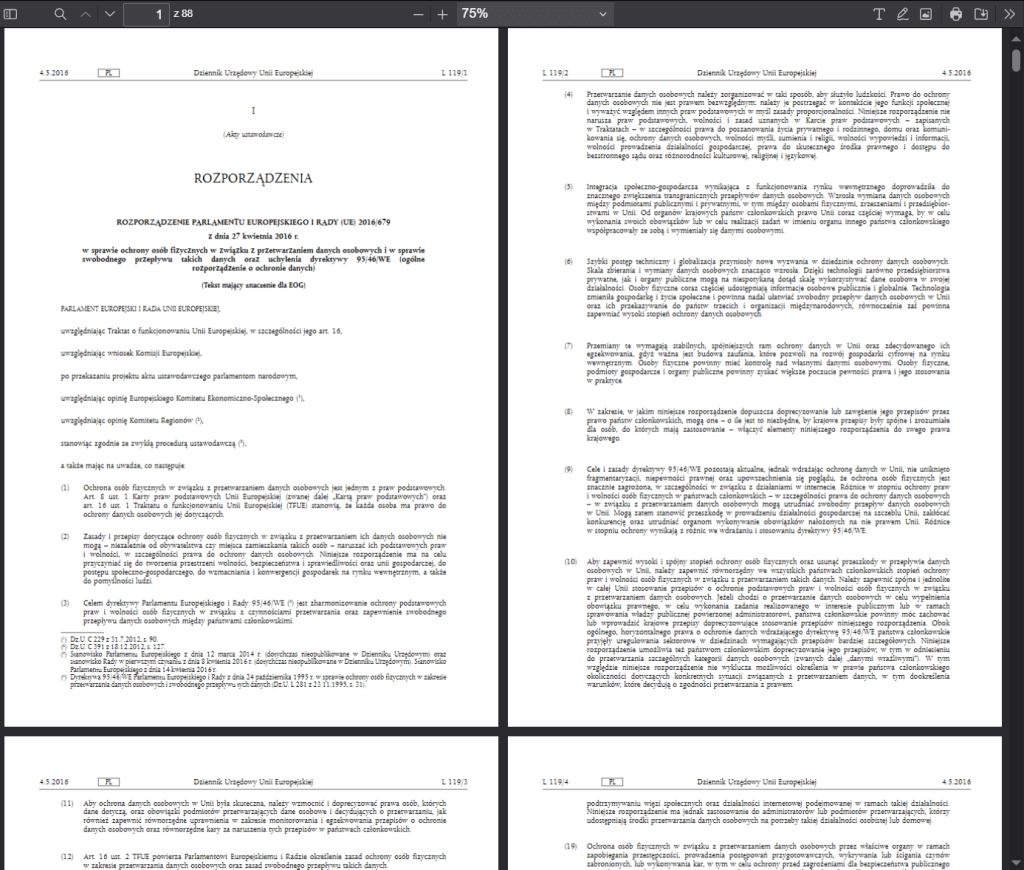
Two Side View
COLUMNS – selection of document page display, blocked when horizontal page scrolling option is selected. Possible options:
- No columns
- Odd number on the left
- Even numbers on the left
The “odd on the left” and “even on the left” options will display two pages side by side, regardless of whether the option above “two-page view” has been selected.
Known display issues
In the current version of the application, viewing PDF documents does not work properly for the Chrome browser with the Nimble capture extension installed. When you try to view it, the following error screen may appear. To view the document correctly, you must disable or remove the extension, or use a different browser.
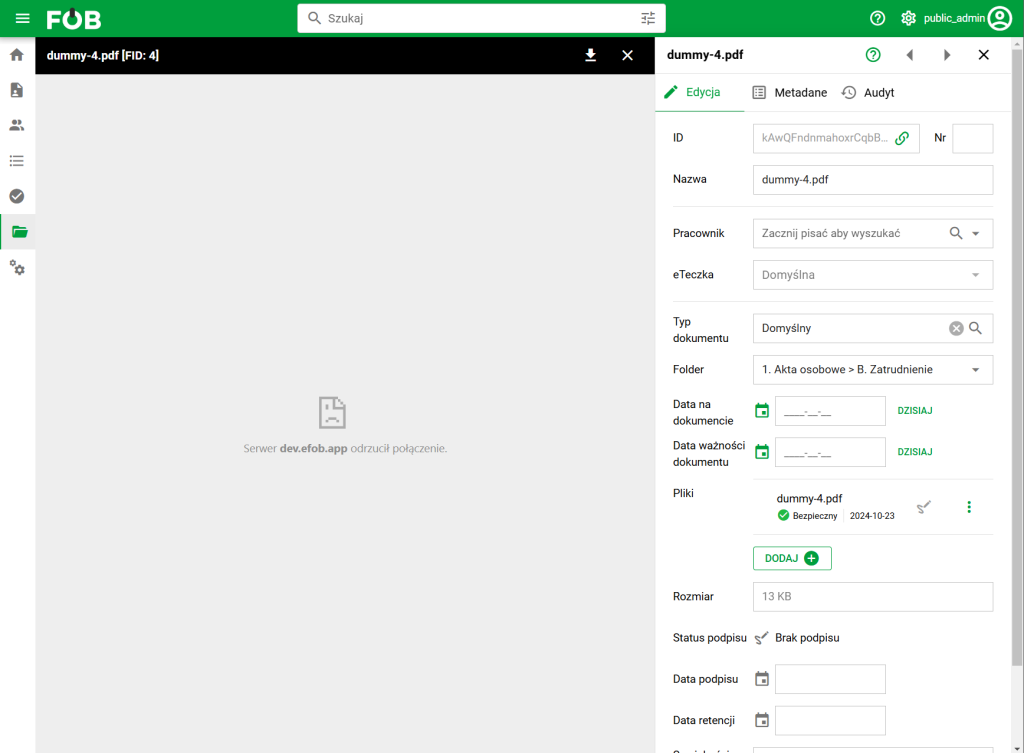
Error displaying document with Nimble Capture extension