Mobile PDF scanner
Zaktualizowano 2026-10-17
The eFOB mobile application allows you to scan documents and save them to PDF.
Scanning documents
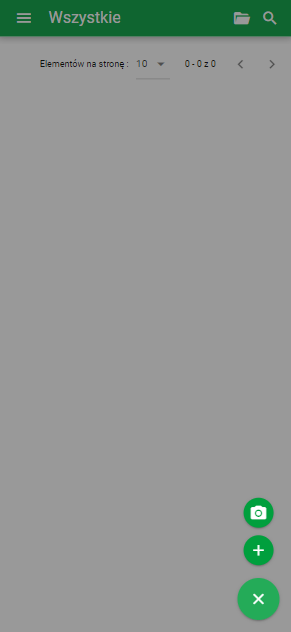
Mobile View
- Open the Documents module on your phone and select the PLUS button.
- Select the camera button

- Place the document in the camera's field of view.
- To take a scan, tap the Snapshot button
 and select CONFIRM.
 - Select Finish or add additional scans to the document using the
 button
 - Once the scan is complete, you can view or edit the scan using the ROTATE, CROPP, FILTERS or DELETE options.
- The DONE button ends the scanning and displays the document metadata window to be completed, i.e.: Name, Employee, Type, Folder, Date of the document. The Save button adds the scanned PDF document to the employee's eFolder.
The scanner has implemented code support. If the added document has such a code, a function will be activated that will enter the assigned document type, folder and employee.
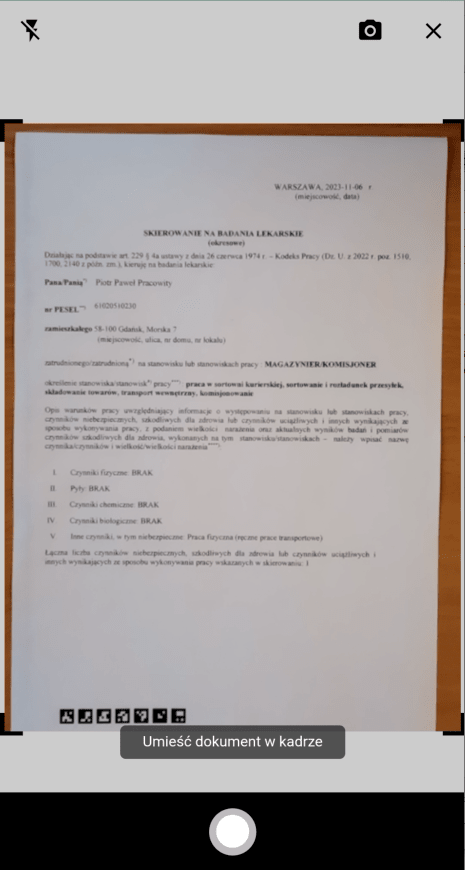
Scanner function

Sample code appearance