How to sign electronic documents using a Qualified Signature?
Preparation
Before starting the signature, it is necessary to install the electronic signature components according to the instructions on the website:
Electronic signature – how to install the KIR/Szafir component?
Qualified signature of documents step by step
STEP 1 – Select Documents
In the DOCUMENTS module, select one or more documents by selecting them in the first column of the document list table:

STEP 2 – Launching the Signature Window
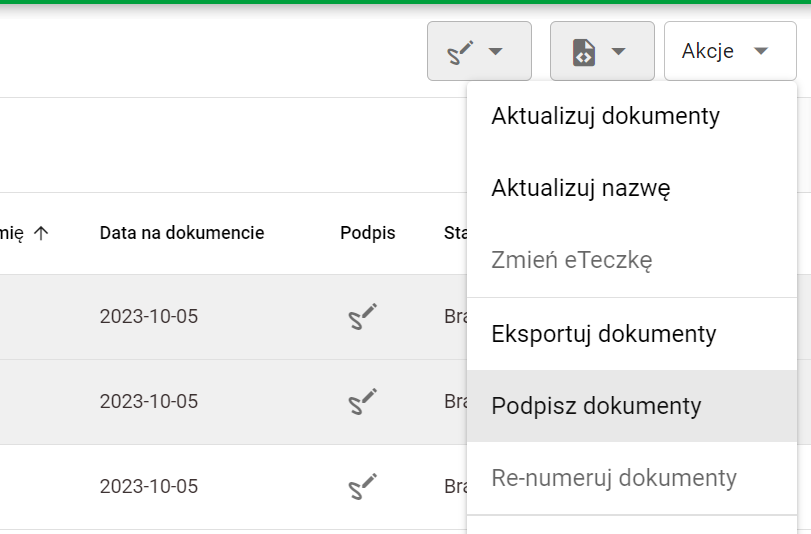
In the action menu in the upper right part of the DOCUMENTS module, select the SIGN DOCUMENTS option:
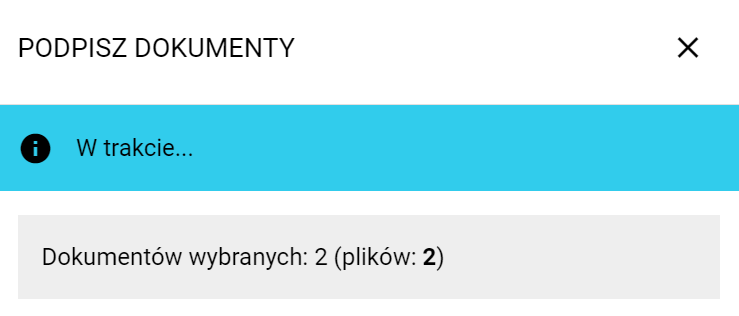
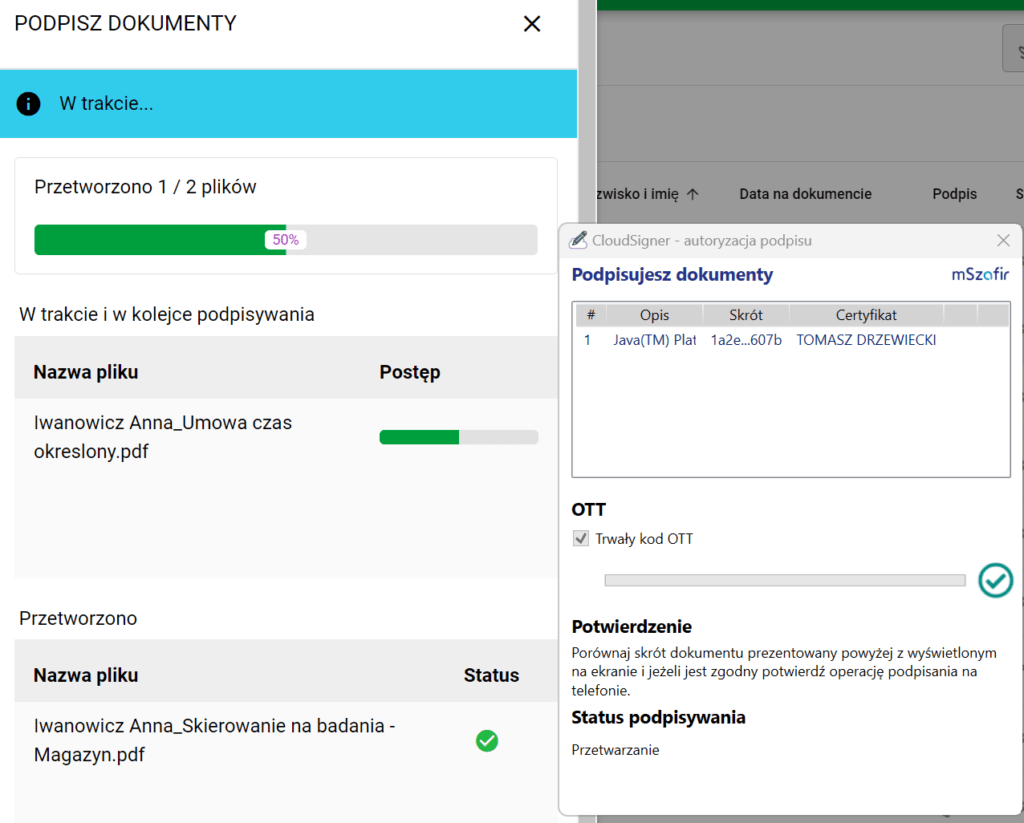
When you open the SIGN DOCUMENTS window for the first time, you will see a blue header with the message "In progress..."':
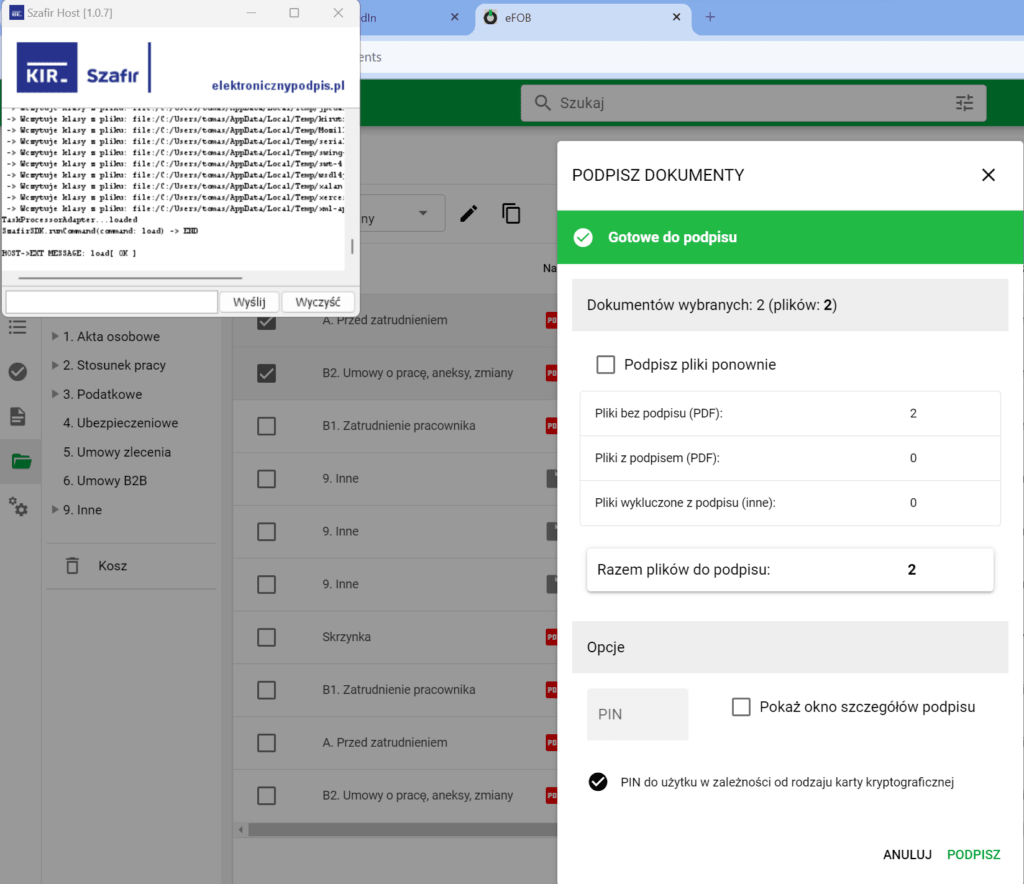
After installing the necessary elements of the signature module ("KIR Szafir" window), the header will turn green with the message READY TO SIGN:
STEP 3 – Selecting Signature Window Options
The following options are available in the SIGN DOCUMENTS window:
- Sign files again – allows you to re-sign selected files, for example when another qualified signature is to be added to the document.
- Total files to be signed – information about the number of files that will be submitted for signing. The list also includes:
- number of files without signature,
- number of files already signed,
- number of files excluded from the signature.
- Qualified certificate – allows you to select the certificate that will be used to sign documents.
- PIN – field for entering the PIN code for the selected certificate or cryptographic card. Depending on the type of medium used, for example a USB key, a PIN may be required to sign.
- Show signature details window – an option useful when adding your own graphic signature mark, as well as when diagnosing problems with the signature.
- Run Default Certificate - Check this option in rare cases where the certificate is not detected automatically, for example due to different card drivers in Windows. In combination with the 'Show signature details window' option (5), this allows further diagnosis of the problem and possible manual selection of the card driver.
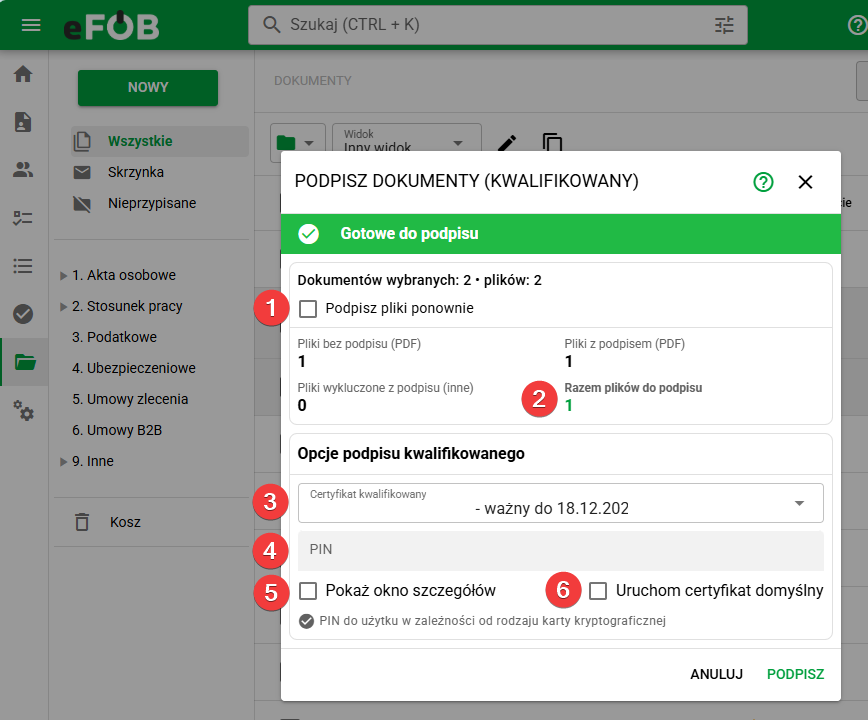
The default selection of Show signature details window comes from the organization setting. You can override it in Local settings. Automatic mode enables details for one file and disables them when signing multiple files. Check the current selection in the dialog before starting to sign.
STEP 4 – Creating a Signature
STEP 4a – Standard wholesale signature
After selecting an option and clicking the SIGN button, eFOB goes through three stages:
- Download the document.
- Attempt to sign the document.
- Document update in case of success.
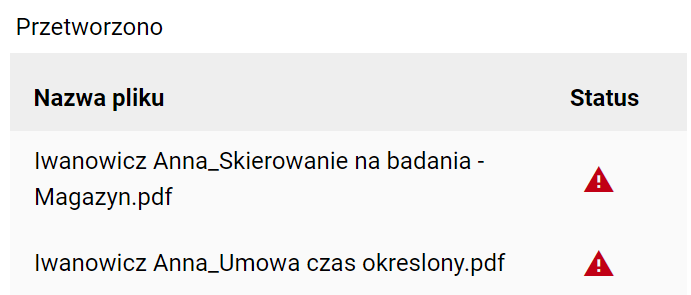
If errors occur, a red exclamation mark will appear in the SIGNED DOCUMENTS section. When you hover your mouse over it, you will see the error code. A typical problem is the lack of a card in the reader.Tip: It is recommended that you sign one document first and select Show Signature Details Window if you are unsure about error messages.
STEP 4b – Details window – Inserting a graphic signature character
PDF documents in standard/wholesale mode (without the “Show signature details window” option) are signed internally with a qualified signature (QES).
A qualified signature (QES) is fully legally valid under eIDAS, even if it is not accompanied by any graphic tag. Unlike a handwritten signature, QES is embedded in the file in the form of encrypted data and a certificate - they ensure its authenticity and integrity. The graphic symbol (e.g. "signed by...") is only a visual element that may be optionally added for legibility, but does not affect the validity of the signature.
However, if you need additional visual marking of the signature, after selecting the "Show signature details window" option in "STEP 3", the following window will be displayed for each signed PDF:
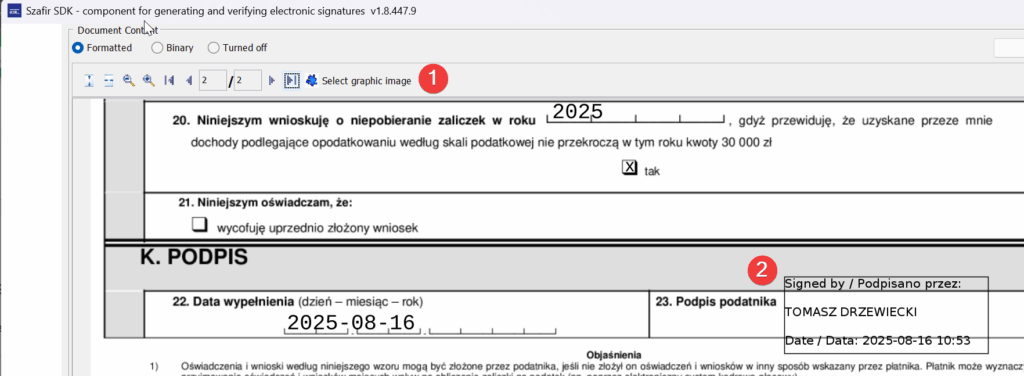
It enables:
(1) Selecting a graphic image of the signature (e.g. signature scanned together with a company stamp)
(2) Default signature with signer's text and signature date.
Note: when inserting a signature, click and drag the mouse to obtain the appropriate size 'rectangle' in which the signature will be inserted. Simply clicking will usually insert an inconspicuous rectangle with a signature.
STEP 5 – Expected Result
The successful signature appears in the PROCESSED section with green success marks:
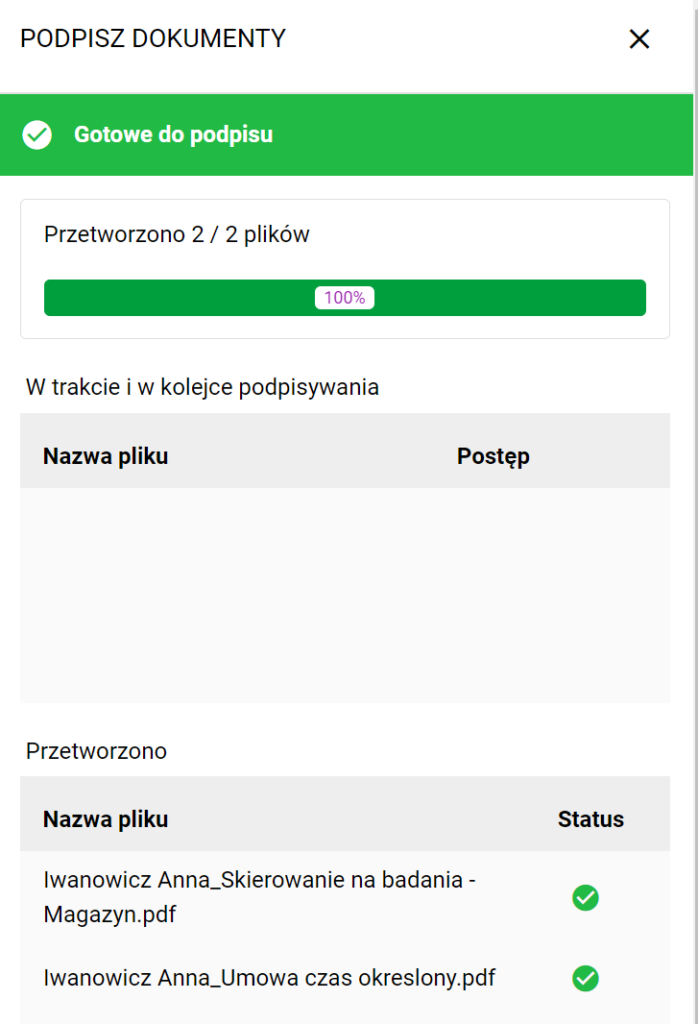
In the Documents module, the SIGNAGE, SIGNAGE STATUS and SIGNATION DATE columns will be updated.
