How to delete a document: operation and functions of the recycle bin
How to delete a single document
Step 1: Location of the document to be deleted
To delete a document in the Documents module, you must first locate the selected document. Open its menu by clicking the THREE DOTS button:
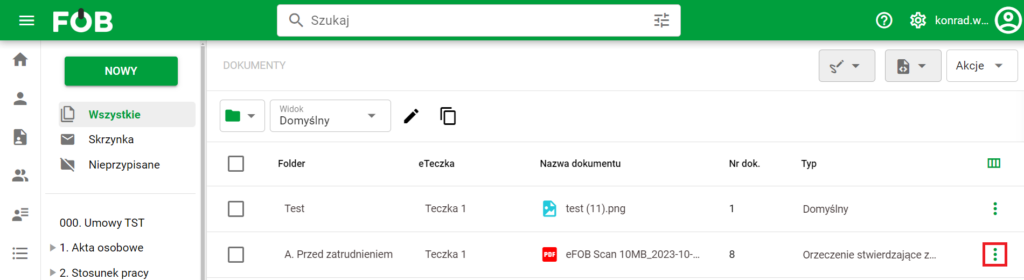
Three dot button
Step 2: Select deletion option
Then select the item marked with the RED BIN icon from the options menu.
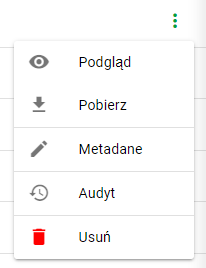
Options menu
Step 3: Confirm deletion
In the document information summary, confirm the deletion by clicking the DELETE button.
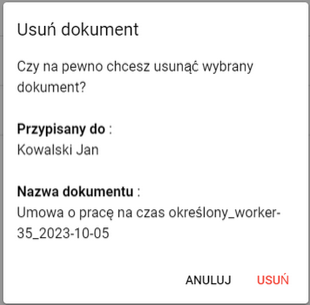
Delete document window
After clicking the DELETE button, the user will receive a message about the success of the operation and the document will be moved to the BASKET:

This means that the deleted document is in the TRASH.
How to delete multiple documents at once
Step 1: Select documents
To delete multiple documents at once, select the appropriate checkboxes on the left side of the documents.
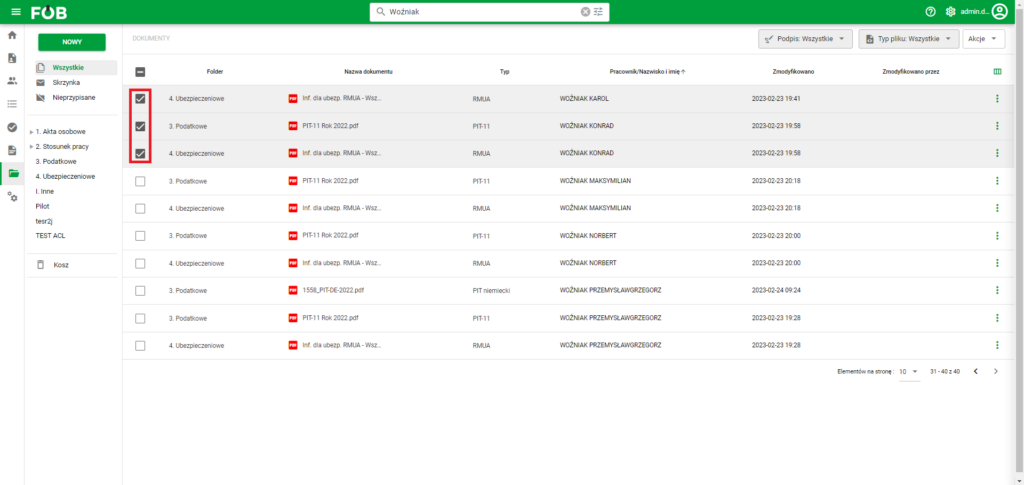
Selecting records
Step 2: Select the delete action
Click the ACTIONS button in the upper right corner and select the DELETE DOCUMENTS option:
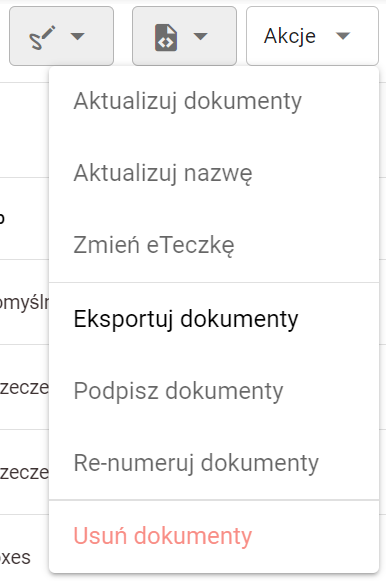
Actions button
Step 3: Confirm deletion
As with deleting a single document, confirm the operation by clicking the DELETE button. The user will receive a message about the success of the operation:
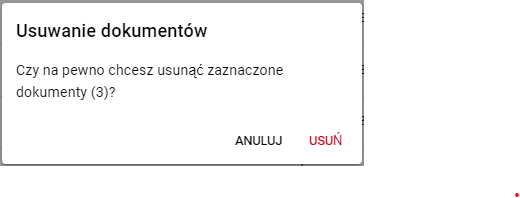
Multiple document deletion window
The appearance of the basket and its functions
The recycle bin allows users to permanently delete, restore or download documents that have been previously deleted from the main DOCUMENTS panel.
Trash functions in single mode
To manage a single document, use the three dots button for the document you are interested in:
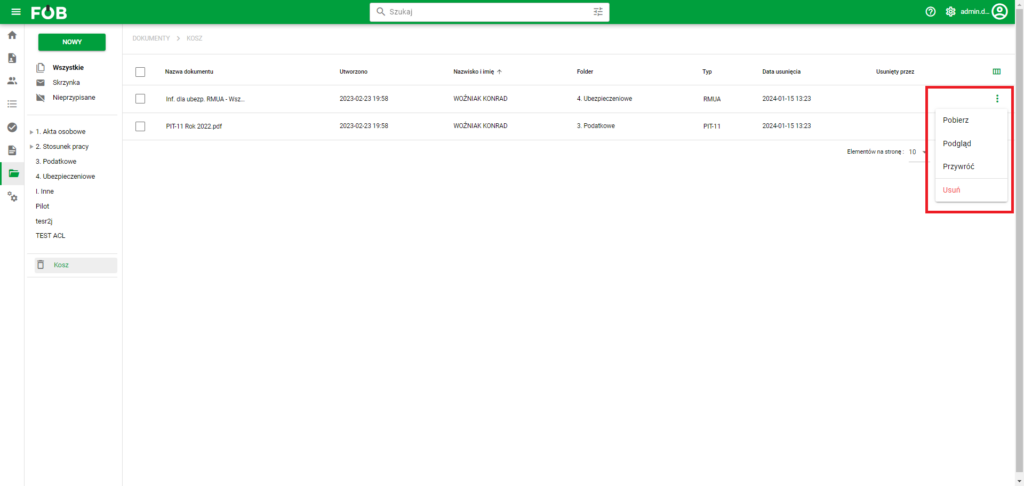
Single selection
Trash functions in multi-file mode
To manage multiple files, select the checkboxes on the left side of your documents:
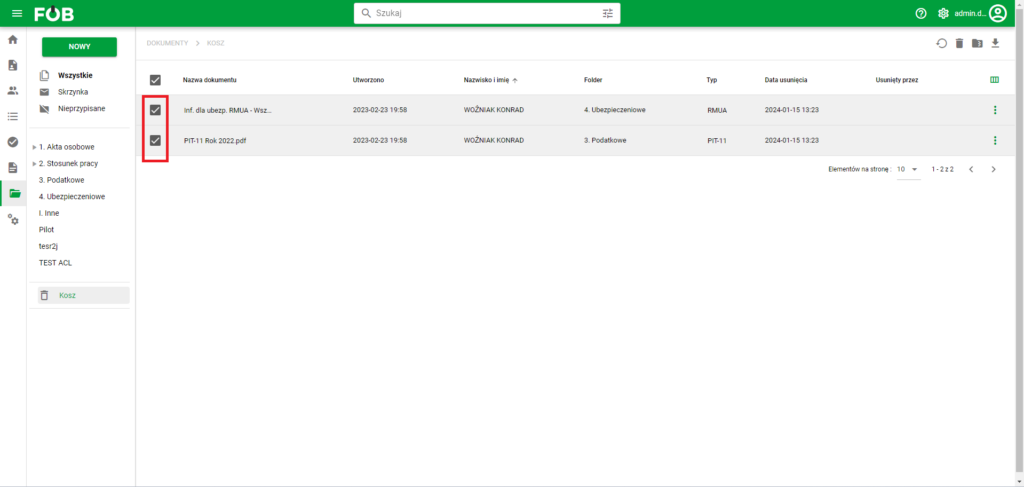
Selecting multiple files
New buttons will appear in the upper right corner, responsible for the recycle bin functions:
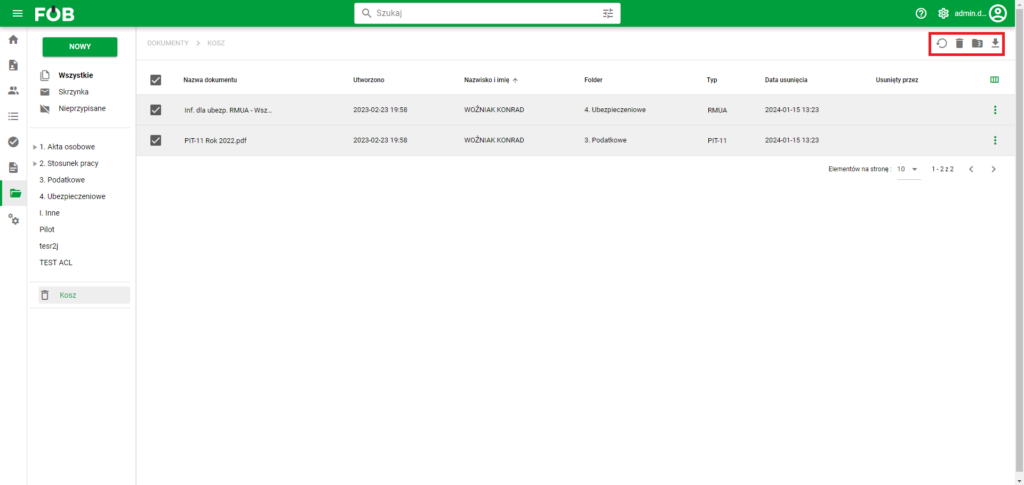
Trash function buttons
Documents of removed employees
The Document Trash also contains documents of deleted Employees - regardless of whether the document was deleted before the Employee was deleted or not. These documents have the Employee marked in red with a strikethrough. You cannot perform a restore action on them - to do this, you must first restore the Employee. However, they can be permanently deleted, just like other documents.
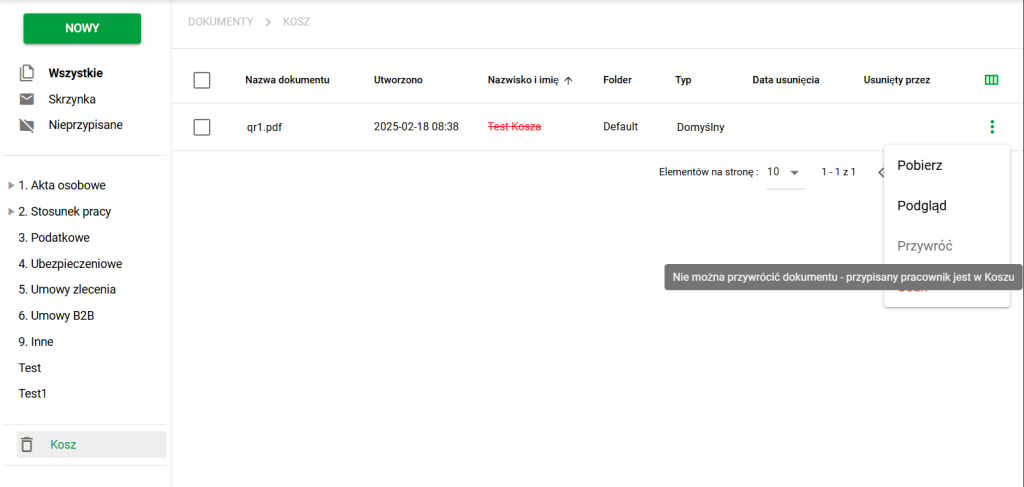
Deleted Employee Document
You can read more about deleted Employees and restoring them in the article: