Document views in eFOB
The eFOB application allows you to view employee documents in two modes: group or employee.
Changing the viewing mode is available under the folder icon in the filters and actions section above the document list.
When editing viewing modes, the user can save their changes using the VIEW function. More in the article:
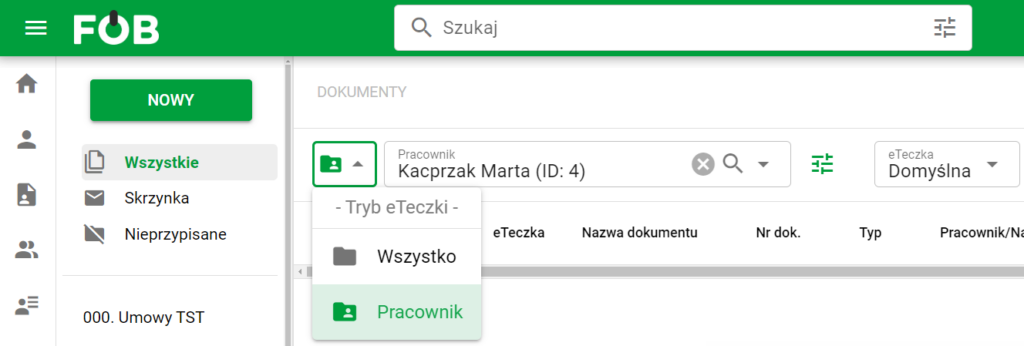
Switching document viewing mode
Group mode
Group mode (default) allows you to view all employee documents and manage them en masse.
Navigating through the group view in eFOB is made easier by the left side panel with folders.
Above the list of documents, there are quick filters for the signature status (signed, unsigned, with errors), the current document view (arrangement and column categories) and file type filters (pdf, photos and images, documents, text, ZIP) and actions: document export and document signature.
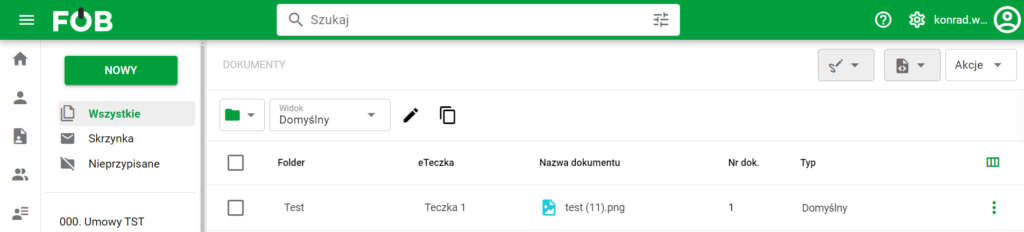
Group mode window
The top bar of the application includes an advanced search engine that allows you to search by document parameters (metadata) or employee data. After expanding the selected section, available search fields will be displayed.
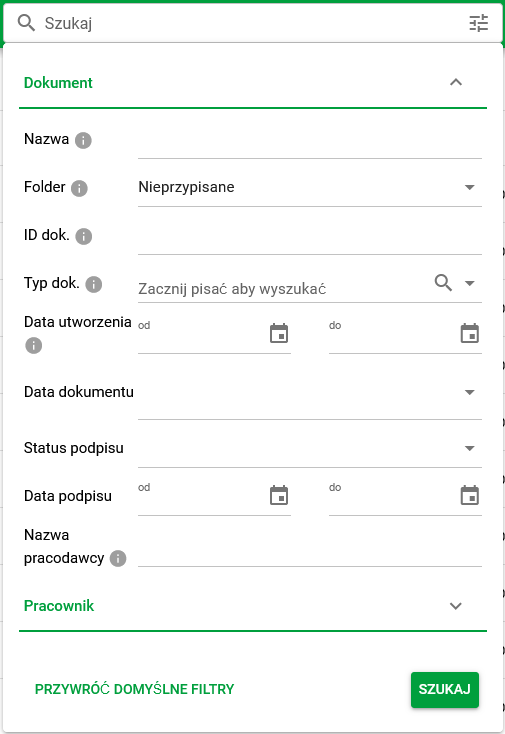
Searching by document parameters
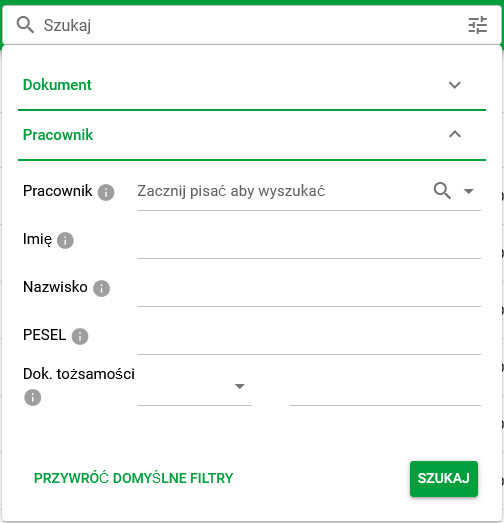
Search by employee
Employee mode in eFOB
After switching to employee mode, the employee search engine will be displayed under the navigation path (breadcrumb).
The search engine allows you to quickly search by name and surname. We can also use the button next to:

Advanced search button
This button allows you to open an advanced search engine that allows detailed searches, including by PESEL number or identity document:

Employee search advanced
After selecting an employee, the view shows that employee's documents in eFOB.
If the user provides ambiguous parameters during the search (e.g. a name shared by many employees), the system will display a window with all matching search results for a given term, with the option of further filtering and selecting a specific employee.
The employee document view in eFOB allows you to add specific folders, browse them and add documents.
To add a folder for an employee, select the folder with permissions to create specific subfolders in the side menu.
After selecting the appropriate folder, the NEW FOLDER option is activated, available under the NEW button:
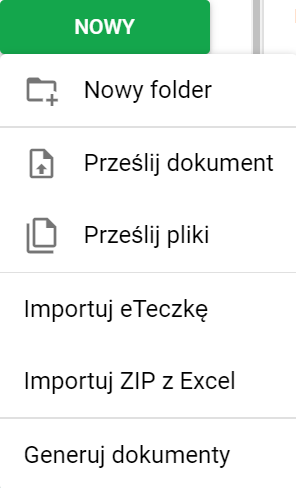
New folder button
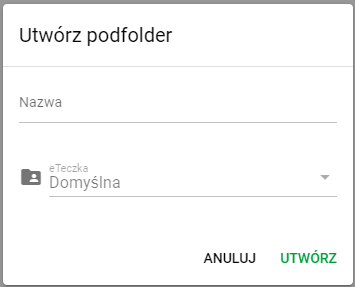
Adding a subfolder
Multiple eFolders
In eFOB, you can assign multiple eFolders to one employee. This allows you to:
- organize documents from different employments,
- transfer documents between collections while retaining a combined view,
- calculate retention dates for individual eFolders and employments using the selected method and recorded data; do not determine a date solely from the description "old" or "new" employment,
- export or import multiple employee document collections in separate folders.
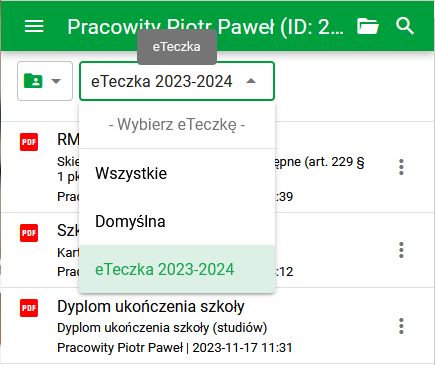
Selecting an eFolder in eFOB
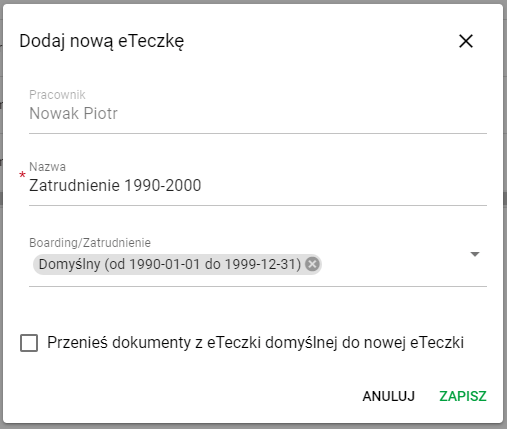
Adding an eFolder in eFOB
Before taking retention actions, check the document or folder configuration, calculation method, and employment data. For details, including the difference between the boarding-based and simplified methods, see Document retention and legal basis.