Export and import of employee eFolders
Legal basis
The export and import functions for employee eFolders are compatible with:
- “Regulation of the Minister of Family, Labor and Social Policy of December 10, 2018 on employee documentation“, as amended - in particular amendments of May 9, 2023 (Journal of Laws 2023, item 879) and of March 14 2025 (Journal of Laws 2025, item 335).
- “Technical specification referred to in § 13(4) of the Regulation of the Ministry of Labor and Social Policy of December 10, 2018 on employee documentation” as amended from 2023-07-31 (XSD specification file: aktaPracownicze(10).xsd).
- By compression into a ZIP file archive, intended to transfer an ordered set of documents:
- The ZIP format is one of the formats intended for compression referred to in the regulations issued pursuant to Art. 18 of the Act of February 17, 2005 on the computerization of the activities of entities performing public tasks (Journal of Laws of 2017, item 570 and of 2018, items 1000, 1544 and 1669).
- The above provisions lead to the uniform text of "Regulation of the Council of Ministers of May 21, 2024 on the National Interoperability Framework (Journal of Laws 2024, item 773)", in which the ZIP format is mentioned as a format used to compress (reduce the volume) of electronic documents.
Archive structure
ZIP archive file format
- The employee document archive is compressed into a ZIP archive.
- The archive has the following sample folder structure:
- main folder (named “Lastname_FirstName_DocumentationID”);
- main subfolder (“1. Personal files” or “2. Employment relationship”);
- further subfolders consistent with the current eFOB layout (e.g. "A. Before employment", "D. Penalties").
Each document file (e.g. “Employment certificate.pdf”) has a corresponding metadata XML file (e.g. “Employment certificate.xml”).
Archive structure for multiple eFolders
- The archive containing multiple eFolders is compressed into a ZIP archive.
- The archive has the following sample folder structure:
- two main folders that have the same further structure (named “Lastname_FirstName_Documentation Identifier” and the equivalent [Employment up to 2000]);

- main subfolder (“1. Personal files” );

- further subfolders in accordance with the current layout (e.g. "A. Before employment", "D. Employment").

Each document file located in subfolders (e.g. "Referral for preliminary examination.pdf") has a corresponding metadata XML file:

File metadata
In accordance with the regulation, each file is accompanied by an XML file with metadata:- document identifier – which is a unique identifier in the entire set that distinguishes the document from other documents included in the submitted documentation;
- documentation identifier – which is the identifier of the employee documentation kept separately for each employee, to which the document belongs;
- document type - which is a clear assignment of the document to one of the parts of the employee's personal file or to one of the types of documentation in matters related to the employment relationship;
- date of document creation – this is the “Date on document” field;
- date of affixing the digital image with a qualified electronic seal of the employer or a qualified electronic signature of the employer or a person authorized by the employer - if it is a digital image of a document in paper form;
- PESEL number of the employee whose employee documentation the document was included in, and if it is missing - type and number of the document confirming identity;
- employee's name and surname;
- employer name;
- date of creation of the ordered set of documents intended for transmission, in which the document is located - i.e. the date of this archive.
NOTE: In case of multi-company support (see Employer Configuration - eFOB) and export of a document assigned to multiple employers, their names will be separated by the "|" character.
Export options
The "Export eFOB documents" window allows you to prepare a package of documents for downloading, in accordance with the selected criteria. The user can specify the scope of data to be included in the export, as well as how to filter it.
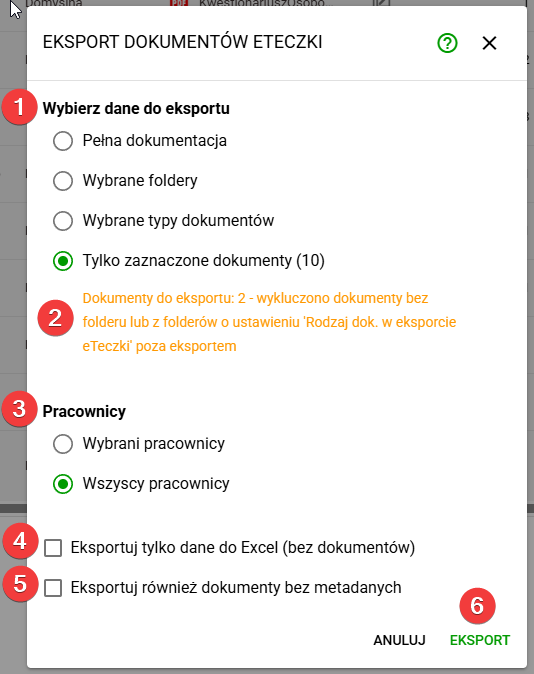
1. Select the data to export
This section defines the scope of documents to be included in the export:
-
Full documentation Exports all documents contained in eFOB.
-
Selected folders Allows you to specify specific document folders in eFOB to be included in the export.
-
Selected document types It allows you to export only specific types of documents (e.g. employment contract, annex to the contract, etc., medical examinations).
-
Only selected documents (e.g. 10) Exports only documents previously selected in the list.
2. Warning message about export restrictions
If restrictions are found that prevent some documents from being included in the export, this area displays information about the number of documents that will actually be exported, along with a description of the reason for omitting the remaining items.
3. Employees
This section defines which employees are to be exported:
-
Selected employees Includes documents only for employees indicated on the list.
-
All employees Includes documents of all employees of the organization.
4. Additional options – “Export only data to Excel (without documents)”
Generates a summary of document metadata in Excel format, without attaching source files.
💡 This option is useful in situations requiring quick preparation of a list of selected documents from eFOB or when verifying the system configuration (e.g. assigned document types) before performing a full export with metadata.
5. Additional options – Also export documents without metadata
It causes the export to include documents that do not have completed fields required by applicable metadata regulations (e.g. documents with a type that is incompatible with the eFOB configuration) or are located in folders that do not fall within the scope of the formal employee-records structure specified in the regulation (e.g. civil law contracts or B2B documents).
💡In this case, the documents will be exported with their folder structure, but an XML file with metadata will not be generated for them.
6. Data export
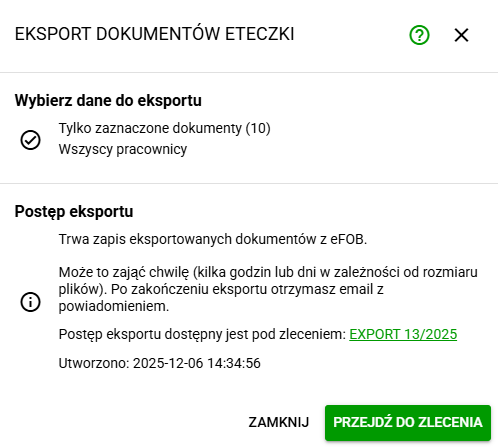
After starting the export process, a summary is displayed informing you that document saving has started. The window presents a link to the created order, in which - for people with appropriate permissions - it will be possible to download the generated archive or Excel file with a list of documents.
The export process may take from a few minutes to several hours, depending on the number and size of the documents.