Folders in an eFolder
Adding
To be able to add new folders in the Documents module, two conditions must be met:
- The first one is to select the employee we are interested in using the filtering in the upper green bar:
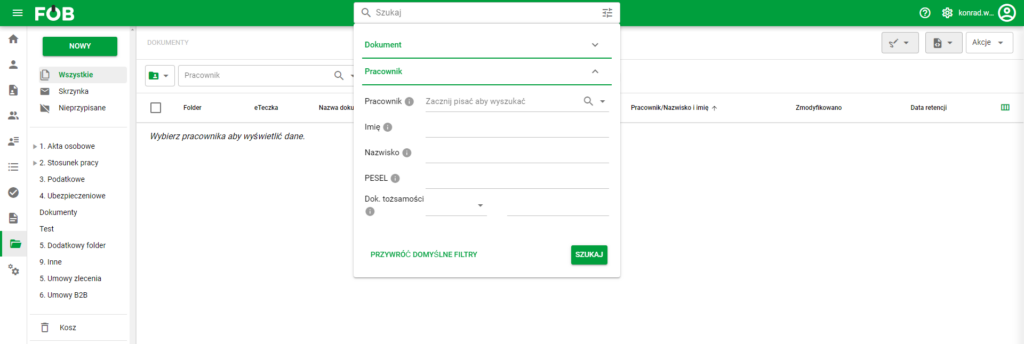
Filtering
Or use a simplified search engine:
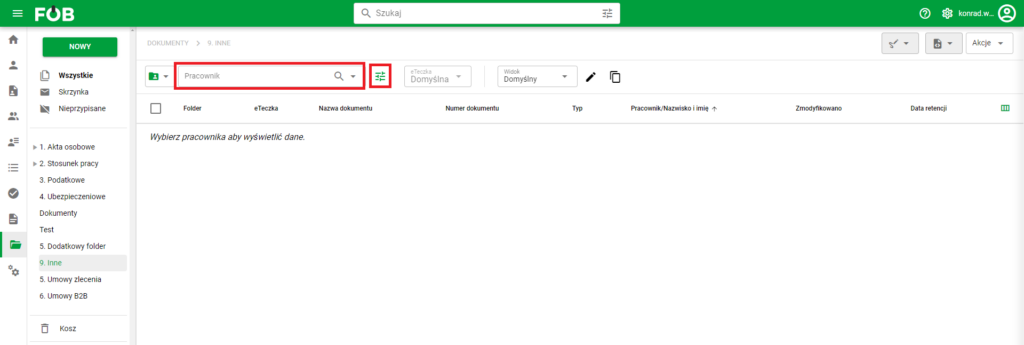
Search Engine
2. Then, from the left panel, click on the folder you are interested in:
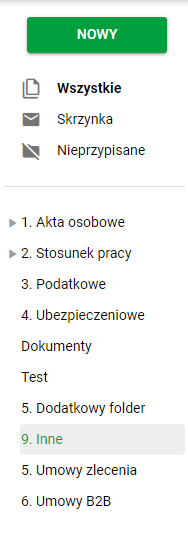
Folder List
3. This folder must have permissions to create subfolders - they can be set in the ADMINISTRATIVE PANEL module in the DICTIONARIES category:
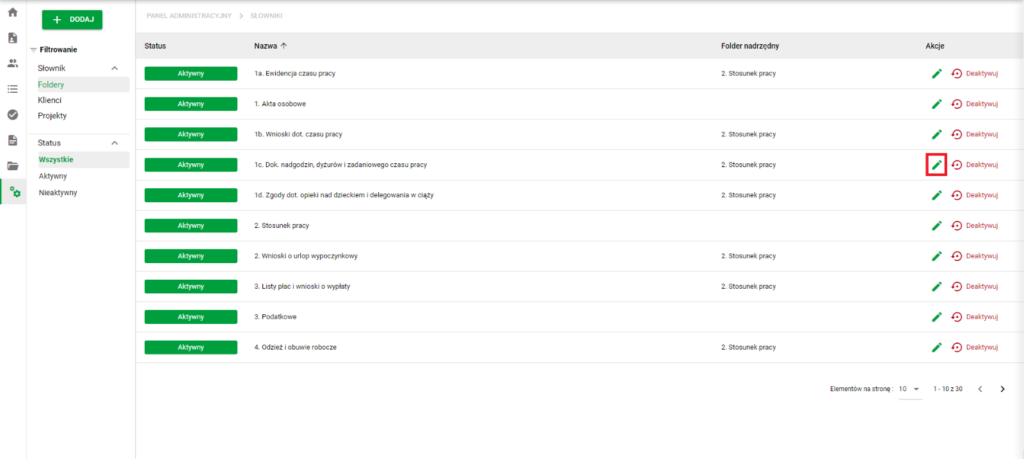
Edit folder button
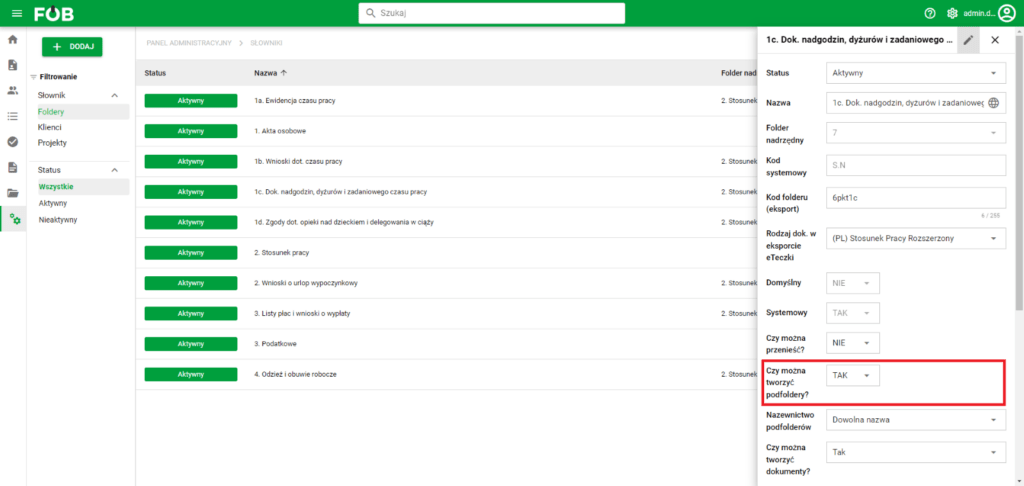
Option to create subfolders
4. Once we have a folder that meets the above requirements, click the green button NEW and then select the first option NEW FOLDER:
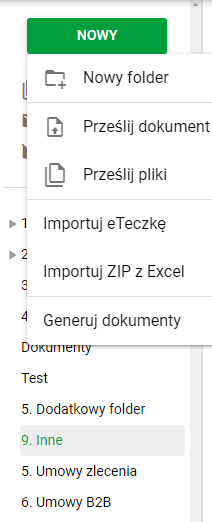
Creating a new folder
5. This will open the form, which we fill in with the name and confirm:
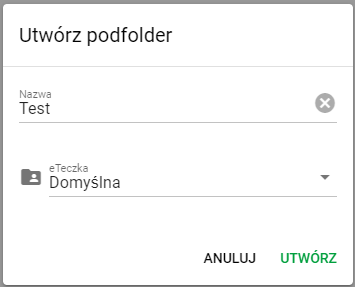
Creating a subfolder
6. A new subfolder is generated, which we can go to by clicking one of the selected fields:
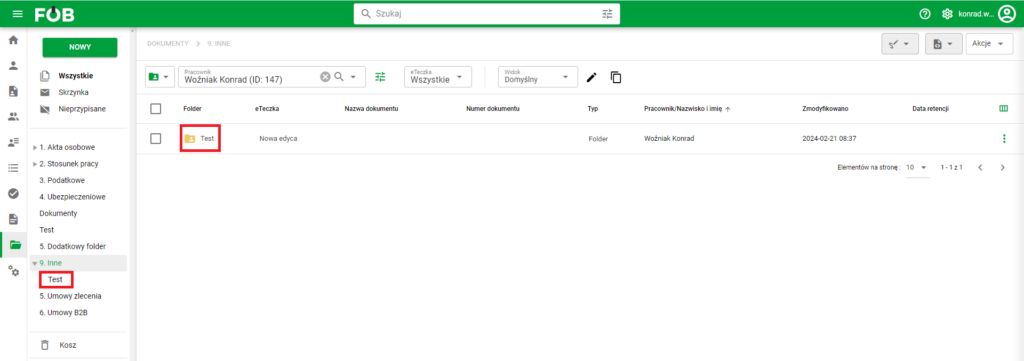
Go to subfolder
Moving a file to a folder
To move a file, edit files by clicking on its record in the file list. This will open the editing panel where we modify the FOLDER field:
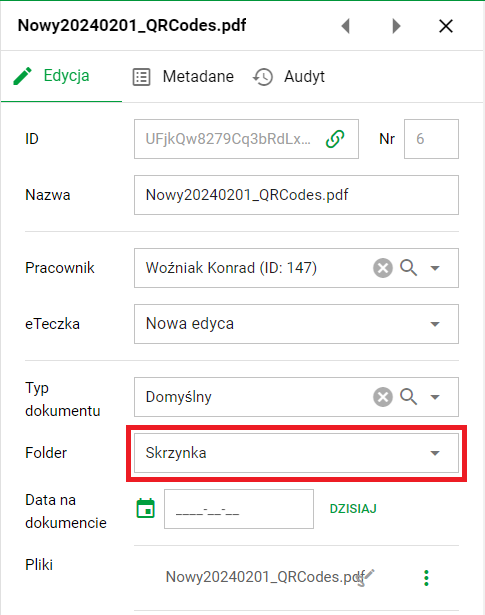
Changing the assigned folder