Document search engine
Instructions
To open the document search engine in the DOCUMENTS module, click on the marked button located on the right in the green bar at the top of the page:

Search button
The search engine looks like this:
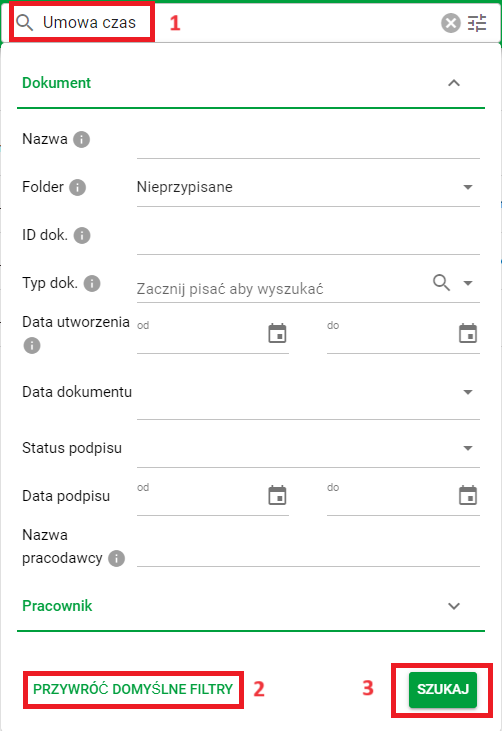
Functionalities in the search engine
Point.1 Place to enter the phrase that interests you.
Point.2 Restoring default filters, i.e. resetting.
Point.3 Confirmation of the search.
The search engine in the DOCUMENTS module contains two groups DOCUMENTS and EMPLOYEES, which sorts search options thematically. To expand/collapse a given group, click on the option you are interested in:
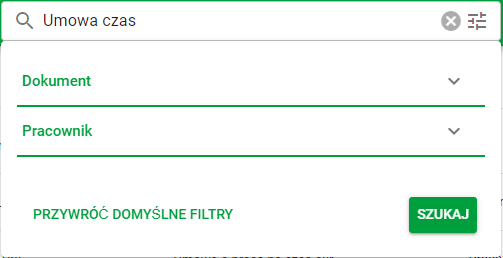
Search engine bookmarks
Date on the document
The Date on document filter allows you to quickly narrow down the list of documents according to the selected time range.
Ready-made options are available such as:
- Blank date
- Today
- Last 3 days
- Last 7 days
- Last 30 days,
- Date range, which allows you to manually specify the interval from–to.
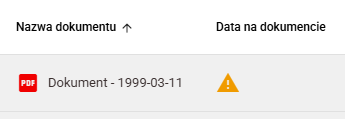
If the document has no date or you choose to search using the BLANK DATE option, the search results will display documents marked with a yellow exclamation point icon in a triangle:
Audit fields
The Audit section allows you to filter documents based on information about their creation and last modification.
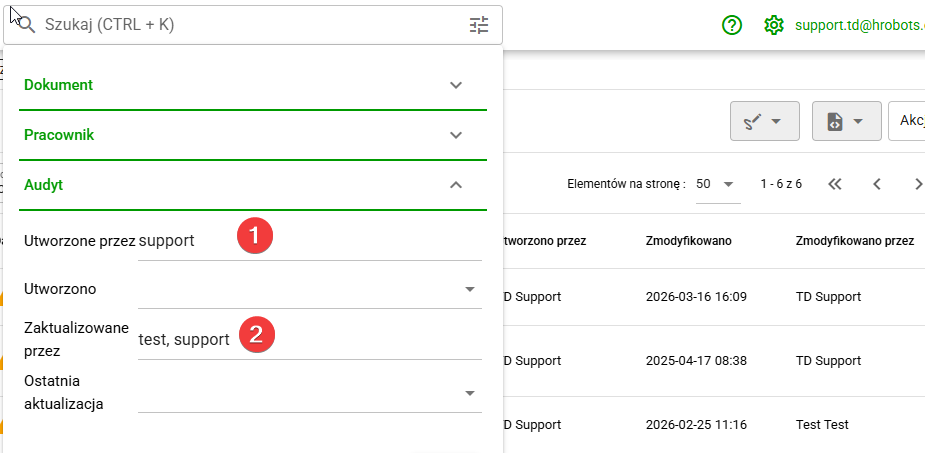
The following fields are available in this section:
- Created by – allows you to search for documents created by a user or users.
- Created – allows you to filter documents by creation date.
- Updated by – allows you to search for documents modified by the specified user or users.
- Last update – allows you to filter documents by the date of the last change.
How does audit field filtering work?
The conditions set in the Audit section work according to the AND principle. This means that a document must meet all of the specified conditions simultaneously to appear in search results.
Example if support is entered in the Created by field and test, support users are entered in the Updated by field, the results will only show documents that:
- were created by support AND
- were simultaneously updated by user test OR support.
Therefore, in the Created by/Updated by field, you can enter several values separated by a comma, for example:
test, support
In this case, the system will search for documents created/updated by any of the specified users.