Preview of documents, basic data and functionalities
Preview files in the document
Previewing documents for the eFOB application can be done in two ways:
Each of them starts with switching to the basic screen of the DOCUMENTS module:
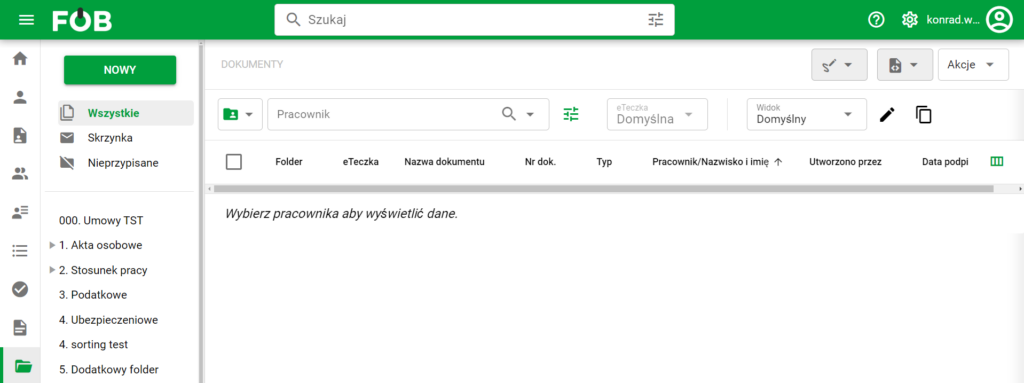
Documents module screen
Document preview functionalities
The first way to preview a document is to hover the mouse over the record of the document you are interested in and click with the left mouse button.
The video below also includes functionalities.
More information about preview operation and functionalities
Record menu
The second way to preview a document is to hover the mouse over the record menu of the document you are interested in and select the Edit item.
Switch between documents
While in the document preview view, the user can switch between available documents using the arrows in the upper right corner.
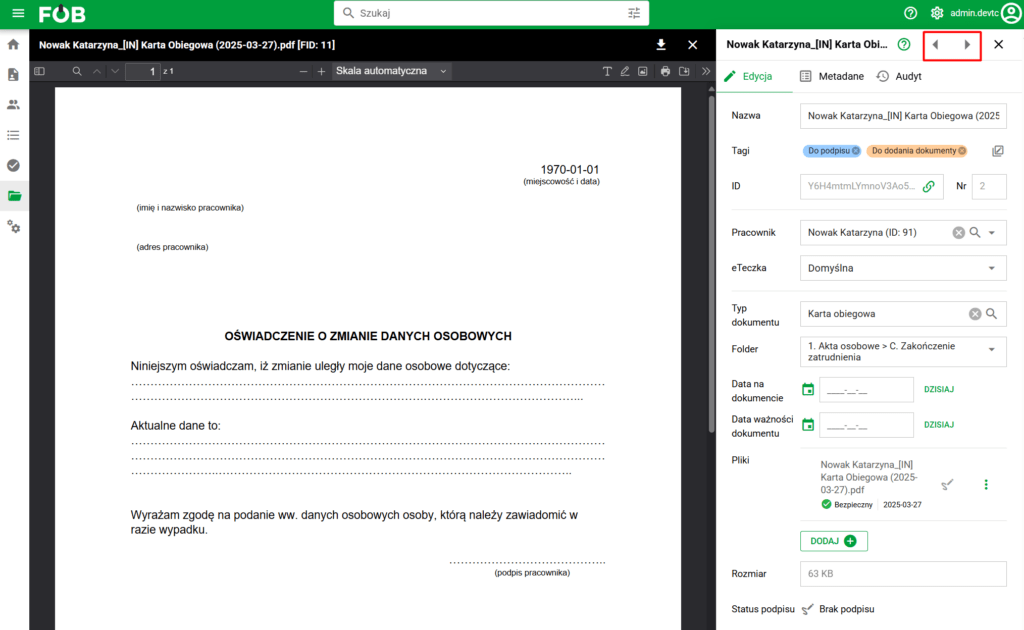
Document switch button
Access to master data
To gain access to edit master data, the user must perform one of the above methods to preview documents. After opening the document, the editing fields are located in the right pane of the window, which looks like this:
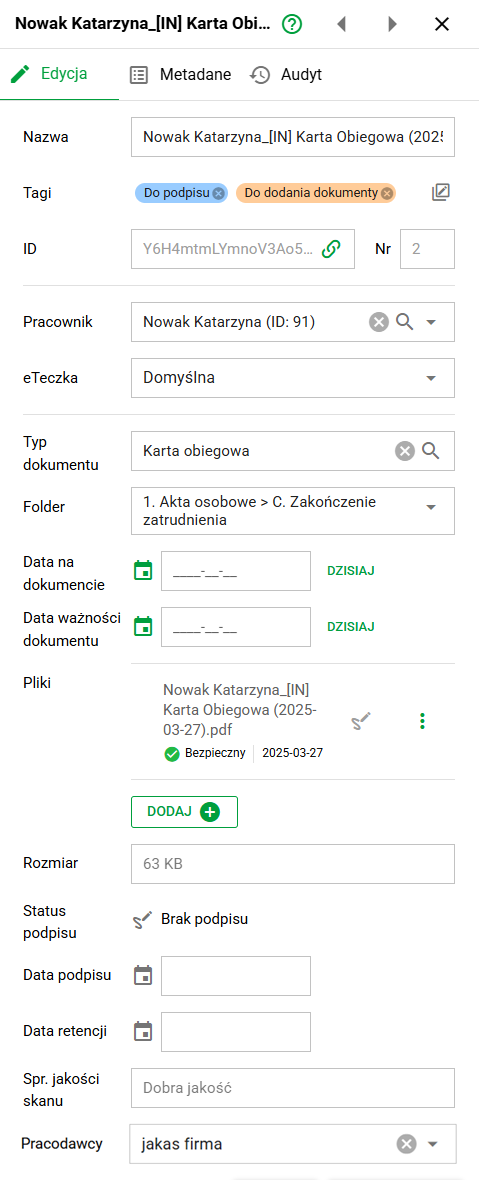
Document editing panel
Tags
It is possible to assign tags to individual documents, enabling easy marking and grouping of documents according to the user's needs.
In the "Tags" column in the main table under the edit button there is a tag management menu where you can create, edit and delete tags, as well as assign them to the document.
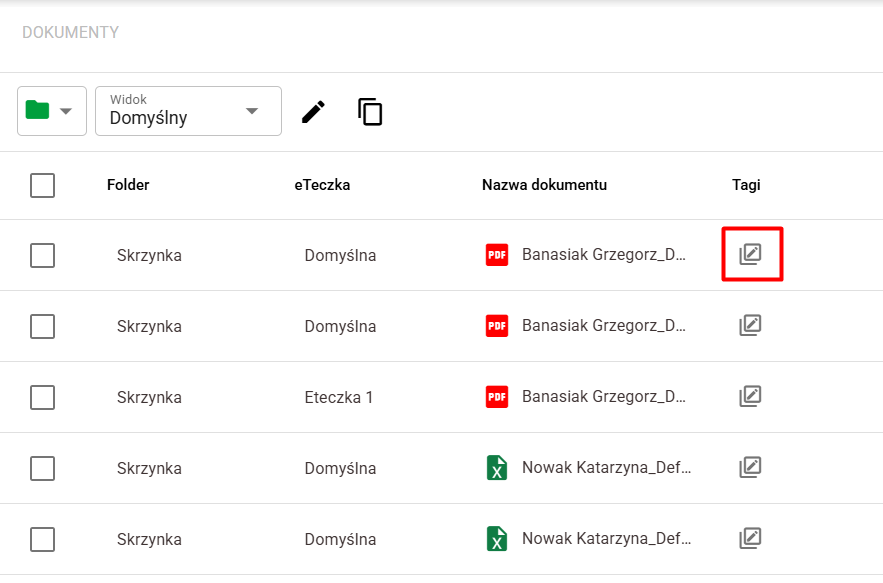
Tag menu – button
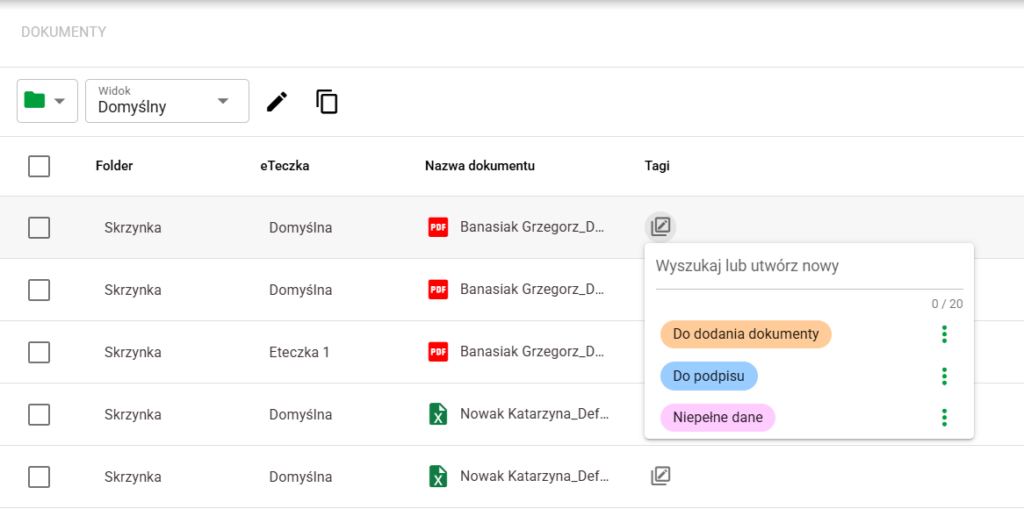
Tag menu – expanded
Creating tags
To create a new tag, enter a new, unique name in the search field in the tag menu and confirm with the Enter button. The newly created tag will be automatically added to the document on which the menu was opened.
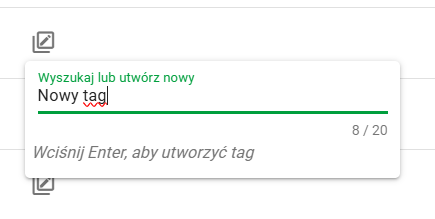
Creating a tag
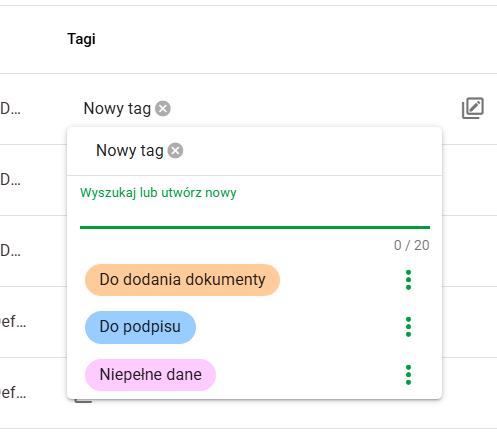
Newly created tag
Edit tags
To change the name or color of an existing tag, expand the document tags menu and then click the edit icon on the tag assigned to the document (appearing when you hover over a given tag) or expand the menu under the three dots and select the "Edit" option. A dialog box will open allowing you to set new options. To modify the color, enter a new value in HEX format or open the predefined color selection window.
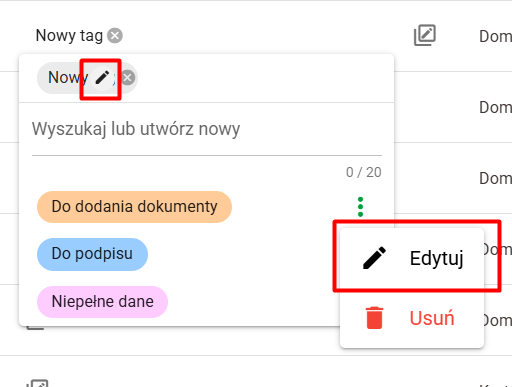
Edit tag
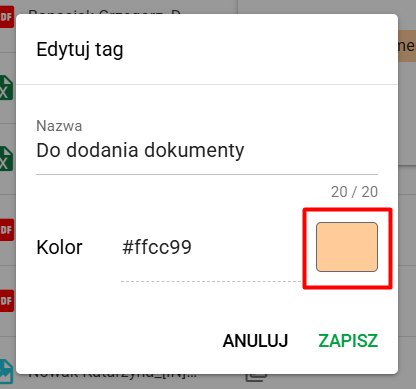
Edit window and button to open the color selection menu
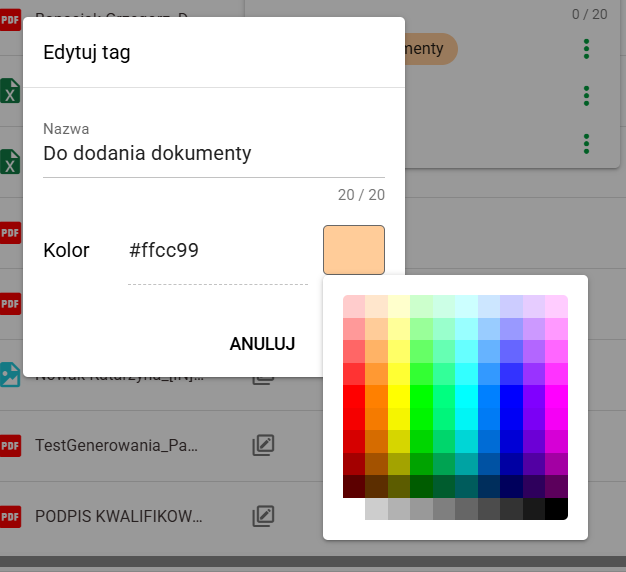
Color selection
Removing tags
To remove an existing tag, expand the menu of the document that does not have the tag you want to remove assigned to it. Expand the menu under the three dots and select the "Delete" option. After deletion, the tag will be unpinned from all documents to which it was previously assigned.
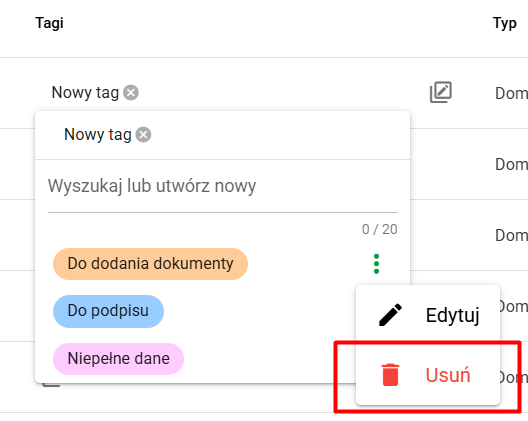
Removing a tag
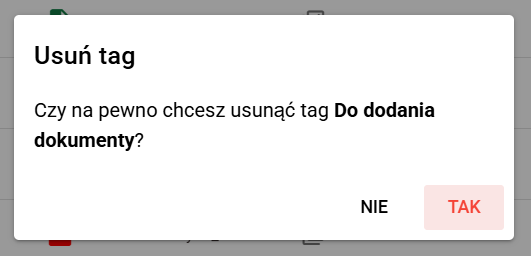
Tag removal confirmation
Assign existing tags and remove document tags
To assign an existing tag to a document, expand the menu and click the appropriate item in the list of available tags. The tag will then be added to the document.
To unpin a tag from a document, you can hover over the tag in the main table or tag menu and click the cross icon.
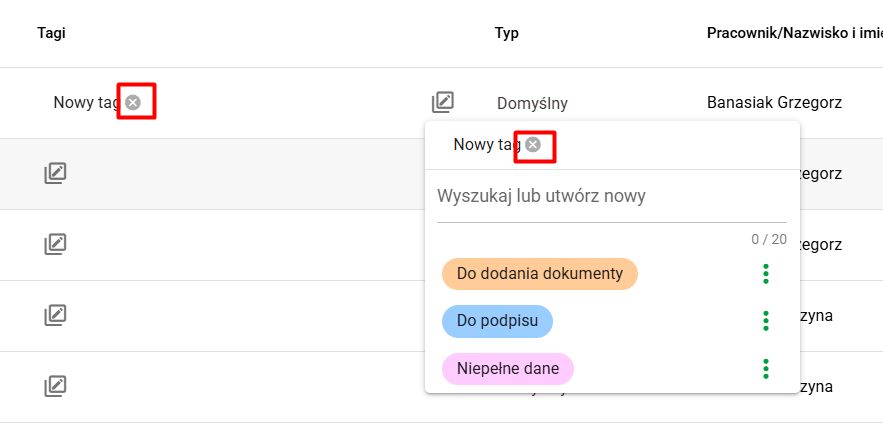
Unlinking a tag from a document
Notes
Access to a document does not automatically allow editing its note. Managing notes requires a separate permission. If you can view the document but cannot edit its note, ask an administrator to check that permission rather than putting the note in another document field.
For each document, it is possible to assign notes that allow adding comments and additional descriptions according to the user's needs. Previewing, adding, editing and deleting notes is possible both in the document view (after turning on the Note column) and in the Edit tab in the document details preview.
Note preview
The content of the note can be viewed in two places:
- In the Edit tab, in the preview of details of a specific document;
- In document view with the Note column enabled.
By default, only the first twenty characters of the Note are visible. To see the full content in the detail preview, you must select the green pencil symbol. An edit box will then open where you can read the entire Note.
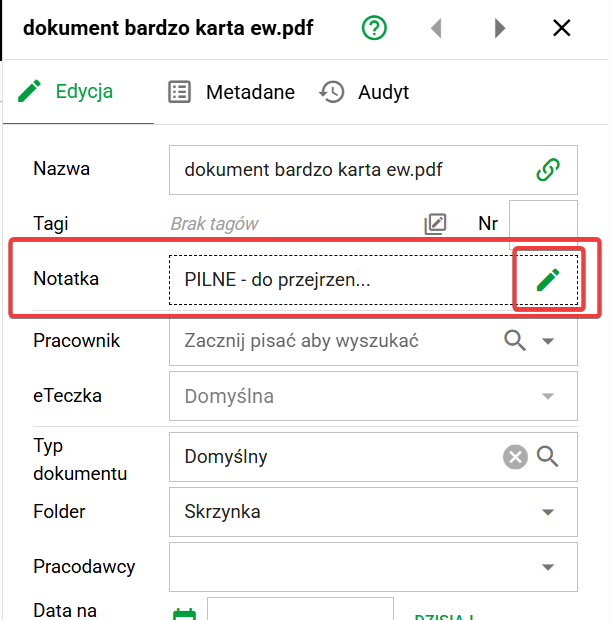
Note field in document detail preview
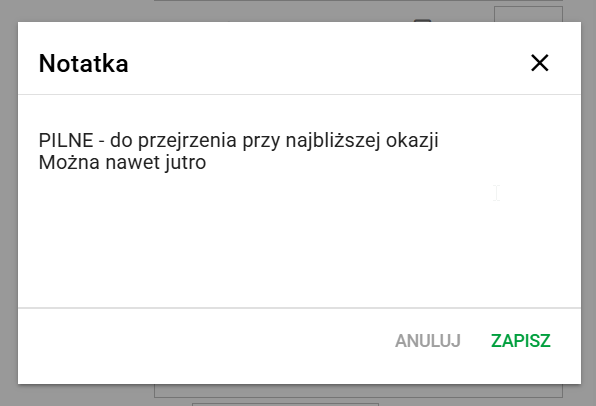
Note input field
In Document View, you must first enable the Note column. When a document has a note assigned to it, a characteristic green bubble will appear in the corresponding field. When you hover over it, the full content of the note will be displayed in the tooltip.

Adding a note
You can add notes in two ways:
- Via the Edit tab in the details preview of a specific document.
- Document view with the Note column visible.
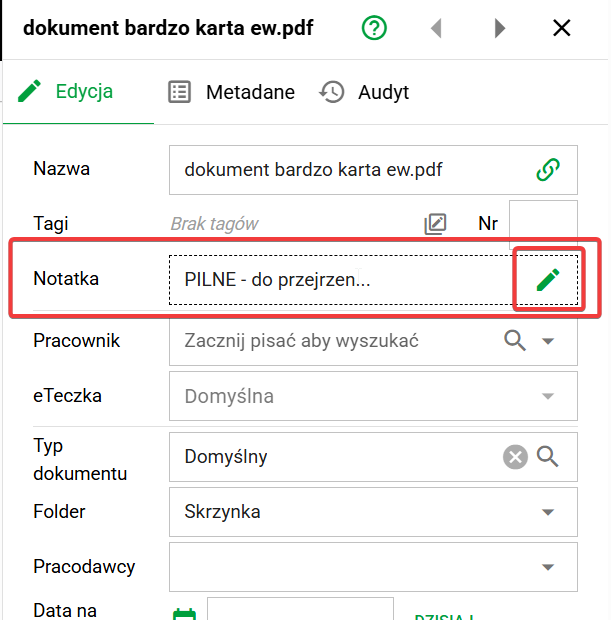
Note field in document detail preview
To set the content of the note in Edit, it is necessary to select the green pencil symbol marked above. This will open an editor with a text field where you can enter up to 4,000 characters. Finally, you need to save the changes you have made.
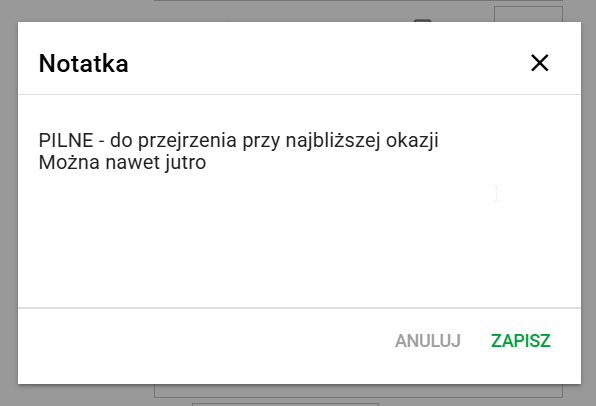
Note input field
In document view, hovering over an empty cell in the Note column shows a gray bubble. Select it to open an editor with the same text field described above.
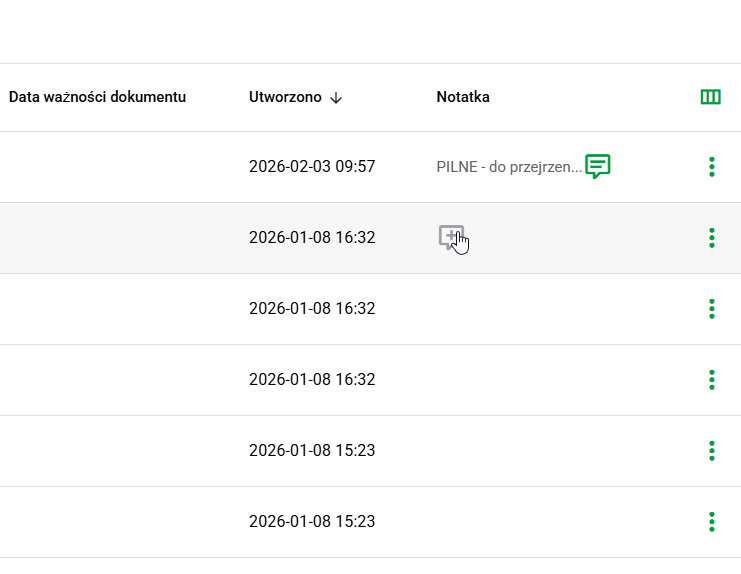
Adding a note from Documents view
Edit and delete a note
In document details, editing a note is done in a similar way to previewing and adding it. In the document view, to edit the note, click on the green bubble symbol. A window for modifying the existing text will then open.
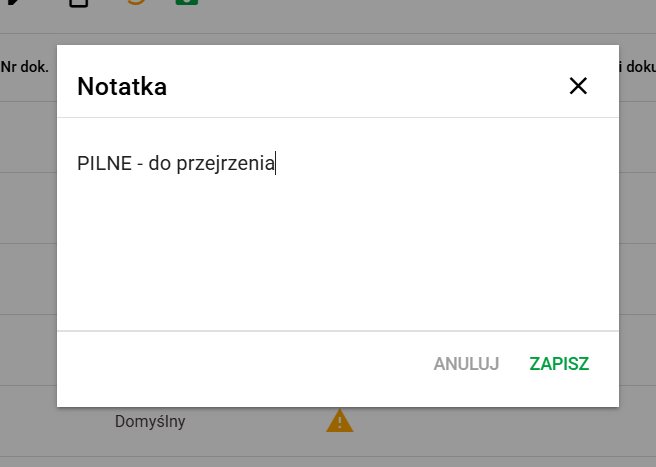
Editing a note in Document view
By removing all characters from the content of the note, it is deleted.
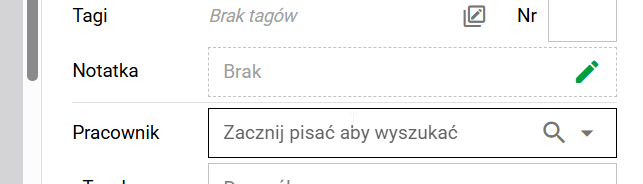
Deleted note
Note change audit
Any change to the note is recorded in the audit. To view the history of note changes to a specific file, go to its details preview, then the Audit tab, and finally Note changes. It contains information about which note was added on what day and at what time by which user. As in other cases, only twenty characters are displayed by default - to view the entire content of the note, hover over it.
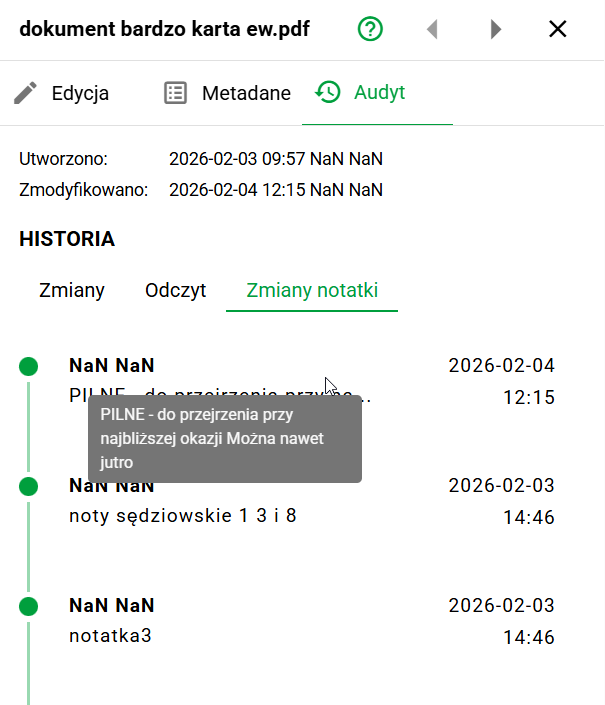
Note change audit
Multi-company service for employers
Within one client, documents can be assigned to one or many employers (e.g. in the case of a group of companies).
⚠️Note: Support for more than one Employer is available in the purchased Multi-Company option.
To assign an existing employer or employers to a specific document, select the appropriate items from the drop-down menu next to the Employers field. The Employer assignment is removed by clicking the cross.
When adding a document, the system can suggest employers valid on its date, using their Valid from / Valid until periods. Do not assume today's default employer is always correct, particularly for historical documents.
After changing a document date, check its employers again. During editing, an employer selected earlier can remain visible even if it no longer matches the new date; the system displays a warning. Verify the date and validity period before saving instead of choosing a different employer solely to dismiss the message.
Adding and removing employers is possible with the Multi-company option via the Administrator Module in the Dictionaries tab.
Handling potentially dangerous files
Documents added to the system are scanned for viruses. You can check the scanning status of document files by displaying the appropriate columns in the table and by entering the document details panel.
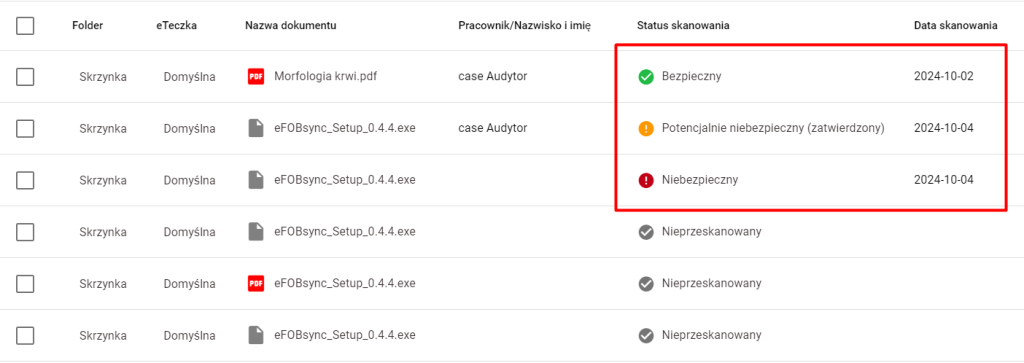
Document Scanning Status
Potentially unsafe files cannot be downloaded or viewed until approved by someone with appropriate permissions. A message will be displayed when you try to download or view it.
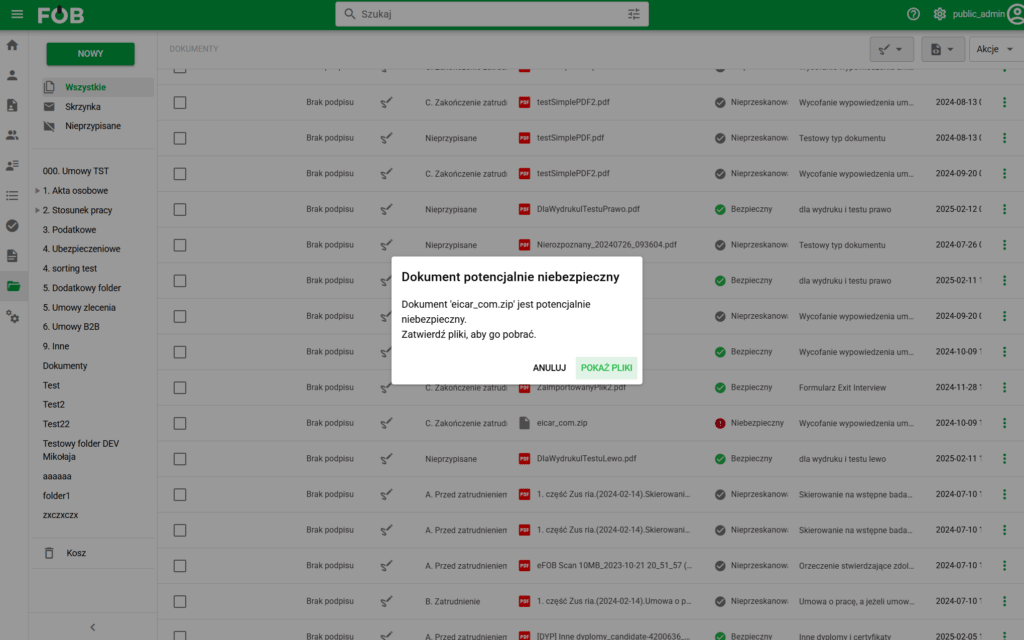
Blocking the download of a dangerous document
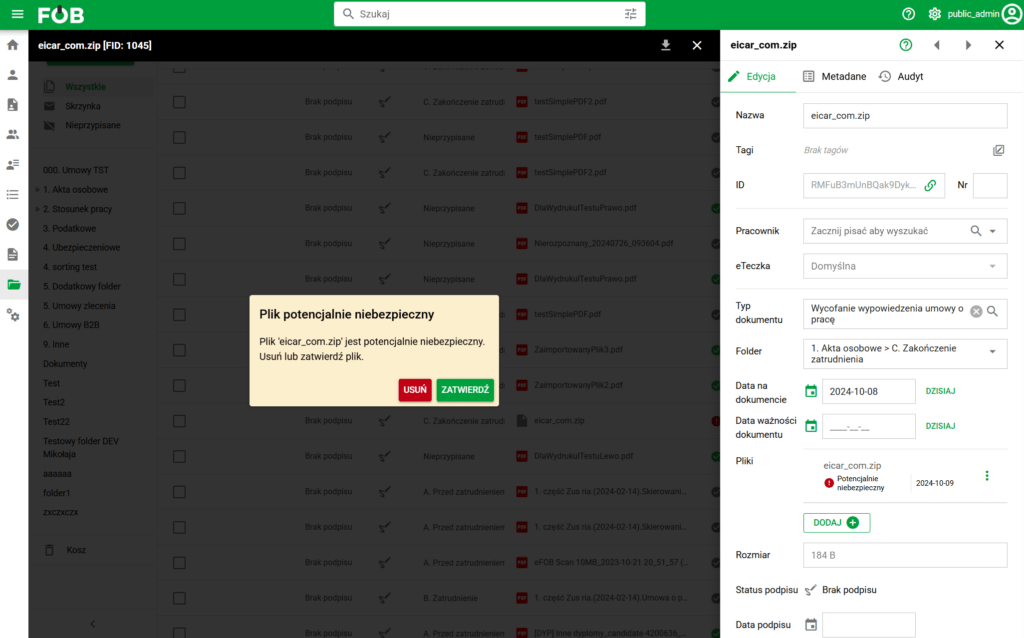
Blocking the display of a dangerous document