Generate documents
The generator in the Documents module allows you to generate documents in two modes:
- generating empty documents - without date and employee data
- generating documents for the list of employees provided in the attached Excel file
To go to the document generator, in the Documents module, expand the "New" menu and select the "Generate documents" option.
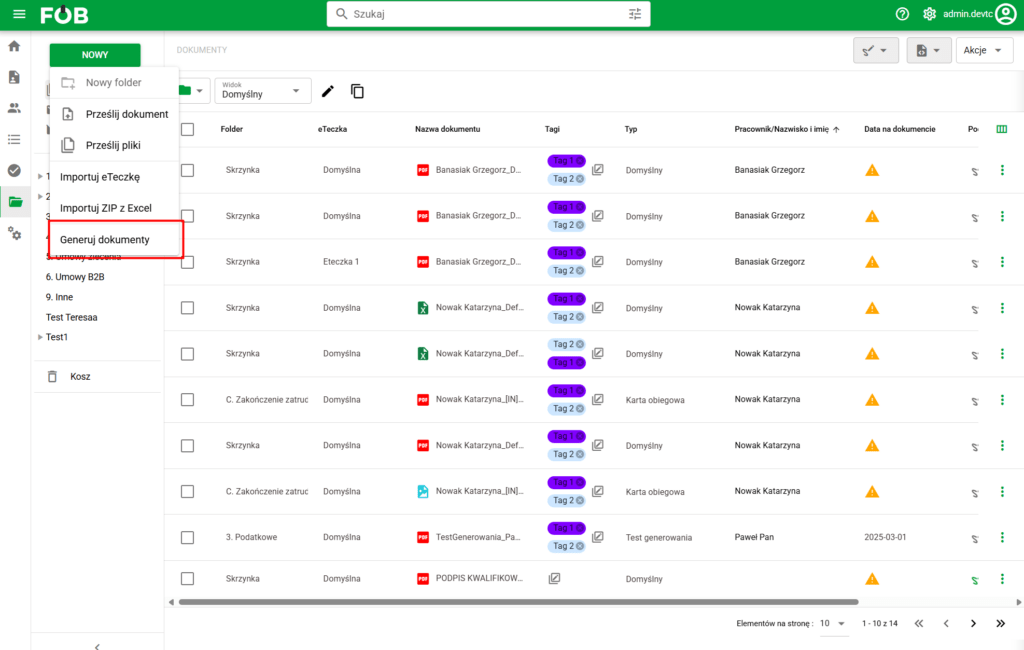
Documents – starting the generator
Configuration of the list of documents to be generated
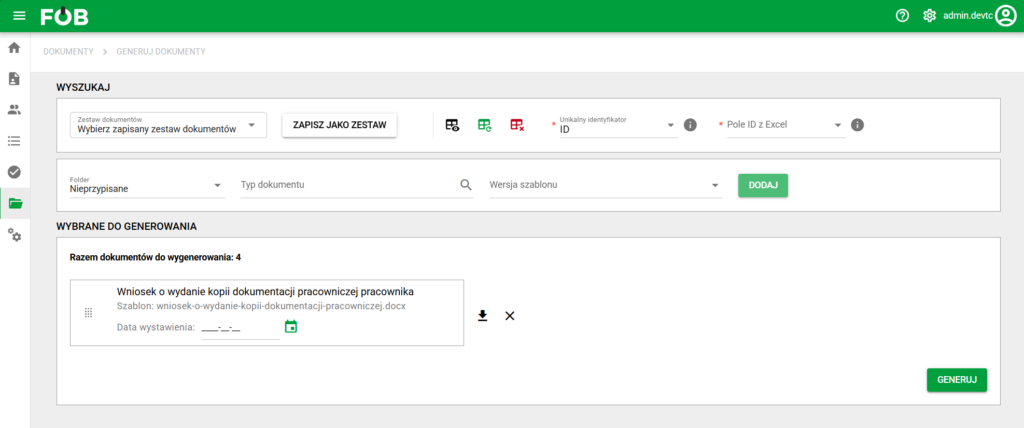
In the generator screen, we can configure the list of documents to be generated. To do this, select Document Type and Template Version and then click "Add".
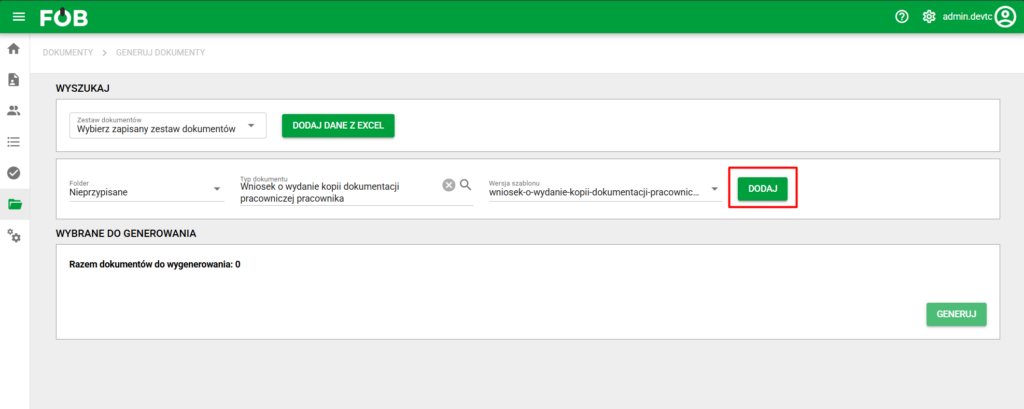
Adding items to generate
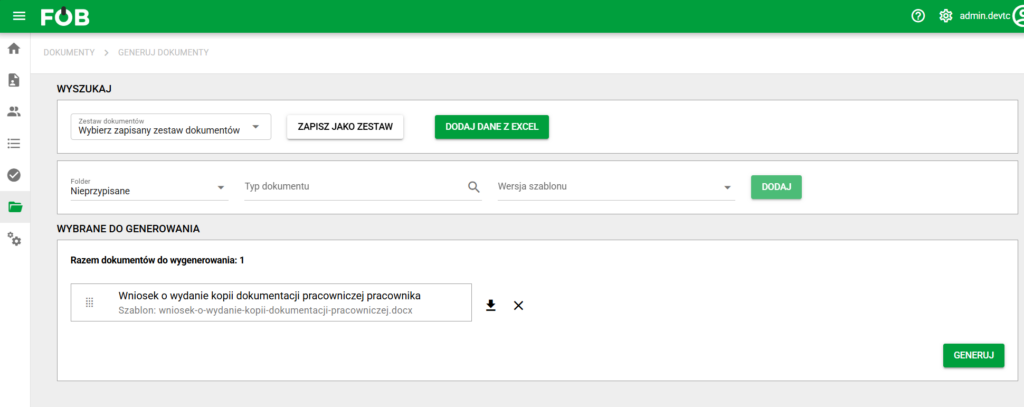
List of selected to generate
Generating documents for employees from an Excel file
It is possible to generate documents for specific employees, with additional data (if the document type template has appropriate fields). For this purpose, please attach a properly prepared Excel file.
The file must meet the following requirements:
- maximum file size 2MB
- maximum number of rows 16,000
- maximum number of columns 256
- the first line of the file must contain column names (headers) consistent with the fields in the document template that we want to complete
- the file must contain a column used to identify the employee
To upload the file, select the "Add data from Excel" option on the screen.
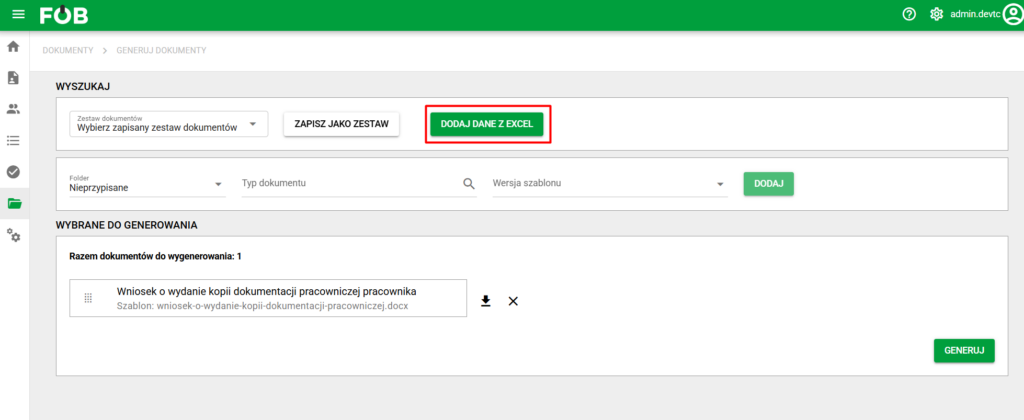
Add Excel file button
Options for Excel file
After uploading the file, the actions that can be performed on it will be displayed:
- Data preview from Excel – opens a window with a preview of the headers and sample data of the file
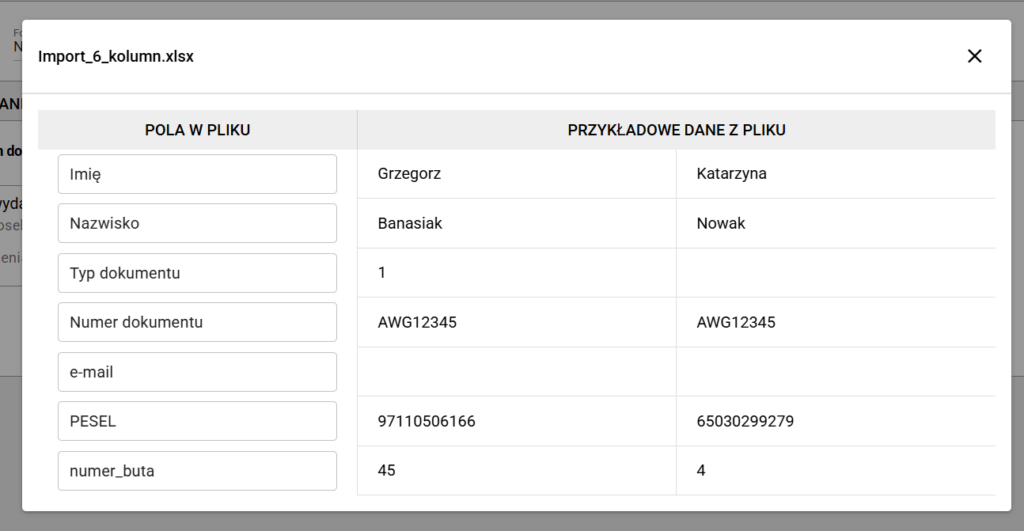
Data View from Excel
- Changing the Excel file – allows you to upload a new file
- Delete Excel file
For the data to be correctly identified, you must set the values of the following fields:
- Unique identifier – indicates the field by which Excel lines will be searched and verified for employees existing in the system
- ID Field from Excel – indicates a column in the file that contains the identification field indicated in the Unique Identifier field. This column must be non-empty for all rows.
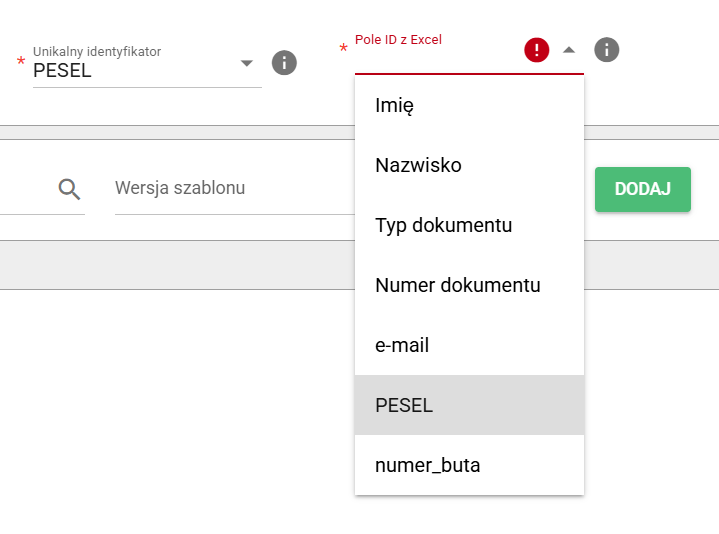
Identification field for Excel file
Verification of data from the file
Once you have finished configuring the document list, click the Generate button.
If an Excel file has been attached, verification of the data contained in it will be performed before generation begins.
If no employee is identified in the eFOB system for any of the file lines, an error will be displayed and document generation will not be started.
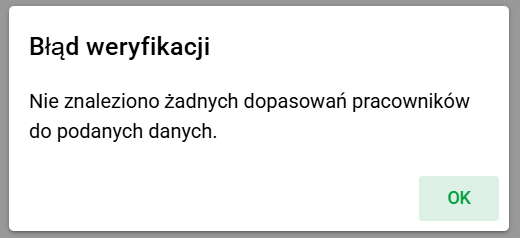
No employee matches from Excel
If an employee is not found for some of the rows, the user will be informed about this. He will be able to download the file with the incorrect rows and decide whether he wants to generate documents for the correct records.
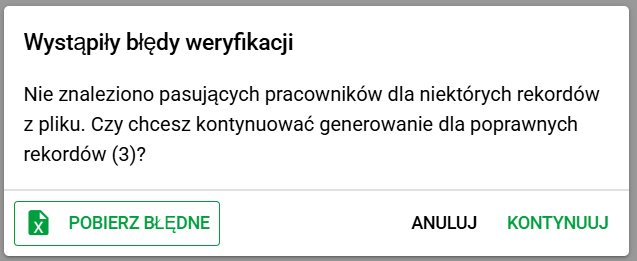
Some rows not matched from Excel
If all lines in the file successfully pass verification, document generation will start automatically.
Generating documents
Once the document generation process begins, progress information will be displayed on the screen. Once generation is complete, the files can be downloaded individually as a PDF or in bulk as a PDF or ZIP.
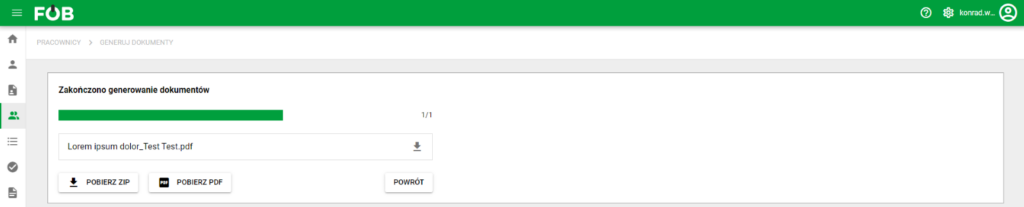
Generator Summary
The so-called "3D codes" are automatically added to the generated documents, which contain information about the document type and the assigned employee (in the case of generating documents for records from an Excel file). This allows for easy identification of the document after it is scanned and returned to eFOB. They are also designed to be resistant to scanning in worse conditions than typical scanners, e.g. with mobile devices.
Document sets
The list of selected documents can be saved as a reusable document set. To do this, click the "Save as set" button, give a name and determine the visibility of the set (only for me/for everyone). The next time you generate it, it will not be necessary to add further documents - just select the appropriate set from the list.
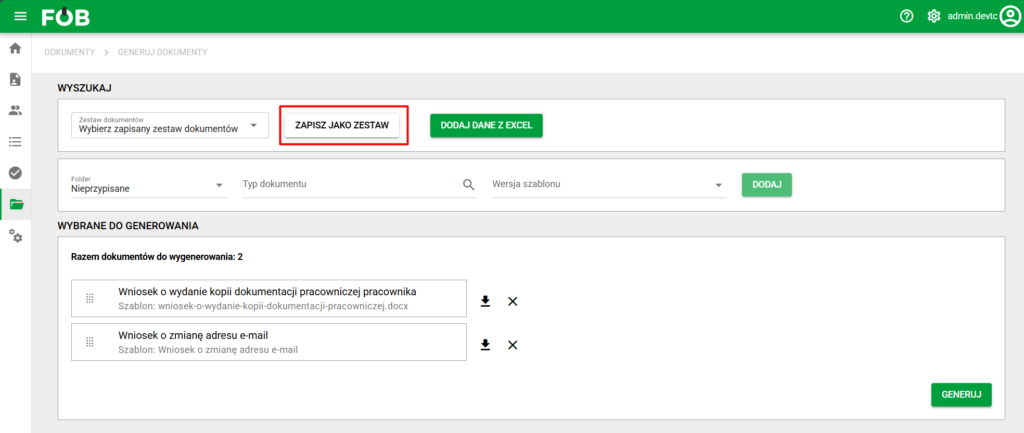
Saving a Document Set
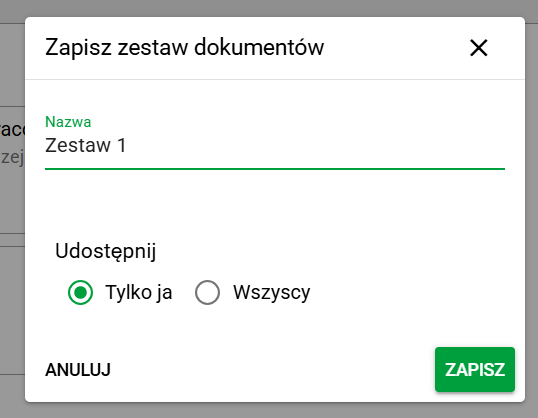
Adding set window
After making changes to an existing set, the user can choose between the Save and Save As options. Sets can also be edited (modify name and visibility) and deleted.
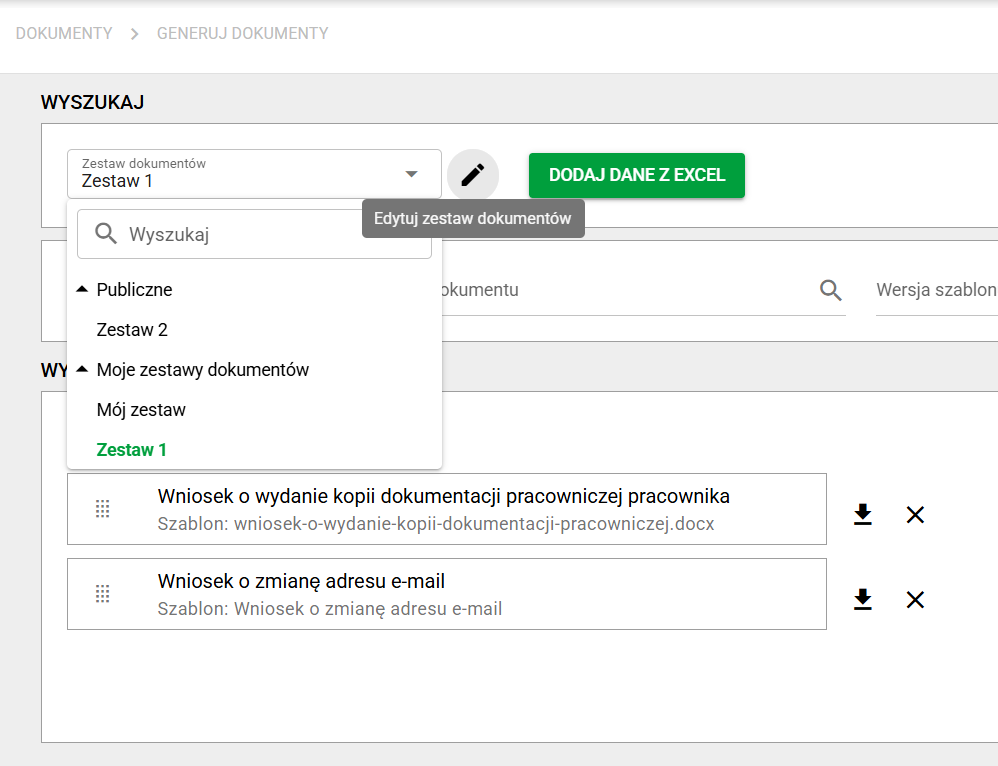
Selecting Document Sets
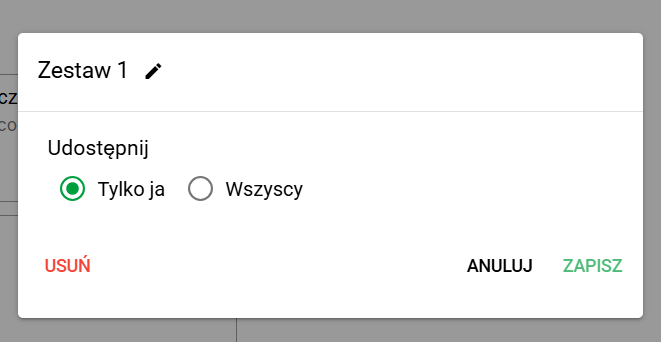
Set edit window
Prepare documents for a position
If an administrator has assigned document types to a position, you can use them as a ready-made list in the generator. You do not need to select the same document types individually each time.
These sets appear in the Documents for position group in the set selector. They are separate from saved private and public sets. Their contents come from the position configuration.
- Open the generator and select a position from Documents for position.
- If a document type has several available templates, choose the one you need. Template availability depends on factors including the document date and your permissions.
- Check warnings about document types without an available template. These items will not enter the generation list. You cannot apply a set that is empty or entirely unavailable.
- Confirm your selection and check the document list and dates before starting generation.
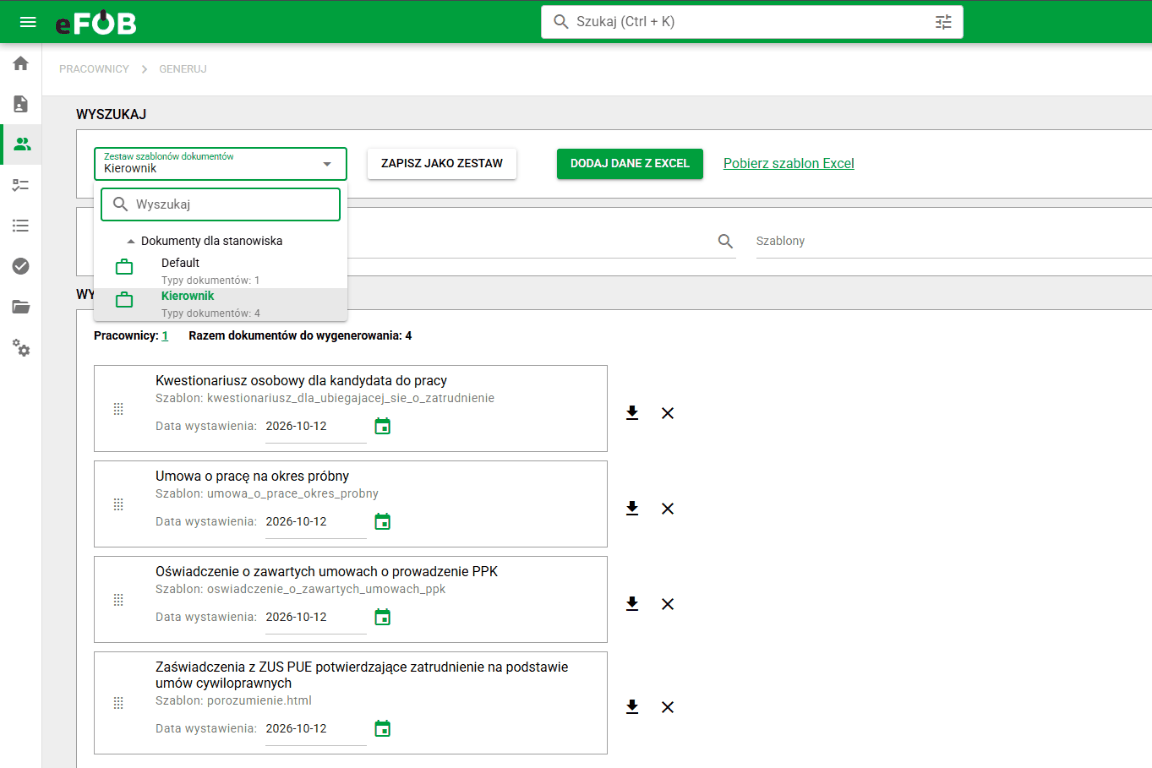
Applying a position set replaces the current list of documents to generate. It does not append documents to your existing selection. Cancelling the selection dialog leaves the previous list unchanged.
When the list is empty and each document type has exactly one available template, the set can load immediately. If there are warnings or a template choice is required, review the selection dialog first. Selecting a set does not mean that every required document already has a suitable template.