Automatic naming rules
What are automatic naming rules used for?
Automatic naming rules help you give documents consistent names without manually rewriting the same information every time.
You can use them in two places:
- in Documents / Upload files,
- in Update name.
A rule can build a name based on data that is already available on the document, for example:
- document type,
- employee last name and first name,
- document date,
- current file name.
Thanks to this, documents added by different users can still follow one naming standard.
Where can I find the rules?
In the Documents / Upload files view, open the automatic actions menu and choose the option for editing automatic naming rules.
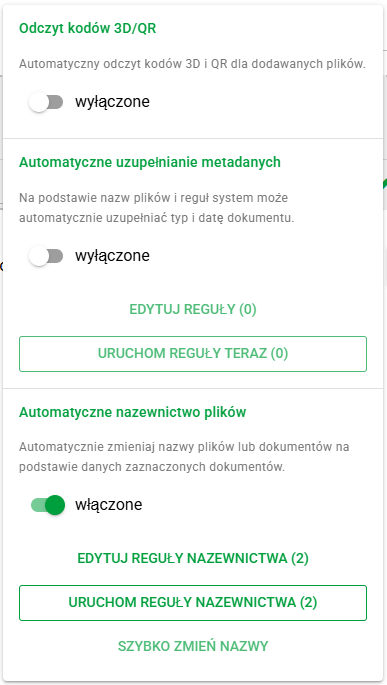
Saved rules are also available later in Update name, so you can use the same pattern both when adding new files and when organizing documents already saved in the system. You can go to the Update name window by selecting the documents to change and choosing Quickly rename.
Rule list
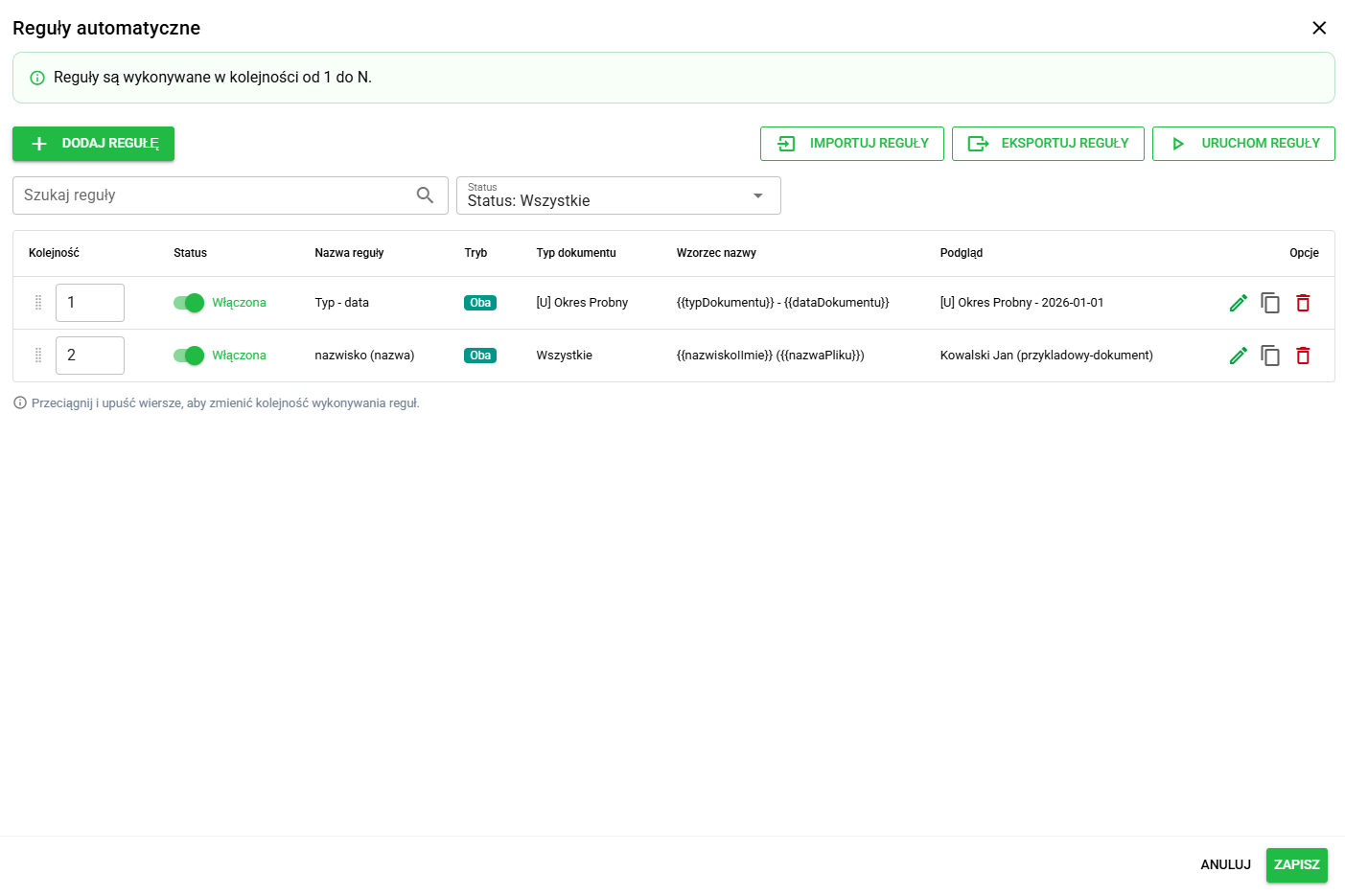
In the rule list window, you can:
- add new rules,
- edit saved rules,
- delete unnecessary rules,
- change their order,
- quickly check a preview for each item.
If your organization uses several different naming schemes, it is worth giving the rules clear names so it is obvious when each of them should be used.
Import and export of rules
The rules window also includes Import and Export functions.
They are useful when you want to:
- create a backup of your settings,
- move the rules to another organization or environment.
During import, the system checks whether the file is valid. If the file is incomplete or contains document types that do not exist in the current organization, the import may be stopped and an appropriate message is displayed.
This makes it easier to avoid saving rules that would not work correctly.
How does a single rule work?
Each rule is built from a few simple settings.

1. Name and order
- Rule name helps you recognize what a given pattern is used for.
- Order matters when you have several similar rules. Rules higher on the list are considered earlier.
- Status lets you quickly enable or disable a rule without deleting it.
2. When should the rule run?
You can choose the rule mode:
- Automatically – the rule runs during automatic processing or when the user runs the rules,
- Manually – the rule runs when the user starts naming manually from the Update name screen,
- Both – one rule works in both situations.
This is useful when you want to use one pattern only during bulk upload or only in the Update name window.
3. Which documents should use the rule?
You can limit the rule to selected document types. By default, it applies to all document types.
How do I build a naming pattern?
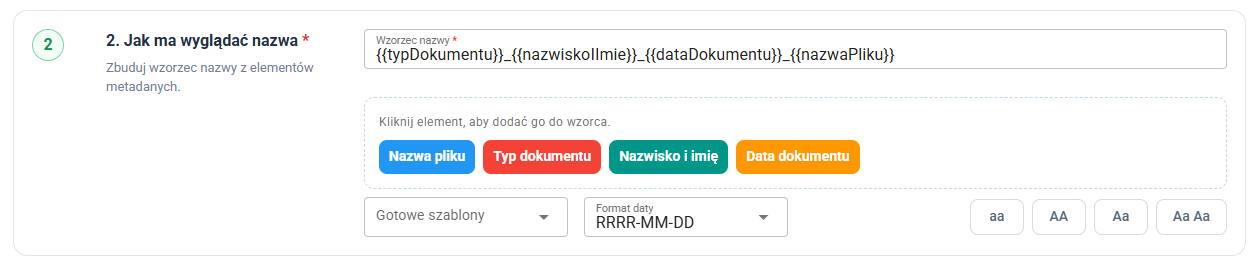
You can build the name from your own text and ready-made elements inserted from the document.
The most commonly used elements are:
- document type,
- last name and first name,
- document date,
- file name.
Example of a simple pattern:
{{typDokumentu}}_{{nazwiskoIImie}}_{{dataDokumentu}}
If you prefer, you can also start with a ready-made template and then adjust it to your own naming standard.
Date format and letter case
In the rule, you can set the date format right away, for example:
DD.MM.YYYY,YYYY-MM-DD,- a format with a month name.
You can also choose how letters should look in the whole name, for example:
- lowercase,
- uppercase,
- first letter uppercase,
- first letter uppercase in every word.
This helps keep one naming standard without manually correcting every file.
What if some information is missing?
Not every document contains a complete set of data. Because of this, each rule lets you decide what the system should do when one of the elements is missing.
There are three options:
- skip this element – the system builds the name from the remaining data,
- insert your own text – the system uses the fallback text entered by you,
- do not use the rule – the system skips the whole rule for that document.
This is especially useful when some documents still do not have a date or document type filled in.

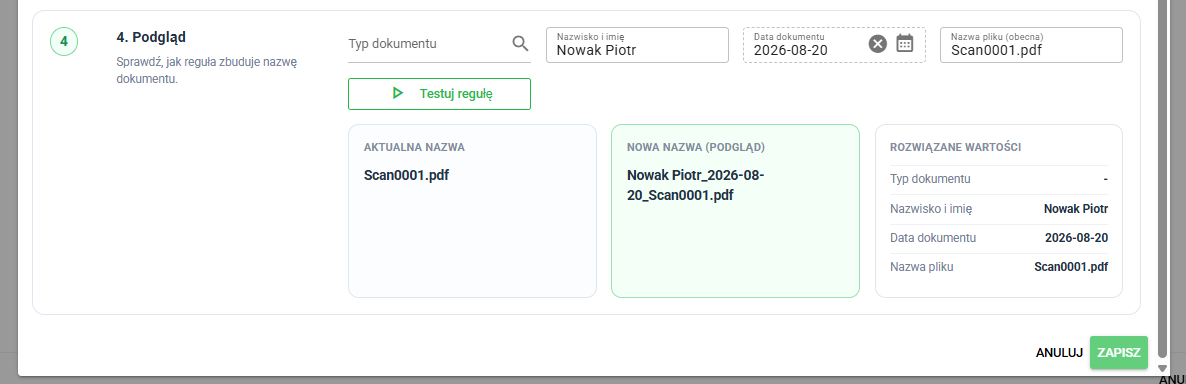
Preview before saving
While creating or editing a rule, you can immediately test the result on an example.
In the preview, you enter or select sample data, and the system shows:
- the current name,
- the new name after applying the rule,
- the values used to build the result.
This is the fastest way to make sure the rule creates the name exactly in the format you expect.