Add document – adding a single document
Add document
The Add document function allows you to add one employee's document to eFOB. A document can consist of one file, several files saved together, or several PDF files combined into one PDF.
The function is particularly useful when you want to quickly add a specific document to an employee's file, e.g. a contract, annex, certificate, statement, referral or confirmation.
On the add document screen you can:
- add one or more files,
- combine several PDF files into one document,
- complete the basic data of the document,
- add metadata, tags and notes,
- use OCR in selected packages,
- save the document or save it and immediately add another one,
- after saving, preview or download the created file.
How to run the Add Document function
- Go to the Documents module.
- Click the New button.
- Select Add Document.
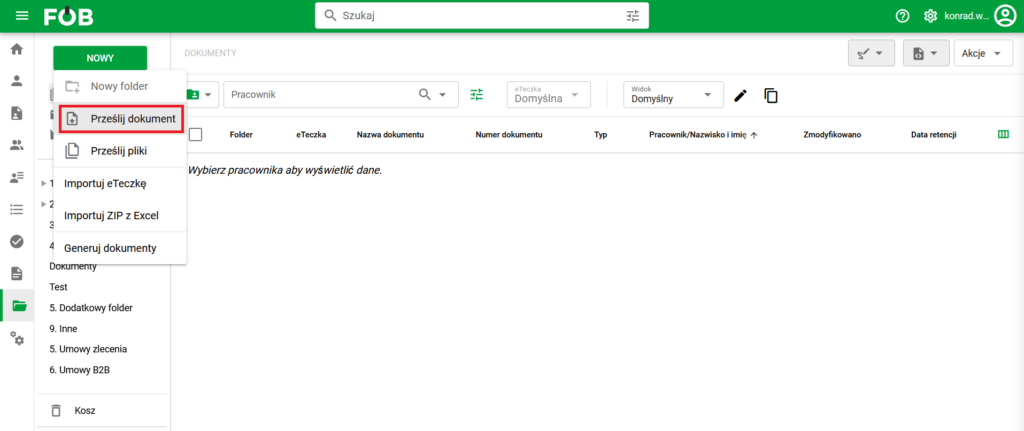
Add document button
After selecting this option, the form for adding a document will open.

1. Document – adding a file or files
In the Document section, you add files that will create a document in eFOB.
You can:
- add one file,
- add some files,
- remove an incorrectly added file,
- download the added file,
- preview the file before saving,
- add additional files using the Add file button.
2. Basic document data
In the Basic data section, complete the information needed to correctly save the document in eFOB:
- Employee - the person to whom the document relates,
- Document type - document category, e.g. contract, annex, certificate,
- Folder - place to save the document in the eFOB structure,
- Date on the document - date resulting from the content of the document,
- Employer - the employer to which the document relates, if multi-employer support is enabled in the system (so-called multi-company).
3. OCR – reading data from a document
Selected eFOB packages include the OCR function, which supports the recognition of data from the document.
OCR can help, among others: at:
- reading the content of the document,
- recognizing the date on the document,
- completing notes,
- faster checking of data before saving.
The OCR button is located next to the Date on document field and the Note field.
Note: OCR availability depends on package and system configuration. Reading efficiency may depend on the quality of the scan, the readability of the document and the layout of the content.
4. Advanced options
The Advanced Options section allows you to specify how the system should treat the added files.
Two main modes are available:
A. Merge to 1 PDF
Select this option if the added PDF files are to be combined into one PDF document.
This is useful when the document was scanned as several separate files, but should be saved as one document in eFOB.
Example:
- page 1 of the contract,
- page 2 of the contract,
- annex to the contract,
can be merged and saved as one PDF document.
Note: do not merge digitally signed documents because modifying the file may invalidate previously submitted signatures.
B. Multiple files in 1 document
Select this option if you want several files to belong to one document, but you do not want to merge them into one PDF.
This mode is useful when the document consists of several attachments or files of different types that should be stored together as one item in eFOB.
5. Document metadata
On the right side of the form there is a Metadata section. You can fill in additional information describing the document.
Depending on the configuration, the following may be available:
- Name - the name of the document visible in eFOB,
- Tags - additional markings to facilitate search,
- Notes - description or comment to the document,
- Expiration Date - The expiration date of the document, if applicable.
Result preview
After adding files and selecting advanced options, the system can prepare a preview of the document being created. The user can immediately:
- preview the document,
- download PDF,
- check whether the document was created correctly.
This is useful for verification before saving the final document.
Save the document
After adding files and completing data, you can choose one of the actions:
- Cancel - closes the form without saving,
- Save and add another - saves the document and opens the form to add another one,
- Save document - saves the document in eFOB.
The Save and add another option is especially useful when you add several documents one after the other, but each of them should be a separate item in eFOB.
When to use "Add Document" and when to "Upload Files"?
Use Add Document when:
- you add one specific document to eFOB,
- the document consists of one or several files,
- you want to combine several PDF files into one document,
- you want to immediately complete the data, metadata and save the document,
- you add documents one by one.
Use Upload Files when:
- you add many documents at the same time,
- you want to work on a list of many files,
- you want to complete data en masse,
- you use automatic rules, multi-scan, 3D/QR codes or mass OCR.
More information in a separate article: Upload files – eFOB
Possible errors or limitations
Support for duplicate names
If a message appears during saving about an existing document, a duplicate name or an illegal file type, follow the message displayed in the system. If in doubt, check the document name, selected file type and employee details.
If, during saving, the system finds an existing document with this name for the selected employee, it will display an error message with the option to select an action:
- Replace all – this option will overwrite existing files with new files
- Keep all – the option will save existing files and save new files in eFOB, adding the next file number in the name (in brackets).
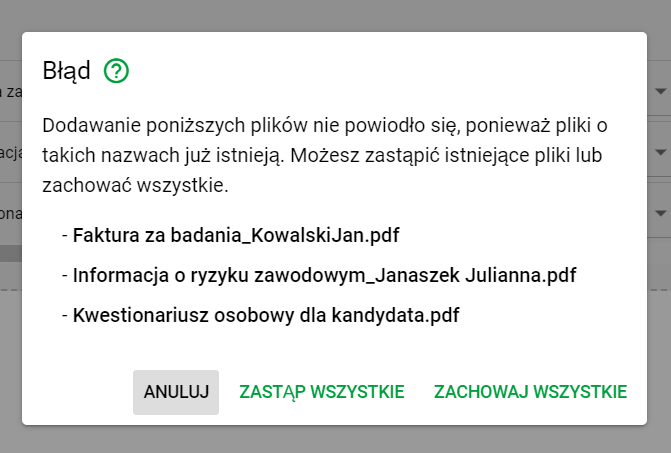
Invalid file name message
Allowed file types
Available file formats may depend on your system configuration. The administrator can define allowed file types in the Administration / Admin eFOB module. If you cannot add a file, check its format or contact your system administrator.