Tabular and mobile views
List view
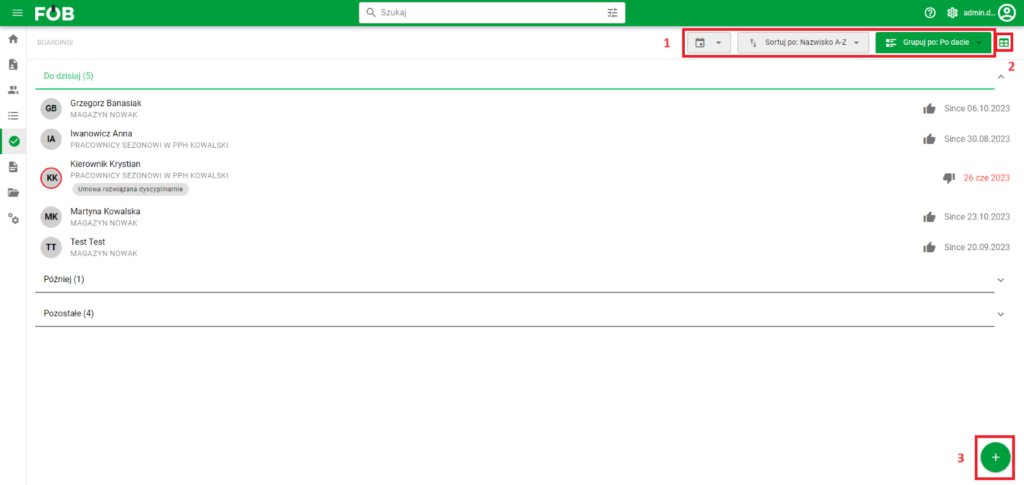
List View
- The list view contains a summary of employee data divided into groups in relation to the settings made in the options marked with number 1. We can group according to the variants displayed below:
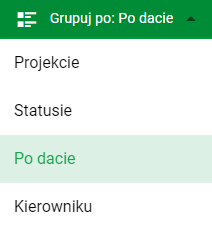
Grouping
-
The button number 2 is used to switch the view to the table version.
-
Button no. 3 (the same for the table view) opens the form for adding a new boarding, which looks like this:
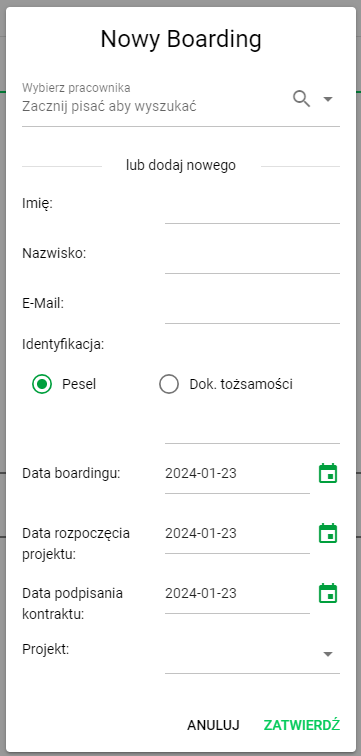
Adding boarding
Table view
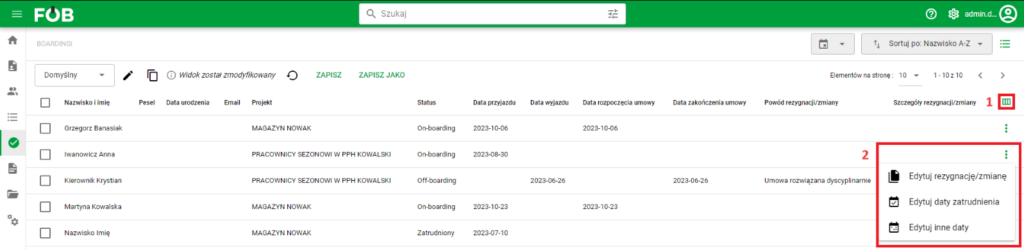
Table View
1. Table view allows us to display records in the form of a table. Using button no. 1, we can freely set the column headings that should be included in our table.
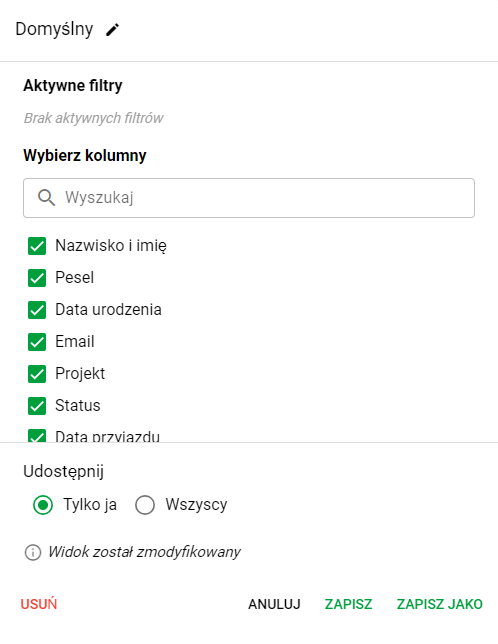
Table headers
2. Menu No. 2, called up with THREE DOTS, allows us to edit dates, resignations, changes for the record we have selected.

Edit buttons
Mobile view
They differ in the arrangement of records and buttons, but they work in exactly the same way as described above.
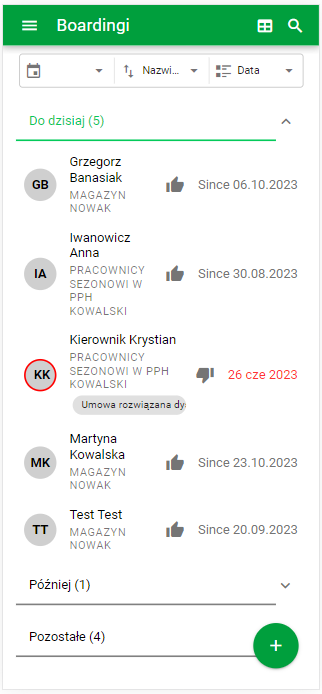
List mobile view
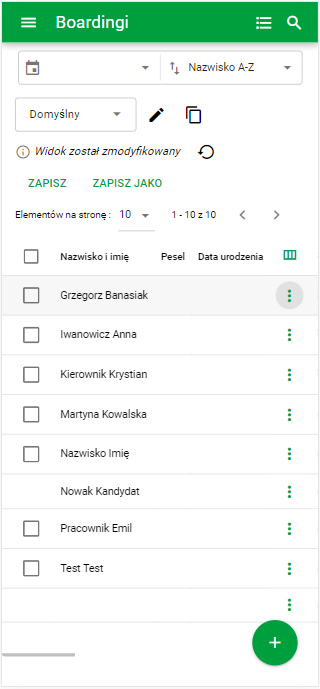
Table mobile view
Boarding change of plan
To change the border plans for a specific employee, find the employee:
A) in the list

Sample record
B) on the board

Sample record
And click on the record with the left mouse button. This will open the employee summary:
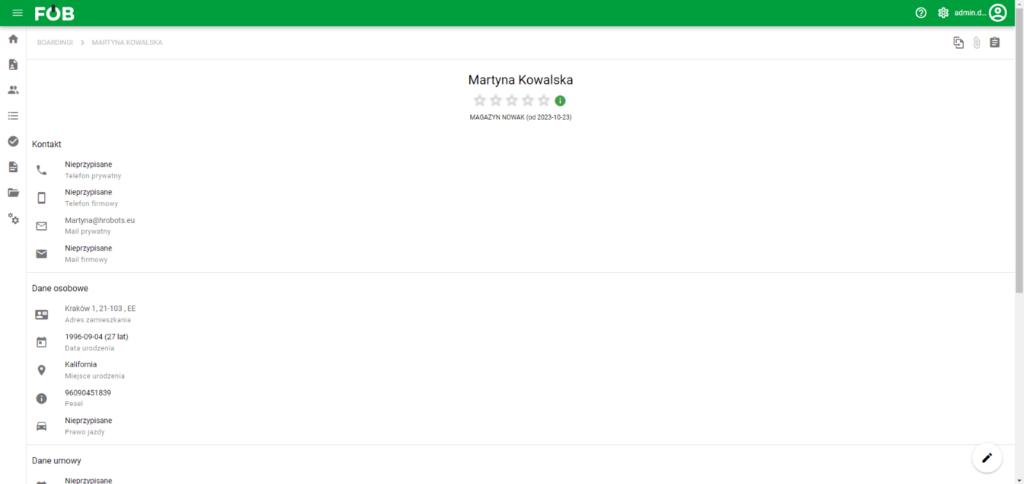
Employee Summary
To change the plan, find the button in the upper right corner:

Schedule Button
After clicking on it, the plan change form will open:
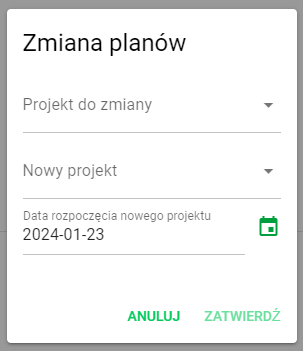
Schedule change window
In which we can update: The project to change, the new project and the start date of the new project.
To confirm the modifications, click the CONFIRM button.