Export and import order panel
Go to orders
To get to the order window, enter the administration panel and then select the button below:
Order button
After pressing it, a new screen will appear as follows:
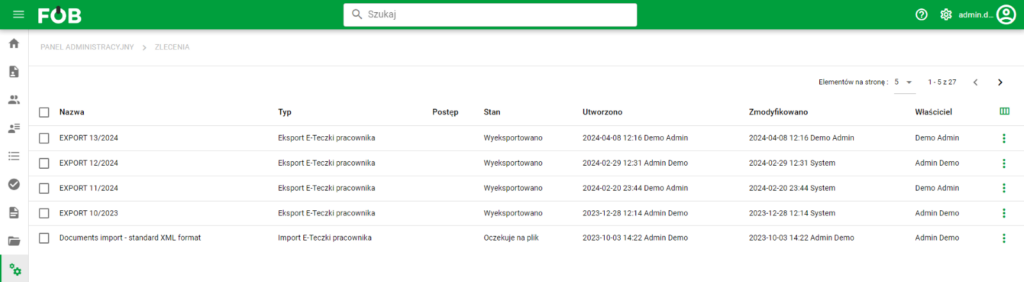
Order table
Order table
Here you will find a table summarizing recent orders, which include e.g. exports and imports of eFiles made in the DOCUMENTS module
Each order has a further summary, which can be accessed by clicking on the record we are interested in, or using the THREE DOTS button at the very end.
Details screen
The summary screen looks like this:
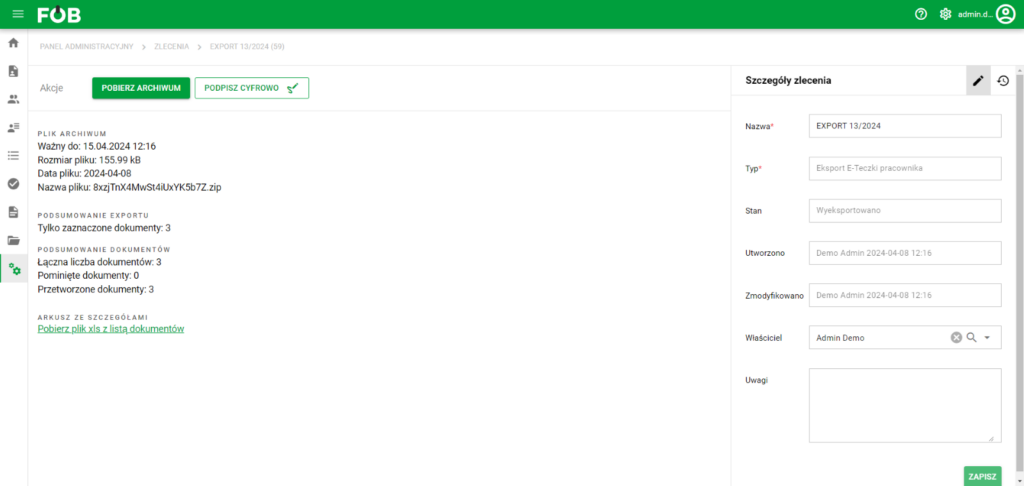
Detail Screen
There is an editing panel here, where we can, among others: Change the owner or name and action buttons that allow you to download the archive or xls files that contain order details.
The left side of the screen is responsible for the following actions:
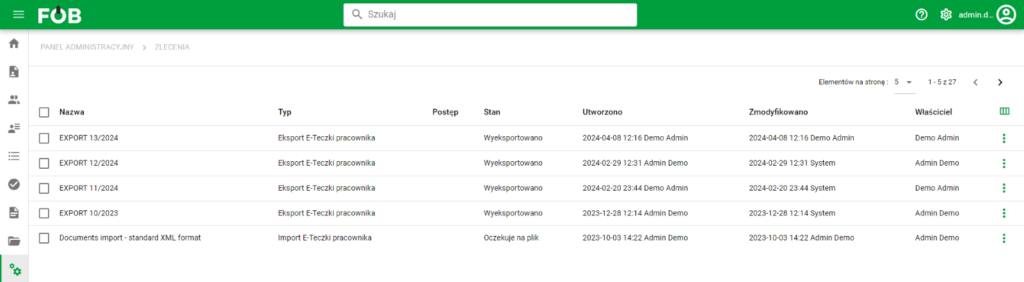
Orders Screen
Rights for order details:
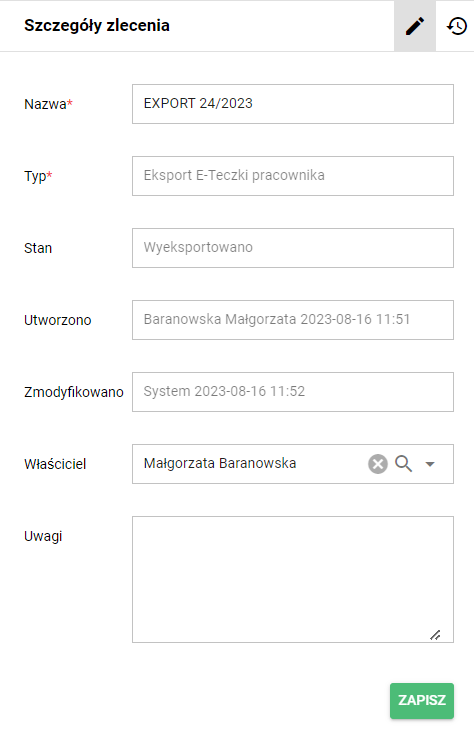
Order details window
Document export jobs
For orders related to the employee document archive, it is possible to create a digital signature:
Digital Signature Button
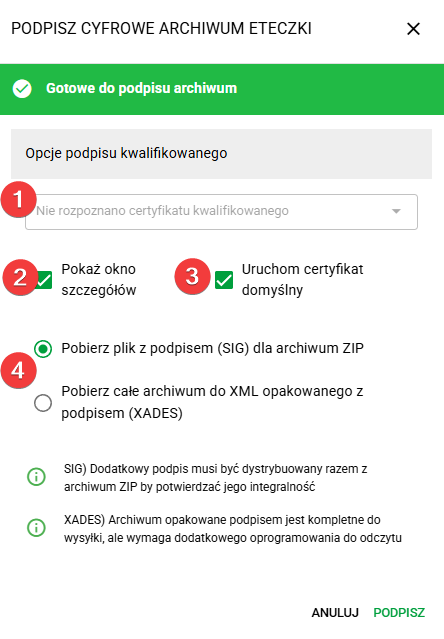
The following options are available in the SIGN DIGITAL FILE ARCHIVE window:
- Qualified certificate – allows you to select the certificate that will be used to sign the employee document archive. If the certificate is not detected automatically, you can use the Run default certificate and Show details window options.
- Show details window – an option useful when adding your own graphic signature mark, as well as when diagnosing problems with the signature
- Run Default Certificate - Check this option in rare cases where the certificate is not detected automatically, for example due to different card drivers in Windows. In combination with the 'Show signature details window' option (5), this allows further diagnosis of the problem and possible manual selection of the card driver.
- Signed archive format – allows you to choose how to save the signed archive:
- Download signature file (SIG) for ZIP archive – creates an additional signature file that should be uploaded with the ZIP archive to confirm its integrity.
- Download entire archive to XML wrapped with signature (XAdES) – creates a signature-wrapped archive in one file, which makes it easier to send, but may require additional software to read.