Users
To go to user administration, find the USERS button in the administration panel:
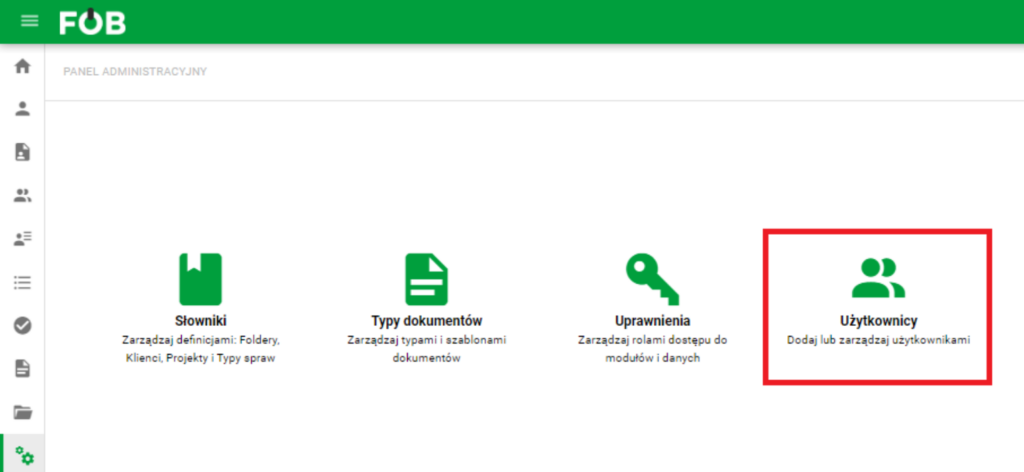
Users button
The user window looks like this:
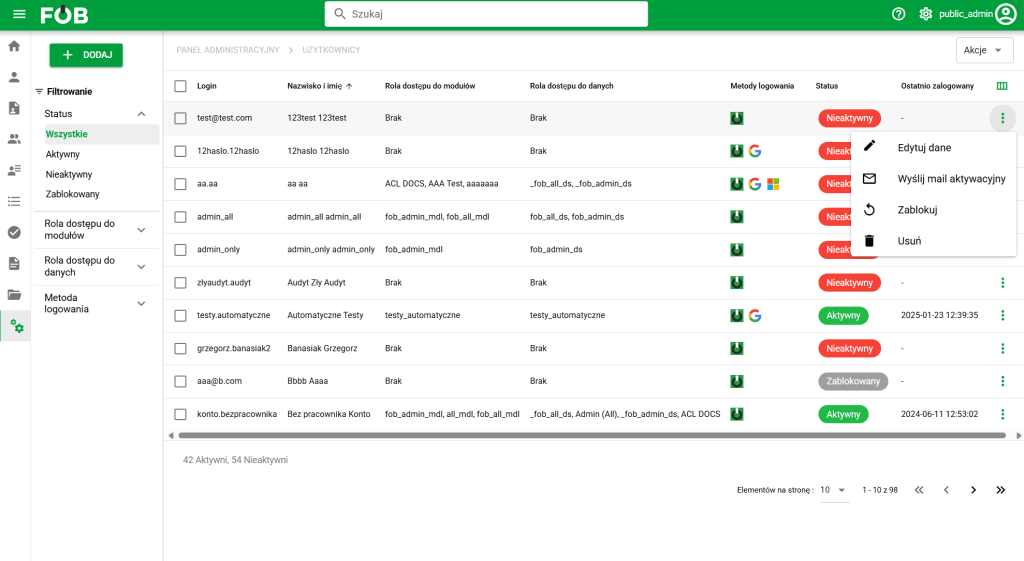
Users Window
Main options
The user administration module offers the following options:
- Adding a new system user (under the green "+ Add" button on the upper left side)
- Search and filter displayed users
- Under the 'three dots' button on the user record, the following are available:
- Edit data (also available by pressing the record itself)
- Effective permissions (for users whose access can be analyzed by the administrator)
- Send activation email (for existing User)
- Block (for existing user)
- Delete (for existing user)
- In the Actions menu
- Set login methods
Adding a new user
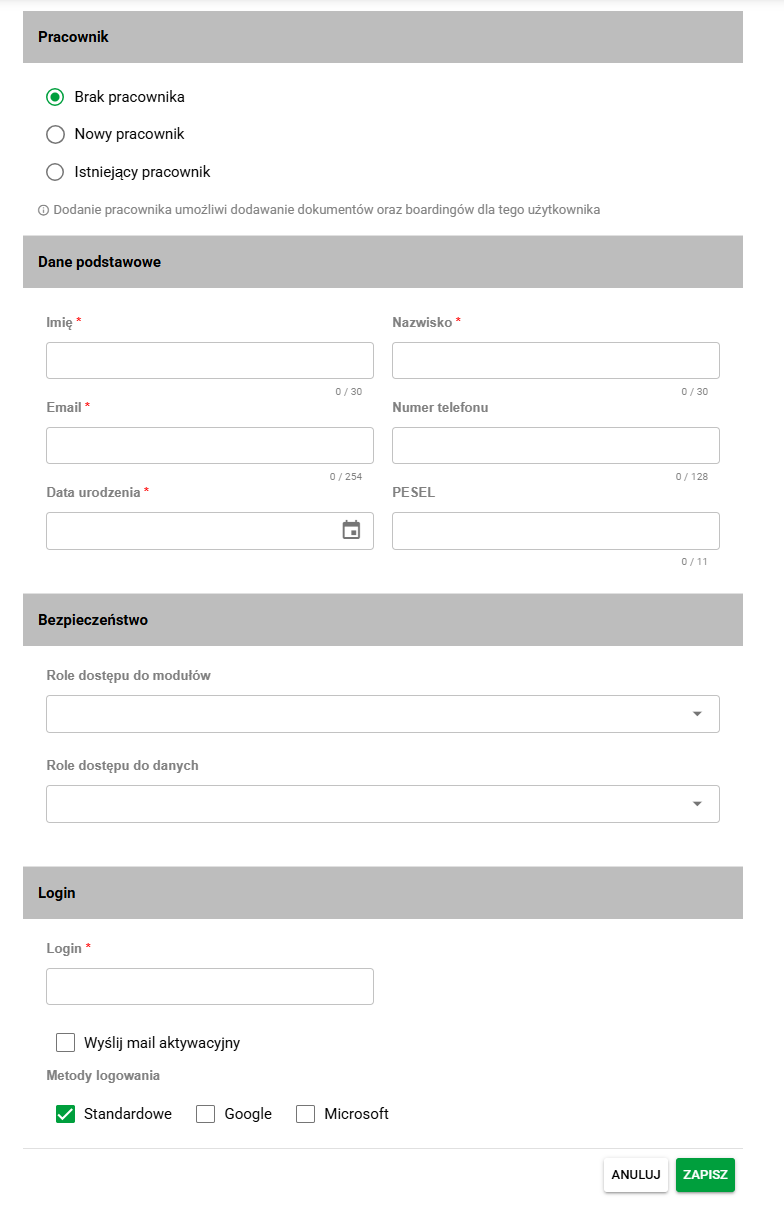
Adding a new employee
The User may, but does not have to, be associated with an Employee. Only the user with an assigned Employee has access to the actual functionalities regarding Documents, Employment and others.
The first step in creating is to select the Employee option:
- No employee - User only assumption
- New employee – Creating a new User and a new Employee
- Existing employee – Creating a new User based on the data of an existing Employee
After selecting the Employee option, you must complete or verify the Basic Data, on the basis of which the Login name proposal is automatically created:
- Used to create an account and reset the password: Name, Surname, Email and Date of birth
- Other data: Email, telephone number, PESEL number
In terms of security, previously defined Roles for access to modules and Data should be defined.
In the "Login methods" section, specify which methods available within the tenant should be available to the user.
If we have marked any module access or data access roles as default in Permissions, they will appear in the appropriate fields on the Add User screen.
After saving the user, it is worth verifying their actual access scope in the Effective permissions panel. The panel takes into account module access roles (MDL), data access roles (DS) and security rules that affect the visibility of modules and records.
Finally, after verifying the Login, you can select the additional option 'Send activation email', which will be activated immediately after creating the account.
Note: Adding an account with the same name, surname, date of birth and login as in other tenants will result in a query about adding permissions for the existing user. If the login is identical and the data does not match, an error will be displayed.
Adding an existing user from another company in the same organization
If the login entered while adding a user already belongs to an active user in another company within the same organization, the system does not create a second account. After checking the login, it shows which companies in the organization the user is already assigned to, fills the form with that user's data and allows the existing account to be added to the current company.
This option is available only to an organization administrator. If the login belongs to a user from outside the organization, or the operator does not have organization administrator permissions, the system blocks saving and displays an appropriate message.
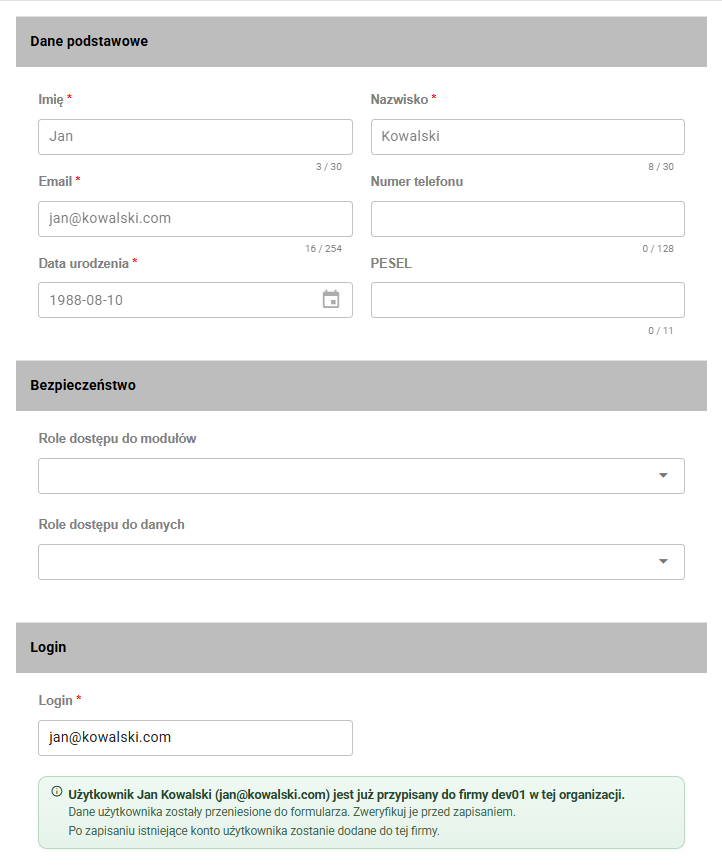
Edit user data
After selecting the user editing option, the audit options are visible in the History section:
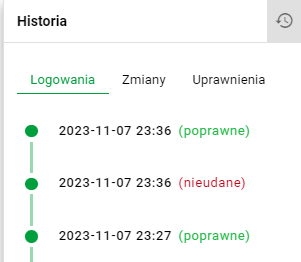
History
- Logins – Information regarding successful and failed logins
- Changes – Information regarding changes to basic data
- Permissions – Information on changing permissions
Effective permissions analysis
The Effective permissions option is available in the user menu and in user editing for administrators who have the appropriate permission in the Users module. After selecting it, the application opens a side panel with an analysis of the user's actual access.
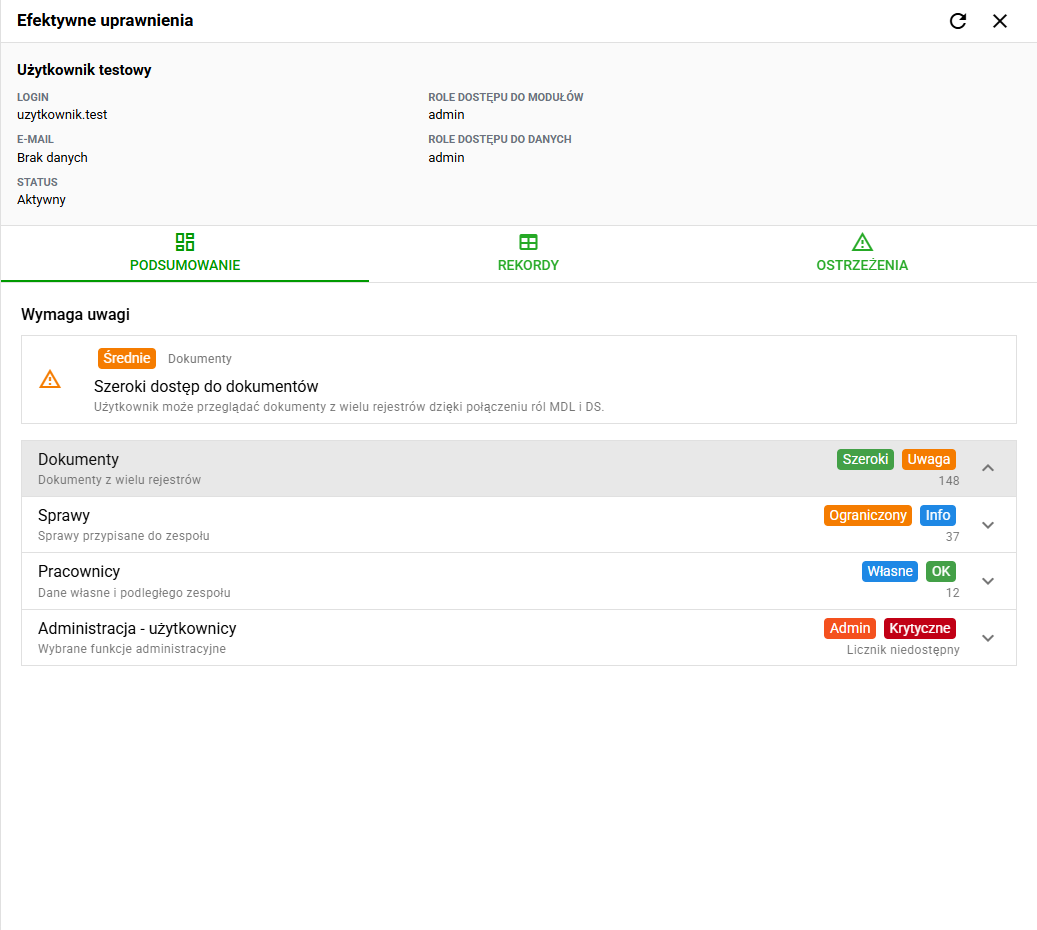
The panel contains three main tabs:
- Summary – shows the modules the user can access, the access scope status, risk status and number of accessible records.
- Records – lets administrators inspect example records available to the user in a selected module, with search and pagination.
- Warnings – groups situations that require attention, such as broad document access, administrative access or partial access in a workflow.
In the details of a selected module, the system shows which actions are allowed and which sources grant them, for example an MDL role or a DS role. This helps administrators answer why a user can see a given module, record or action.
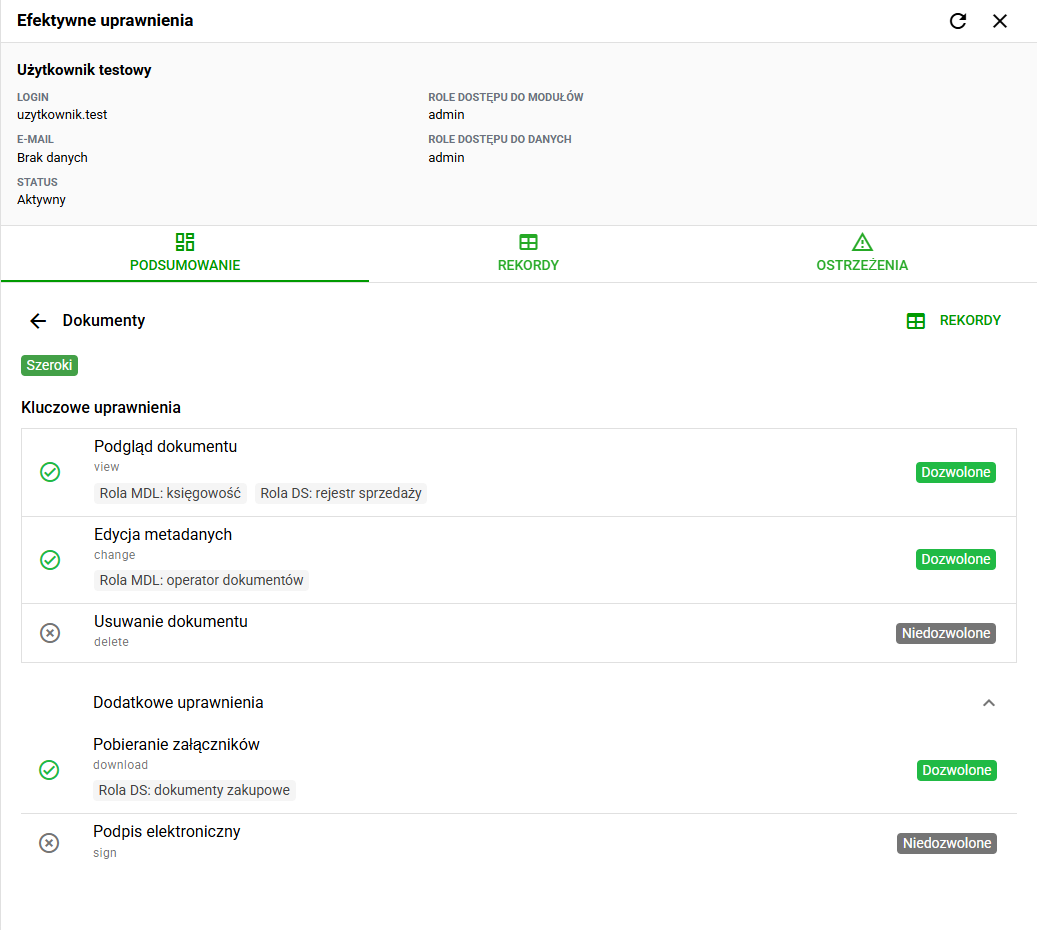
The analysis is especially useful after changing a user's roles, before a security audit and when investigating requests about access to documents, cases, employees or administrative functions.
Delete a user
The option to delete a User is available if he or she does not have an associated Employee.
A user can only delete an Employee if they do not have the associated Boarding or Documents.
If it is not possible to remove a user, it is still possible to Block him/her.
Bulk setting of login methods
To set login methods for multiple users, select the appropriate records in the table view and then select the "Set login methods" option from the "Actions" menu. A window will then open in which you must select new settings for the selected users.
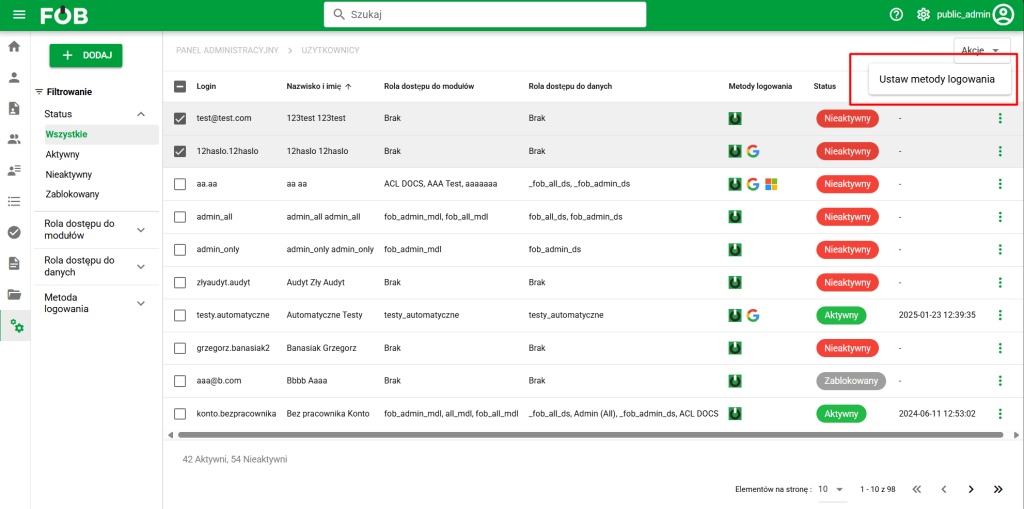
Bulk Set Login Methods Action
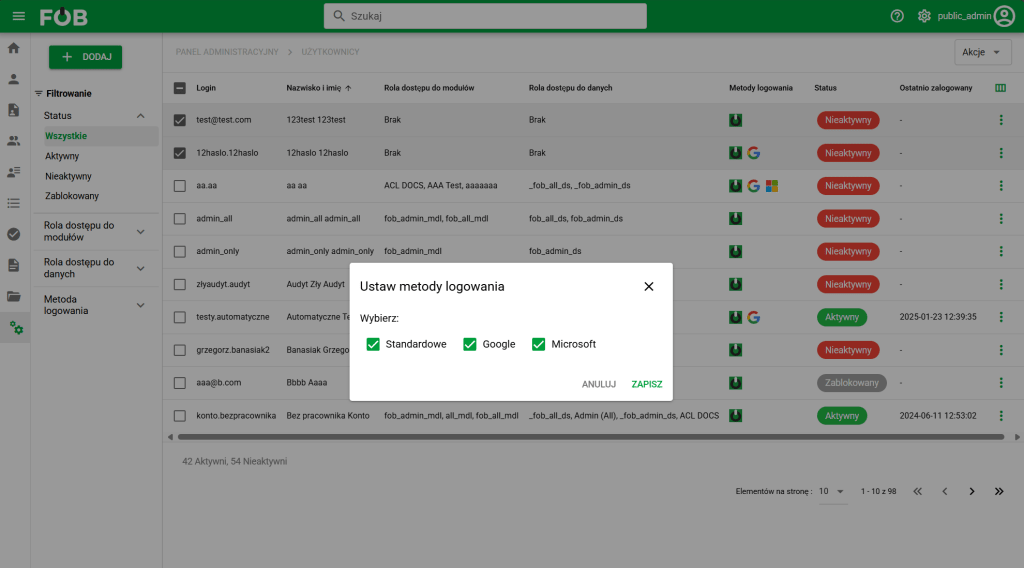
Login method settings window