Limitations of the document generator
Our system allows you to generate documents based on templates in the .docx format. Although this solution significantly improves everyday work, it is worth remembering certain limitations that may affect the final appearance of the documents. The purpose of this article is to highlight these limitations and provide recommendations to help avoid formatting errors.
Technical limitations of the generator
- File size
- Templates cannot exceed 1 MB - larger files are rejected
- Custom fonts
- Fonts outside the core system set may not be recognized and will be replaced with the default font, which will change the page layout
- Not fully compatible with Word
- The files are processed by a conversion engine based on LibreOffice, which means there is no perfect compatibility with .docx documents created in Microsoft Word, there may be minor deviations, described below.
Common problems with the appearance of generated documents
Too small margins vs. page layout
In some cases, the margins in the generated file differ from the original:
- the text goes beyond the page area,
- sections are moved,
- unnecessary page breaks appear
An example of setting the margin too small in Word.
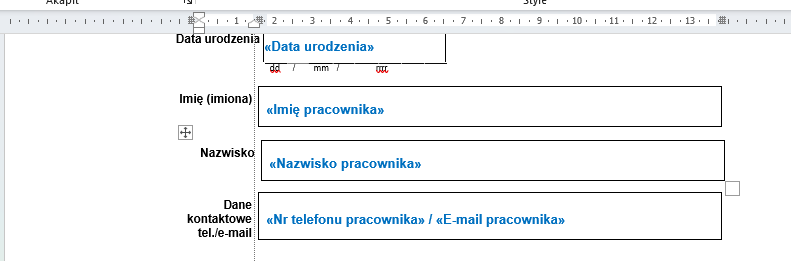
Too small margin (dashed vertical line) for "Last Name" text
Below we can see the effect after generating a document with too small a margin.
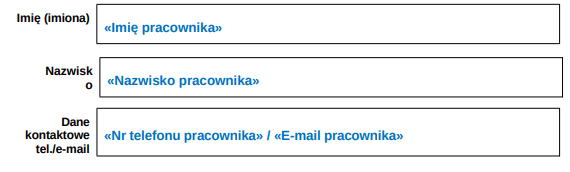
Moving the last letter to a new line due to too small a margin
Floating shapes and text boxes
The document generator does not fully support elements such as:
- hardly anchored shapes (e.g. "Before text", "Behind text"). Use shapes anchored “Inline” instead
- text boxes and WordArt objects,
- SmartArt and other complex graphic elements,
Such objects can:
- completely disappear,
- change position or size,
- cause text to shift
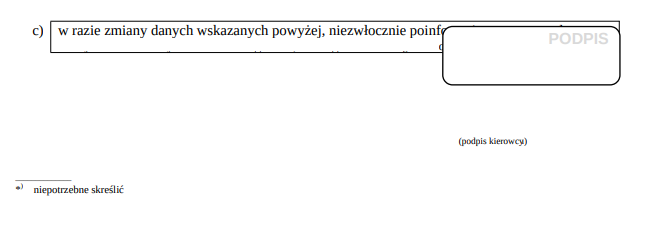
The shape with the text box has moved, covering the text
Recommendation: verify documents in LibreOffice
In order to ensure maximum compatibility with the document generator and avoid page layout errors, we recommend verifying templates in LibreOffice before using them.
Although documents can be prepared in Microsoft Word, for example, fields of the type MERGEFIELD inserted in Word are not editable when opened in LibreOffice. For this reason, we recommend that before implementing the template, make sure in LibreOffice that:
- all
MERGEFIELDfields are recognized correctly, - the layout and formatting of the document meet expectations,
- no unexpected text or formatting shifts occur.
LibreOffice uses the same rendering engine as our document generation system - so documents displayed correctly in this editor will look the same when generated.
Additional recommendations: how to prepare a template file?
To avoid formatting problems:- Use a simple layout – no frames, floating objects, anchors.
- Embed all graphic elements "Inline" (inline).
- Avoid nested tables, text fields, WordArts and SmartArts.
- Reduce file size – below 1 MB (remove unnecessary images, reduce graphics resolution).
- Save files in .docx format
- Use fonts commonly available in the system
Summary
The document generator is an effective tool, but like any solution, it has its limitations. Conscious template design helps you avoid disappointment and gain consistent, professional-looking documents.
If you have any doubts or need consultation, please contact us, we will be happy to help you optimize your templates.